

What This Automation Does ⚙️
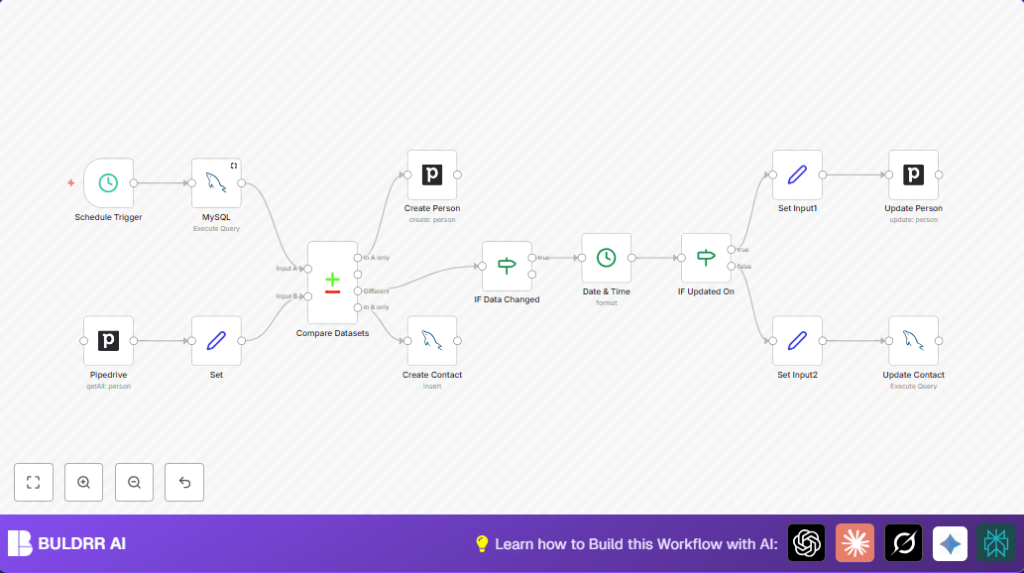
This workflow connects Pipedrive with a MySQL database to sync contact information both ways.
It solves the problem of having different contact data in both places.
When it runs, the contact info gets updated so both systems have the same details.
This stops errors and saves time on manual syncing.
Inputs, Processing, and Output
Inputs
- Contacts from MySQL: Fetches list of contact records including id, name, email, phone, and updated_on timestamp.
- Persons from Pipedrive: Retrieves all person records with name, email, phone, and last update time.
Processing Steps
- Compare contacts by email to find missing or updated entries.
- Create new contacts where missing on either side.
- Check if records need updating by comparing name and phone fields.
- Decide which record is newer using updated_on timestamps.
- Update the older record with the newer information.
- Scheduled trigger runs this process automatically on set intervals.
Output
- Identical and up-to-date contact data in both MySQL database and Pipedrive.
- New contacts created in missing systems.
- Older records updated with latest information.
Who Should Use This Workflow
Anyone who manages contacts in both Pipedrive and a MySQL database.
This helps teams avoid mistakes from out-of-sync contact info.
People who want to save hours of manual reconciliation.
Tools and Services Used
- n8n Automation Platform: Runs the workflow on schedule with nodes and logic.
- Pipedrive API: Accesses and modifies person data in CRM.
- MySQL Database: Stores contact info and allows queries and updates.
Beginner Step-By-Step: How to Use This Workflow in n8n
1. Import the Workflow
- Download the workflow file using the Download button on this page.
- Open your n8n editor where workflows are managed.
- Use the “Import from File” option in n8n to load the downloaded workflow.
2. Configure Credentials
- Add your MySQL database credentials with host, user, password, and database name.
- Add your Pipedrive API Key to access Pipedrive data.
- Update table names, field names, or other IDs if your database is set up differently.
3. Test the Workflow
- Manually run the workflow once to check for errors and confirm data synchronization.
- Check the output of MySQL and Pipedrive nodes to ensure data matches expectations.
4. Activate for Production
- Turn on the toggle to activate the workflow schedule.
- The workflow will now run at your set interval and keep contacts synced automatically.
- Watch executions in the n8n dashboard periodically for any issues.
- If self hosting n8n, see self-host n8n for helpful resources.
Common Issues and Solutions
- No contacts returned from MySQL node – Check SQL query syntax and database access credentials.
- Pipedrive API rate limits – Reduce how often the workflow runs or batch requests.
- Data not matching after sync – Confirm field mapping and email matching logic in compare node.
Customization Ideas
- Sync by phone number instead of email by changing the compare field in the dataset node.
- Add extra fields like company or address by mapping them in Set nodes and adding to inserts or updates.
- Change how often the workflow runs by adjusting the schedule trigger interval.
- Add notifications with error trigger nodes to get alerts when something fails.
Summary of Results
✓ Contact data is perfectly matched between Pipedrive and MySQL.
✓ Newly added contacts automatically appear in both systems.
✓ Updates to name or phone sync both ways based on newest change.
✓ Saves manual work and reduces mistakes.
✓ Runs on schedule without needing human help.
