

What This Automation Does
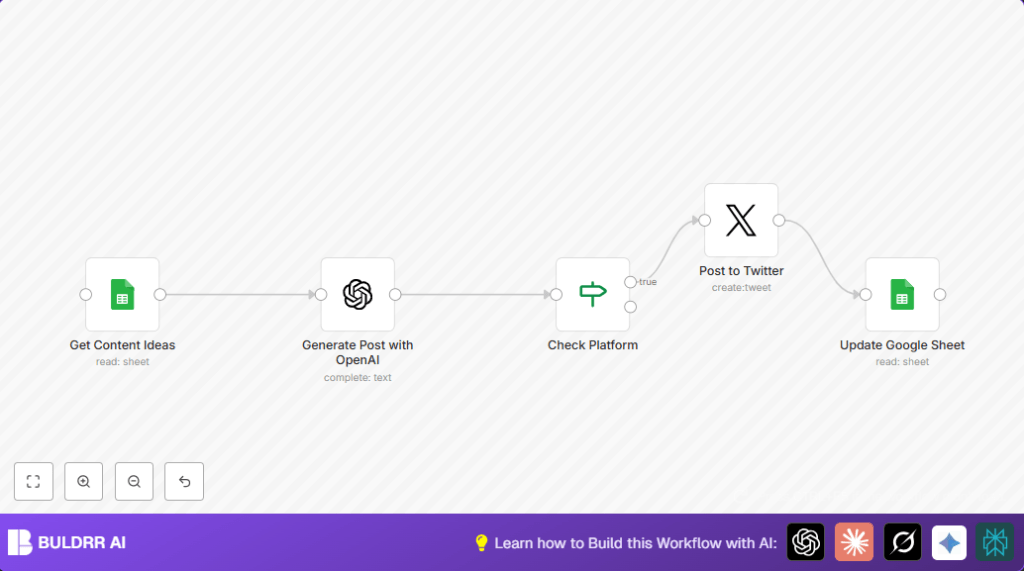
This workflow takes content ideas from a Google Sheet and turns them into real social media posts automatically.
It then checks which platform to post on and sends the posts to Twitter.
Finally, it records what was posted back into the Google Sheet.
This saves time by removing manual writing, posting, and tracking.
The main problem solved is stopping missed posts and manual work causing delays and errors.
The result is consistent, automated, platform-tailored social media updates without extra effort.
Inputs, Processing Steps, and Outputs
Inputs
- Google Sheets: A sheet with columns named Platform and Idea, holding post concepts.
- OpenAI GPT-4: Used to create engaging posts from ideas.
- Twitter API: Twitter account credentials to post tweets.
Processing Steps
- Google Sheets node fetches content ideas.
- OpenAI node generates social media posts using GPT-4 and platform-specific prompts.
- If node checks if the platform is Twitter.
- Twitter node posts the generated content to the Twitter account.
- Google Sheets node appends posted content and timestamp back to the sheet.
Outputs
- Automated tweets published to Twitter.
- Content logging in the Google Sheet with post text and post time.
Beginner Step-by-Step: How to Use This Workflow in n8n
Import the Workflow
- Download the workflow file using the Download button on this page.
- Go to the n8n editor where you want to use the workflow.
- Click the menu and select “Import from File”.
- Choose the downloaded workflow file to load it into n8n.
Set Up Credentials and IDs
- Add Google Sheets OAuth2 credentials in n8n.
- Add OpenAI API Key for GPT-4 access.
- Add Twitter OAuth1 credentials to allow posting.
- Update the Google Sheet ID in the Get Content Ideas node to your sheet’s ID.
Set or Confirm Prompts and Ranges
- Make sure the OpenAI prompt matches this code for best results:
Create a social media post for {{$node["Get Content Ideas"].json["Platform"]}} based on this idea: {{$node["Get Content Ideas"].json["Idea"]}}. Keep it engaging and concise. - Confirm the range in Google Sheets nodes covers columns correctly (e.g., Sheet1!A:C for ideas and Sheet1!D:F for logs).
Test the Workflow
- Run the workflow manually once in n8n.
- Check your Twitter account to see if the post appears.
- Check Google Sheets for new logged entries.
Activate for Production
- Turn on the workflow using the toggle in n8n.
- Set a schedule trigger to run the workflow periodically.
- Monitor execution logs to catch any problems early.
Now the automation runs by itself, saving time and keeping social media posts regular.
For users on self-host n8n, see self-host n8n for help.
Tools and Services Used
- Google Sheets: Stores post ideas and logs published posts.
- OpenAI GPT-4: Generates social media posts from ideas.
- Twitter API: Posts tweets using user credentials.
- n8n: Orchestrates the automation workflow.
Customization Ideas
- Add more platforms by updating the Check Platform node with new conditions and connecting to other posting nodes.
- Change the OpenAI prompt text to get different post tones or languages.
- Log extra data such as approval status or engagement stats in the Google Sheet.
Troubleshooting Common Issues
No data fetched from Google Sheets
Cause: Using wrong sheet ID or range.
Fix: Double-check sheet ID and range in the Get Content Ideas node.
Ensure OAuth credentials can access the sheet.
Twitter node fails to post
Cause: Invalid or expired Twitter OAuth credentials.
Fix: Re-authenticate Twitter account in n8n credentials.
Test Twitter connection before running the workflow.
Pre-Production Checklist
- Check Google Sheet columns are named exactly Platform and Idea.
- Confirm OpenAI API key is active and GPT-4 model enabled.
- Test Twitter OAuth credentials with manual post in n8n.
- Run test workflow with sample ideas and verify posts appear.
- Back up Google Sheet data before activating the workflow.
Deployment Guide
Turn on the workflow toggle in n8n to activate.
Use n8n’s scheduler trigger to run this workflow regularly (hourly or daily).
Check logs often to find and fix errors quickly.
Adjust running frequency based on how many ideas are added.
Summary
✓ Saves hours by automating content creation and posting.
✓ Ensures posts are made on time without manual work.
✓ Keeps track of published posts in Google Sheets.
→ The workflow handles input ideas, generates posts with GPT-4, posts to Twitter, and logs results.
→ Users get consistent, active social media presence without extra effort.
