

1. What this workflow does
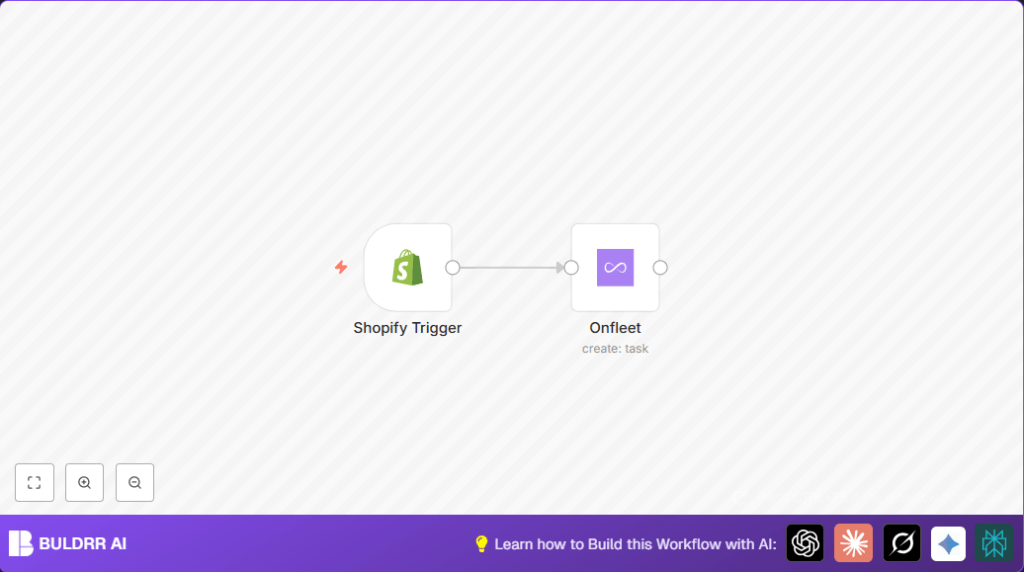
This workflow watches for new fulfillments in Shopify.
When a fulfillment is made, it creates a matching delivery task in Onfleet instantly.
This stops manual copying of order details and cuts errors.
You save time and get deliveries out faster, making customers happy.
2. Who should use this workflow
This is helpful for online store managers with Shopify and Onfleet accounts.
It suits busy sellers who want automation for shipping and delivery tasks.
3. Tools and services needed
- n8n: To run the workflow automation.
- Shopify: Store platform that sends fulfillment events.
- Onfleet: Delivery management platform to create tasks.
- Shopify API access: For receiving event data.
- Onfleet API key: For creating delivery tasks securely.
4. Beginner step-by-step: How to use this workflow in n8n
Importing the workflow
- Click the Download button on this page to get the workflow file.
- Inside your n8n editor, choose Import from File in the main menu.
- Select the downloaded file to load the workflow onto the canvas.
Setting up credentials
- Open the Shopify trigger node and enter your Shopify API credentials.
- Open the Onfleet node and add your Onfleet API key in credentials.
- Adjust any IDs, email addresses, or shipping information fields if required.
Testing and activating
- Run a test by fulfilling a product in Shopify and watch if a task is made in Onfleet.
- If the test works, toggle the workflow’s active switch to on for production.
- Monitor executions in n8n for any errors or alerts.
Optionally use self-host n8n if more control is needed.
5. How this workflow works
Inputs
The workflow waits for a fulfillment creation event from Shopify.
Processing steps
- First node Shopify Trigger listens for new fulfillments.
- Data about the order and shipping address is passed to the next node.
- Onfleet node receives details and creates a delivery task with mapped fields.
Output
A new delivery task is made in Onfleet matching the Shopify fulfillment details.
6. Common issues and fixes
No tasks created after Shopify fulfillments
Cause: The Shopify webhook is not set correctly.
Fix: Check Shopify admin webhooks and make sure the fulfillment/create event sends data to n8n.
Onfleet node gives errors
Cause: API Key wrong or task fields missing or incorrect.
Fix: Verify the Onfleet API Key and double-check all mapped fields to match Onfleet API requirements.
7. Customization ideas
- Add delivery time windows from Shopify to Onfleet tasks for better scheduling.
- Include special customer instructions from Shopify into Onfleet task notes.
- Use a conditional node in n8n to only create Onfleet tasks for certain shipping regions or zip codes.
8. Pre-production checklist
- Confirm Shopify webhook is active and triggers exist for fulfillments.
- Make sure Onfleet API Key has rights to create delivery tasks.
- Test with several Shopify fulfillments to check reliability.
- Export and back up the workflow before going live.
9. Deployment tips
Turn on the workflow inside n8n editor to start listening for Shopify fulfillment events.
Keep an eye on workflow runs to catch any failure early on.
Set error notifications in n8n if available, to get alerts automatically.
10. Summary
✓ Save time by automating delivery task creation from Shopify fulfillments.
✓ Avoid mistakes caused by manual data copying.
✓ Deliver products faster, improving customer satisfaction.
✓ Simple setup with two main nodes: Shopify Trigger and Onfleet create task.
✓ Workflow runs automatically watching for each new fulfillment.
