

What This Workflow Does
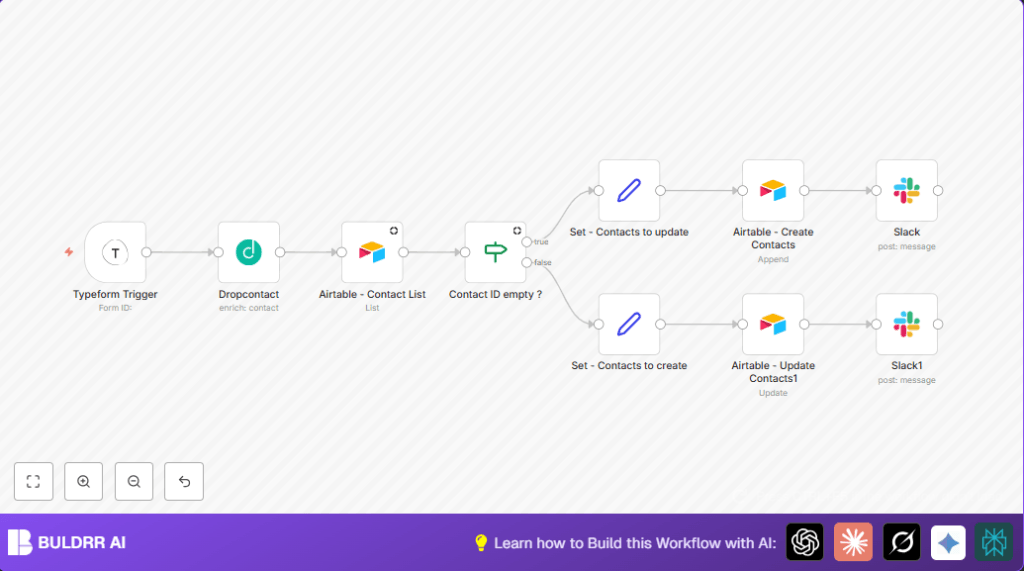
This workflow connects your Typeform lead submissions with Airtable contacts automatically.
It enriches the leads’ data using Dropcontact, checks if the contact already exists in Airtable, updates or creates records accordingly, and sends Slack notifications.
This saves time, cuts down errors, and keeps your sales team informed fast.
Tools and Services Used
- Typeform: Collects lead data from online forms.
- Dropcontact API: Verifies and adds missing contact info like LinkedIn and phone numbers.
- Airtable: Stores and manages contact data.
- Slack: Sends instant notifications to teams.
- n8n: Automates the workflow steps and API calls.
Input, Process, and Output
Inputs
- New lead submission data from Typeform, including name and email.
- Dropcontact API key for data enrichment.
- Airtable base and table named “Contacts”.
- Slack workspace and channel information for notifications.
Processing Steps
- Detect a new Typeform submission via the Typeform Trigger node.
- Send lead email and details to Dropcontact API for enrichment.
- Query Airtable to check if the contact already exists by matching full name.
- Use an If node to decide if the contact is new or existing.
- Prepare contact data with Set nodes for update or create operations.
- Update contact in Airtable if exists, or create a new contact if not.
- Send a Slack notification for new or updated contacts to alert the team.
Outputs
- New or updated contact records in Airtable.
- Slack messages indicating new or updated leads.
Beginner Step-by-Step: How to Use This Workflow in n8n
Import the Workflow
- Download the workflow file using the Download button on this page.
- In the n8n editor, click the menu and choose Import from File.
- Select the downloaded workflow file to load it.
Configure Credentials
- Add your Typeform API key under the Typeform Trigger node credentials.
- Enter your Dropcontact API key in the corresponding node.
- Provide your Airtable API key and confirm the base and table names, updating “Contacts” if needed.
- Set up Slack API credentials and define the channel IDs where notifications will appear.
Update Dynamic IDs and Fields
- Check the Typeform Trigger node for the correct
formId. - Review the Airtable filter formula matching full names to ensure it works with your data.
- Adjust Slack channel names if notification targets differ.
Test and Activate
- Run the workflow manually with sample lead data to see if it flows correctly.
- Fix any errors shown in execution logs.
- When all tests pass, activate the workflow to start automatic lead management.
- Monitor workflow runs regularly for errors or missed triggers.
If using self-host n8n, consider checking self-host n8n for helpful hosting resources.
Customizations
- Change the Typeform by updating the
formIdin the Typeform Trigger node. - Modify Slack notification channels in the Slack nodes to reach different teams.
- Add new fields to the Airtable “Contacts” table and update the Set nodes to include those fields.
- Adjust parameters in the Dropcontact node for language preferences or additional company details.
- Edit Slack messages to include dynamic lead info or change the tone of notifications.
Troubleshooting
- Issue: No matching Airtable records found when searching leads.
- Cause: The filter formula may have wrong field names or value mismatches.
- Fix: Check formula syntax carefully and use n8n Expression Editor to match the correct field.
- Issue: Slack notifications do not show in the right channels.
- Cause: Slack API credentials might not be authorized or channel ID is wrong.
- Fix: Reauthorize the Slack credentials and verify the channel ID matches your Slack workspace.
Pre-Production Checklist
- Make sure Typeform API credentials and form IDs are correct and active.
- Test Dropcontact API key with sample inputs to confirm data enrichment works.
- Validate Airtable’s filter formula finds existing contacts properly.
- Send test messages from Slack nodes to check notification setup.
- Run end-to-end workflow tests with sample data to find and fix errors.
Deployment Guide
Enable the workflow in n8n after testing.
Use n8n logs to watch for failures or missed runs.
Set up alerting for workflow stoppage to avoid missing new leads.
Summary
✓ Automates lead capture from Typeform to Airtable with data enrichment.
✓ Prevents duplicated contacts by checking existing Airtable records.
✓ Sends Slack alerts for new or updated leads to notify the sales team.
✓ Saves hours of manual data entry and reduces errors.
→ Helps users manage leads better and faster using n8n automation.
