
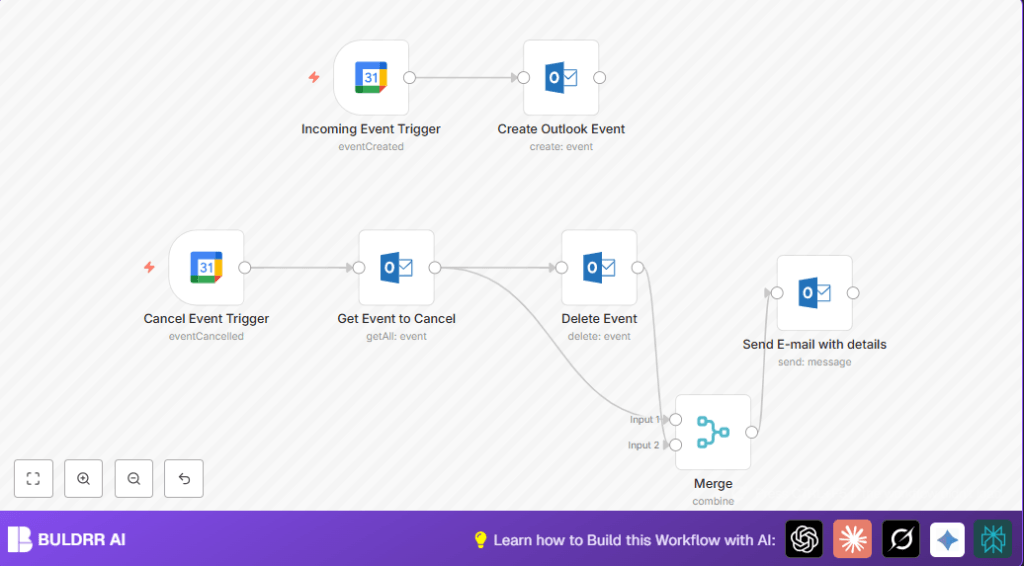

What This Automation Does
This workflow watches Google Calendar for new or cancelled events.
When a new event happens, it copies it to Microsoft Outlook.
If an event is cancelled in Google Calendar, it finds and deletes the same event in Outlook.
After deletion, it sends an email to inform about the cancellation.
This makes sure calendars stay up to date and saves time from manual updates.
Tools and Services Used
- Google Calendar API: Provides event data and notifications.
- Microsoft Outlook API: Creates, lists, and deletes calendar events, sends emails.
- n8n Automation Platform: Connects and automates these services.
Inputs, Processing, and Outputs
Inputs
- Event creation and cancellation triggers from Google Calendar.
- OAuth2 credentials for Google and Microsoft Outlook.
Processing Steps
- Trigger listens for new or cancelled events in Google Calendar.
- For new events, the workflow collects event details and formats them to create matching Outlook events.
- For cancelled events, it searches Outlook events matching the Google event summary.
- If a matching Outlook event is found, it deletes that event.
- After deletion, it sends an email notification about the cancellation.
- Merge node combines creation and deletion paths to manage workflow timing.
Outputs
- Google events copied to Outlook calendar with unique subject prefix.
- Cancelled Google events removed from Outlook.
- Email notifications sent on event cancellations.
Beginner Step-by-Step: How to Use This Workflow in n8n
Importing the Workflow
- Click the Download button on this page to save the workflow file.
- In the n8n editor, choose Import from File and select the saved workflow.
Configuring the Workflow
- Add your Google and Microsoft OAuth2 credentials in n8n’s credentials manager.
- Open the nodes and update any calendar IDs, email addresses, or event prefixes if needed.
Testing and Activation
- Run the workflow manually to check if it works with test events.
- If the test is successful, toggle the workflow switch to activate it for live use.
If running on your own server, consider self-host n8n for secure, reliable automation.
Step-by-Step Guide to Build the Workflow
Step 1: Set Up Google Calendar Event Creation Trigger
Use a Google Calendar Trigger node and set it to “eventCreated” with a one-minute interval.
Select the calendar to watch and enter your Google OAuth2 credentials.
This listens every minute for new events on Google Calendar.
Step 2: Configure Microsoft Outlook Event Creation Node
Add a Microsoft Outlook node, choose resource “event” and operation “create”.
Map the start and end dates using expressions like {{$json.start.dateTime || $json.start.date}}.
Add a unique prefix in the subject, e.g., {{ "From private: " + $json.summary }}.
Include description and event link.
Use Outlook OAuth2 credentials.
Step 3: Set Up Google Calendar Event Cancellation Trigger
Add another Google Calendar Trigger node with trigger set to “eventCancelled”.
This watches for cancelled events.
Use correct Google OAuth2 credentials.
Step 4: Search for Corresponding Outlook Event to Cancel
Add a Microsoft Outlook node to “get” events.
Use a filter like =contains(subject, '{{ $json.summary }}') to find matching events.
Step 5: Delete the Matching Outlook Event
Add a Microsoft Outlook node set to “delete” using the event ID from previous node.
Check that Outlook calendar ID is correct.
Step 6: Merge the Delete and Create Event Paths
Add a Merge node in combine mode to join the two paths.
This keeps actions in order and helps in sending notifications after deletions.
Step 7: Send Cancellation Notification Email
Add a Microsoft Outlook node to send email.
Set subject using {{ $json.subject + " Cancelled" }}.
Add message body with HTML, e.g., <h1>Event cancelled via Google Calendar</h1>.
Send to a preferred address.
Customizations ✏️
- Change the subject prefix in the Create Outlook Event node to your preferred label.
- Add reminders or notifications using Outlook node additionalFields.
- Include attendees by adding participant data from Google Calendar.
- Edit the cancellation email subject or body to add event-specific details like time or location.
Troubleshooting 🔧
Problem: No matching event found for deletion.
Cause: The filter query doesn’t match Outlook event subjects or the event was never created in Outlook.
Solution: Double-check filter syntax and check Outlook calendar manually.
Problem: OAuth2 authentication errors.
Cause: Credentials expired or misconfigured.
Solution: Re-authenticate Google and Outlook OAuth2 credentials in n8n.
Pre-Production Checklist ✅
- Confirm Google OAuth2 credentials with expiration and read access.
- Confirm Microsoft Outlook OAuth2 credentials have create and delete permissions.
- Create and cancel test events on Google Calendar to verify triggers.
- Verify Outlook calendar IDs and access rights.
- Test workflow with manual runs in n8n editor.
Deployment Guide
Turn the workflow on by switching its status to active.
Check workflow logs in the n8n editor dashboard for errors or confirmations.
If self-hosting, manage OAuth token refresh and consider self-host n8n options.
Summary
✓ Saves hours of repeating manual Google to Outlook calendar updates.
✓ Automatically copies and cancels events between Google Calendar and Outlook.
✓ Sends email notifications to keep you informed on cancelled events.
✓ Reduces scheduling errors and keeps personal and work calendars in sync.
→ Outcome: Organized schedules with less stress and more free time.
