
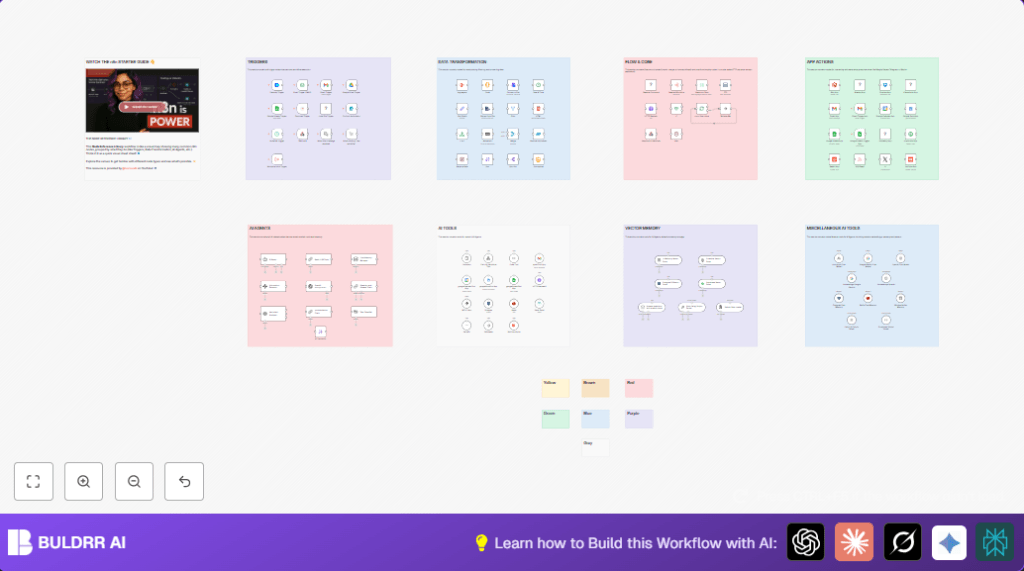

What This Automation Does
This n8n workflow connects many AI tools and apps in one place.
It helps people handle tasks like sentiment checks, answering questions, and summarizing texts.
The main problem it solves is making all these AI processes work smoothly without breaking.
When run, the workflow gives AI-generated answers, summaries, or scores, combined with data from Gmail, Google Sheets, and more.
The workflow uses special AI nodes from LangChain and links them to services like dropbox or vector stores.
It takes inputs, runs AI models, uses memory to keep track, and sends results back to apps or sheets.
Tools and Services Used
- n8n with LangChain Nodes: AI processing and chaining.
- OpenAI API: Provides GPT models for AI responses.
- Google Apps: Gmail, Google Sheets, Google Calendar, Google Drive for data handling.
- Dropbox: Optional file storage and reading.
- Bitly: Optional URL shortener.
- Vector Stores: Pinecone, Supabase, Postgres PGVector for AI memory retrieval.
Beginner step-by-step: How to use this workflow in n8n
Import Workflow
- Download the workflow JSON file using the Download button on this page.
- Open the n8n editor and select Import from File.
- Choose the downloaded workflow file to load it in your editor.
Give Credentials and Update Settings
- Add API Keys and credentials for OpenAI, Google Apps, Dropbox, and vector stores.
- Change document IDs, Google Sheet names, email addresses, or folder paths if needed.
- Copy and paste any necessary prompt text or code found in the workflow inputs.
Test the Workflow
- Run the workflow once manually using the Manual Trigger.
- Check outputs and logs to make sure AI responds correctly.
Activate for Production
- Enable trigger nodes like Gmail Trigger node or Webhook node.
- Save and activate the workflow for ongoing use.
- Consider using self-host n8n for better control and scaling.
Workflow Inputs, Processing Steps, and Outputs
Inputs
- New email events from Gmail with relevant labels or filters.
- Text inputs from webhook or manual triggers.
- Documents or files from Google Drive or Dropbox.
Processing Steps
- Send text prompts to AI nodes like OpenAI node or AI Agent node.
- Use vector store nodes to save and find AI memory embeddings.
- Parse AI responses with output parsers for better formatting.
- Use flow control nodes (loops, filters) to manage which data passes through.
Outputs
- AI-generated answers, summaries, or sentiment scores.
- Appended data entries in Google Sheets.
- File updates in Dropbox or Google Drive.
- Email notifications or calendar entries based on AI analysis.
Common Issues and How to Fix Them
- OpenAI node returns no output: Check API Key and model ID are correct.
- Workflow triggers don’t run: Verify polling settings and webhook URLs.
- Vector store data missing: Confirm API keys and table names.
- Google Sheets data not saved: Validate document and sheet names and OAuth permissions.
Customization Ideas
- Switch between AI models like GPT-3.5, GPT-4, or Google Gemini by changing model IDs.
- Add new vector storage systems to increase memory or data scope.
- Modify Gmail trigger filters to select emails from specific senders.
- Change output parser settings to match desired formats.
- Include new apps like Slack or Twilio to send messages automatically.
Summary of Benefits
✓ Saves time by combining many AI tools in one workflow.
✓ Reduces mistakes by organizing AI, apps, and memory clearly.
✓ Works with many popular apps and data sources.
✓ Makes AI-driven tasks like answering questions or scoring sentiment easier.
✓ Lets the user focus on tasks, not on complex setup.
