 Schedule a Call

You’ve probably heard people talk about “AI agents.” Maybe you saw a video of one browsing the web, answering emails, or handling customer questions on its own. And you thought: that sounds amazing. But how do I actually build one?
Here’s the good news. You don’t need to write a single line of code. With n8n, you can build a working AI agent in about 30 minutes, using a simple drag-and-drop interface. In this guide, you’ll learn exactly what an n8n AI agent is, how it’s different from a regular chatbot, and how to build your first one step by step.
What You’ll Learn
- What the n8n AI Agent node is and why it’s different from a basic AI node
- How to build your first AI agent in n8n, step by step
- Which tools to give your agent and how they work
- How to add memory so your agent remembers conversations
- A real-world example you can copy right now
What Is an n8n AI Agent? (And Why It’s Not Just a Chatbot)
An n8n AI agent is a workflow where an AI model decides what actions to take, on its own, to complete a task. Think of the difference between a vending machine and a personal assistant. A vending machine gives you a specific item when you press a specific button. No thinking. No surprises. But a personal assistant? You say “book me a cheap flight to London this weekend.” They check Google Flights, compare airline sites, pick the best option, and report back. They decided what to do. You just gave them the goal.
That’s exactly how the n8n AI Agent node works. You give it a task and a list of tools. The AI model decides which tools to use, in what order, and when the job is done. This is very different from n8n’s Basic LLM Chain node. The LLM Chain is simple: one prompt in, one answer out. No tools, no decision-making. Perfect for “summarize this email” or “translate this text.” Use the AI Agent node when the task needs multiple steps, lookups, or decisions.
As of 2026, the n8n AI Agent node supports all major models: OpenAI GPT-4o, Anthropic Claude, Google Gemini, and even free local models via Ollama. You choose the one that fits your budget.
What You Need Before You Start
You need three things to build your first n8n AI agent. First, an n8n account. You can use n8n Cloud (free trial available) or self-host n8n on a VPS (a small online server) for about $5-8 per month. If you’re brand new to n8n, start with the BULDRR AI complete n8n beginner guide first. It covers the basics you’ll need here.
Second, an AI model API key. The easiest starting point is OpenAI. Visit platform.openai.com, create an account, and get your key. You can also use Anthropic (for Claude) or run a local model with Ollama for free. Third, about 30 minutes. That’s the whole list.
How to Build Your First n8n AI Agent (Step by Step)
We’re going to build a simple research agent. You type a question, it searches for information, and gives you a structured answer. Here’s how.
Step 1: Create a New Workflow
Open n8n. Click the “+” button to create a new workflow. Name it “My First AI Agent.” You’ll see a blank canvas. That’s where everything goes.
Done when: you have a new, empty workflow open.
Tip: Press Ctrl+S (or Cmd+S on Mac) at any point to save your work.
Step 2: Add a Chat Trigger Node
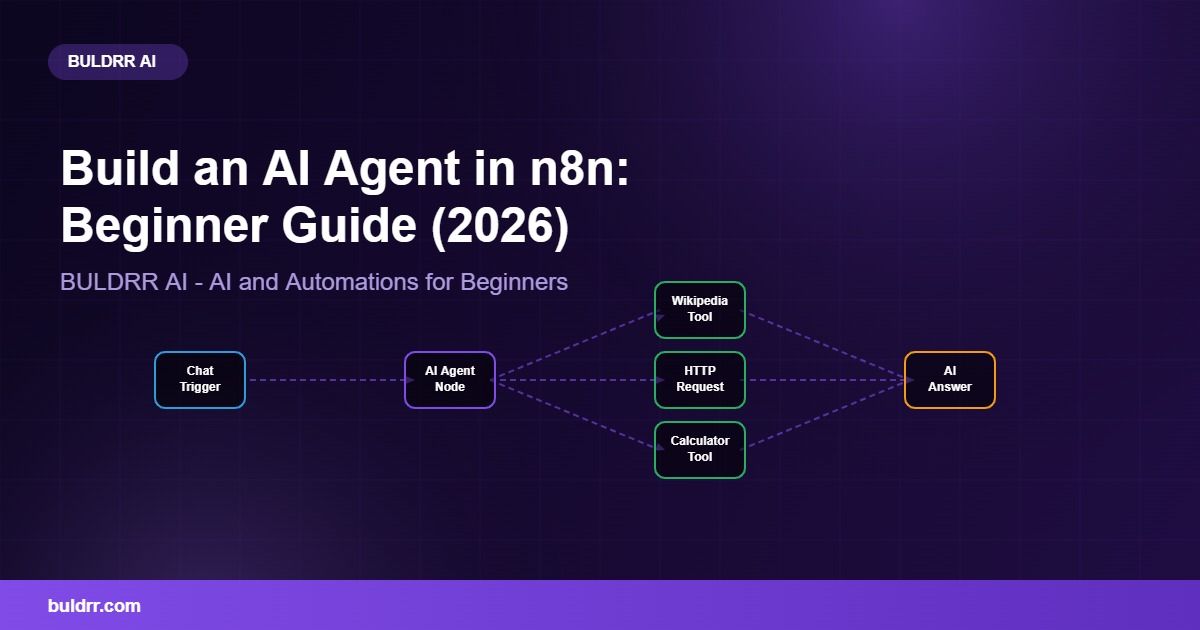
The Chat Trigger is your agent’s front door, the place where messages come in. Click the “+” on your canvas. Search for “Chat Trigger.” Click it to add it. This creates a simple chat interface you can use right inside n8n for testing.
Done when: you see the Chat Trigger node on your canvas.
Step 3: Add the AI Agent Node
Click the “+” connector coming out of the Chat Trigger. Search for “AI Agent.” Select it and add it to your canvas. This is the brain of your workflow. It looks a bit empty right now. That’s normal. You’ll connect everything to it in the next steps. The AI Agent node has three connection points at the bottom: one for the AI model, one for memory, and one for tools.
Done when: the AI Agent node is connected to your Chat Trigger.
Tip: Think of those three slots like a team. The model is the thinker. The tools are the helpers. Memory is the notebook that remembers what happened before.
Step 4: Connect an AI Model
Click the bottom-left connection point on the AI Agent node. This is the “Chat Model” slot. Search for “OpenAI” (or “Anthropic” for Claude). You’ll be asked to add a credential. Paste your API key and save. Then choose your model. For beginners, “gpt-4o-mini” is a great starting choice. It’s fast and affordable.
Done when: you see an AI model node connected to the bottom-left of your AI Agent.
Step 5: Give Your Agent a Tool
Okay so this is where things get interesting. Tools are what make an AI agent actually useful. Without tools, it can only use what it already knows. With tools, it can search the web, read files, call APIs, and much more. Click the bottom-right connection point on the AI Agent node (the “Tool” slot). Search for “Wikipedia.” Select it. Done. Your agent can now search Wikipedia to answer questions. No API key needed, totally free.
Done when: the Wikipedia tool is connected to the bottom-right of your AI Agent.
Tip: You can connect multiple tools to one agent. The AI decides which one to use based on the question. Like giving your assistant a stack of reference books. They pick the right one.
Step 6: Add a System Message
The System Message tells your agent who it is and what its job is. Click on the AI Agent node and find the “System Message” field. Add something like this: “You are a helpful research assistant. When someone asks you a question, search for accurate information and give a clear, organized answer. Mention where you found the information.” This sets the tone and rules for your agent.
Done when: you’ve typed a system message into the AI Agent node settings.
Step 7: Test Your Agent
Click the “Chat” button in the top-right corner of n8n. A chat window opens. Type a question: “What is n8n and what year was it founded?” Watch what happens. The agent thinks, checks Wikipedia, reads the results, and writes back to you. The whole process takes about 5-15 seconds.
Done when: your agent answers the question in the chat window.
Tip: Click on the AI Agent node after testing to see each step it took. Which tools it called, what it found, and how it put the answer together. This is great for understanding and debugging.
Before and After: What an AI Agent Actually Changes
Here’s a real example of what this shift looks like in practice.
Before: A customer emails a question. You manually Google the answer. You write a reply. You send it. Each email takes 5-10 minutes. With 20 emails a day, that’s almost 2 hours gone every single day, just answering questions.
After: Your n8n AI agent receives the email automatically. It searches your knowledge base, finds the right answer, drafts a reply, and sends it, all in under 30 seconds. You only step in for complex cases that need your personal judgment.
At BULDRR AI, we’ve tested this exact kind of setup with small business clients. One team went from spending over 3 hours a day on email replies to less than 20 minutes. Same volume, same quality, a fraction of the time.
How to Add Memory (So Your Agent Remembers the Conversation)
By default, your n8n AI agent forgets everything between messages. Every question is treated as if it’s the first. For a one-off research tool, that’s fine. For a customer support bot or personal assistant, it’s frustrating. Imagine calling customer service and having to re-explain your problem every single time. That’s what it feels like without memory.
Adding memory is simple. Click the middle connection point at the bottom of the AI Agent node. Search for “Window Buffer Memory.” Connect it. That’s it. Now your agent remembers the last several messages in the conversation. Test it: type “My name is Alex,” then ask “What’s my name?” Your agent should remember.
By the way, the Window Buffer Memory is temporary. It clears when n8n restarts. For a more permanent setup that remembers across restarts and different sessions, use “Postgres Chat Memory.” That stores conversations in a database. Perfect for production chatbots.
Common Questions About n8n AI Agents
What tools should I give my first AI agent?
Start with tools that need no API key. Wikipedia is free and great for general knowledge questions. The Calculator tool handles math with no setup at all. The HTTP Request tool lets your agent fetch data from any website or API. It’s the most flexible one and also free. Once you’re comfortable, add SerpAPI or Tavily for real web search results (both have free tiers).
Can my AI agent make mistakes?
Honestly, yes. AI agents are impressive but not perfect. They sometimes pick the wrong tool, misread a question, or give an incomplete answer. This is why starting with low-stakes tasks is smart. Research and summarizing are safe first use cases. Only give your agent the ability to send emails or make changes to your data after you’ve tested it thoroughly with lots of different inputs.
How much does it cost to run an n8n AI agent?
With GPT-4o-mini from OpenAI, a typical research query costs about $0.001 to $0.005. Running 1,000 queries per month costs roughly $1-5 in API fees. If you self-host n8n on a VPS hosting plan, your total monthly cost is usually $5-15 for most small teams. That’s very affordable compared to hiring someone to handle the same tasks manually.
What’s the difference between an AI agent and a regular automation?
A regular n8n workflow is like a recipe. Step 1: do this. Step 2: do that. It always follows the same path. An AI agent is more like a chef who improvises. They look at what ingredients are available and decide how to combine them to get the result you want. Agents make decisions. Regular automations follow instructions.
It’s Okay If This Feels Like a Lot Right Now
If you read this and still feel overwhelmed, that’s completely normal. Building your first AI agent is like learning to drive. There are a lot of things to look at all at once. But once you get moving, everything clicks.
Most people get their first simple agent working in under 30 minutes. Not a perfect one. Not a production-ready one. Just a working one. And that’s all you need to start. You’ll learn the rest by doing. The important thing is to start with one small, low-risk task and see what your agent can do. Everything after that is just practice.
According to the official n8n AI documentation, the AI Agent node is designed specifically for beginners who want to add intelligence to their workflows without coding. The platform supports over 400 integrations, so as you grow, you’ll always have new things to connect.
Quick Recap
- The n8n AI Agent node lets an AI model decide what actions to take on its own
- You connect a Chat Trigger, an AI model, and at least one tool to get started
- Tools like Wikipedia, Calculator, and HTTP Request are free and need no extra accounts
- Memory nodes let your agent remember what was said earlier in a conversation
- No coding is required. It’s all visual inside n8n’s drag-and-drop editor
What to Do Next
Open n8n right now and add your first Chat Trigger node. Just that one step. You’ll see how easy the first part is, and the rest follows naturally from there.
Frequently Asked Questions
- What is an n8n AI agent?
- An n8n AI agent is a workflow where an AI model decides which tools to use and what steps to take to complete a task. Unlike basic automations, it thinks through the problem and takes multiple actions on its own. No coding is needed to build one.
- How is the AI Agent node different from the Basic LLM Chain node?
- The Basic LLM Chain sends one prompt to an AI and returns one response. The AI Agent node gives the AI tools and a goal. The AI then plans and takes multiple steps, searching, deciding, looping, until the task is done. Use LLM Chain for simple tasks, AI Agent for complex ones.
- Can I use Claude with the n8n AI Agent node?
- Yes. In the AI Agent node, connect an Anthropic Chat Model node using your Anthropic API key. Claude 3.5 Sonnet is a great choice for most tasks. Claude 3.5 Haiku is faster and cheaper for simpler, high-volume workflows. Both work perfectly with the n8n AI Agent node.
- What tools can I give my n8n AI agent?
- Built-in tools include Wikipedia, Calculator, SerpAPI, Brave Search, Tavily, HTTP Request, and Vector Store retrieval. The HTTP Request tool is the most flexible. It connects your agent to any API, website, or internal system. Most tools are free to use or have free tiers available.
- Do I need to self-host n8n to build AI agents?
- No. n8n Cloud works fine for building and testing AI agents, with a free trial available. Self-hosting on a VPS is cheaper long-term and keeps your data on your own server. Either option gives you full access to the AI Agent node and all its features.
- How do I stop my n8n AI agent from running too many steps?
- In the AI Agent node settings, set the “Max Iterations” value. The default is 10. For simple classification tasks, set it to 3-5. For research tasks, 10-15 is usually right. When the agent hits this limit, it stops and returns whatever answer it has at that point.
Each button opens the assistant with the prompt already written, asking it to teach this article step by step, in simple words.
 ChatGPT
 Claude
 Grok
 Perplexity
 Add as a preferred source