

Opening Problem Statement
Meet Sarah, a mobile app developer working with FlutterFlow to build a client management app. She frequently struggles with integrating dynamic data from her backend into FlutterFlow, particularly when dealing with custom APIs. Manually fetching, formatting, and responding to data results in hours lost each week, and the constant switching between tools introduces errors in her API responses. For Sarah, this means delayed project deliveries, frustrated clients, and unnecessary complexity in what should be a streamlined development process.
She needs a solution that simplifies how her FlutterFlow app communicates with a backend, eliminating the tedious data transformation and manual response crafting while ensuring the data returned matches FlutterFlow’s expected format. This is exactly the problem that the n8n workflow we explore solves.
What This Automation Does
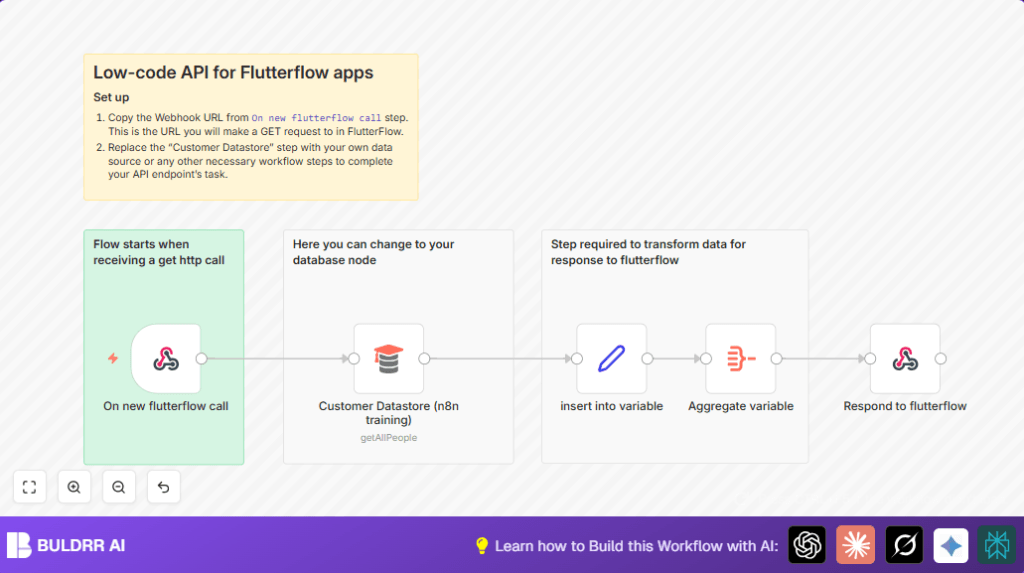
This n8n workflow automates the creation of a lightweight API endpoint tailored for FlutterFlow apps. Here’s what happens when it runs:
- Listens for an HTTP GET request from a FlutterFlow app through a webhook node.
- Fetches customer data from a customizable data source (represented here by n8n’s training customer datastore).
- Transforms and stores this retrieved data into a workflow variable for structured handling.
- Aggregates the data to prepare it for consistent, FlutterFlow-friendly output.
- Responds to the FlutterFlow app with the aggregated data as a JSON response.
- Enables easy customization by replacing the data source with any backend or database, making it flexible for diverse apps.
By automating this entire flow, Sarah can save several hours per week and reduce errors caused by manual formatting, enabling faster FlutterFlow API integration and smoother app development.
Prerequisites ⚙️
- n8n Workflow Automation Platform account (cloud or self-hosted)
- FlutterFlow app ready to connect to external APIs via HTTP GET requests
- Access to a data source to fetch customer or relevant data (can start with n8n Training Customer Datastore)
- No extra coding required, but familiarity with HTTP/webhook concepts helps
Step-by-Step Guide
Step 1: Create the Webhook to Receive Calls from FlutterFlow
In n8n, click on the “+” icon to add a new node.
Choose the Webhook node.
Set the HTTP Method to GET, and note down the webhook URL generated in the settings (example: https://your-n8n-instance.com/webhook/203c3219-5089-405b-8704-3718f7158220).
This URL is what you will use inside your FlutterFlow app to fetch data.
Test it by opening this URL in the browser; it should trigger the workflow but respond only when the final ‘Respond to Webhook’ node runs.
Common mistake: Forgetting to set the method to GET, which will cause FlutterFlow calls to fail.
Step 2: Fetch Customer Data from the Database
Add the Customer Datastore (n8n training) node. This node fetches all customer records using the operation “getAllPeople.”
Replace this node with any other database or API node that contains your app’s real data.
Connect this node to the Webhook node so it triggers on incoming HTTP calls.
Expected outcome: The fetched data will be passed to the next node for processing.
Common mistake: Not updating the data source for production data, which results in test data returned.
Step 3: Insert Fetched Data into a Workflow Variable
Add a Set node named ‘insert into variable.’
Assign the fetched data to a variable named students by setting its type to Object and the value as ={{ $json }}.
This stores all the customer data in a convenient variable to ease further processing.
Common mistake: Typing errors in the variable name, causing aggregation errors later.
Step 4: Aggregate the Data for FlutterFlow Response
Add the Aggregate node and set the Field to Aggregate as the students variable.
This ensures the data is correctly formatted and aggregated into a single JSON array suitable for API response.
Common mistake: Not specifying the correct variable leads to empty or malformed output.
Step 5: Respond with JSON Data to FlutterFlow
Add the Respond to Webhook node.
Set ‘Respond With’ to json and the response body to ={{ $json }} to send the aggregated data back to FlutterFlow.
This is the final step where your FlutterFlow app receives data as a proper JSON array.
Common mistake: Forgetting to connect this node as the final one, resulting in no response.
Customizations ✏️
Change the Data Source
In the Customer Datastore (n8n training) node, replace it with your own database node (e.g., MySQL, PostgreSQL, Airtable) to query your real data.
Use POST Instead of GET
Update the Webhook node’s HTTP method from GET to POST if your FlutterFlow app requires sending complex query parameters or payloads.
Add Data Filtering
Insert a Filter or IF node after fetching data to limit the results based on specific criteria, like returning only active customers.
Enhance Response Formatting
Use a Function node (JavaScript) between aggregation and response to modify the JSON structure to exactly match what FlutterFlow expects.
Troubleshooting 🔧
Problem: “No response from webhook”
Cause: The last node (Respond to Webhook) is not connected or misconfigured.
Solution: Ensure the Respond to Webhook node is the workflow’s final node connected after aggregate and properly set to respond with JSON.
Problem: “Aggregated data empty or malformed”
Cause: Incorrect variable name in the Aggregate node or misordered node sequence.
Solution: Confirm the variable name in the aggregate node is exactly “students” and data is passed correctly from the Set node.
Problem: “Webhook URL returns 404 or wrong data”
Cause: Incorrect webhook path or using wrong HTTP method.
Solution: Double-check the webhook URL and ensure the HTTP method matches your FlutterFlow request (GET by default).
Pre-Production Checklist ✅
- Verify the webhook URL copied into FlutterFlow matches exactly the URL shown in the “On new flutterflow call” webhook node.
- Test the workflow with a direct HTTP GET request using a browser or Postman to ensure data retrieval works.
- Ensure the “Customer Datastore” or replaced database node returns expected data shape before aggregation.
- Confirm the “Insert into variable” sets the correct data variable as “students.”
- Verify “Aggregate” node aggregates the right variable.
- Test the final JSON output schema matches FlutterFlow requirements by simulating a call and inspecting the JSON.
Deployment Guide
Once tested, activate your workflow in n8n by switching it from inactive to active mode.
Update your FlutterFlow app with the webhook URL from n8n so it can make live requests.
Monitor using n8n’s execution history for errors or failed runs.
Optionally, enable logging or notifications within n8n to alert on failures.
FAQs
Q1: Can I use a different database instead of the Customer Datastore?
Yes, replace the “Customer Datastore (n8n training)” node with any database node that fits your backend, like MySQL, PostgreSQL, or Airtable.
Q2: Does this workflow require coding knowledge?
No, all nodes use simple configuration; only optional JavaScript in customization is suggested for advanced users.
Q3: Can this handle high volumes of requests?
n8n can handle moderate load depending on hosting; for high volumes consider self-hosting for better performance.
Conclusion
By following this guide, you have built a functional, easy-to-use API endpoint for FlutterFlow using n8n’s webhook and data transformation nodes. This automation saves you hours of manual coding and formatting, reduces integration bugs, and makes your FlutterFlow app data fetching seamless.
Next, you could customize this flow to include authentication, add filtering based on user input, or extend the data source to multiple backends for more complex apps. Happy automating!