

Automate Podcast RSS Feed Creation with n8n

Struggling to keep your podcast RSS feed updated manually? This n8n workflow scrapes episode pages, removes duplicates, and serves a clean RSS feed automatically—saving you hours and minimizing errors.
manualTrigger
httpRequest
htmlExtract
+5
Workflow Identifier: 2420
NODES in Use: Manual Trigger, HTTP Request, HTML Extract, Item Lists, Set, Function, Webhook, Respond to Webhook

Press CTRL+F5 if the workflow didn't load.

Learn how to Build this Workflow with AI:

Visit through Desktop for Best experience

1. The Challenge of Managing Podcast RSS Feeds Manually

Meet Anna, a passionate podcaster hosting the comedy podcast series “Kalk und Welk” on ARD Audiothek. She loves creating content but spends countless hours every week updating her podcast’s RSS feed manually by extracting episode details from web pages and formatting them properly. This repetitive task wastes her precious time, introduces human errors into feed entries, and slows down her content release schedule. Anna often misses updating the feed promptly, causing listeners frustration and reduced engagement.

For Anna, manually handling RSS feeds is not only tedious but also error-prone. Each episode page contains rich metadata buried within complex web structures that must be carefully parsed and transformed into the RSS XML format. Without automation, Anna juggles inconsistent episode links, duplicate entries, and formatting issues that can diminish her podcast’s professionalism and listener experience.

2. How This n8n Automation Solves the Podcast Feed Puzzle

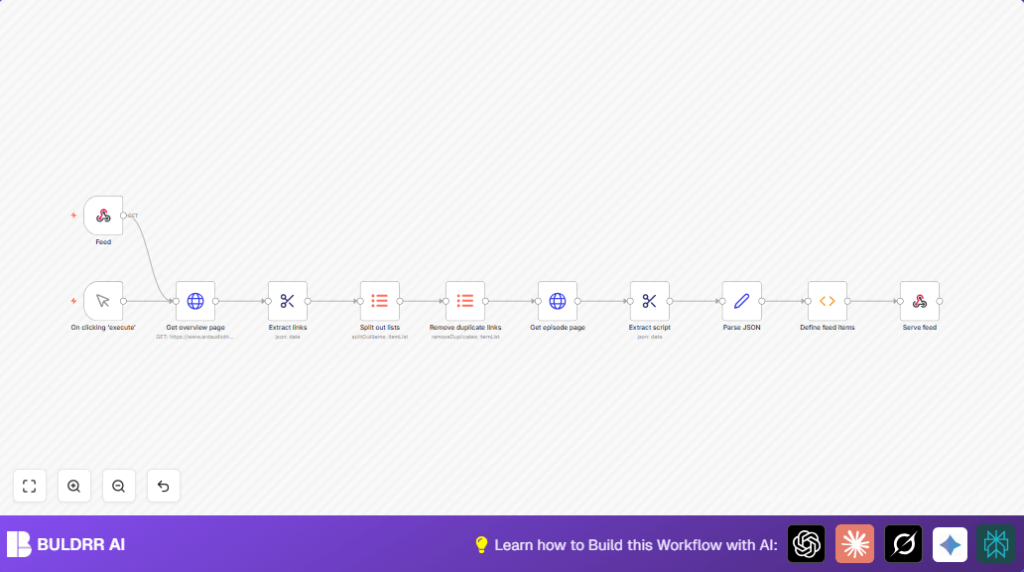
This custom n8n workflow automates the entire podcast RSS feed generation process directly from the ARD Audiothek podcast page. Here’s what happens:

  • When triggered, it fetches the podcast overview page containing all episode links.
  • It extracts all relevant episode URLs automatically by scanning for links within the page.
  • Duplicate episode links are removed to avoid redundant entries in the feed.
  • Each episode page is fetched individually to retrieve detailed metadata embedded in JSON scripts.
  • The extracted data is parsed and used to dynamically generate well-structured RSS XML feed items with all required tags.
  • Finally, the workflow serves this fresh RSS feed via a webhook URL, enabling podcast platforms to access updated content seamlessly.

This automation frees Anna from manual updates, cuts down errors, and ensures her RSS feed is always current and properly formatted. She can now focus on recording quality episodes instead of managing tedious feed edits—saving hours every week.

3. Prerequisites ⚙️

  • n8n Account: Access to an n8n instance with workflow editing and webhook capabilities.
  • Internet Access: To make HTTP requests to the ARD Audiothek podcast site.
  • No external integrations: This workflow relies on built-in nodes only (HTTP Request, HTML Extract, Function, Manual Trigger, Webhook).
  • Optional self-hosting: For greater control or performance, consider self-hosting n8n (see Hostinger guide).

4. Step-by-Step Setup Guide to Automate Your Podcast RSS Feed ✏️

Step 1: Add a Manual Trigger to Start the Workflow

Open your n8n editor, then add a Manual Trigger node. This allows you to run the workflow manually for testing.

  • Click + Add Node → Search for Manual Trigger → Add it.
  • No parameters are needed here.
  • You should see a node labeled “On clicking ‘execute'” in the canvas.
  • Common mistake: Forgetting to set up the trigger properly will prevent manual runs.

Step 2: Fetch the Podcast Overview Page

Add an HTTP Request node connected to the manual trigger. Configure it like this:

  • URL: https://www.ardaudiothek.de/sendung/kalk-und-welk/10777871/
  • Response Format: String
  • Keep other fields as default.

This step downloads the HTML content of the podcast’s main page where episode links are listed.

Step 3: Extract Episode Links from the Overview

Add an HTML Extract node linked to the HTTP Request node.

  • CSS Selector: a[href*="/episode/"]
  • Attribute to Extract: href
  • Set to return an array of URLs.

Here, you extract all episode URLs that the podcast page links to.

Step 4: Split Links into Individual Items

Add an Item Lists node configured to split out the array into separate items.

  • Set the Field to Split Out to the key from previous node that contains links (likely named links).
  • Set Destination Field Name to something like link.

This prepares each episode link to be processed individually.

Step 5: Remove Duplicate Links

Add another Item Lists node. Configure it to remove duplicates based on the individual links. This ensures only unique episodes are processed.

Step 6: Fetch Each Episode Page

Add an HTTP Request node connected after duplicates removal.

  • URL: Use expression =https://www.ardaudiothek.de{{ $json["link"] }} to form full episode URLs dynamically.
  • Set Response Format to String.

This fetches the raw HTML for each episode’s detailed page.

Step 7: Extract Script Tag Containing Episode Metadata

Add an HTML Extract node after the episode fetch node.

  • CSS Selector: script:nth-of-type(2)
  • Set it to return the entire HTML content of that script tag.

This assumes the second script tag holds JSON data describing the episode.

Step 8: Parse JSON Episode Data

Add a Set node to parse the extracted JSON string.

  • In the node parameters, add a field named data with the value set to =JSON.parse($json.script).
  • Keep Only Set enabled to prune other fields.

This transforms the raw JSON text into usable JSON object data.

Step 9: Generate RSS Feed Items via Code

Add a Function node to iterate through all items and create well-formed XML feed entries.

Copy this JavaScript code exactly:

const escapeHTML = str => str.replace(/[&<>'"]/g, 
  tag => ({
      '&': '&',
      '<': '<',
      '>': '>',
      "'": ''',
      '"': '"'
    }[tag]));

let feedItems = [];
for (item of items) {
  feedItems.push(`
  ${escapeHTML(item.json.data.name)}
  
  ${item.json.data.identifier}
  ${DateTime.fromISO(item.json.data.datePublished).toRFC2822()}
  ${escapeHTML(item.json.data.description)}
`);
}

return [{
  data: `

  
    ${escapeHTML(items[0].json.data.partOfSeries.name)}
    ${escapeHTML(items[0].json.data.partOfSeries.about)}
    
    ${items[0].json.data.inLanguage}
    
    no
    ${items[0].json.data.partOfSeries.url}
    © ${$now.toFormat('yyyy')} ${escapeHTML(items[0].json.data.productionCompany)}
    ${escapeHTML(items[0].json.data.productionCompany)}
    ${feedItems.join('n')}
  

`
}];

This creates a full podcast RSS feed XML string including iTunes tags.

Step 10: Serve the RSS Feed Using a Webhook Response

Add a Respond to Webhook node to output the final XML as the webhook’s response.

  • Set Response Code to 200.
  • Add a response header: Content-Type with value application/rss+xml.
  • Set response body to the XML string generated by the Function node.

Now, when you navigate to the webhook URL generated by the Webhook node, your podcast RSS feed will be live and ready to use.

5. Customizations ✏️

  • Change Podcast URL: Modify the URL in the first HTTP Request node to scrape another podcast from ARD Audiothek.
  • Adjust Episode Filtering: In the HTML Extract node, tweak the CSS selector if the site changes structure.
  • Modify RSS Categories: In the Function node code, update the itunes:category element to fit your podcast genre.
  • Include Explicit Content Flag: In the Function node, dynamically set itunes:explicit based on episode metadata if available.
  • Change Feed Update Trigger: Replace the Manual Trigger with a Cron node to update automatically on schedule.

6. Troubleshooting 🔧

Problem: “No links extracted from overview page.”
Cause: Podcast page HTML structure changed or CSS selector incorrect.
Solution: Inspect the page with browser developer tools, update CSS selector in the Extract links node accordingly.

Problem: “Parsing JSON failed in Parse JSON node.”
Cause: Script tag content is malformed or not JSON.
Solution: Check which script tag holds metadata, adjust the CSS selector in the Extract script node. Log output to debug.

Problem: “Webhook response is empty or invalid XML.”
Cause: Function node JavaScript error or feedItems array empty.
Solution: Verify Function node code and ensure episode data is correctly parsed and passed.

7. Pre-Production Checklist ✅

  • Test the Manual Trigger and verify the HTTP Request fetches the podcast overview page HTML.
  • Check the Extract links node extracts a valid array of episode URLs.
  • Ensure duplicates are removed properly with the Item Lists node.
  • Confirm episode pages return JSON script data correctly.
  • Validate the RSS XML output is well-formed using an online validator before going live.

8. Deployment Guide

Activate your workflow by setting the Webhook node URL live. To do this:

  • Save and activate your workflow.
  • Find the webhook URL from the Webhook node settings.
  • Share this URL with your podcast publishing platform as the RSS feed source.
  • Monitor workflow executions from the n8n dashboard for any errors.
  • Optionally set up a Cron Trigger to automate feed updates on a schedule.

9. FAQs

Q: Can I use this workflow for other podcast platforms?
A: This workflow is tailored for ARD Audiothek’s HTML structure. Other sites may require CSS selectors and JSON parsing adjustments.

Q: Does this consume API credits?
A: No, it uses HTTP requests to public webpages only, so no API keys or credits are consumed.

Q: Is my data secure?
A: Yes, all data is processed within your n8n instance. Consider self-hosting for full control.

10. Conclusion

By implementing this n8n automation, you’ve transformed a tedious podcast RSS feed maintenance task into a painless, error-free process. Your feed now updates effortlessly with the latest episode metadata, saving you hours weekly and boosting your podcast’s professionalism.

Next, consider extending this workflow by integrating notifications to promote new episodes on social media or saving episode data to Google Sheets for detailed analytics.

Keep experimenting and let n8n handle the repetitive work so you can focus on creating great content!

Promoted by BULDRR AI

Related Workflows

Automate Viral UGC Video Creation Using n8n + Degaus (Beginner-Friendly Guide)

Learn how to automate viral UGC video creation using n8n, AI prompts, and Degaus. This beginner-friendly guide shows how to import, configure, and run the workflow without technical complexity.
Form Trigger
Google Sheets
Gmail
+37
Free

AI SEO Blog Writer Automation in n8n (Beginner Guide)

A complete beginner guide to building an AI-powered SEO blog writer automation using n8n.
AI Agent
Google Sheets
httpRequest
+5
Free

Automate CrowdStrike Alerts with VirusTotal, Jira & Slack

This workflow automates processing of CrowdStrike detections by enriching threat data via VirusTotal, creating Jira tickets for incident tracking, and notifying teams on Slack for quick response. Save hours daily by transforming complex threat data into actionable alerts effortlessly.
scheduleTrigger
httpRequest
jira
+5
Free

Automate Telegram Invoices to Notion with AI Summaries & Reports

Save hours on financial tracking by automating invoice extraction from Telegram photos to Notion using Google Gemini AI. This workflow extracts data, records transactions, and generates detailed spending reports with charts sent on schedule via Telegram.
lmChatGoogleGemini
telegramTrigger
notion
+9
Free

Automate Email Replies with n8n and AI-Powered Summarization

Save hours managing your inbox with this n8n workflow that uses IMAP email triggers, AI summarization, and vector search to draft concise replies requiring minimal review. Automate business email processing efficiently with AI guidance and Gmail integration.
emailReadImap
vectorStoreQdrant
emailSend
+12
Free

Automate Email Campaigns Using n8n with Gmail & Google Sheets

This n8n workflow automates personalized email outreach campaigns by integrating Gmail and Google Sheets, saving hours of manual follow-up work and reducing errors in email sequences. It ensures timely follow-ups based on previous email interactions, optimizing communication efficiency.
googleSheets
gmail
code
+5
Free