

Analyze URLs with Cortex in n8n for Job Details

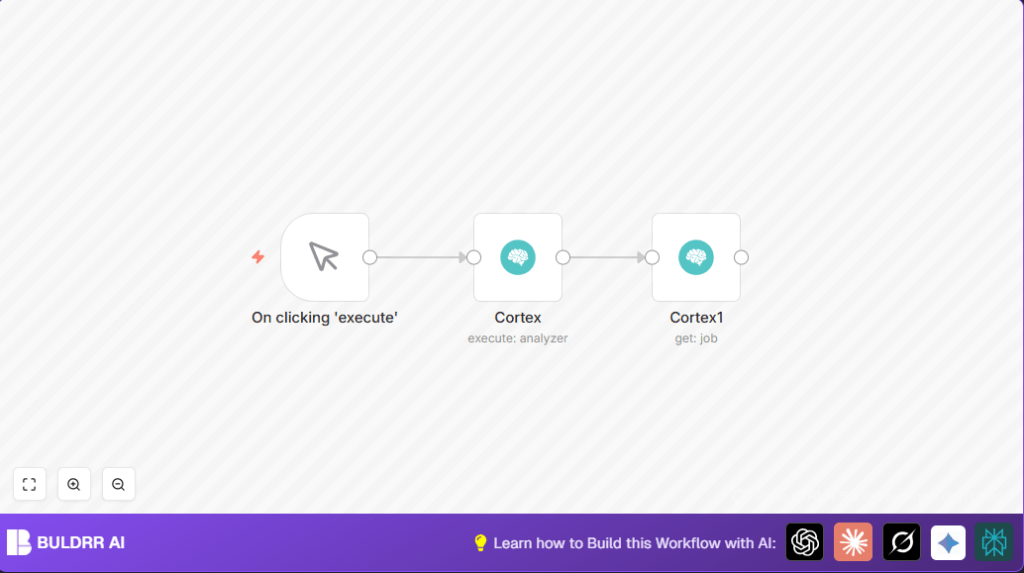
This workflow uses n8n and Cortex to analyze URLs for security insights by running abuse detection and retrieving job details automatically. It helps cybersecurity analysts save time and reduce manual effort when investigating URL-related threats.
cortex
manualTrigger
cortex
Workflow Identifier: 2397
NODES in Use: Manual Trigger, Cortex

Press CTRL+F5 if the workflow didn't load.

Learn how to Build this Workflow with AI:

Visit through Desktop for Best experience

Opening Problem Statement

Meet Sarah, a cybersecurity analyst who spends hours each day identifying potentially malicious URLs submitted by her company’s employees. Every suspicious link requires her to run multiple security scans, manually track job IDs, and then gather detailed reports from those jobs. This repetitive manual process not only wastes Sarahs valuable time but also increases the risk of errors that could let threats slip past the defenses.

Without automation, its easy to lose track of job details or delay responses to high-risk URLs, putting the organizations security at risk. Sarah needs a reliable way to quickly analyze URLs and fetch comprehensive results automatically.

What This Automation Does

This specific n8n workflow integrates with Cortex, a security analysis platform, to automate URL threat investigation instantly when you manually trigger the workflow. It performs two key operations:

  • Analyzes a given URL using the Abuse Finder analyzer in Cortex to detect abuse and malicious activity.
  • Retrieves detailed job information from Cortex using the job ID generated by the initial analysis.
  • Flows the job details for further review or downstream automation in n8n.
  • Saves hours of manual work by linking analysis steps automatically.
  • Reduces errors by eliminating manual copy-pasting of job IDs.

Prerequisites 

  • n8n account with access to Manual Trigger node and Cortex node
  • Cortex API credentials configured in n8n (for secure access)
  • The URL to analyze (e.g., https://n8n.io)

Step-by-Step Guide

Step 1: Open your n8n workflow editor

Start by logging into your n8n instance and create a new workflow or open the provided workflow.

Step 2: Add a Manual Trigger node

Click + Add Node → Search for Manual Trigger and add it to the canvas. This node will start the workflow manually. No parameters are needed here.

Step 3: Configure the Cortex “Analyze URL” node

Add a Cortex node next, set the Analyzer to f4abc1b633b80f45af165970793fd4fd::Abuse_Finder_3_0 which is the Abuse Finder 3.0 analyzer.

Change ObservableType to url and ObservableValue to the URL you want to analyze, e.g., https://n8n.io.

Under Credentials, select your Cortex API credentials you set up earlier.

Step 4: Link the Manual Trigger to the Cortex node

Connect the output of the Manual Trigger node to the Cortex Analyze URL node. This means starting the workflow manually will trigger the analysis.

Step 5: Add a second Cortex node to fetch Job details

Add another Cortex node, name it something like “Get Job Details”.

In parameters, set Resource to job and enter the JobId as an expression that references the previous Cortex nodes job ID: {{$node["Cortex"].json["_id"]}}

This uses the job ID returned by the first node to fetch detailed job information.

Step 6: Connect Cortex nodes

Link the first Cortex node output to the second Cortex node input so the job details run after the analysis finishes.

Step 7: Save and test your workflow

Click Save. To test, click the Execute Workflow button on the Manual Trigger node. You should see the Cortex analysis run and job details returned in the output.

Common mistakes to avoid

  • Not setting Cortex credentials correctly, causing authentication errors.
  • Incorrectly referencing the job ID in the second Cortex node expression.
  • Wrong analyzer ID or observable types leading to failed analysis.

Customizations ✏️

  • Change to analyze different observables like IP addresses or file hashes by updating the observableType and observableValue fields in the first Cortex node.
  • Use different analyzers in Cortex by replacing the Abuse Finder analyzer ID with other analyzer IDs.
  • Add additional nodes downstream to automatically notify via email or Slack when a risky URL is detected.

Troubleshooting 🔧

Problem: “Authentication failed with Cortex API”

Cause: Incorrect API credentials or expired token.

Solution: Go to n8n Credentials, open Cortex API credential, re-enter API key, and test connection.

Problem: “JobId expression returns empty or undefined”

Cause: The first Cortex node did not return the expected job ID due to misconfiguration.

Solution: Check the first Cortex node response in executions and ensure the field _id exists. Correct the reference in the second node.

Pre-Production Checklist ✅

  • Verify Cortex API credentials are valid and tested.
  • Make sure the Abuse Finder analyzer ID corresponds to your Cortex setup.
  • Test with a valid URL that you want to analyze.
  • Check node connections follow the correct flow (Manual Trigger → Cortex Analyze → Cortex Job Details).

Deployment Guide

Once tested successfully, activate the workflow by toggling it to Active.

Use the manual trigger or expand with an HTTP Webhook trigger for automatic URL inputs.

Monitor workflow execution logs within n8n for successful runs and errors.

Conclusion

By setting up this n8n workflow with Cortex, Sarah and you have automated the cumbersome process of URL threat analysis and detailed job retrieval. This saves hours of manual effort daily and reduces errors in handling security investigations.

Next steps: integrate notifications when risky URLs appear, expand to analyze other observables like IP addresses, and automate further incident response actions.

Promoted by BULDRR AI

Related Workflows

Automate Viral UGC Video Creation Using n8n + Degaus (Beginner-Friendly Guide)

Learn how to automate viral UGC video creation using n8n, AI prompts, and Degaus. This beginner-friendly guide shows how to import, configure, and run the workflow without technical complexity.
Form Trigger
Google Sheets
Gmail
+37
Free

AI SEO Blog Writer Automation in n8n

A complete beginner guide to building an AI-powered SEO blog writer automation using n8n.
AI Agent
Google Sheets
httpRequest
+5
Free

Automate CrowdStrike Alerts with VirusTotal, Jira & Slack

This workflow automates processing of CrowdStrike detections by enriching threat data via VirusTotal, creating Jira tickets for incident tracking, and notifying teams on Slack for quick response. Save hours daily by transforming complex threat data into actionable alerts effortlessly.
scheduleTrigger
httpRequest
jira
+5
Free

Automate Telegram Invoices to Notion with AI Summaries & Reports

Save hours on financial tracking by automating invoice extraction from Telegram photos to Notion using Google Gemini AI. This workflow extracts data, records transactions, and generates detailed spending reports with charts sent on schedule via Telegram.
lmChatGoogleGemini
telegramTrigger
notion
+9
Free

Automate Email Replies with n8n and AI-Powered Summarization

Save hours managing your inbox with this n8n workflow that uses IMAP email triggers, AI summarization, and vector search to draft concise replies requiring minimal review. Automate business email processing efficiently with AI guidance and Gmail integration.
emailReadImap
vectorStoreQdrant
emailSend
+12
Free

Automate Email Campaigns Using n8n with Gmail & Google Sheets

This n8n workflow automates personalized email outreach campaigns by integrating Gmail and Google Sheets, saving hours of manual follow-up work and reducing errors in email sequences. It ensures timely follow-ups based on previous email interactions, optimizing communication efficiency.
googleSheets
gmail
code
+5
Free