

1. Real Scenario: How Sarah Transforms Webinar Sign-Ups with Instant SMS
Meet Sarah, a marketing coordinator running a busy webinar series. Every time someone signs up via her Mautic landing page form, Sarah had to manually check the submission and send a confirmation SMS to each participant to remind them of webinar details. This took her over an hour daily and sometimes resulted in delayed messages causing lower attendance rates. Plus, errors like wrong phone numbers sometimes slipped through, leading to frustrated attendees.
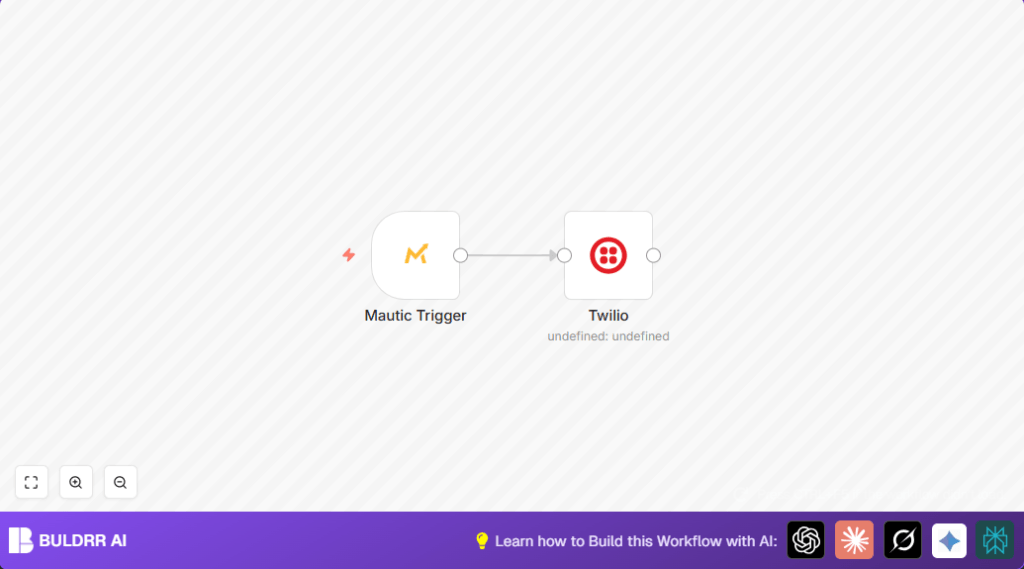
This workflow solves Sarah’s exact problem by automating the process: it listens for new Mautic form submissions, then automatically sends personalized SMS confirmations through Twilio. No more manual copying, pasting, or guesswork — attendees get timely, tailored messages every time.
2. What This Automation Does
- Automatically triggers when a specified form is submitted in Mautic.
- Extracts participant details like phone number and first name directly from the submission data.
- Sends a personalized SMS confirmation using Twilio, including webinar details and greeting by first name.
- Reduces manual work by replacing tedious, error-prone SMS sending tasks.
- Ensures participants receive timely reminders, boosting webinar attendance.
- Improves overall communication efficiency between marketers and attendees.
3. Prerequisites ⚙️
- Mautic account with proper API and form setup to capture sign-ups.
- Twilio account with SMS sending enabled and phone number purchased (for sending messages).
- n8n automation platform account (cloud or self-hosted).
- Valid API credentials for both Mautic and Twilio configured in n8n.
4. Step-by-Step Guide to Build This Automation
Step 1: Set Up Mautic Form and API Access
Login to your Mautic dashboard and ensure your webinar sign-up form is active with phone number and first name fields correctly named. Enable API access under Settings > API Credentials.
You should have your API endpoint, public and secret keys ready.
Common mistake: Not enabling API or incorrect form field names leads to missing data in the automation.
Step 2: Create a New Workflow in n8n
In your n8n dashboard, click New Workflow. Name it something like “Mautic Form to SMS Confirmation.”
Expected outcome: Blank canvas ready to add nodes.
Step 3: Add the Mautic Trigger Node
Click the + icon > search Mautic Trigger node and add it. Set event parameter to mautic.form_on_submit. Select your Mautic API credentials.
This node listens for specific form submission events from Mautic.
You should see webhook URL generated, copy it to Mautic webhook settings if needed.
Common mistake: Forgetting to connect the webhook in Mautic or using wrong form event.
Step 4: Add the Twilio Node
Add the Twilio node from the node search, place it to the right of Mautic Trigger.
Configure these parameters:
– To: Reference the phone number from the Mautic Trigger data with expression:
= {{$node["Mautic Trigger"].json["mautic.form_on_submit"][0]["submission"]["results"]["phone_number"]}}– From: Enter your Twilio phone number (example: +1234567890, replace “1234” in the workflow with your real number).
– Message: Use expression to personalize message:
=Hey, {{$node["Mautic Trigger"].json["mautic.form_on_submit"][0]["submission"]["results"]["first_name"]}} 👋nThank you for signing up for the Webinar - Getting Started with n8n. The webinar will start at 1800 CEST on 31st October 2020.nSee you there!Expected outcome: Each triggered form submission sends a personalized SMS.
Common mistake: Incorrect phone number format or wrong field references cause message failures.
Step 5: Connect the Nodes
Drag from Mautic Trigger node’s output to Twilio node input.
This ensures the data flows correctly for SMS sending.
Expected outcome: Workflow logic is complete and linked.
Step 6: Activate and Test
Turn on the workflow toggle to activate.
Test by submitting a test form in Mautic with your phone number and name.
Check your device for the SMS.
Expected outcome: You receive a timely personalized SMS confirming your webinar registration.
5. Customizations ✏️
- Change SMS Content: In the Twilio node’s Message field, modify the text or add event-specific details to suit your webinar or campaign.
- Add Additional Data: Include more personal fields from Mautic submission like email or company name by expanding the reference expression.
- Multi-Language Support: Duplicate the Twilio node and use conditional logic (e.g., Code or If node) to send messages in different languages based on form data.
6. Troubleshooting 🔧
Problem: “Twilio message failed to send”.
Cause: Probably the phone number is not in E.164 format or credentials are wrong.
Solution: Verify your Twilio credentials in n8n, ensure phone numbers include country code prefixed with ‘+’ exactly as Twilio requires.
Problem: “No data received from Mautic Trigger”.
Cause: Webhook not configured or form event mismatch.
Solution: Check that Mautic webhook URL is properly set and that the form_on_submit event matches exactly.
7. Pre-Production Checklist ✅
- Confirm Mautic form fields exist and API access is enabled.
- Check Twilio number is active and SMS permissions granted.
- Test webhook trigger from Mautic to n8n manually or using tools like Postman.
- Verify expressions in Twilio node correctly reference Mautic submission data.
- Run multiple test submissions to verify SMS deliverability and correctness.
8. Deployment Guide
Activate your workflow by toggling the “Active” switch in n8n.
Set up monitoring in your n8n interface to review workflow run history and error logs.
If self-hosting, consider integrating with monitoring services or using n8n cloud for managed uptime.
Keep your credentials secure and rotate keys periodically.
9. FAQs
Q: Can I use another SMS service instead of Twilio?
A: Yes, but you’ll need to replace the Twilio node with the corresponding SMS service node and adapt message formatting accordingly.
Q: Does this workflow consume a lot of API calls?
A: It uses one Mautic trigger call per form submission and one SMS send call per message, so plan accordingly with your API plan.
Q: Is my data secure?
A: All transmissions are via API secured by credentials. Ensure your n8n instance is properly secured and credentials stored safely.
10. Conclusion
With this workflow, you have automated the tedious task of sending webinar SMS confirmations from Mautic form submissions through Twilio. Sarah’s example shows how you can save over an hour daily, eliminate errors, and improve attendee communication with minimal effort.
You’ve tailored automated messages, boosted engagement, and gained consistent, reliable follow-up without lifting a finger.
Next steps? Consider adding email reminders using Gmail or expanding this to multiple event types with conditional logic in n8n. You’re well on your way to mastering automation with Mautic and Twilio!