

Automate Notion Meeting Notifications with Mattermost and n8n

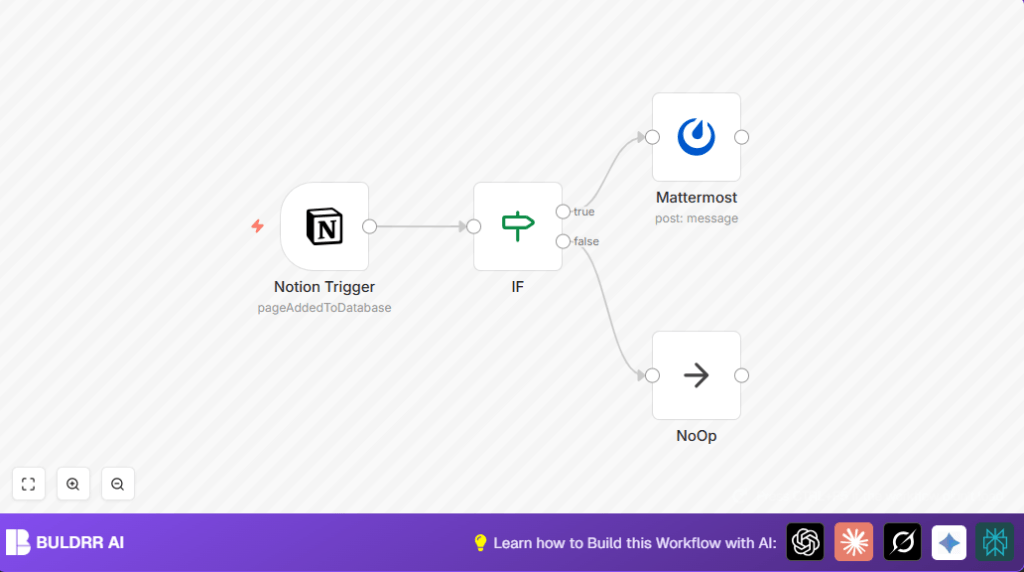
This workflow automates the process of notifying your Mattermost team when new meeting notes are added to a Notion database. It targets specific team updates, saving time and improving communication by filtering for Marketing team notes.
notionTrigger
if
mattermost
+1
Workflow Identifier: 2360
NODES in Use: notionTrigger, if, mattermost, noOp

Press CTRL+F5 if the workflow didn't load.

Learn how to Build this Workflow with AI:

Visit through Desktop for Best experience

1. Opening Problem Statement

Meet Sarah, a project manager in a busy Marketing department. Every hour, her team adds crucial meeting notes to their shared Notion database to keep everyone informed. But Sarah often struggles to ensure her team stays updated without manually checking Notion throughout the day. This leads to delayed responses, missed deadlines, and inefficient collaboration. On average, she spends an hour daily just reminding her team or sharing meeting notes manually, losing valuable productivity time.

This is exactly where our automation workflow steps in, designed to streamline how meeting notes added in Notion get instantly shared with the Marketing team on Mattermost — no manual intervention needed.

2. What This Automation Does

This n8n workflow listens for new pages added to a Notion database and, only when the new entry is tagged for the Marketing team, automatically posts specific meeting details to a Mattermost channel. Here’s what it achieves:

  • Automatically triggers every hour to check for new Notion meeting notes.
  • Filters the data to only target the Marketing team’s notes, avoiding irrelevant noise for other teams.
  • Posts a formatted message in a designated Mattermost channel including agenda, date, and a direct Notion link.
  • Reduces manual notifications and oversight, saving Sarah and her team at least 1+ hour daily.
  • Keeps all participants aligned in near real-time, improving communication effectiveness.

3. Prerequisites ⚙️

  • n8n account with access to build workflows (cloud or self-hosted). For self-hosting, consider Hostinger hosting options.
  • Notion account with API access and a database containing meeting notes.
  • Mattermost account with access to create bots and send messages into channels.
  • Credentials set in n8n for Notion API and Mattermost API.

4. Step-by-Step Guide

Step 1: Set Up the Notion Trigger Node

Navigate to your n8n editor. Click + Add Node, search for and add the Notion Trigger node.
Under parameters, choose the event pageAddedToDatabase. Set the polling interval using everyHour to check for new pages hourly.
Enter your Notion database ID where the meeting notes are stored.
You should see your node ready and connected with valid credentials. It waits to detect new pages added.

Common mistake: Using an incorrect database ID here will cause the trigger to never detect changes.

Step 2: Add the IF Node to Filter by Team

Add the IF node next. Connect the output of the Notion Trigger to this node.
Configure the IF node’s condition: set a string comparison where the field {{$json["Team"]}} equals Marketing.
This ensures only meeting notes tagged for the Marketing team continue down the automation path.

Common mistake: Ensure your Notion data includes a property named exactly “Team” and that it matches the string Marketing.

Step 3: Configure the Mattermost Node for Notification

Add the Mattermost node and link it to the “true” output of the IF node.
Set the channelId to your Marketing team’s Mattermost channel ID.
In the message field, use this template:
New meeting notes were added.
Agenda: {{$json["Agenda"]}}
Date: {{$json["Date"]["start"]}}
Link: https://notion.so/{{$json["id"].replace(/-/g,'')}}

This dynamically pulls the agenda, date, and a direct Notion link from the added page.

Common mistake: Invalid channel ID or missing API credentials will cause message delivery failure.

Step 4: Handle Other Teams Gracefully with NoOp

Connect the “false” output of the IF node to a NoOp node.
This node acts as a placeholder doing nothing for notes outside the Marketing team, preventing workflow errors or clutter.

5. Customizations ✏️

  • Target Other Teams: In the IF node, change the condition value from Marketing to any other team name like Sales to notify different groups.
  • Add More Details in Mattermost: Modify the Mattermost message template to include additional Notion properties like Location or Attendees by appending {{$json["Location"]}} etc.
  • Adjust Polling Frequency: In Notion Trigger, switch from hourly to every 10 minutes by altering the pollTimes configuration—to stay even more updated.
  • Use Rich Message Attachments: Enhance your Mattermost node by adding attachments JSON for richer notifications (images, links).

6. Troubleshooting 🔧

Problem: “No new pages detected by Notion Trigger”
Cause: Incorrect database ID or missing trigger permissions.
Solution: Double-check the database ID in the Notion Trigger node and ensure the API token has correct read permissions.

Problem: “IF condition not filtering correctly”
Cause: The JSON property for “Team” does not exactly match or is missing.
Solution: Inspect the incoming data by enabling debug logs in n8n and confirm the exact attribute name and value are correct.

Problem: “Mattermost message not sending”
Cause: Invalid channel ID or expired credentials.
Solution: Reverify your Mattermost channel ID and refresh API credentials in n8n.

7. Pre-Production Checklist ✅

  • Confirm Notion database ID and permission scopes are correct.
  • Test the IF node by manually injecting sample data with “Team”: “Marketing” and other values.
  • Validate the Mattermost channel ID and test sending a manual message with the node.
  • Run the workflow manually to see if notifications post as expected.

8. Deployment Guide

Once verified, activate your workflow in n8n by clicking the Activate toggle on top right.
Monitor initial runtime logs to ensure smooth operations.
If needed, adjust the polling interval for performance based on actual usage patterns.

9. FAQs

Q: Can I use Slack instead of Mattermost?
A: Yes, with minor node changes. Replace the Mattermost node with a Slack node configured similarly.

Q: Does this workflow consume many API calls?
A: It polls Notion only once per hour by default, keeping API usage minimal.

Q: Is my data sent securely?
A: Yes, data moves over HTTPS connections via official APIs with authentication tokens.

10. Conclusion

In this tutorial, you built a practical automation connecting Notion meeting notes directly to your Mattermost team channel. By filtering based on the Marketing team tag, you eliminated manual notifications and significantly improved communication speed. This workflow saves Sarah and her team over an hour daily, allowing more focus on creative tasks and timely decisions.

Next, consider expanding this workflow to other departments, integrate calendar reminders, or include AI summarization of meeting content for enhanced productivity.

You’re now equipped to optimize team notifications with n8n through targeted Notion updates. Happy automating!

Promoted by BULDRR AI

Related Workflows

Automate Viral UGC Video Creation Using n8n + Degaus (Beginner-Friendly Guide)

Learn how to automate viral UGC video creation using n8n, AI prompts, and Degaus. This beginner-friendly guide shows how to import, configure, and run the workflow without technical complexity.
Form Trigger
Google Sheets
Gmail
+37
Free

AI SEO Blog Writer Automation in n8n

A complete beginner guide to building an AI-powered SEO blog writer automation using n8n.
AI Agent
Google Sheets
httpRequest
+5
Free

Automate CrowdStrike Alerts with VirusTotal, Jira & Slack

This workflow automates processing of CrowdStrike detections by enriching threat data via VirusTotal, creating Jira tickets for incident tracking, and notifying teams on Slack for quick response. Save hours daily by transforming complex threat data into actionable alerts effortlessly.
scheduleTrigger
httpRequest
jira
+5
Free

Automate Telegram Invoices to Notion with AI Summaries & Reports

Save hours on financial tracking by automating invoice extraction from Telegram photos to Notion using Google Gemini AI. This workflow extracts data, records transactions, and generates detailed spending reports with charts sent on schedule via Telegram.
lmChatGoogleGemini
telegramTrigger
notion
+9
Free

Automate Email Replies with n8n and AI-Powered Summarization

Save hours managing your inbox with this n8n workflow that uses IMAP email triggers, AI summarization, and vector search to draft concise replies requiring minimal review. Automate business email processing efficiently with AI guidance and Gmail integration.
emailReadImap
vectorStoreQdrant
emailSend
+12
Free

Automate Email Campaigns Using n8n with Gmail & Google Sheets

This n8n workflow automates personalized email outreach campaigns by integrating Gmail and Google Sheets, saving hours of manual follow-up work and reducing errors in email sequences. It ensures timely follow-ups based on previous email interactions, optimizing communication efficiency.
googleSheets
gmail
code
+5
Free