

What This Amazon Price Tracker Workflow Does
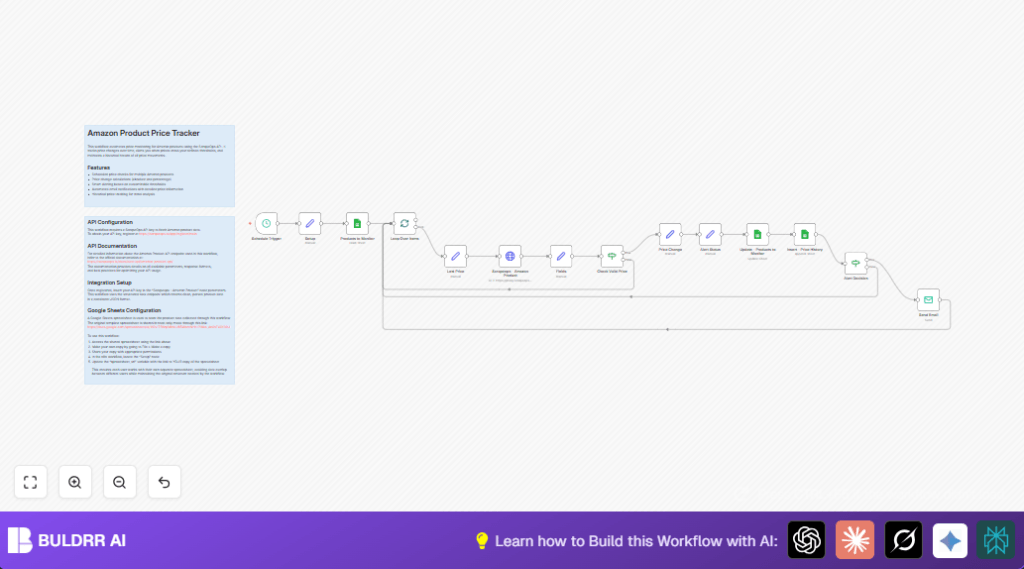
This workflow takes a list of Amazon products from Google Sheets and checks their current prices using the ScrapeOps API.
It finds price changes since the last check and updates the sheet.
It also keeps a history of price changes and sends email alerts when prices cross set limits.
This saves you time and helps you act fast on price drops or hikes.
Who Should Use This Workflow
Use this if you buy and resell Amazon products and want to track prices automatically.
It suits anyone who wants to avoid manual checking of product prices and get alerts about important changes.
Tools and Services Used
- n8n: To run and automate the workflow.
- Google Sheets: Stores products with ASINs, thresholds, and price history.
- ScrapeOps API: Retrieves current Amazon product data.
- SMTP email: Sends price alert emails.
- Optional: self-host n8n instance for more control.
How This Workflow Works: Inputs → Processes → Outputs
Inputs
- Product list with ASINs and alert thresholds from Google Sheets.
- ScrapeOps API key to fetch product details.
- SMTP credentials for sending alerts.
Processing Steps
- Read products from Google Sheets.
- Process each product one-by-one using batching.
- Call ScrapeOps to get current price, name, rating.
- Compare current price with last stored price.
- Calculate absolute and percent price changes.
- Decide if the change triggers an alert based on thresholds.
- Update Google Sheets with new price and alert info.
- Append price and timestamp to history sheet.
- Send email alert if price change crosses thresholds.
Outputs
- Updated product list with fresh prices and alerts.
- Comprehensive price history log by product.
- Timely email notifications about price spikes or drops.
Beginner Step-by-Step: How to Use This Workflow in n8n Production
Step 1: Import the Workflow
- Download the workflow file using the Download button on this page.
- Inside the n8n editor, click the menu and select “Import from File”.
- Choose the downloaded workflow file to import it.
Step 2: Add Your Credentials and Settings
- Go to the Setup node and enter your Google Sheets URL.
- Input your ScrapeOps API key exactly as given.
- Fill in the sender and recipient email addresses.
- Ensure Google Sheets credentials have edit access to your spreadsheet.
- If needed, update sheet IDs, email addresses, or other fields to match your setup.
Step 3: Test the Workflow
- Run the workflow manually inside n8n to check if data pulls and updates correctly.
- Make sure emails are sent by checking your inbox.
- Fix any errors by checking API keys and email settings.
Step 4: Activate for Production Use
- Enable the workflow by switching it from inactive to active.
- Set your preferred schedule in the Schedule Trigger node.
- Monitor the run logs daily to catch issues early.
- Adjust alert thresholds or sheet columns anytime as you learn more.
Customization Ideas
- Change alert thresholds in Google Sheets to control sensitivity.
- Add product images from ScrapeOps to the alert email for better visibility.
- Adjust check frequency in the Schedule Trigger node.
- Add Slack node after alert decisions for Slack notifications instead of emails.
- Use multiple API keys with rotation logic to avoid hitting API limits.
Troubleshooting Common Problems
- Invalid OAuth token in Google Sheets: Reauthorize Google credentials with edit access in n8n.
- HTTP 403 or empty data: Check ScrapeOps API key correctness and plan limits.
- Emails not sent: Verify SMTP details and test outside n8n.
- Price parsing issues: Make sure price strings clean up properly in Fields node.
Pre-Production Checklist
- Validate Google Sheets sharing and URL accuracy.
- Confirm ScrapeOps API calls work with manual tests.
- Test SMTP by sending emails outside the workflow.
- Run workflow manually once before scheduling.
- Backup your Google Sheets data first.
Deployment Guide
After setup and testing, activate the workflow inside n8n.
Set the schedule for hourly or desired intervals.
Keep an eye on workflow logs to detect errors.
Update alert thresholds based on real usage.
Refresh or rotate API and SMTP keys if needed.
Summary of Benefits
✓ Saves hours daily by automating price checks.
✓ Avoids manual copying mistakes.
✓ Tracks all product prices and history automatically.
✓ Sends instant alerts when prices raise or drop significantly.
✓ Keeps your product list fresh and actionable.
