

Opening Problem Statement
Meet Jane, a digital marketing manager at a fast-growing blog website. Every week, Jane spends hours manually extracting analytics data from her Umami dashboard: pageviews, visitors, visits, bounces, and total time spent. Then, she compares the data week-over-week to understand trends and generate actionable insights for SEO improvement. This tedious process not only wastes around 4 hours weekly but often introduces errors due to manual copying and formatting. Jane needs a way to automate this so she can focus on strategy, not data wrangling.
What This Automation Does
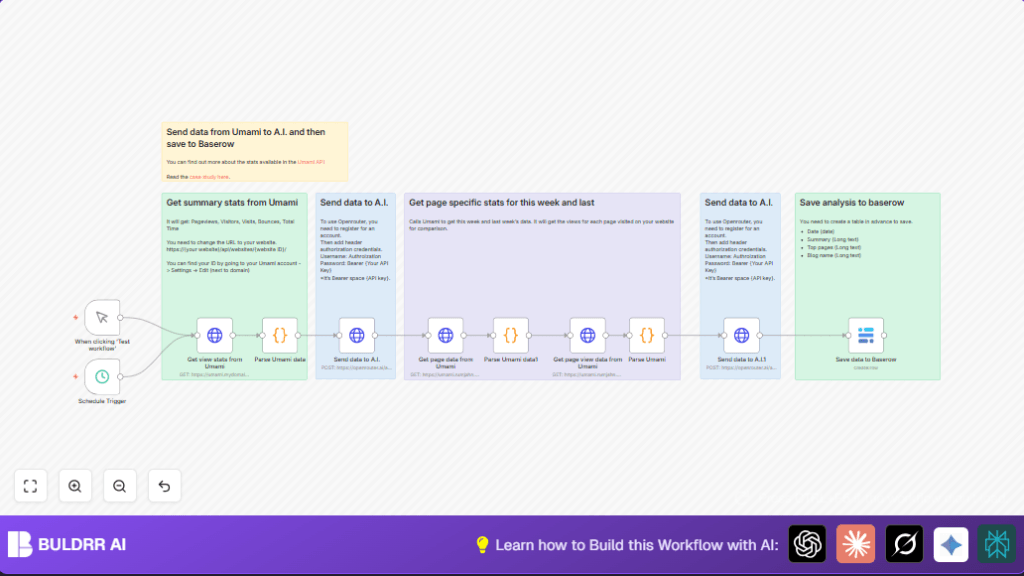
This specific n8n workflow automates Jane’s entire data analysis and reporting process with Umami analytics, combining API calls, data transformation, AI analysis, and database storage. When triggered manually or on a weekly schedule, it:
- Fetches summary and detailed page analytics data from Umami for the current and previous week.
- Processes and encodes this data into a simplified format via JavaScript code nodes.
- Sends the analytics data to an AI model (Meta LLaMA via Openrouter) to generate SEO-optimized markdown summaries and actionable suggestions.
- Stores the AI-generated insights along with the raw summaries in a Baserow database for easy access and historical tracking.
- Supports timezone adjustments and API authorization to the Umami instance.
By automating these tasks, Jane saves about 4 hours weekly and eliminates manual errors.
Prerequisites ⚙️
- n8n account (cloud or self-hosted) 🔌
- Umami analytics account with API access 🔑
- Openrouter AI account with an API key 🔑
- Baserow database with a prepared table for results 📊
- HTTP Header Auth credentials for secure API calls 🔐
Step-by-Step Guide
1. Setup Manual or Scheduled Trigger
In n8n canvas, start with the Manual Trigger node named “When clicking ‘Test workflow'” for manual runs or the Schedule Trigger set to run every Thursday (day 4 of the week) for automated weekly runs.
The Schedule Trigger uses an interval rule with weeks and the trigger day set to 4 (Thursday). On triggering, it initiates the workflow.
Expected: The workflow starts fetching data on trigger activation.
Common mistake: Forgetting to activate the scheduled trigger after setting it up.
2. Fetch Summary View Stats from Umami
Use the HTTP Request node “Get view stats from Umami” to call the Umami API endpoint:
https://umami.mydomain.com/api/websites/{websiteID}/event-data/stats?startAt={{ DateTime.now().minus({ days: 7 }).toMillis() }}&endAt={{ DateTime.now().toMillis() }}&unit=hour&timezone=Asia%2FHong_KongReplace {websiteID} and domain with your Umami site accordingly. Include header authorization credentials to authenticate securely.
Expected: JSON response with pageviews, visitors, visits, bounces, and total time for the last 7 days.
Common mistake: Misconfiguring the timezone or dates causing no or incomplete data.
3. Parse Summary Data with Code Node
The Code node “Parse Umami data” extracts, parses, and simplifies key metrics from the API response into a URL-encoded JSON string to prepare for AI input.
Code snippet:
function transformToUrlString(items) {
const data = items[0].json;
if (!data) return encodeURIComponent(JSON.stringify([]));
const simplified = {
pageviews: { value: parseInt(data.pageviews.value) || 0, prev: parseInt(data.pageviews.prev) || 0 },
visitors: { value: parseInt(data.visitors.value) || 0, prev: parseInt(data.visitors.prev) || 0 },
visits: { value: parseInt(data.visits.value) || 0, prev: parseInt(data.visits.prev) || 0 },
bounces: { value: parseInt(data.bounces.value) || 0, prev: parseInt(data.bounces.prev) || 0 },
totaltime: { value: parseInt(data.totaltime.value) || 0, prev: parseInt(data.totaltime.prev) || 0 }
};
return encodeURIComponent(JSON.stringify(simplified));
}
const items = $input.all();
const result = transformToUrlString(items);
return { json: { urlString: result } };
Expected: A single encoded string containing simplified metric values.
Common mistake: Passing incorrect or malformed JSON data will cause errors.
4. Send Summary Data to AI for SEO Insights
Use the HTTP Request node “Send data to A.I.” to POST a prompt to Openrouter AI’s Chat Completion endpoint:
POST https://openrouter.ai/api/v1/chat/completions
Body JSON:
{
"model": "meta-llama/llama-3.1-70b-instruct:free",
"messages": [
{
"role": "user",
"content": "You are an SEO expert. Here is data from Umami analytics of Pennibnotes.com. Where X is URL and Y is number of visitors. Give me a table summary of this data in markdown format:{{ $('Parse Umami data').item.json.urlString }}."
}
]
}
You must add your Openrouter API key in the HTTP Header Auth credentials.
Expected: AI response containing an SEO-focused markdown summary table.
Common mistake: Incorrect API key or malformed prompt causing 401 or AI errors.
5. Fetch Detailed Page Data for This Week from Umami
Next, use another HTTP Request “Get page data from Umami” to retrieve detailed metrics filtered by URL for the current week:
https://umami.{yourdomain}/api/websites/{websiteID}/metrics?startAt={{Date.now() - (7 * 24 * 60 * 60 * 1000)}}&endAt={{Date.now()}}&type=url&tz=America/Los_AngelesThis gathers page-level view statistics for the week to analyze hot content.
Expected: Raw JSON of URL and visit counts.
Common mistake: Not adjusting timezone or API URL properly.
6. Parse This Week’s Page Data
Use the Code node “Parse Umami data1” to encode the entire JSON data response into a URL-encoded string for later AI input:
// Get input data
const data = $input.all();
// Encode to URL string
const encodedData = encodeURIComponent(JSON.stringify(data));
return { json: { thisWeek: encodedData } };
Expected: Properly encoded data string.
Common mistake: Forgetting to handle empty or malformed data.
7. Fetch Last Week’s Page Data
The HTTP Request node “Get page view data from Umami” fetches the same metrics but for the previous week time range:
https://umami.{yourdomain}/api/websites/{websiteID}/metrics?startAt={{Date.now() - (14 * 24 * 60 * 60 * 1000)}}&endAt={{Date.now() - (7 * 24 * 60 * 60 * 1000)}}&type=url&tz=America/Los_AngelesExpected: Raw JSON of URL and visit counts from the previous week.
Common mistake: Incorrect date math causing overlapping or empty data.
8. Parse Last Week’s Page Data
Use the Code node “Parse Umami” to encode last week’s data to a URL-encoded string for AI comparison input:
// Get input data
const data = $input.all();
const encodedData = encodeURIComponent(JSON.stringify(data));
return { json: { lastweek: encodedData } };
Expected: Encoded string ready for prompt injection.
Common mistake: Failing to encode JSON properly resulting in malformed API calls.
9. Send Both Week’s Data to AI for Comparison and SEO Suggestions
The HTTP Request “Send data to A.I.1” composes a prompt comparing this and last week’s page data, asking for markdown data tables and 5 SEO improvement suggestions:
{
"model": "meta-llama/llama-3.1-70b-instruct:free",
"messages": [
{
"role": "user",
"content": "You are an SEO expert. Here is data from Umami analytics of Pennibnotes.com. Where X is URL and Y is number of visitors. Compare the data from this week to last week. Present the data in a table using markdown and offer 5 improvement suggestions. This week:{{ $('Parse Umami data1').first().json.thisWeek }} Lastweek:{{ $json.lastweek }}"
}
]
}
Expected: AI generates a detailed comparative markdown report and actionable SEO tips.
Common mistake: Prompt syntax errors or token limits exceeded.
10. Save AI Analysis to Baserow Database
Finally, the Baserow node “Save data to Baserow” inserts the AI response summaries, the SEO expert’s markdown table, and the date into your Baserow table configured with fields for date, summary, top pages, and blog name.
Expected: Data saved successfully for reporting and historical review.
Common mistake: Incorrect Baserow table or field IDs causing failures.
Customizations ✏️
- Change Timezone: Adjust the
timezoneparameter in the HTTP Request nodes for your Umami API calls to fit your region’s timezone. - Switch AI Model: In the HTTP Request nodes sending data to AI, change the
modelparameter to another supported model on Openrouter, e.g., “gpt-4o” for different output style. - Extend Date Range: Modify the
startAtandendAtexpressions in Umami API calls to fetch data beyond one week if you want monthly or custom periods. - Change Baserow Table: Update the
tableIdand field IDs in the Baserow node to match your custom table structure. - Add Email Notification: Insert a Gmail node after saving data to notify the team of the latest SEO report (requires adding the Gmail node and credentials).
>
Troubleshooting 🔧
- Problem: “401 Unauthorized” when calling Umami API.
Cause: Invalid or missing HTTP Header Auth credentials.
Solution: Double-check your API token and header settings in n8n credentials and update them. - Problem: AI response is empty or error.
Cause: API key invalid, Quota exceeded, or malformed prompt.
Solution: Verify Openrouter API key, check prompt format, and test with a simplified message. - Problem: Data not saving to Baserow.
Cause: Incorrect database, table, or field IDs.
Solution: Reconfirm Baserow table and field mapping in the node parameters, test with sample data.
Pre-Production Checklist ✅
- Verify all API credentials for Umami, Openrouter, and Baserow are correctly set and tested in n8n.
- Ensure the Umami website ID and API URLs match your account and data.
- Test manual trigger runs before enabling scheduled trigger.
- Confirm your Baserow table has the required fields: date, summary, top pages, and blog name.
- Check data encoding in code nodes is working by examining execution logs.
Deployment Guide
Once verified, activate the schedule trigger node to automatically run the workflow weekly (or run manually via the manual trigger button for testing). Monitor executions in n8n’s dashboard for errors. Set up n8n to run on reliable infrastructure or self-host using Hostinger or similar providers for production stability.
Frequently Asked Questions (FAQs)
- Can I use other AI services than Openrouter?
Yes, but you must adjust the HTTP request node’s URL, authentication, and prompt format accordingly. - Does this workflow consume API credits?
Yes, each Umami data fetch and AI call counts against your API rate limits and usage quota. - Is my data safe?
All API keys are stored securely in n8n credentials; ensure your n8n instance uses HTTPS and secure storage. - Can this handle large websites?
Yes, but consider API rate limits and increase execution time if necessary in n8n settings.
Conclusion
By following this thorough guide, you’ve built an automated pipeline that pulls Umami analytics data, leverages AI to generate SEO insights, and saves the results in Baserow for ongoing tracking. This precise automation saves Jane—and you—hours of painful manual work, reduces errors, and empowers smarter SEO decisions with actionable data. Next, consider expanding this by integrating email alerts or dashboard visualization for real-time monitoring!