
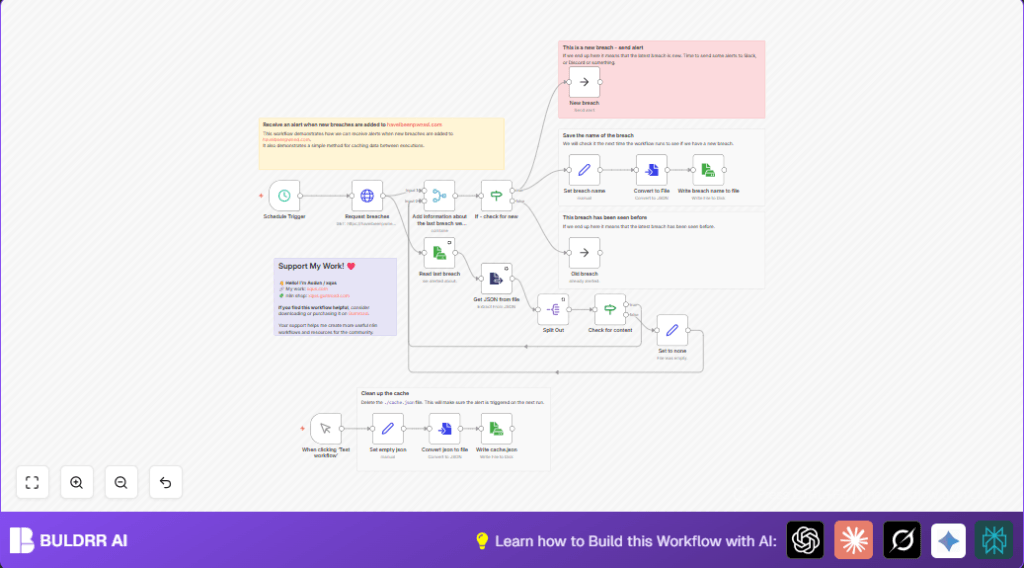

What This Workflow Does
This workflow automatically checks for new data breaches every 15 minutes using the Have I Been Pwned API.
It compares the latest breach with the last one stored in a local cache file.
If a new breach appears, it updates the cache and triggers an alert.
This stops repeated alerts for already known breaches, saving time and helping prompt responses.
Who Should Use This Workflow
This is useful for security analysts or anyone who monitors data breaches to protect sensitive information.
If manual checking wastes time or misses alerts, this workflow helps automate and improve accuracy.
Tools and Services Used
- Have I Been Pwned API: Public API providing the latest data breach information.
- n8n Automation Platform: Runs scheduled tasks and processes data.
- Local file system: Stores
cache.jsonfile with last breach data. - Optional alert platforms: Slack, Discord, or email nodes can be connected for notifications.
How This Workflow Works
Inputs
- Scheduled time trigger runs every 15 minutes.
- Have I Been Pwned API returns a list of latest breaches.
- Cached local file
cache.jsonholds the last sent breach name.
Processing Steps
- Trigger node starts the workflow on schedule.
- HTTP Request node fetches latest breaches.
- Read Binary File node loads
cache.json. - Extract From File node converts file content to JSON.
- Split Out node separates each breach from the API response.
- If node checks if
lastItemexists in cache, sets “none” if empty. - Second If node compares breach name from API with cached
lastItem. - If names differ, Set node updates with new breach name.
- Convert To File node turns new breach name into JSON file content.
- Write File node overwrites
cache.jsonwith new data. - No Operation (NoOp) node acts as a placeholder to trigger alerts.
Outputs
If a new breach is found, the workflow updates the cache and triggers an alert placeholder.
If no new breach exists, the workflow skips alerts, avoiding duplicate messages.
Beginner Step-by-Step: How to Use This Workflow in n8n
Import the Workflow
- Download the workflow file using the Download button on this page.
- Go to the n8n editor where you want to run the workflow.
- Click on “Import from File” and select the downloaded workflow file.
Configure Workflow Settings
- Add any required API Keys or credentials if a secured Have I Been Pwned API is used.
- Update channel IDs, email addresses, or alert destinations in alert nodes as needed.
Test and Activate
- Run the workflow once using the Manual Trigger node to confirm correct operation.
- Check that
cache.jsonis created or updated. - Activate the Schedule Trigger node to start automatic checks every 15 minutes.
Optional: Use the Manual Trigger to reset the cache for testing alert repeats.
If running self-host n8n, see self-host n8n for hosting options.
Edge Cases and Failure Handling
- If
cache.jsondoes not exist or is empty, workflow setslastItemto “none” to avoid errors. - Check API URL if HTTP Request returns no data to fix misconfiguration or network issues.
- Ensure the Write File node correctly updates the cache to stop duplicate alerts.
Customization Ideas
- Replace the NoOp alert node with real notification nodes like Slack or Discord for live alerts.
- Change the Schedule Trigger timing to poll less or more often.
- Use a database node instead of a file to store many breach records, not just the last one.
- Add breach details like date or domain in alert messages by pulling those from API data.
- Use the Manual Trigger node to reset or test alerts whenever needed.
Summary of Results
✓ Automates breach monitoring every 15 minutes.
✓ Avoids duplicate alerts by storing the last breach name.
→ Sends alert only on new breaches.
✓ Saves time and improves response speed.
→ Easy to customize alert channels and polling frequency.
✓ Provides safe handling for cache file absence.
