

What This Automation Does ⚙️
This workflow turns PDFs and images into clear text automatically. It solves slow manual data entry and keeps data private. The result is fast, accurate text from bank documents or receipts, ready to use for reports.
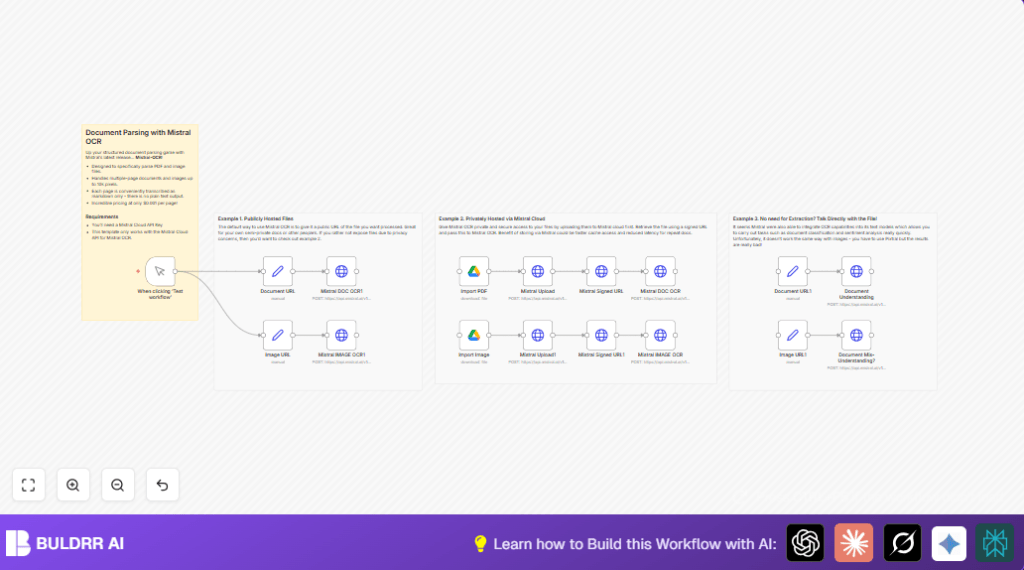
The process fetches files either from a public link or private Google Drive storage. Then, it uploads private files securely to Mistral Cloud. It asks Mistral’s OCR models to read text from documents and pictures. Finally, it can answer questions about the documents using AI chat models.
This helps users avoid typing everything by hand. It also makes sure data stays private with signed URLs and limited file access times.
How Inputs, Processing, and Outputs Work:
- Inputs: Document and image URLs from public or private locations (Google Drive).
- Processing: Upload private files to Mistral Cloud; get secure signed URLs; run OCR to extract text; run chat completion queries on documents.
- Outputs: Structured text from documents, plus AI-generated answers to user questions about the content.
Who Should Use This Workflow
This workflow fits anyone needing to read data fast from PDFs and pictures. It is good for bankers, accountants, and office workers who handle many financial documents. You do not need to type text manually.
Also, it helps with privacy. Files don’t get shared with unsafe services. Users who want control over cloud file access find this workflow useful.
If you want to try automatic document reading in n8n without coding, this is a practical start.
Tools and Services Used
- Mistral Cloud API: Uploads files, creates signed URLs, runs OCR, and handles chat queries.
- Google Drive: Stores private PDFs and images securely, provides file download by ID.
- n8n Automation Platform: Orchestrates workflow steps, HTTP requests, and credentials.
Beginner Step-by-Step: How to Use This Workflow in n8n
Importing the Workflow
- Download the workflow JSON file using the Download button on this page.
- Open the n8n editor you already have access to.
- Click on “Import from File” and select the downloaded JSON file.
Configuring Credentials and Data
- Add your Google Drive credentials in the n8n Credentials section.
- Add your Mistral Cloud API Key credentials with proper permission for file upload and OCR.
- Update the Google Drive file IDs inside the Import PDF and Import Image nodes.
- Update the public URLs inside the Document URL and Image URL Set nodes if you want to test with different files.
- If you want to ask a question about your documents, update the query text in the Set node before the chat completion.
Testing and Activating
- Click the Manual Trigger node and select ‘Execute Workflow’ to test.
- Watch the output of each node for errors or success messages.
- Once testing is successful, activate the workflow to use in production.
For running regular scheduled processing, add a Cron Trigger node before the start.
If running on a private n8n instance for more control, consider self-host n8n for better security.
Inputs and Outputs Explained
Inputs
- Public PDF or image URLs
- Private PDF or image files stored in Google Drive
- Query string: a question the user wants about the document
Processing Steps
- Downloading private files from Google Drive
- Uploading files to Mistral Cloud via HTTP POST
- Getting time-limited signed URLs for secure access
- Calling Mistral OCR APIs to extract text content from documents and images
- Sending chat completion requests with the document and the user query
Outputs
- Structured text extracted from PDFs and images
- AI-generated answers to questions based on document content
Common Errors and Troubleshooting
- 401 Unauthorized Mistral API errors: Check the API Key is correct and not expired.
- Google Drive file not found: Double-check file IDs and make sure OAuth user has access.
- Empty or partial OCR results: Signed URL expired too soon or unsupported file formats.
Always test steps separately to isolate problems.
Customization Ideas
- Swap OCR model names in HTTP Request nodes to try other Mistral OCR options.
- Change signed URL expiry time for your security needs.
- Add support for other file types by adding more Google Drive or URL nodes.
- Modify chat prompt content to ask more advanced or detailed questions.
Summary of Benefits and Outcome
✓ Saves hours of typing by automating data extraction from PDFs and images.
✓ Keeps document data private using secure Mistral Cloud file handling.
✓ Gives fast, structured text ready for financial reports or analysis.
✓ Answers natural language questions on documents using AI chat.
✓ Works for public and private files with minimal setup effort.
✓ Costs stay low at $0.001 per page scanned.
