
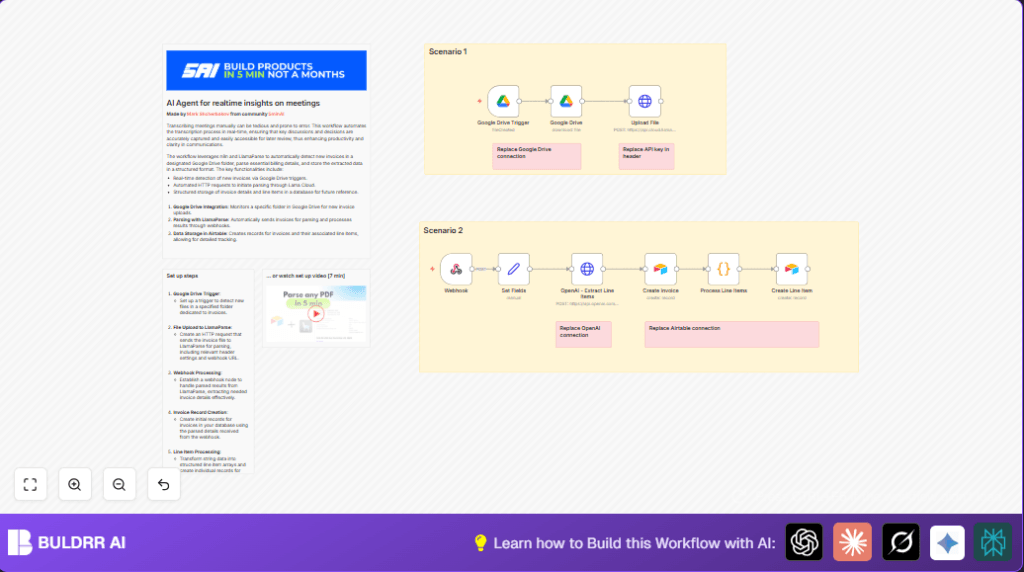

Automate Invoice Parsing from Google Drive with n8n and LlamaParse

Save hours manually managing invoices by automatically detecting new files in Google Drive, parsing invoice line items using LlamaParse, and storing them in Airtable with n8n automation.
googleDriveTrigger
httpRequest
airtable
+6
Workflow Identifier: 2295
NODES in Use: googleDriveTrigger, googleDrive, httpRequest, webhook, set, httpRequest, airtable, airtable, code

Press CTRL+F5 if the workflow didn't load.

Learn how to Build this Workflow with AI:

Visit through Desktop for Best experience

1. Opening Problem Statement

Meet Philipp, a freelance consultant who struggles daily with managing an ever-growing pile of invoices stored in his Google Drive. Each invoice comes as a different PDF file uploaded by clients into a dedicated “Invoices” folder. Philipp spends hours manually extracting line items such as names, quantities, unit prices, and total amounts from these invoices to enter them into his Airtable database for accounting and tracking.

This repetitive, error-prone process wastes valuable time that could be spent on client work. Mistakes in transcription risk financial discrepancies and delayed payments. Philipp longs for an automated, reliable way to instantly process new invoices as soon as they arrive in his folder without manual intervention.

2. What This Automation Does ⚙️

This unique n8n workflow solves Philipp’s exact problem by:

  • Monitoring a specific Google Drive folder for new invoice files uploaded by clients.
  • Automatically downloading those invoices immediately after detection.
  • Uploading the invoice files to LlamaParse, a specialized cloud API, for precise parsing of invoice line items.
  • Receiving structured, AI-extracted line item data via a webhook callback.
  • Using OpenAI GPT-4o-mini model to further clean and structure the parsed data into arrays of line items with description, quantity, unit price, and amount fields.
  • Creating new records in Airtable for both the invoice header and each parsed line item, linking them appropriately.

By automating this entire pipeline, Philipp can save multiple hours weekly, eliminate human transcription errors, and speed up his invoice processing with real-time updates and centralized tracking.

3. Prerequisites ⚙️

  • 📁 Google Drive account with a designated folder for invoices
  • 🔑 Google Drive OAuth2 credentials set up in n8n
  • 🔌 n8n automation platform account (can self-host, e.g., via Hostinger)
  • 🔑 API key for LlamaParse invoice parsing endpoint
  • 🔐 OpenAI account with API access (for GPT-4o-mini)
  • 📊 Airtable account with a base set up for invoices and line items
  • 🔑 Personal Access Token API for Airtable authenticated in n8n

4. Step-by-Step Guide ✏️

Step 1: Set Up Google Drive Trigger to Watch Invoice Folder

In n8n dashboard, click 1 nodes → Google Drive Trigger. Configure it to watch the specific invoices folder by:

  • Selecting event: fileCreated to trigger whenever a new file is added.
  • Turning on triggerOn specificFolder.
  • Entering the folder ID: 1IC39VXU8rewBU85offxYlBd9QlYzf8S7 (replace with your own folder ID).
  • Set the polling interval to run every minute.

You should see the node ready to detect new invoices uploaded by Philipp’s clients. A common mistake is not setting the exact folder ID or forgetting to authenticate the Google Drive OAuth2 credentials.

Step 2: Download Newly Uploaded Invoice File

Add a Google Drive node next and connect it to the trigger. Configure:

  • Operation: download.
  • File ID source: set dynamically as {{ $json.id }} from the trigger node’s output.
  • Use same Google Drive OAuth2 credentials.

This downloads the new invoice PDF file data for immediate processing. Mistake to avoid: hardcoding the file ID instead of using dynamic expressions.

Step 3: Upload Invoice to LlamaParse for Parsing

Insert an HTTP Request node called “Upload File” connected to the Google Drive node.

Configure:

  • Method: POST.
  • URL: https://api.cloud.llamaindex.ai/api/parsing/upload.
  • Content-Type: multipart/form-data to send the file.
  • Include formParameters:
    • webhook_url pointing to your n8n webhook URL (e.g., https://n8n.lowcoding.dev/webhook/0f7f5ebb-8b66-453b-a818-20cc3647c783).
    • file mapped to binary data from Google Drive node.
    • Disable OCR and image extraction flags as true to speed parsing.
  • Header includes Authorization Bearer token for LlamaParse API.
  • Parsing instruction header: “Please extract invoice line items: Name, Quantity, Unit Price, Amount”

Uploading starts the parsing process in the cloud. Double-check your API key in the Authorization header. Mistake: forgetting the “Bearer ” prefix before your token.

Step 4: Set Up Webhook Node to Receive Parsing Results

Drag a Webhook node configured for POST method with the exact path used in the HTTP request above.

The webhook will receive parsed invoice data once ready from LlamaParse. Test by sending a sample POST request matching expected JSON payload.

Common mistake: URL path mismatch or webhook not activated.

Step 5: Use Set Node to Prepare Data Prompt and Schema for OpenAI

Connect the webhook node to a Set node called “Set Fields”. Enter assignment fields:

  • prompt: A textual instruction for GPT-4o-mini – “Please, process parsed data and return only needed.”
  • schema: JSON schema defining expected array of line items with description, qty, unit_price, and amount as required strings.

This informs OpenAI how to reformat and validate the parsed data.

Check the JSON schema carefully to avoid syntax errors.

Step 6: Call OpenAI GPT-4o-mini to Reshape Line Items

Add an HTTP Request node using OpenAI API:

  • Method: POST to https://api.openai.com/v1/chat/completions
  • Body: Use the system role with prompt and user role with raw line item JSON from webhook.
  • Specify response format as JSON schema to enforce strict structure.
  • Authenticate with OpenAI API credentials configured in n8n.

OpenAI refines the extracted data to a clean array of objects easier for further processing.

Common error: misformatting the body JSON or invalid schema causing API rejection.

Step 7: Extract Cleaned Line Items with Code Node

Insert a Code node after OpenAI to parse the string response:

const input = $("OpenAI - Extract Line Items").first().json;
const outputItems = [];
const content = input.choices[0]?.message?.content;
if (content) {
  try {
    const parsedContent = JSON.parse(content);
    if (Array.isArray(parsedContent.items)) {
      outputItems.push(...parsedContent.items.map(i => ({ json: i })));
    }
  } catch (error) {
    console.error('Error parsing content:', error);
  }
}
return outputItems;

This JavaScript code extracts line items into array format for database input.

Make sure the OpenAI node outputs data as expected, or the code will fail.

Step 8: Create Invoice Record in Airtable

Connect a Airtable node called “Create Invoice” configured to:

  • Target Airtable base for invoices.
  • Insert top-level invoice data from parsed JSON.
  • Use Airtable Personal Access Token credentials.

After running, you should see a new invoice record in Airtable.

Common mistake: Incorrect base or table selections, missing Airtable token.

Step 9: Create Line Item Records Linked to Invoice

Finally, add another Airtable node named “Create Line Item” chained after processing code node to:

  • Create individual records for each line item.
  • Populate quantity, description, unit price, and amount fields.
  • Link each line item to the created invoice record using the invoice ID.

Run the workflow to verify all items show correctly under the invoice.

Check mappings carefully for field types (numbers vs strings) to avoid Airtable errors.

5. Customizations ✏️

  • Change Google Drive Folder: Modify the folder ID in the Google Drive Trigger node to watch a different folder for invoices.
  • Adjust Parsing Instructions: In the HTTP Request “Upload File” node, update the parsing_instruction header to extract additional fields like tax or discounts.
  • Switch AI Model: In the OpenAI HTTP Request node, replace the model “gpt-4o-mini” with “gpt-4” or your preferred model for potentially improved accuracy.
  • Extend Airtable Schema: Add custom fields in Airtable base and map those fields in the “Create Invoice” and “Create Line Item” nodes to capture more invoice metadata.
  • Enable OCR: Set disable_ocr to false in the upload node to extract text from scanned invoices rather than text-based PDFs.

6. Troubleshooting 🔧

Problem: “Webhook not receiving data”

Cause: Incorrect webhook URL or path mismatch.

Solution: Verify the webhook node’s URL path matches exactly with the URL sent in the HTTP Request node and ensure the webhook is activated.

Problem: “OpenAI API request fails with invalid schema”

Cause: JSON schema in the Set node contains syntax errors or mismatched property names.

Solution: Validate and copy the schema exactly as provided. Use JSON validation tools before pasting.

Problem: “Airtable node errors on number fields”

Cause: Sending string values instead of numbers for quantity or price fields.

Solution: Use JavaScript `parseFloat()` or `Number()` in Code node or node expressions to convert strings to numbers before sending to Airtable.

7. Pre-Production Checklist ✅

  • Confirm Google Drive folder ID and permissions.
  • Test file uploads manually to trigger workflow.
  • Check LlamaParse API key validity and quota.
  • Test webhook independently with sample JSON.
  • Validate OpenAI API credentials and quota.
  • Verify Airtable base, tables, and API token access.
  • Run end-to-end test with sample invoice PDF.
  • Backup Airtable records before deploying to production.

8. Deployment Guide

Once tested, activate the workflow by toggling it to “Active” in n8n. Ensure your n8n instance always runs or set up cron scheduling if self-hosted. Monitor the workflow via n8n’s execution logs for errors or data anomalies. Export logs for auditing if needed.

Set up notifications or alerts for failure nodes to stay informed of issues quickly.

9. FAQs

Q: Can I use Dropbox instead of Google Drive?

A: This workflow specifically uses Google Drive nodes configured with folder triggers. However, substituting a Dropbox trigger and download node is possible with additional setup and API adjustments.

Q: Does this workflow consume OpenAI API credits?

A: Yes, each invoice triggers a call to OpenAI’s GPT-4o-mini model for refining data, so API usage depends on invoice volume.

Q: Is my invoice data secure?

A: All credentials are stored securely in n8n’s encrypted credential manager. Data sent to LlamaParse and OpenAI is encrypted via HTTPS. For added security, review LlamaParse and OpenAI data retention policies.

10. Conclusion

By following this comprehensive guide, you’ve built an automated invoice processing system using n8n, Google Drive, LlamaParse, OpenAI, and Airtable. This system watches invoices as they arrive, extracts detailed line items accurately, and logs them into Airtable—saving Philipp hours each week and reducing costly input errors.

Next, consider automating invoice payment reminders, expense tracking, or integrating with accounting software like QuickBooks to further streamline your finance workflows. Keep exploring the power of n8n automation to transform tedious tasks into efficient, error-free workflows.

Promoted by BULDRR AI

Related Workflows

Automate Viral UGC Video Creation Using n8n + Degaus (Beginner-Friendly Guide)

Learn how to automate viral UGC video creation using n8n, AI prompts, and Degaus. This beginner-friendly guide shows how to import, configure, and run the workflow without technical complexity.
Form Trigger
Google Sheets
Gmail
+37
Free

AI SEO Blog Writer Automation in n8n (Beginner Guide)

A complete beginner guide to building an AI-powered SEO blog writer automation using n8n.
AI Agent
Google Sheets
httpRequest
+5
Free

Automate CrowdStrike Alerts with VirusTotal, Jira & Slack

This workflow automates processing of CrowdStrike detections by enriching threat data via VirusTotal, creating Jira tickets for incident tracking, and notifying teams on Slack for quick response. Save hours daily by transforming complex threat data into actionable alerts effortlessly.
scheduleTrigger
httpRequest
jira
+5
Free

Automate Telegram Invoices to Notion with AI Summaries & Reports

Save hours on financial tracking by automating invoice extraction from Telegram photos to Notion using Google Gemini AI. This workflow extracts data, records transactions, and generates detailed spending reports with charts sent on schedule via Telegram.
lmChatGoogleGemini
telegramTrigger
notion
+9
Free

Automate Email Replies with n8n and AI-Powered Summarization

Save hours managing your inbox with this n8n workflow that uses IMAP email triggers, AI summarization, and vector search to draft concise replies requiring minimal review. Automate business email processing efficiently with AI guidance and Gmail integration.
emailReadImap
vectorStoreQdrant
emailSend
+12
Free

Automate Email Campaigns Using n8n with Gmail & Google Sheets

This n8n workflow automates personalized email outreach campaigns by integrating Gmail and Google Sheets, saving hours of manual follow-up work and reducing errors in email sequences. It ensures timely follow-ups based on previous email interactions, optimizing communication efficiency.
googleSheets
gmail
code
+5
Free