

1. Opening Problem Statement
Meet Ricardo, an online course organizer who schedules personalized webinar sessions through Calendly. Every time someone books or cancels a session, he had to manually update the subscriber list in KlickTipp, his marketing automation platform. When bookings included multiple guests, Ricardo struggled to keep guest email addresses and booking details synchronized. Cancellations were even trickier, as Calendly doesn’t provide guest lists for those, forcing him to manually track emails and update records in KlickTipp. This manual juggling wasted hours daily, led to errors like missed cancellations, causing unnecessary email sends and frustrated contacts.
Ricardo saw his workflow was inefficient, error-prone, and costing valuable time he wanted to spend on growing his business — not on tedious data entry and reconciliation.
2. What This Automation Does
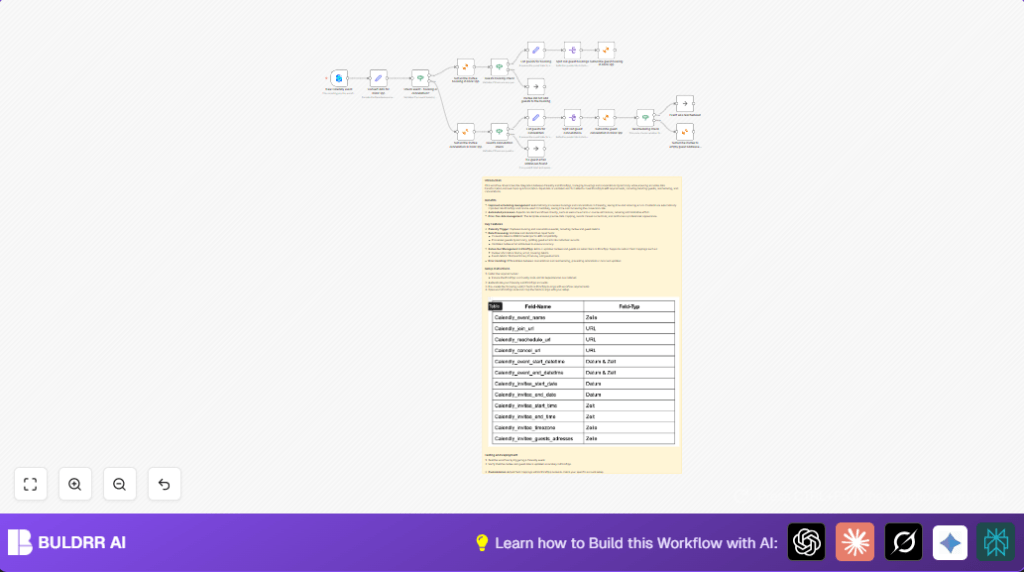
This specialized workflow in n8n automatically transfers booking and cancellation data from Calendly to KlickTipp, handling both invitees and guests, including their booking info and attendance changes. When the workflow runs, it:
- Triggers on Calendly invitee created or canceled events, capturing all booking details.
- Converts all date and time info to UNIX timestamp formats KlickTipp requires for accurate scheduling data.
- Adds or removes invitees and guests as KlickTipp subscribers with custom fields for event name, join URL, reschedule link, cancel URL, start/end times, time zone, and guest lists.
- Splits guest lists into individual entries to process each guest’s subscription or cancellation separately.
- Distinguishes between rescheduling and cancellations to avoid incorrectly overwriting guest information.
- Updates guest email addresses stored in invitee records to maintain correct contact details for future cancellations.
This automation saves Ricardo around 4-6 hours weekly by eliminating manual updates and significantly reduces errors caused by missed guest cancellations, keeping his subscriber data clean and up-to-date.
3. Prerequisites ⚙️
- n8n account to build and run the workflow.
- Calendly account with API access to trigger events when bookings or cancellations occur.
- KlickTipp account configured with subscriber list and custom fields matching the workflow’s field mapping.
- Install KlickTipp community node in n8n for API integration.
- Basic familiarity with n8n interface (no coding required for most steps).
Optional: Consider self-hosting with Hostinger for more control over your n8n instance and enhanced security. 🔐
4. Step-by-Step Guide
Step 1: Trigger the Workflow with Calendly Event
Navigate to n8n and add the Calendly Trigger node. Click New Credentials and connect your Calendly API account. Configure the trigger to listen for invitee.created and invitee.canceled events. This node will activate whenever a booking or cancellation happens.
You should see a webhook URL; test it by creating a test event in Calendly to confirm it triggers the workflow.
Common mistake: Forgetting to set the correct event array, which means changes won’t trigger the workflow.
Step 2: Convert Calendly Data for KlickTipp
Add a Set node named Convert data for KlickTipp. Here, you set and compute necessary fields:
- Convert start and end times into UNIX timestamps:
new Date(...).getTime() / 1000 - Calculate seconds since midnight for start and end times.
- Extract first and last names separately; fallback to parsing full names.
- Format the mobile phone number by replacing + with 00 and removing spaces.
- Extract guests’ email addresses into an array for later processing.
Example code for converting event start time:
={{ new Date($json.payload.scheduled_event.start_time).getTime() / 1000 }}After you configure it, you’ll see a neat JSON payload ready to send to KlickTipp.
Common mistake: Not handling timezones properly, leading to wrong scheduling info.
Step 3: Check if Event is Booking or Cancellation
Insert an If node named Check event – booking or cancellation?. Set condition to check if the event status is =active (booking). This directs workflow to booking or cancellation processing accordingly.
You’ll see two branches: one for new bookings, one for cancellations.
Common mistake: Using incorrect field or operator causing all events to route only one way.
Step 4: Process Invitee Booking
For the booking branch, add the KlickTipp node named Subscribe invitee booking in KlickTipp. Map the invitee’s email and tag ID for bookings.
Map custom fields like invitee first and last name, event name, join URL, reschedule URL, cancellation URL, start and end timestamps, times in seconds, timezone, and guest email list.
This node subscribes the invitee in KlickTipp’s list and tags the contact appropriately.
Step 5: Check for Guest Bookings
Add an If node Guests booking check to determine if guests exist in the scheduled event’s guest list.
If guests exist, prepare data for them using a Set node called List guests for booking, extracting their email addresses into an array.
Next, use the Split Out node to split this array so each guest processes individually.
Each split guest then goes to a KlickTipp node Subscribe guest booking in KlickTipp which subscribes each guest with proper tagging and event details.
If no guests, a NoOp node handles the branch gracefully.
Step 6: Process Invitee Cancellation
On the cancellation branch from Step 3, add a KlickTipp node Subscribe invitee cancellation in KlickTipp that tags the invitee as canceled.
Step 7: Check for Guest Cancellations
Add an If node Guests cancellation check to verify guest email addresses stored in the invitee contact record.
If guests exist, prepare guest data using Set node List guests for cancellation which parses email addresses stored in a specific KlickTipp field.
Use the Split Out node to process each guest individually, then a KlickTipp node Subscribe guest cancellation in KlickTipp to update their subscription status.
If no guest addresses are found, a NoOp node skips unnecessary processing.
Step 8: Handle Rescheduling
Add an If node Rescheduling check to detect if the cancellation is part of a rescheduling.
If true, a NoOp node passes it without overwriting guest email info. If false, update the invitee guest email field to null using a KlickTipp node Subscribe invitee to empty guest addresses field.
5. Customizations ✏️
- Adjust Tag IDs: You can change the
tagIdin the KlickTipp nodes to use different tags for different booking types or marketing funnels. In each KlickTipp node, open the parameters and update thetagId. - Modify Guest Field Mappings: To capture additional guest information, add more custom fields in KlickTipp and map them in the
Subscribe guest booking in KlickTipporSubscribe guest cancellation in KlickTippnodes. - Extend Timezone Handling: Update the
Convert data for KlickTippnode’s JavaScript to support more complex timezone conversions if you use multiple regions. - Include SMS Notifications: Use the
smsNumberparam in KlickTipp nodes to send SMS notifications if your account supports it, by mapping phone numbers accordingly. - Add More Event Status Handling: Create additional branches in the
Check event - booking or cancellation?node to handle other event statuses (like no-shows) if needed.
6. Troubleshooting 🔧
Problem: “Workflow not triggering on Calendly events”
Cause: Incorrect Calendly event types or webhook misconfiguration.
Solution: Verify Calendly Trigger node is subscribed to invitee.created and invitee.canceled events and test webhook URL is publicly accessible.
Problem: “Incorrect time data in KlickTipp subscriber records”
Cause: Timezone or date conversion logic error.
Solution: Double-check the JavaScript in the Convert data for KlickTipp node. Confirm timezone handling matches your event locations.
Problem: “Guests not subscribed or removed correctly”
Cause: Split Out nodes misconfigured or wrong guest email arrays.
Solution: Ensure the field used in Split Out nodes matches the guest email array field exactly. Test with multiple guests and cancellations.
7. Pre-Production Checklist ✅
- Confirm Calendly API credentials are active and have proper scopes.
- Ensure KlickTipp API credentials are valid and tested with the demo account or production.
- Ensure all custom fields referenced in KlickTipp are created and their IDs match in workflow.
- Test the workflow separately for booking and cancellation events, including those with no guests and multiple guests.
- Validate the guest email lists are accurately captured and parsed.
- Backup your KlickTipp subscriber data before mass runs for rollback if needed.
8. Deployment Guide
Once tested, activate your workflow in n8n to start syncing Calendly and KlickTipp in real-time. Monitor your executions through the n8n UI to catch any errors promptly. Use the built-in logging for troubleshooting and keep your API credentials secure to maintain automation reliability.
9. FAQs
Q: Can I use another email marketing platform instead of KlickTipp?
A: Yes, but you’ll need to adapt the workflow to use that platform’s API nodes or HTTP requests to match their subscriber management endpoints.
Q: Does this workflow consume API credits?
A: Yes, both Calendly and KlickTipp APIs may have usage limits depending on your plan. Monitor usage to avoid interruptions.
Q: How is data security maintained?
A: Your API credentials are stored securely in n8n. Data travels over HTTPS APIs, and you can self-host n8n for full control over your environment.
Q: Can this workflow handle high volumes and multiple events?
A: Yes, n8n can handle many events, but test your instance and API limits for large-scale usage.
10. Conclusion
By completing this tutorial, you have fully automated the sync between Calendly and KlickTipp for bookings and cancellations, including guest management and rescheduling logic. You’ve saved hours each week previously spent on tedious manual updates and eliminated errors that annoyed both you and your contacts.
Next, you can explore automations to send personalized follow-up emails via KlickTipp, or notify your team via Slack upon new bookings using Slack nodes. You might also add SMS reminders for invitees via KlickTipp SMS features to enhance engagement.
Enjoy your streamlined scheduling and marketing process! ✏️