

1. Opening Problem Statement
Meet Sarah, an SEO specialist managing three websites for her clients. Every week, Sarah spends hours manually downloading performance data from Google Search Console, organizing it in spreadsheets, and updating reports for her team. This process is error-prone, tedious, and time-consuming — often taking Sarah 4 to 6 hours weekly plus delays due to manual oversight.
What Sarah really needs is a reliable, hands-free way to fetch all her Search Console data — including keyword queries, page performance, and daily trends — and neatly organize it into Google Sheets for her reports. Without automation, repetitive manual exports drain her productivity and increase the risk of mistakes in SEO analysis.
2. What This Automation Does
This n8n workflow automates the retrieval and logging of Google Search Console data directly into Google Sheets. When run, it performs these key outcomes:
- Queries Search Console for the last 30 days of keyword-level performance metrics (clicks, impressions, click-through rate, position).
- Retrieves page-level analytics data separately for the same period.
- Extracts daily performance data to track trends over time.
- Transforms nested JSON responses, splitting complex arrays into individual records.
- Organizes and appends or updates data into three separate Google Sheets tabs: Queries, Pages, and Dates.
- Runs fully scheduled based on your preferred interval, requiring zero manual intervention after setup.
This workflow can save you 4+ hours per week, eliminate manual errors, and provide SEO teams with up-to-date, automatically refreshed reports.
3. Prerequisites ⚙️
- An n8n account or self-hosted instance (for automation orchestration) 🔌
- Google OAuth2 credentials with access to Google Search Console and Google Sheets APIs 🔑
- Google Search Console property configured for your domain (with appropriate permissions) 📧
- Google Sheets spreadsheet accessible and shared with your Google account 📊
4. Step-by-Step Guide
Step 1: Create the Workflow and Schedule Trigger
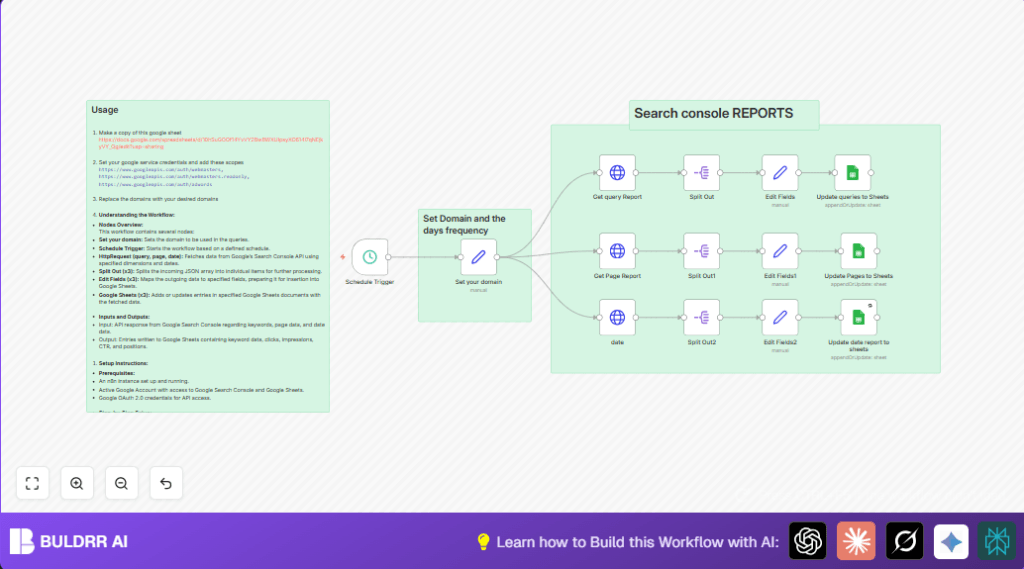
Open your n8n editor and create a new workflow. Add a Schedule Trigger node to initiate the workflow automatically based on a chosen interval (e.g., daily or weekly). Configure the interval by clicking Schedule Trigger → Rule → Interval and define your desired frequency. You should see this node trigger the workflow accordingly.
Common Mistake: Forgetting to enable the node after setting the schedule, so the workflow never runs.
Step 2: Define Your Domain and Date Range
Add a Set node named Set your domain. Here, assign a domain string and a days number value (typically 30) for how far back you want to pull data from Search Console. For example:
domain = "funautomations.io"
days = 30
This node outputs these values to be used in subsequent HTTP requests.
Common Mistake: Misspelling your domain or using the wrong domain format (should be exactly as registered in Search Console).
Step 3: Query Google Search Console Reports
Add three HTTP Request nodes named Get query Report, Get Page Report, and date. Each will POST to Search Console’s API endpoint for your domain with JSON bodies specifying different “dimensions”: “query”, “page”, and “date” respectively.
Set the request URLs dynamically using the expression:
=https://www.googleapis.com/webmasters/v3/sites/sc-domain:{{$json.domain}}/searchAnalytics/query
Use the JSON body to specify startDate as today, endDate as today minus the number of days, and dimension accordingly. For instance, in Get query Report, the body is:
{
"startDate": "{{ $now.format('yyyy-MM-dd') }}",
"endDate": "{{ $now.minus($json.days, 'days').format('yyyy-MM-dd') }}",
"dimensions": ["query"]
}
Authentication: Use Google OAuth2 credentials configured with required scopes like https://www.googleapis.com/auth/webmasters.
Common Mistake: Not setting the correct OAuth scopes or credential type, leading to 403 Forbidden errors.
Step 4: Split API Response Rows for Processing
For each HTTP Request node’s response, add a Split Out node to split the “rows” array into individual JSON items for further processing. Configure to split out the rows field.
After splitting, add Set nodes (Edit Fields, Edit Fields1, Edit Fields2) to rename keys from the response and map metrics to readable fields such as “Keyword”, “clicks”, “impressions”, “ctr”, and “position” for queries; “page”, “clicks”, etc. for pages; and “date”, “clicks”, etc. for dates.
Common Mistake: Forgetting to split out rows before trying to access nested data leads to empty or incorrect data passed on.
Step 5: Append or Update Data in Google Sheets
Connect each Edit Fields node to a corresponding Google Sheets node:
- Update queries to Sheets for keyword data
- Update Pages to Sheets for page-level data
- Update date report to sheets for daily trend data
Configure these nodes to your Google Sheets document URL and specify the sheet tabs (e.g., “Query”, “PAGES”, “Dates”). Use autoMapInputData to map incoming JSON fields to sheet columns. Set operation to append or update matching on unique fields (e.g., “Keyword”, “page”, or “date”) to keep your sheet fresh.
Common Mistake: Not sharing the spreadsheet with your service account or omitting permissions, leading to write failures.
5. Customizations ✏️
1. Adjust Date Range
Change the value of days in the Set your domain node to fetch more or fewer days of data. For example, set it to 7 to only get the last week’s data.
2. Add Additional Dimensions
Modify the JSON body in the HTTP Request nodes to add more dimensions like “country” or “device” to analyze segmented metrics. You would also need to handle the new structure downstream.
3. Customize Sheets Tabs and Columns
Change target sheets or add new columns in Google Sheets nodes to capture additional fields such as “device” or “query category” for deeper analysis.
4. Change Scheduling Frequency
Modify the Schedule Trigger node to a custom frequency such as hourly or monthly as per reporting needs.
5. Domain Parameter Automation
Instead of hardcoding the domain, use an input node or external API call to dynamically select domains, supporting multi-domain reports.
6. Troubleshooting 🔧
Problem: “403 Forbidden” Error on HTTP Requests
Cause: Invalid OAuth credentials or missing scopes.
Solution: Go to Credentials in n8n, verify your Google OAuth2 credentials include the required scopes for Search Console API, and reauthorize if needed.
Problem: No Data Appended in Google Sheets
Cause: Unauthorized spreadsheet access or incorrect sheet/tab configuration.
Solution: Ensure your Google Sheets is shared with your automation service account email. Double-check the documentId and sheetName in the Google Sheets nodes.
Problem: Empty or Missing Data After Split Out Node
Cause: Wrong field specified to split or API returning no results.
Solution: Confirm “rows” exist in the API response by checking via manual API call or activation of debug mode in n8n. Verify Split Out node is configured with fieldToSplitOut=rows.
7. Pre-Production Checklist ✅
- Confirm Google OAuth2 credentials have correct scopes and are authorized.
- Verify domain matches exactly in Search Console and in your workflow.
- Ensure Google Sheets URLs and tabs match existing spreadsheets you have access to.
- Run test executions via manual trigger to observe data flow and validate transformations.
- Backup Google Sheets or create a copy before first automated writes to prevent data loss.
8. Deployment Guide
Activate the Schedule Trigger node to enable automated runs. Monitor execution logs regularly from the n8n dashboard for any errors related to API requests or sheet updates.
Set up notifications in n8n (optional) to alert if workflow failures occur for timely resolutions.
9. FAQs
Can I use this workflow with multiple domains?
Yes, with customization to set domain dynamically or duplicate the workflow per domain.
Does this workflow consume Google API quota?
Yes, each HTTP request counts towards your Google Search Console API limits. Use reasonable scheduling to avoid quota exhaustion.
Is my data secure using OAuth2?
OAuth2 is a secure standard for authentication. Keep your credentials private and restrict scopes to minimum necessary.
10. Conclusion
By implementing this n8n workflow, you’ve automated the extraction of critical SEO data from Google Search Console into Google Sheets. This saves you hours weekly, reduces errors, and delivers fresh, actionable insights to your SEO or marketing team without lifting a finger.
Consider expanding this workflow by integrating email alerts for significant performance changes or linking it with data visualization tools for richer analytics dashboards.
You’re now equipped to transform your SEO reporting with powerful automation — congratulations on this upgrade!