

Automate AI Responses & Image Generation with n8n & NeurochainAI

Struggling to manually respond to Telegram messages or generate images from prompts? This n8n workflow integrates Telegram with NeurochainAI to automate AI chat replies and image creation, saving you time and enhancing engagement efficiently.
telegramTrigger
httpRequest
code
+3
Workflow Identifier: 2269
NODES in Use: telegramTrigger, code, httpRequest, telegram, switch, stickyNote

Press CTRL+F5 if the workflow didn't load.

Learn how to Build this Workflow with AI:

Visit through Desktop for Best experience

1. Opening Problem Statement

Meet Sarah, a community manager who runs a busy Telegram channel with thousands of active members. She receives hundreds of messages daily, many requesting AI-generated answers or images for creative projects. Manually replying to each message and creating images based on user prompts drains Sarah’s time, often leading to delays and frustrated users. Her daily routine includes repetitive task management and late-night typing sessions, costing her at least 3 hours every day just to keep up with user requests.

Sarah’s challenge is exactly what this n8n workflow solves: an automated system that listens to Telegram messages, sends user prompts to NeurochainAI’s powerful API for text or image generation, and replies directly in the chat — all without manual intervention. By eliminating the need to copy and paste prompts or juggle multiple platforms, Sarah can finally reclaim her time and focus on growing her community.

2. What This Automation Does

This workflow is a seamless integration between Telegram and NeurochainAI AI models via n8n. Here’s what happens every time the automation runs:

  • Detects user messages in Telegram that start with /flux or include @NCNAI_BOT mentions.
  • Extracts and cleans prompt text from the message, removing commands like /flux.
  • For text prompts: Sends them to NeurochainAI’s Meta-Llama model to generate AI chat responses.
  • For image generation prompts: Sends them to NeurochainAI’s Flux model to create images based on user descriptions.
  • Handles errors gracefully by notifying users if prompts are too short or if there are backend API issues.
  • Replies directly in Telegram with AI-generated text or images, including appropriate message threading and chat actions like typing indicators.

Thanks to this automation, Sarah saves at least 3 hours daily, avoids repetitive typing, and improves user satisfaction with instant, relevant AI-generated content.

3. Prerequisites ⚙️

  • 📱 Telegram account and a Bot created with BotFather to get your Bot API Token.
  • 🔐 NeurochainAI API access and an API key from their dashboard.
  • 🛠️ An active n8n instance to import and run this workflow.
  • 🔌 Internet connection to access Telegram and NeurochainAI services.
  • Optional: Self-hosting option for n8n (check out Hostinger’s n8n hosting for ease).

4. Step-by-Step Guide

Step 1: Create your Telegram Bot

Open the Telegram app, search for BotFather. Send the command /newbot and follow prompts to name your bot. Copy the token provided at the end.
You should see a message with your bot token.
Common mistake: Forgetting to save the token or mixing it with other tokens.

Step 2: Obtain NeurochainAI API Key

Log in to NeurochainAI Dashboard. Under “Inference As Service”, generate a new API key.
Make sure your account has enough credits to make requests.
Common mistake: Using expired or wrong API keys.

Step 3: Import the Workflow into n8n

In your n8n dashboard, click “Import” then upload the JSON file.
Workflow named NeurochainAI Basic API Integration should appear.
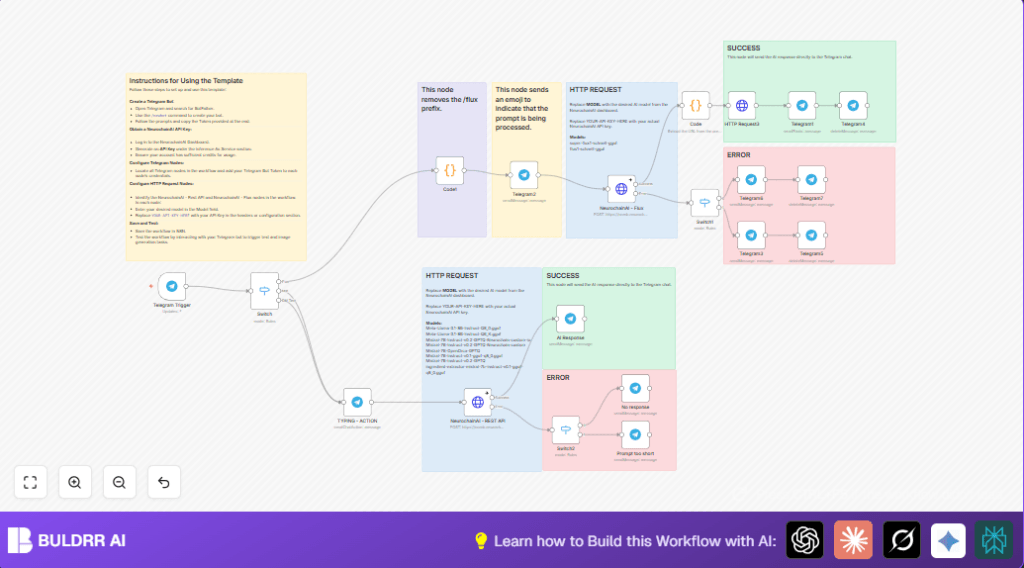
You will see multiple nodes connected in a flowchart style, including Telegram triggers and HTTP requests.
Common mistake: Importing incomplete JSON or missing nodes.

Step 4: Configure Telegram Nodes

Locate all Telegram nodes named Telegram Trigger, Telegram1, Telegram2, etc.
In each, add your Bot token credentials under “telegramApi”.
Expected: Each node should authenticate successfully.
Common mistake: Not updating token in all nodes leads to authentication errors.

Step 5: Customize NeurochainAI HTTP Request Nodes

There are two key HTTP request nodes:
NeurochainAI – REST API for text generation.
NeurochainAI – Flux for image generation.
In each node, update the Authorization header with your Bearer token (API key).
Also, pick your preferred model name (e.g., Meta-Llama-3.1-8B-Instruct-Q6_K.gguf for text).
You should see JSON body and headers properly formatted.
Common mistake: Leaving placeholder “YOUR-API-KEY-HERE” in place.

Step 6: Understand the Switch Node for Command Routing

The Switch node inspects incoming Telegram messages.
It routes messages based on whether they start with /flux (image requests), mention the bot (text requests), or are private chats.
Common mistake: Modifying conditions incorrectly can break routing.

Step 7: Clean Incoming Prompts with Code Node

The Code1 node removes the /flux prefix and trims whitespace.
Example input: “/flux a blue butterfly”
Output: “a blue butterfly” ready for AI.

Step 8: Trigger Typing Indicator

The TYPING – ACTION Telegram node sends the typing status to users while AI generates a response.
Expected: Users see the bot typing indicator in chat.
Common mistake: Skipping this step reduces user engagement feeling.

Step 9: Handle AI Text Response

NeurochainAI – REST API sends cleaned prompts to the text AI and awaits response.
AI Response node then sends this directly back in Telegram chat with markdown formatting.
Common mistake: Not handling API errors can leave users waiting.

Step 10: Handle AI Image Generation

The NeurochainAI – Flux node posts image generation requests.
Response includes URLs parsed by the Code node to extract image preview URLs.
HTTP Request3 downloads the image.
Telegram1 sends that image as a photo reply.
Common mistake: Missing authentication or wrong URL leads to failure in sending images.

Step 11: Implement Error Handling and User Feedback

The workflow includes several Switch nodes to detect specific API errors, such as prompt too short or no response.
Telegram nodes notify users with friendly messages and offer retry buttons.
Expected: Users get clear feedback if their prompt was invalid or if the AI service failed.
Common mistake: Not testing error paths can confuse users.

Step 12: Test Your Workflow

Send messages to your Telegram bot using /flux prefix or by mentioning the bot.
Check that you receive AI-generated texts or images accordingly.
Tip: Start with simple prompts like “a red dragon” or “Tell me a joke”.
Expected: Real-time responses with no delays or errors.

5. Customizations ✏️

  • Change AI Models: In the NeurochainAI – REST API and NeurochainAI – Flux nodes, change the model parameter to any supported NeurochainAI model listed in workflow notes.
    Go to each node → Edit → Parameters → JSON body, update "model" value.
    This lets you try new AI engines or improved versions.
  • Modify Command Prefix: In the Switch node, change the condition in the rule checking /flux start to another prefix, e.g. /image to suit your community’s style.
    Go to Switch → Rules → Modify startsWith value.
  • Customize Error Messages: Edit Telegram error response nodes Telegram6, Telegram3, and No response to change text or add new buttons.
    Go to each Telegram node → Parameters → Text field.
    Great for adding personalized help or links.
  • Expand to Group Chats: Currently configured mostly for private chats; adapt Switch rules to handle group mentions differently or ignore some messages.
    Edit Switch node conditions related to chat.type.
  • Add Logging: Add a Google Sheets or Database node to log each prompt and AI response for analytics.
    Insert after AI Response nodes, map user message and AI text/image URLs.

6. Troubleshooting 🔧

  • Problem: “Prompt string is invalid” error from NeurochainAI
    Cause: Input prompt too short or malformed.
    Solution: Ensure users include enough descriptive text beyond the command prefix. Check cleaned message in Code1 node.
  • Problem: Telegram nodes fail to send messages or photos
    Cause: Invalid Telegram Bot token or missing credentials.
    Solution: Re-enter bot token credentials in all Telegram nodes under “telegramApi” and test authentication.
  • Problem: Image URL extraction fails, images don’t send
    Cause: Response parsing error or incorrect URL from AI.
    Solution: Verify JavaScript code in Code node that parses image URL, ensure JSON is returned correctly.
  • Problem: No response from AI worker
    Cause: Temporary AI service issues or rate limits.
    Solution: Use the retry option provided in Telegram error notification node and check service status.

7. Pre-Production Checklist ✅

  • Verify all Telegram nodes have valid and active API tokens.
  • Check NeurochainAI API keys are current and have sufficient credits.
  • Test Telegram commands /flux and bot mentions to confirm routing.
  • Confirm that image URLs are correctly parsed and images display in chat.
  • Simulate errors to check user notifications trigger properly.
  • Backup workflow JSON before deployment for quick rollback.

8. Deployment Guide

Activate your workflow in n8n by toggling it to “Active”.
Monitor Telegram chats after launching to ensure seamless operation.
Use n8n’s execution logs to troubleshoot any API failures.
Periodically update your NeurochainAI models or tokens as needed.
Optional: Schedule backups and audit logs for enterprise usage.

9. FAQs

  • Can I use this workflow with other AI providers?
    Yes, but you would need to adjust HTTP request nodes to match different API specs.
  • Does this consume Telegram API limits or NeurochainAI credits?
    Yes, usage counts against NeurochainAI credits, and excessive Telegram messages may hit Telegram rate limits.
  • Is my chat data safe?
    The workflow transmits data via HTTPS to NeurochainAI and Telegram. Ensure your API keys are kept secure.
  • Can this handle high volumes of messages?
    It depends on your n8n instance resources and NeurochainAI account quotas.

10. Conclusion

By following this guide, you have set up a powerful n8n automation linking Telegram and NeurochainAI. You transformed manual message handling into instant AI-generated text and images, saving hours daily and boosting your community’s interactivity.

Imagine cutting your response times from hours to seconds and delighting users with unique AI content anytime. Next, explore adding conversation logging or integrating with Google Sheets to monitor trends. Or extend this setup to other messaging platforms for wider reach.

You’ve just unlocked a practical AI assistant for your Telegram community — well done!

Promoted by BULDRR AI

Related Workflows

Automate Viral UGC Video Creation Using n8n + Degaus (Beginner-Friendly Guide)

Learn how to automate viral UGC video creation using n8n, AI prompts, and Degaus. This beginner-friendly guide shows how to import, configure, and run the workflow without technical complexity.
Form Trigger
Google Sheets
Gmail
+37
Free

AI SEO Blog Writer Automation in n8n (Beginner Guide)

A complete beginner guide to building an AI-powered SEO blog writer automation using n8n.
AI Agent
Google Sheets
httpRequest
+5
Free

Automate CrowdStrike Alerts with VirusTotal, Jira & Slack

This workflow automates processing of CrowdStrike detections by enriching threat data via VirusTotal, creating Jira tickets for incident tracking, and notifying teams on Slack for quick response. Save hours daily by transforming complex threat data into actionable alerts effortlessly.
scheduleTrigger
httpRequest
jira
+5
Free

Automate Telegram Invoices to Notion with AI Summaries & Reports

Save hours on financial tracking by automating invoice extraction from Telegram photos to Notion using Google Gemini AI. This workflow extracts data, records transactions, and generates detailed spending reports with charts sent on schedule via Telegram.
lmChatGoogleGemini
telegramTrigger
notion
+9
Free

Automate Email Replies with n8n and AI-Powered Summarization

Save hours managing your inbox with this n8n workflow that uses IMAP email triggers, AI summarization, and vector search to draft concise replies requiring minimal review. Automate business email processing efficiently with AI guidance and Gmail integration.
emailReadImap
vectorStoreQdrant
emailSend
+12
Free

Automate Email Campaigns Using n8n with Gmail & Google Sheets

This n8n workflow automates personalized email outreach campaigns by integrating Gmail and Google Sheets, saving hours of manual follow-up work and reducing errors in email sequences. It ensures timely follow-ups based on previous email interactions, optimizing communication efficiency.
googleSheets
gmail
code
+5
Free