
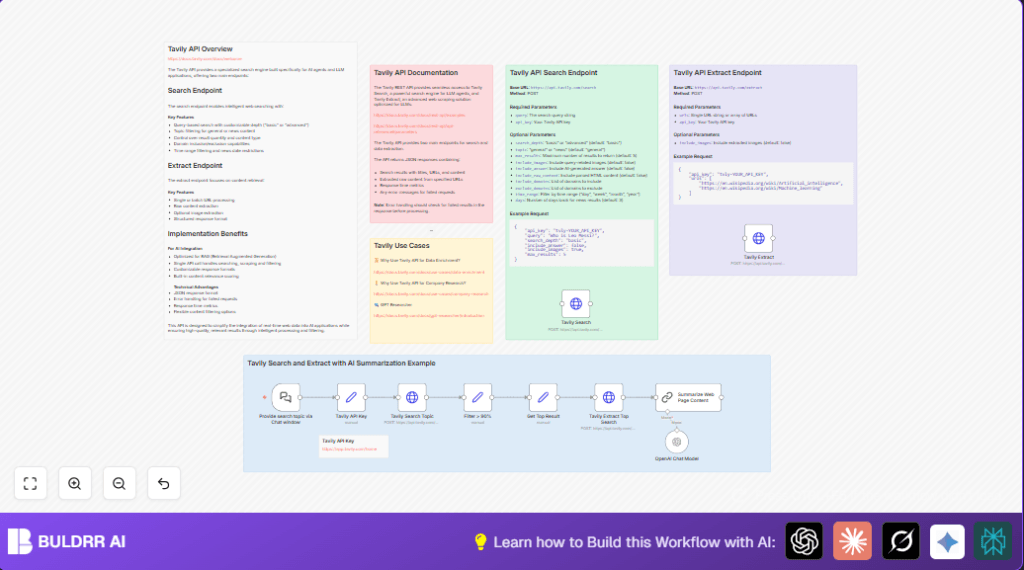

What This Automation Does
This workflow takes a topic you type in a chat window and finds good web search results for it.
It keeps only results that have a high score above 80% to make sure they are reliable.
Then it gets detailed content from the top result’s web page.
Next, it makes a short summary of that page using OpenAI’s chat model.
The final output is a clear and short research summary that you can read quickly or use in reports.
Inputs, Processing Steps, and Output
Inputs
- User search topic: The text you enter in the chat window to start a search.
- Tavily API Key: Needed to access the search and extract services.
- OpenAI API Key: Needed to generate the content summary.
Processing Steps
- The workflow receives your topic from the chat message in the Provide search topic via Chat window node.
- It sends a POST request to Tavily Search API with the topic and options to get web results.
- It filters the results to keep only ones with score above 80% using the Filter > 90% node.
- Selects the top filtered result for deep content extraction.
- Calls Tavily Extract API to get the full content of that web page.
- Passes the extracted content to OpenAI Chat Model to create a concise summary in Markdown format.
Output
The workflow outputs a neat, easy-to-read summary ready for use in reports or quick reference.
Beginner Step-by-Step: How to Use This Workflow in n8n
1. Importing the Workflow
- Download the workflow file using the Download button on this page.
- Open your n8n editor where you want to use this workflow.
- Click Import from File and select the downloaded workflow file.
2. Setting Up Credentials and Configurations
- Find the node named Tavily API Key and enter your own Tavily API Key.
- Locate the node that uses OpenAI (usually the Summarize Web Page Content node) and enter your OpenAI API Key.
- If there are any nodes with IDs, emails, or channels used to send outputs, update them to the correct values you want for your setup.
- Check the Provide search topic via Chat window node webhook URL and be sure to use it correctly to enter your search topics.
3. Testing and Activating
- Run the workflow once with a test search term to confirm everything is working as expected.
- If the test is successful, activate the workflow in the n8n UI to run it live.
Now the workflow will receive your dynamic search input, do the searches, filter and extract content, summarize, and produce results automatically.
If using self-host n8n, see this resource to help with your hosting and setup.
Tools and Services Used
- n8n Automation Platform: Runs the workflow with connected nodes.
- Tavily Search API: Provides targeted, ranked web search results.
- Tavily Extract API: Retrieves full content from specific web page URLs.
- OpenAI Chat Model API: Summarizes extracted content into concise and readable text.
- LangChain Chat Trigger Node: Captures user input as search topic in chat form.
Customizations and Options
- Change the search depth to “advanced” in the Tavily Search Topic node to get deeper search results.
- Turn on AI-generated answers by setting
include_answerto true in the search request for instant answers. - Adjust the filter score threshold in the Filter > 90% node to tighten or loosen which results are accepted.
- Modify the extraction node to pull content from multiple URLs to get broader data.
- Edit the summary prompt in the Summarize Web Page Content node to change tone or formatting of the final text.
Common Issues and Fixes
Issue: 401 Unauthorized error when calling Tavily API.
Reason: API Key missing or invalid.
Fix: Check the Tavily API Key node and update with correct key.
Issue: No search results found.
Reason: Query too narrow or API limits reached.
Fix: Try broader search terms or verify API usage.
Issue: Extraction fails or gets bad content.
Reason: Invalid URL or page blocked.
Fix: Test URL manually and fix formatting in extract node.
Pre-Production Checklist
- Confirm API keys are active and have quota.
- Test chat trigger to make sure it works and accepts your input.
- Check search results are properly filtered and look correct.
- Verify extraction gets full page content correctly.
- Make sure summary output reads well and answers search intent.
Summary
✓ This workflow turns user topics into targeted web info, filtering and summarizing the best results.
✓ It saves you time by automating search, extract, and summary steps.
✓ Outcomes are clear summaries ready to use in reports or decision making.
✓ The workflow uses trusted API keys and runs inside your n8n environment.
→ You get fast, reliable research with less manual effort.
