
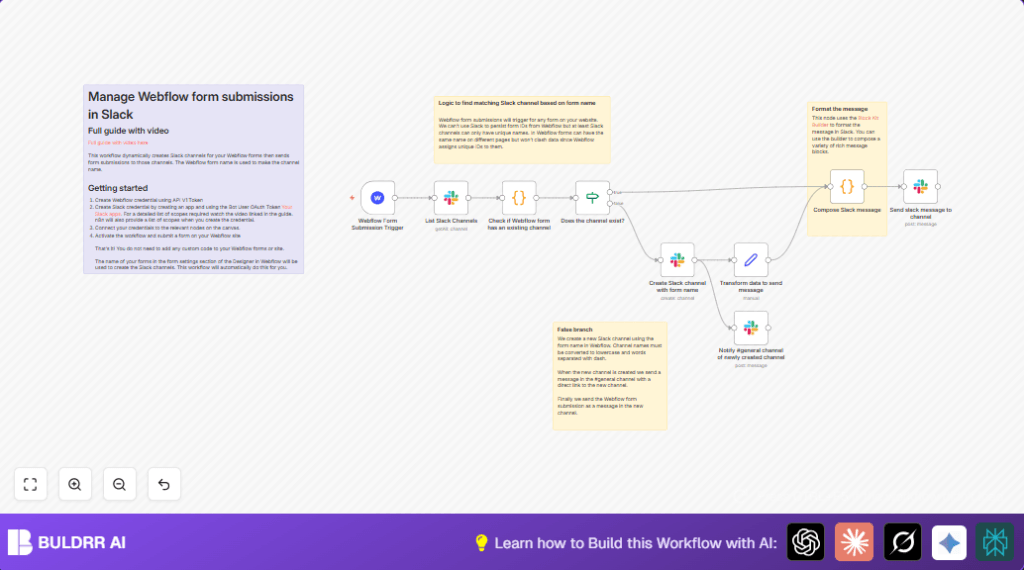

Automate Slack Notifications from Webflow Forms Using n8n

This workflow automates sending Webflow form submissions to specific Slack channels by dynamically creating channels named after form names. It solves the problem of manually managing notifications, saving time and preventing missed form responses.
slack
webflowTrigger
code
+3
Workflow Identifier: 2250
NODES in Use: webflowTrigger, slack, code, if, set, stickyNote

Press CTRL+F5 if the workflow didn't load.

Learn how to Build this Workflow with AI:

Visit through Desktop for Best experience

Opening Problem Statement

Imagine Sarah, a community manager who runs multiple events and feedback forms on her company’s Webflow website. Every time a visitor submits a form, Sarah needs to notify the right team in Slack. But manually sorting submissions and remembering which form corresponds to which Slack channel is exhausting—sometimes she misses key submissions or wastes hours forwarding messages. Without automation, this repeated manual work drags productivity and can delay crucial follow-ups.

This specific challenge—the manual handling of Webflow form data flowing into Slack channels designated to each form—is exactly what this workflow solves effortlessly.

What This Automation Does

This workflow automatically listens to Webflow form submissions and sends them as formatted messages directly into Slack channels. Here’s what it accomplishes when running:

  • Monitors any form submission on your Webflow site using the Webflow Trigger node.
  • Retrieves a list of existing Slack channels to check if one corresponds to the form name.
  • Automatically creates a new Slack channel if one doesn’t exist matching the form name (converting it to lowercase and hyphenated format).
  • Sends form submission data as a beautifully formatted message using Slack’s Block Kit message format to the correct channel.
  • Notifies the #general Slack channel when a new channel is created to keep the team informed.
  • Prevents manual sorting or missing messages, saving hours of repetitive work and ensuring no form data slips through unnoticed.

Prerequisites ⚙️

  • n8n account to create and run the automation workflow.
  • Valid Webflow account with API V1 Token set up in n8n credentials. 🔐
  • Slack app credentials using Bot User OAuth Token with required scopes created and connected in n8n. 🔑
  • Access to your Webflow project’s form names and Slack workspace with permissions to create channels and post messages.

Step-by-Step Guide

Step 1: Set up the Webflow Form Submission Trigger Node

Navigate to n8n, add the Webflow Form Submission Trigger node. Click Add New Credential and enter your Webflow API V1 Token. Select the specific Webflow site where your forms reside. You should see the webhook URL generated. This node listens for any form submissions on your site.

Common mistake: Forgetting to select the correct Webflow site, which results in the workflow never triggering.

Step 2: List All Slack Channels

Add the List Slack Channels node and connect it to the Webflow Trigger. Choose your Slack Bot OAuth Token credential. Set it to fetch all active (non-archived) channels. This node fetches the current available Slack channels to verify if a channel for the form already exists.

Expected outcome: A JSON list of all Slack channels appears in the node’s output.

Step 3: Check for Existing Slack Channel

Use a Code node named “Check if Webflow form has an existing channel”. This node transforms the form name from the submission into a lowercase, hyphenated string to match Slack channel naming conventions. It compares the transformed name against the channel list obtained to detect if a matching channel exists.

Paste this JavaScript code in the node’s editor:

const transformedFormName = (inputString)=> {
  const lowercaseString = inputString.toLowerCase();
  const wordsArray = lowercaseString.split(' ');
  return wordsArray.join('-');
}

const currentForm = transformedFormName($('Webflow Form Submission Trigger').all()[0].json["name"]);

const doesChannelExist = (channelName) => {
  return channelName == currentForm;
}

let channels = [];
for (const item of $input.all()) {
  let channel = {
    name: item.json["name"],
    id: item.json["id"],
    channelExists: doesChannelExist(item.json["name"]),
  };
  channels.push(channel);
}

let data = [{ 
  channel: channels.filter((c) => c.channelExists === true)[0],
  formName: currentForm,
  formData: $('Webflow Form Submission Trigger').all()[0].json["data"]
}];

return data;

Outcome: It outputs data indicating if the channel exists and passes form data forward.

Step 4: Conditional Branch to Verify Channel Existence

Add an If node titled “Does the channel exist?”. Configure the condition to check if the “channel” field is not empty. Connect the flow from the previous code node here. This splits the workflow into two branches:

  • True branch: The Slack channel exists; proceed to send the message.
  • False branch: No channel found; create a new channel first.

Step 5a: Creating the Slack Channel if Missing

On the False branch, add the Slack node configured to create a new channel. Use the “formName” field from the previous node as the channel name. Slack requires channel names lowercase and hyphenated, which we already prepared. Wait for the channel creation response.

Step 5b: Data Transformation After Channel Creation

Add a Set node named “Transform data to send message” connected to the channel creation node. This node structures information for messaging, including the new channel ID and the original form data.

Configure fields as in the workflow JSON to package formData, formName, and an object representing the channel (id and name).

Step 6: Compose Slack Message with Form Submission Details

Use the Code node named “Compose Slack message” to create a Slack Block Kit formatted message. The script converts all form data key-value pairs into a markdown-styled block to display neatly in Slack.

Paste this JavaScript snippet within this node:

const webflowFormData = $input.all()[0].json.formData;

const objectToMarkdown = (obj) => {
  return Object.entries(obj)
    .map(([key, value]) => `*${key}*: ${value}`)
    .join('n');
}

const slackMessageBlock = {
	"blocks": [
		{
			"type": "section",
			"text": {
				"type": "mrkdwn",
				"text": `New form submission: n ${objectToMarkdown(webflowFormData)}`
			}
		},
		{
			"type": "divider"
		}
	]
};
const data = {...$input.all()[0].json, slackMessageBlock: slackMessageBlock};
return data;

This prepares the nicely formatted message payload for Slack.

Step 7: Send the Slack Message to the Correct Channel

Connect both the existing channel branch (True) and the new channel branch (after transformation) into a Slack node set up to send messages. Configure it to send your previously composed Block Kit message to the channel identified by its ID.

Step 8: Notify #general of New Channel Creation

After creating a new Slack channel, add a separate Slack node to send a notification message to the #general channel. This informs your whole team about the new channel automation created, using a friendly Markdown message with block formatting.

Customizations ✏️

  • Message Formatting: Modify the “Compose Slack message” code node to add images, links, or buttons using Slack’s Block Kit for richer interactivity.
  • Channel Naming Logic: In the “Check if Webflow form has an existing channel” code node, adjust the logic to change channel naming conventions, e.g., add prefixes or suffixes.
  • Notification Channel: Change the “Notify #general channel” Slack node to post notifications in a different channel or direct message to specific users.
  • Additional Data Handling: Extend the workflow to save form submissions to a Google Sheet or database for record-keeping alongside Slack notifications.

Troubleshooting 🔧

Problem: “Slack API returned a ‘missing_scope’ error”
Cause: Your Slack Bot OAuth Token lacks the required permissions to create channels or post messages.
Solution: Review your Slack app’s scopes and ensure you include channels:manage, chat:write, and others as needed. Reinstall the app to update permissions and refresh the n8n credentials.

Problem: “Webflow trigger does not activate”
Cause: Incorrect webhook setup or wrong Webflow site selected.
Solution: Confirm your webhook is active in Webflow, select the correct site in the trigger node, and test the form submission directly.

Pre-Production Checklist ✅

  • Verify Webflow API credentials are valid and have permission to listen for form submissions.
  • Check Slack Bot credentials and ensure all required OAuth scopes are granted.
  • Test the workflow with a sample form submission on Webflow and confirm the message posts in the proper Slack channel.
  • Ensure the naming transformation logic correctly matches or creates Slack channels.
  • Review notifications to #general to keep your team in the loop.

Deployment Guide

Activate the workflow in n8n once all credentials are connected and tested. Because this workflow responds to live Webflow form submissions, it will keep running as a webhook listener. Use n8n’s execution logs to monitor activity and troubleshoot any errors. In case of errors, pause the workflow, fix them following troubleshooting steps, then reactivate.

FAQs

Q: Can I use Slack legacy tokens instead of Bot OAuth tokens?
A: It is recommended to use Bot OAuth tokens since legacy tokens might not support channel creation or block messages.

Q: Will this workflow handle multiple forms simultaneously?
A: Yes, it dynamically handles any form by mapping the form name to Slack channels, creating channels on the fly if needed.

Q: Does sending Slack messages via this workflow cost API credits?
A: Slack API usage is generally free within reasonable limits; monitor your usage if on a paid Slack plan.

Conclusion

By following this guide, you’ve built a powerful n8n workflow that automates sending your Webflow form responses into dynamically created Slack channels. This saves you hours of tedious manual work, reduces the risk of missing vital form submissions, and keeps your team instantly informed.

Next, consider extending this automation by archiving form results in Google Sheets or triggering other notifications for critical submissions. This workflow opens a gateway to seamless communication between Webflow and Slack, tailored to your unique forms and teams.

Keep experimenting and streamlining your processes with n8n—your automation assistant!

Promoted by BULDRR AI

Related Workflows

Automate Viral UGC Video Creation Using n8n + Degaus (Beginner-Friendly Guide)

Learn how to automate viral UGC video creation using n8n, AI prompts, and Degaus. This beginner-friendly guide shows how to import, configure, and run the workflow without technical complexity.
Form Trigger
Google Sheets
Gmail
+37
Free

AI SEO Blog Writer Automation in n8n

A complete beginner guide to building an AI-powered SEO blog writer automation using n8n.
AI Agent
Google Sheets
httpRequest
+5
Free

Automate CrowdStrike Alerts with VirusTotal, Jira & Slack

This workflow automates processing of CrowdStrike detections by enriching threat data via VirusTotal, creating Jira tickets for incident tracking, and notifying teams on Slack for quick response. Save hours daily by transforming complex threat data into actionable alerts effortlessly.
scheduleTrigger
httpRequest
jira
+5
Free

Automate Telegram Invoices to Notion with AI Summaries & Reports

Save hours on financial tracking by automating invoice extraction from Telegram photos to Notion using Google Gemini AI. This workflow extracts data, records transactions, and generates detailed spending reports with charts sent on schedule via Telegram.
lmChatGoogleGemini
telegramTrigger
notion
+9
Free

Automate Email Replies with n8n and AI-Powered Summarization

Save hours managing your inbox with this n8n workflow that uses IMAP email triggers, AI summarization, and vector search to draft concise replies requiring minimal review. Automate business email processing efficiently with AI guidance and Gmail integration.
emailReadImap
vectorStoreQdrant
emailSend
+12
Free

Automate Email Campaigns Using n8n with Gmail & Google Sheets

This n8n workflow automates personalized email outreach campaigns by integrating Gmail and Google Sheets, saving hours of manual follow-up work and reducing errors in email sequences. It ensures timely follow-ups based on previous email interactions, optimizing communication efficiency.
googleSheets
gmail
code
+5
Free