

1. Opening Problem Statement
Meet Sarah, a data analyst at a market research firm. She’s responsible for collecting detailed product data from Amazon to analyze market trends. Traditionally, Sarah spends hours manually scraping data or using unreliable tools that often break due to website changes or require continuous supervision. Her current approach is slow, error-prone, and inefficient, leading to missed deadlines and lost opportunities to deliver actionable insights on time.
The challenge grows exponentially when Sarah needs bulk, structured data at scale for multiple products. Manual scraping is not feasible, and buying bulk datasets is costly. Sarah needs a reliable, automated way to extract vast amounts of structured ecommerce data regularly without sacrificing accuracy or spending excessive time.
2. What This Automation Does ⚙️
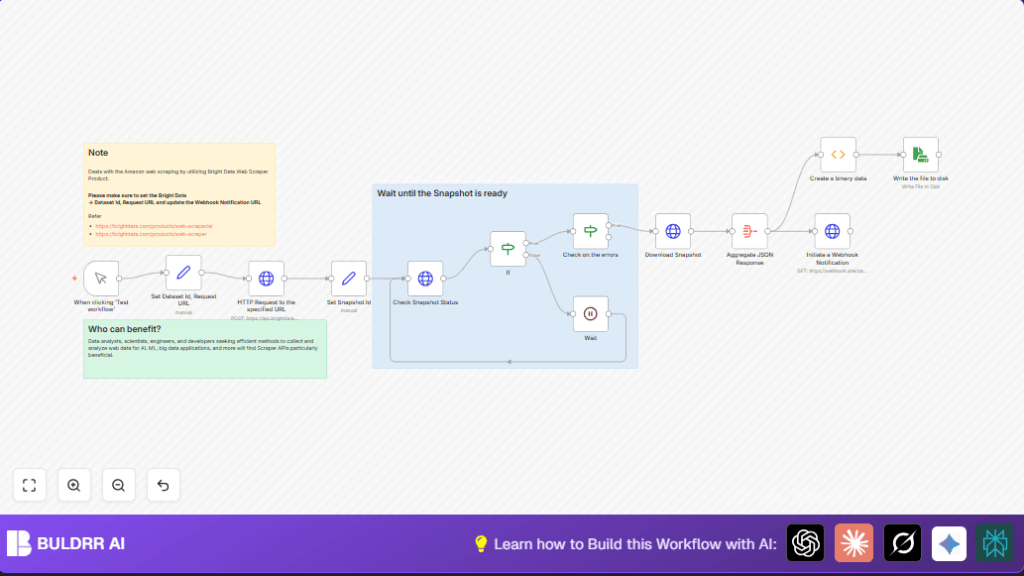
This n8n workflow leverages the Bright Data Web Scraper product to automate the entire bulk data extraction process from Amazon with these specific benefits:
- Triggers a Bright Data dataset snapshot request with the provided product URL and dataset ID.
- Polls the snapshot status every 30 seconds until the data extraction snapshot is ready.
- Checks for errors robustly at each step to ensure data integrity.
- Downloads the completed snapshot dataset in JSON format automatically.
- Aggregates and processes the JSON data efficiently within n8n.
- Saves the scraped bulk data as a JSON file on disk for further analysis or AI/ML applications.
- Notifies a webhook endpoint with the aggregated snapshot data for downstream integrations.
By automating these steps, Sarah can save multiple hours weekly that were previously spent on manual data collection, reduce human errors, and get fresh product data on-demand for her analyses.
3. Prerequisites ⚙️
- 🛠️ An n8n account with workflow editing rights.
- 🔑 A Bright Data account with a valid dataset and API access.
- 🔐 HTTP Header Authentication credentials set up in n8n for the Bright Data API (to access their REST endpoints securely).
- 📁 Access to your file system where n8n runs for saving output files.
Optional: If you prefer self-hosting your n8n instance for full control, platforms like Hostinger offer easy management: https://buldrr.com/hostinger
4. Step-by-Step Guide ✏️
Step 1: Set Your Dataset ID and Request URL
Navigate to the Set Dataset Id, Request URL node.
- Click the node → Go to Parameters → Assignments.
- Enter your Bright Data
dataset_id(e.g.,gd_l7q7dkf244hwjntr0). - Enter the JSON string of your request URL(s), for example:
[{ "url": "https://www.amazon.com/Quencher-FlowState-Stainless-Insulated-Smoothie/dp/B0CRMZHDG8" }] - Save changes. You should see the data ready to pass on.
- Tip: Ensure the URLs are correctly formatted JSON arrays to avoid errors later.
Step 2: Trigger Bright Data Snapshot via HTTP Request
Open the HTTP Request to the specified URL node.
- This node sends a POST request to Bright Data’s snapshot trigger API with the dataset ID and URLs.
- Check the URL is
https://api.brightdata.com/datasets/v3/trigger. - Headers use HTTP Header Auth credentials set in n8n for Bright Data.
- The body sends the JSON request array entered previously.
- Once triggered, the node returns a snapshot ID to track the extraction.
Step 3: Save the Snapshot ID for Polling
Find the Set Snapshot Id node.
- It assigns the snapshot ID received from the trigger node into a variable called
snapshot_id. - This is crucial for subsequent nodes to check the dataset’s progress.
Step 4: Check Snapshot Status in a Loop
The Check Snapshot Status node makes a GET request to check if the snapshot is ready.
- Configured to call
https://api.brightdata.com/datasets/v3/progress/{{ $json.snapshot_id }}. - Authenticated with the same Bright Data credentials.
- The response indicates whether the dataset status is
readyor still processing.
Error handling: The If node checks if the status equals ready.
If not ready, the flow routes to the Wait node that pauses the workflow for 30 seconds before polling again, implementing efficient waiting and retry without manual monitoring.
Step 5: Verify No Errors in the Dataset
After the snapshot is ready, the workflow passes to the Check on the errors node.
- This checks the snapshot’s error count; specifically, it checks if the
errorsfield equals zero. - If errors exist, the workflow will not proceed to downloading to avoid corrupted data handling.
Step 6: Download the Ready Snapshot
Open the Download Snapshot HTTP Request node.
- This downloads the dataset contents in JSON format from Bright Data using the snapshot ID.
- URL:
https://api.brightdata.com/datasets/v3/snapshot/{{ $json.snapshot_id }}. - Returns the bulk web scraped product data automatically.
Step 7: Aggregate the Downloaded JSON Data
Use the Aggregate JSON Response node.
- This node aggregates all the bulk items from the JSON response for easier processing downstream.
Step 8: Notify via Webhook & Create Binary Data
The Initiate a Webhook Notification node sends the aggregated data to a webhook URL for other services to consume.
- Set your webhook URL (default is https://webhook.site/daf9d591-a130-4010-b1d3-0c66f8fcf467) or replace with your own.
The Create a binary data Function node converts JSON into base64 encoded binary format for saving.
Step 9: Save the Data to Disk
Lastly, the Write the file to disk node.
- Saves the base64 encoded JSON data as a file named
d:bulk_data.jsonon the local disk. - After this completes, you have a ready-to-use bulk dataset file for analysis or AI workflows.
5. Customizations ✏️
- Change Dataset or URLs: In the Set Dataset Id, Request URL node, update the
dataset_idand JSON URL array to scrape different Amazon products or other ecommerce sites supported by Bright Data. - Adjust Polling Interval: Modify the Wait node’s
amountfrom 30 seconds to a shorter or longer duration depending on your expected scraping time. - Webhook Integration: In the Initiate a Webhook Notification node, replace the webhook URL with your own endpoint to integrate this data into dashboards or notification systems.
- Output Format: Extend the Create a binary data function node to output other file types like CSV by adjusting the encoding and format.
- Error Handling: Enhance the If nodes to handle different error codes or statuses from Bright Data as needed.
6. Troubleshooting 🔧
Problem: “Snapshot status never reaches ‘ready’.”
Cause: Dataset could be too large or Bright Data service delays.
Solution: Increase the wait time in the Wait node, or manually verify snapshot progress in Bright Data dashboard.
Problem: “HTTP Request fails with 401 Unauthorized.”
Cause: Bright Data API credentials are missing or incorrect.
Solution: Recheck your HTTP Header Auth credentials setup in n8n under Credentials, ensure keys are active and correct.
Problem: “File write operation fails.”
Cause: n8n does not have file system write permissions.
Solution: Ensure n8n instance runs with proper OS permissions to write files and that the path d: exists or update the path in the Write the file to disk node.
7. Pre-Production Checklist ✅
- Confirm Bright Data API credentials in n8n are valid and have access.
- Verify the dataset ID and URL JSON are correct and well-formed.
- Test the HTTP POST trigger to ensure a snapshot ID returns correctly.
- Simulate snapshot readiness by monitoring the status polling.
- Confirm file write access to your chosen output folder.
- Back up existing data files before overwriting to prevent data loss.
8. Deployment Guide
Activate this workflow within n8n by toggling it on.
Run a test trigger from the Manual Trigger node to initiate the entire scraping sequence.
Monitor the execution logs for errors or status updates.
Set up scheduling in n8n to automate this workflow regularly if periodic data refreshes are needed.
9. FAQs
- Q: Can I use this workflow for websites other than Amazon?
A: Yes, as long as the URLs and dataset configuration in Bright Data support that site. - Q: Does this consume API credits from Bright Data?
A: Yes, each snapshot trigger and data retrieval counts against your Bright Data quota. - Q: Is my scraped data secure?
A: The workflow uses secure HTTP header authentication, but always ensure proper API key management.
10. Conclusion
By setting up this workflow, you’ve automated the tedious task of bulk web data extraction from Amazon using the powerful Bright Data Web Scraper API integrated into n8n. This saves you substantial time, reduces manual errors, and delivers your structured data ready for analysis or AI workflows.
Next steps: consider automating data enrichment, pushing results to visualization dashboards, or integrating with machine learning pipelines to fully capitalize on your freshly extracted ecommerce data.