

What this workflow does
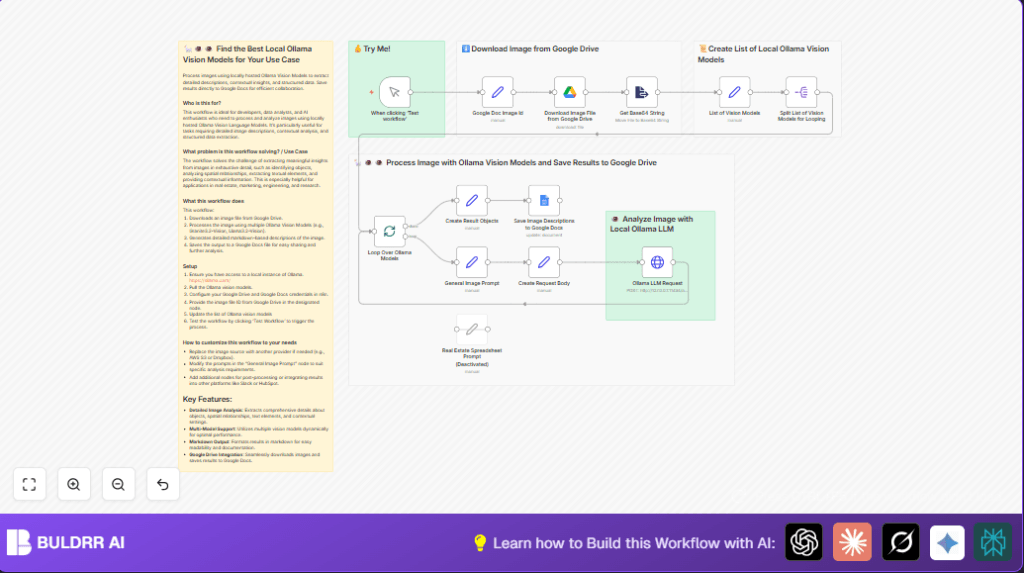
This workflow takes an image ID from Google Drive and pulls that image down.
Then, it turns the image into a base64 string, so it can be sent easily in a request.
It picks local Ollama vision models one by one and sends the image with a clear prompt to each model.
These models give a detailed report about things in the image, the setting, text seen, and spatial details.
Finally, it collects all reports and saves them into a Google Docs file as markdown text.
This saves time and errors from doing image analysis by hand, giving clear, formatted notes automatically.
Who should use this workflow
If you work a lot with images and need accurate, full descriptions fast, this is for you.
People who want to analyze images to report objects, settings, text inside images in one easy step will find this helpful.
You must have access to Google Drive images and want to save results in Google Docs for teams.
Tools and services used
- n8n: Automates the workflow processing.
- Local Ollama API: Runs vision language models on your computer.
- Google Drive API: Downloads target images by file ID.
- Google Docs API: Updates documents with model analysis.
- OAuth2 Credentials: For secure Google services access.
Inputs, processing steps, and outputs explained
Inputs
- Google Drive file ID of the desired image.
- Predefined list of local Ollama vision model names.
Processing Steps
- Download image binary from Google Drive using the file ID.
- Convert image binary data to base64 string format.
- Loop over each model name from the list.
- Build a JSON request with the base64 image and detailed prompt asking the model to analyze objects, text, context, spatial relations, and write markdown.
- Post request to local Ollama API to get the model’s markdown analysis.
- Gather all model responses and prepare them for the next step.
- Send the combined markdown reports to a specified Google Docs file.
Outputs
- A Google Docs document containing rich, detailed markdown descriptions from each Ollama vision model.
Beginner step-by-step: How to run this workflow in n8n
1. Import the workflow
- Download the workflow file using the Download button on this page.
- In the n8n editor, click the menu and select “Import from File.” Choose the downloaded workflow file.
2. Configure credentials and inputs
- Add your Google Drive OAuth2 credentials to the Google Drive node.
- Add your Google Docs OAuth2 credentials to the Google Docs node.
- Update the “Google Doc Image Id” Set node parameter “id” with the file ID of the image to analyze.
- Update the Google Docs URL in the Google Docs node for saving analysis.
3. Run and test
- Click the manual trigger Manual Trigger node to start the workflow.
- Watch the execution to ensure no errors happen and outputs look correct.
4. Activate workflow for production use
- After successful test runs, activate the workflow by toggling it to “Active.”
- Set up triggers or manual runs as desired to automate image analyses.
- Consider running n8n in a reliable self-host n8n environment for better uptime.
Customizations and improvements
- Replace Google Drive node with other file storage nodes if images are elsewhere.
- Edit the “General Image Prompt” node to change or focus the analysis details asked from the models.
- Add Slack, email, or messaging nodes after analysis to notify teams instantly.
- Change the model list in “List of Vision Models” to add or remove Ollama models as needed.
- Adjust batch sizes and timing in batching nodes to manage high volume processing smoothly.
Handling common issues
500 error from Ollama API
Check if local Ollama is running and accessible at the set URL.
Restart Ollama or fix the URL if needed.
Google Drive image download fails
Verify Google Drive file ID is correct and OAuth2 credentials allow file access.
Empty responses or no output from models
Inspect JSON request body formatting and confirm image converts to base64 properly.
Final notes
This workflow automates deep image analysis without manual work.
You will get markdown reports saved automatically in Google Docs for easy sharing.
Testing the workflow and managing credentials carefully will ensure smooth runs.
Expand or adjust model prompts and list based on analysis needs.
Summary
✓ Automates detailed image analysis with local Ollama models.
✓ Converts Google Drive images to base64 for multimodel processing.
✓ Generates markdown reports saved into Google Docs for collaboration.
→ Saves time and reduces errors compared to manual photo review.
→ Fits well for teams needing consistent, thorough image descriptions.
