

Opening Problem Statement
Meet Claire, an SEO manager for a growing online content platform. Every week, Claire struggles to manually gather and analyze various Google Analytics metrics—page views, user engagement, search performance, and country-specific visits. This tedious task consumes over 5 hours weekly, often resulting in overlooked insights and slow decision-making. Additionally, Claire finds it challenging to translate raw data into clear, actionable SEO strategies without extensive expertise.
This workflow tackles Claire’s exact pain by automating the entire process—from data retrieval to AI-powered analysis and reporting. It enables Claire to focus on strategy implementation rather than data crunching, helping save valuable time and improve SEO outcomes.
What This Automation Does
When this n8n workflow runs, it performs the following specialized tasks:
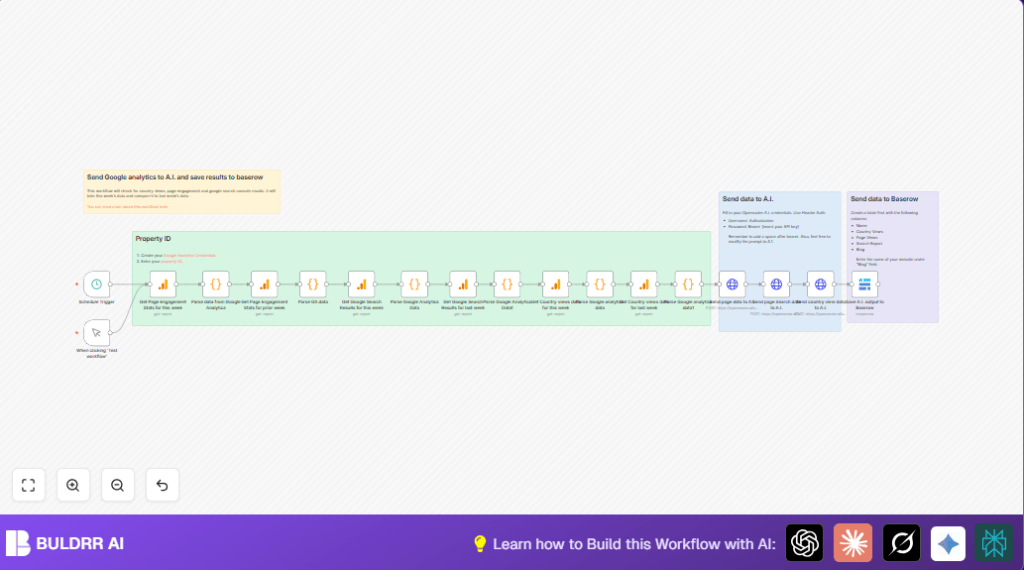
- Retrieves Google Analytics data for page engagement, search console performance, and country-specific user metrics for the current and previous weeks.
- Parses complex GA4 data using customized JavaScript code nodes to extract and format key metrics accurately for comparison.
- Posts formatted data to AI model (Meta LLaMA via OpenRouter) with prompts tailored to generate SEO improvement suggestions and markdown tables summarizing trends.
- Stores AI-generated insights into a Baserow online database for easy access and historical tracking.
- Supports manual triggering and scheduled executions enabling flexible update timing, such as weekly automated runs or on-demand analysis.
- Provides an entirely no-code and low-code setup with all data inputs and AI prompts easily customizable within the workflow nodes.
This precise specialization saves Claire 5+ hours of weekly manual effort, eliminates human error in data handling, and delivers expert-level SEO advice automatically.
Prerequisites ⚙️
- Google Analytics Account with GA4 property ID for your website (required for data access)
- OpenRouter AI account and API key for access to Meta LLaMA LLM
- Baserow account with a table created containing columns: Name, Country Views, Page Views, Search Report, Blog
- n8n automation platform account, either hosted or self-hosted
- Credentials setup: Google Analytics OAuth2, OpenRouter API credentials (generic HTTP header auth), Baserow API key
Step-by-Step Guide to Build This Workflow
1. Start with the Trigger Node
Manual or Scheduled Trigger: The workflow starts from either a manual trigger node “When clicking ‘Test workflow’” or a “Schedule Trigger” set to weekly intervals. Navigate to Triggers → Choose Manual Trigger or Schedule Trigger → Configure weekly schedule. This allows flexible runtime control.
Expected: You can run the workflow on-demand or automatically once a week.
Common Mistake: Forget to activate the schedule or test the manual trigger first.
2. Retrieve Current Week Page Engagement Stats
Navigate to the Google Analytics Node named “Get Page Engagement Stats for this week.” Configure it to use your GA4 property ID and include these metrics: screenPageViews, activeUsers, screenPageViewsPerUser, and eventCount. Set dimensions to unifiedScreenName. This node fetches page-level engagement data.
Expected: JSON data of page metrics for the current week.
Common Mistake: Using the wrong property ID or forgetting OAuth2 credentials.
3. Retrieve Prior Week Page Engagement Stats
Use the “Get Page Engagement Stats for prior week” Google Analytics node. Configure the dateRange as custom with start date = 14 days ago and end date = 7 days ago to fetch last week’s data.
Expected: Comparable JSON data from the previous week fetched for statistical comparison.
4. Parse Page Engagement Data for Comparison
Use the Code Node “Parse data from Google Analytics” to transform raw GA4 response into a simplified format. Here is the JavaScript code used:
function transformToUrlString(items) {
const analyticsData = items[0].json;
const simplified = analyticsData.rows.map(row => ({
page: row.dimensionValues[0].value,
pageViews: parseInt(row.metricValues[0].value) || 0,
activeUsers: parseInt(row.metricValues[1].value) || 0,
viewsPerUser: parseFloat(row.metricValues[2].value) || 0,
eventCount: parseInt(row.metricValues[3].value) || 0
}));
return encodeURIComponent(JSON.stringify(simplified));
}
const urlString = transformToUrlString($input.all());
return { json: { urlString } };Expected: Encoded JSON string with key page metrics ready for AI input.
Common Mistake: Not handling nulls or empty rows properly causing node failure.
5. Repeat for Google Search Console Data This Week and Last Week
Configure the nodes “Get Google Search Results for this week” and “Get Google Search Results for last week” with required metrics including activeUsers, engagedSessions, engagementRate, organicGoogleSearchClicks, organicGoogleSearchImpressions, etc. Use dimensions landingPagePlusQueryString. After fetching, parse with the two Code nodes named “Parse Google Analytics Data” and “Parse Google Analytics Data1” respectively. They utilize this code snippet:
function transformToUrlString(items) {
const data = items[0].json;
const simplified = data.rows.map(row => ({
page: row.dimensionValues[0].value,
activeUsers: parseInt(row.metricValues[0].value) || 0,
engagedSessions: parseInt(row.metricValues[1].value) || 0,
engagementRate: parseFloat(row.metricValues[2].value) || 0,
eventCount: parseInt(row.metricValues[3].value) || 0,
avgPosition: parseFloat(row.metricValues[4].value) || 0,
ctr: parseFloat(row.metricValues[5].value) || 0,
clicks: parseInt(row.metricValues[6].value) || 0,
impressions: parseInt(row.metricValues[7].value) || 0
}));
return encodeURIComponent(JSON.stringify(simplified));
}
const items = $input.all();
return { json: { urlString: transformToUrlString(items) } };6. Retrieve and Parse Country Views Data Weekly
API calls in nodes “Get Country views data for this week” and “Get Country views data for last week” collect country-level engagement metrics. Parsed via Code nodes “Parse Google analytics data” and “Parse Google analytics data1” with code similar to step 4 but tailored for country data.
7. Send Parsed Page Data to AI for SEO Suggestions
Use the HTTP Request node “Send page data to A.I.” with the OpenRouter endpoint and your API key in header auth. The JSON body includes a prompt merging this week’s and last week’s data urlStrings, instructing the AI to output a markdown table and 5 SEO improvement suggestions.
8. Chain Requests for Search and Country Data Insights
Subsequent HTTP Request nodes “Send page Search data to A.I.” and “Send country view data to A.I.” work similarly, sending parsed data & prompts to AI and receiving SEO reports.
9. Save AI Reports to Baserow
Use the Baserow node “Save A.I. output to Baserow” to create a new row with the AI output fields mapped to appropriate columns — Page Views, Search Report, Country Views, Blog name, and timestamp.
Customizations ✏️
- Change the AI Model or Prompt:
- In HTTP Request nodes sending data to AI, adjust the
modelor modify themessagescontent for different AI behavior or outputs.
- In HTTP Request nodes sending data to AI, adjust the
- Add Additional GA Metrics:
- Edit Google Analytics nodes to include more metrics like session duration, bounce rate if needed, then modify code nodes to parse extra fields.
- Modify Schedule Frequency:
- Adjust the Schedule Trigger node’s interval to run daily or biweekly depending on reporting needs.
- Add Email Notification:
- Insert an Email node (e.g., Gmail in n8n) after AI analysis to send the SEO report directly to stakeholders.
- Customize Baserow Table Structure:
- Modify the table columns or add formulas to aggregate historical trends over time.
Troubleshooting 🔧
Problem: “Google Analytics node returns empty data or errors”
Cause: Incorrect GA4 property ID or OAuth2 token expired
Solution: Verify property ID under Google Analytics settings. Refresh OAuth2 credentials in n8n credentials manager. Test each GA node individually.
Problem: “AI API call fails or times out”
Cause: Incorrect API endpoint, invalid or missing API key
Solution: Check API URL in HTTP Request node. Confirm Header Auth with correct “Authorization” header including “Bearer {API_KEY}”. Check network connectivity.
Problem: “Code node throws errors on parsing data”
Cause: Input JSON from GA node is missing expected “rows” or metrics missing
Solution: Add debug logging or test nodes separately. Ensure GA nodes return expected structure. Modify code to handle edge cases.
Pre-Production Checklist ✅
- Confirm Google Analytics OAuth2 credentials are valid and linked to correct GA4 property ID.
- Ensure API key for OpenRouter AI is active and configured in HTTP Request nodes.
- Verify Baserow table exists with exact columns and API credentials are set up in n8n.
- Test individual nodes: run GA data fetch nodes and inspect output JSON.
- Run Code nodes with test GA data to confirm proper parsing and URL encoding.
- Test end-to-end AI prompt and response formatting by running the entire workflow manually first.
Deployment Guide
Once you’ve configured and tested the automation, activate the scheduled trigger to run weekly. Monitor logging in n8n to catch any failed executions or API errors. Optionally, enable email alerts for failures if you add an email node. Periodically review Baserow entries to track SEO trends over time.
FAQs
Can I use a different AI model?
Yes, simply change the model name in the HTTP Request nodes, but ensure your AI provider supports it.
Does this workflow consume a lot of API credits?
Google Analytics API has usage limits, but this weekly frequency typically stays within free tier; monitor your quotas. AI requests depend on your plan with OpenRouter.
Is my data secure?
n8n runs under your control; credentials and API keys are stored securely. Avoid exposing sensitive keys publicly.
Conclusion
By building this unique n8n workflow, you automate a complex, multi-faceted SEO data comparison process. You pull week-over-week Google Analytics metrics, leverage AI to translate raw numbers into actionable SEO strategies, and save hours of manual effort. This workflow turns a cumbersome data task into streamlined, repeatable insights that help you grow your website traffic with confidence.
Next, consider expanding this workflow with email notifications or integrating with SEO tools like Ahrefs or SEMrush for even richer insights. Keep iterating to make your SEO work smarter, not harder.