

Opening Problem Statement
Meet Gatu, an automation engineer who manages multiple critical workflows on an n8n instance. Each hour, Gatu faces the tedious and error-prone task of manually checking which workflows failed, logging into the n8n dashboard, and retrying executions one by one. This manual effort consumes nearly an hour daily — time that could be better spent designing new automations. Moreover, the risk of missing failed executions is high, potentially disrupting business processes and causing costly delays.
Gatu needs a way to automatically detect error executions hourly and seamlessly retry them without manual intervention, saving time while improving reliability.
What This Automation Does
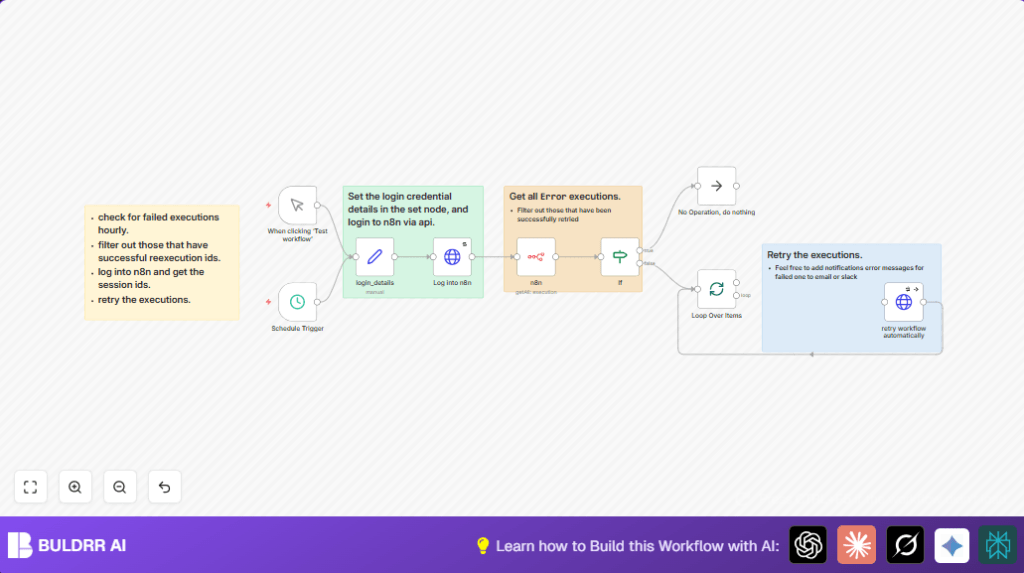
This specific n8n workflow, titled “Retry Execution Hourly,” automates failure recovery in n8n by:
- Triggering every hour to scan all workflow executions with an error status.
- Filtering out executions that have already been successfully retried, avoiding duplicate efforts.
- Logging into the n8n API with provided email and password to obtain authentication cookies for session management.
- Programmatically retrying each eligible errored execution by calling the n8n API retry endpoint.
- Handling retries in batches to efficiently manage multiple executions.
- Allowing continuation even on retry failure with the option to add notifications (e.g., email or Slack alerts) in the future.
The benefits are clear: Gatu saves at least an hour daily, ensures no failed execution goes unnoticed, and reduces human error in retry handling.
Prerequisites ⚙️
- n8n Account with access to the instance you want to automate.
- API Access Credentials: Valid n8n user email and password for login.
- Workflow installed on n8n instance, or use self-hosting option like Hostinger for hosting your own n8n setup (Learn more).
- Basic familiarity with n8n Editor UI and node connections.
Step-by-Step Guide to Set Up the Retry Execution Workflow
Let’s walk through the nodes and configuration in the exact order to build this workflow in n8n:
1. Scheduling the Workflow to Run Hourly
Navigate to Trigger Nodes → Schedule Trigger. Configure the trigger to execute every hour:
- Set Interval field → Choose “hours.”
- This sets the workflow to start execution automatically once per hour.
Outcome: The workflow will awaken every hour to start the failure detection and retry process.
Common mistake: Forgetting to set interval correctly causes workflow not running or running too frequently.
2. Define Login Credentials in a Set Node
Go to Set Node to define the variables for login and API usage:
- Add variables:
username(your n8n email),password(your n8n password),n8n_instance(your n8n base URL, e.g. https://myaccount.n8n.cloud/), and a placeholderexecutionidwhich will be replaced dynamically later.
Use this example values as in the workflow:
username: [email protected]
password: Password123
n8n_instance: https://ai.gatuservices.info/
executionid:={{ $json.id }}
Outcome: Credentials ready to be used by subsequent nodes.
Common mistake: Incorrect URLs or credentials will block authentication.
3. Log Into n8n API Using HTTP Request Node
Add an HTTP Request Node named “Log into n8n.” Configure it to perform a POST request to the /rest/login endpoint of your n8n instance like this:
- Method: POST
- URL: Use expression logic to construct URL from
n8n_instancevariable ending with /rest/login. - Body Parameters: Send
emailandpasswordfrom credentials. - Headers: Accept, Accept-Language, User-Agent as standard browser headers.
- Enable “Retry On Fail” to handle temporary network issues.
This node obtains the session cookies needed for authenticating retry calls.
Common mistake: Not handling trailing slashes in URL can break authentication endpoint.
4. Retrieve All Error Executions with n8n API Node
Add the n8n Node designed to access n8n’s REST API for executions:
- Resource: execution
- Filter by status: error
- Return all records
- Disable “activeWorkflows” option (no need to filter for active workflows here)
- Use your n8n API credentials.
Outcome: A complete list of errored workflow executions fetched to filter and retry.
Common mistake: Forgetting to set filter will either result in no executions or irrelevant data.
5. Filtering Out Executions Already Retried
Use an If Node to check if the executions have a retrySuccessId field which means they were previously retried successfully:
- Set condition left value to expression
{{$json.retrySuccessId}} - Operator: “not empty”
- Logic: If retrySuccessId is not empty, output to “do nothing” branch.
- Otherwise, send to retry.
Outcome: Avoids retrying executions multiple times, saving resources.
Common mistake: Incorrect expression syntax will cause all executions to be retried unnecessarily.
6. Handle Executions that Should Not be Retried
For those executions that already have a retrySuccessId, connect to a No Operation (NoOp) Node that effectively ignores them.
Outcome: Clean workflow path, no unwanted retries.
7. Batch Processing for Retrying Executions
Add a Split In Batches Node to split execution retry items into batches of 5:
- Set batch size = 5
- This allows controlled, efficient retry processing.
Outcome: Prevents overloading API with too many retry requests at once.
8. Retry the Workflow Executions via HTTP Request Node
Add an HTTP Request Node “retry workflow automatically”:
- Method: POST
- Construct URL via expression combining the instance URL, execution id, and retry endpoint.
- Use session cookie from login node as header authentication.
- Body Parameters include
loadWorkflow=trueto reload workflow data as part of the retry. - Set error handling on this node to “Continue Regular Output” so one failure does not block others.
Outcome: Each errored execution is retried transparently.
Common mistake: Forgetting the session cookie leads to authorization failures.
9. Loop Back to Process Next Batch
The HTTP Request retry node output connects back to the split in batches node to continue processing the next batch until all retries complete.
10. Optional Manual Trigger for Testing
A Manual Trigger Node named “When clicking ‘Test workflow’” lets you trigger the entire retry workflow on demand for testing or immediate retries.
Customizations ✏️
- Add Notification Alerts: In the retry HTTP request node, add webhook or email nodes downstream to send Slack or email alerts for retries that fail again.
- Change Batch Size: Modify the “Split In Batches” node batch size to suit your load capacity or API rate limits.
- Expand Filters: Adjust the n8n node filter to retry specific workflows by adding extra conditions like workflow name or date ranges.
- Use OAuth Credentials: Replace basic email/password login with OAuth tokens for enhanced security in the login HTTP Request node.
- Extend Interval: Adjust “Schedule Trigger” to run every 30 minutes or every 3 hours depending on your retry timeliness needs.
Troubleshooting 🔧
Problem: “401 Unauthorized” error on retry API calls.
Cause: Session cookie missing or expired due to failed login.
Solution: Check email and password in Set node. Ensure HTTP Request login node URL ends with /rest/login handling trailing slash correctly. Enable retry on fail.
Problem: Workflow does not trigger every hour.
Cause: Misconfigured Schedule Trigger interval.
Solution: Recheck the trigger node settings to confirm “hours” interval is selected. Activate the workflow.
Problem: No executions are retried.
Cause: Incorrect filtering in the n8n node for error status or wrong field in If node.
Solution: Verify filter is set to status = “error” and the If node expression is correctly evaluating retrySuccessId.
Pre-Production Checklist ✅
- Verify n8n instance URL and credentials in the Set node are correct.
- Test manual trigger to ensure login works and it fetches error executions successfully.
- Confirm that retry API calls confirm with success responses.
- Check that the workflow runs hourly as scheduled in active mode.
- Have rollback plan to revert credential changes if automated retry causes issues.
Deployment Guide
Activate the workflow in the n8n Editor by toggling the activation switch. Make sure your credentials are up-to-date in the Set node.
Monitor your workflow executions tab initially to ensure no errors arise on login or retry calls. Logs will confirm each retry attempt with execution IDs.
Consider integrating notification nodes downstream on retry failure to keep your team informed in production environments.
FAQs
Q: Can I use this workflow with cloud-hosted n8n?
A: Yes, this workflow works with both self-hosted and n8n.cloud instances as long as API login is enabled.
Q: Does retrying executions consume API credits?
A: n8n usage depends on your hosted plan. This workflow makes regular API calls but typically these are included within normal usage limits.
Q: Is my password secure in the Set node?
A: Use environment variables or credential nodes in production to protect passwords instead of embedding directly in Set nodes.
Q: Can this handle retries for hundreds of executions easily?
A: Yes, batch processing with Split in Batches nodes manages load effectively to retry large numbers smoothly.
Conclusion
By implementing this “Retry Execution Hourly” workflow, Gatu has fully automated the tedious task of manually retrying failed n8n executions. The process now runs every hour, saving more than an hour of labor daily and eliminating the chance of missing failed retries.
Next steps could include adding notification alerts, refining retry conditions by workflow type, or expanding this pattern to other automation error handling scenarios. You’ve gained a robust system to keep your n8n automations resilient with minimal ongoing effort.
Keep experimenting, and happy automating!