

What This Workflow Does
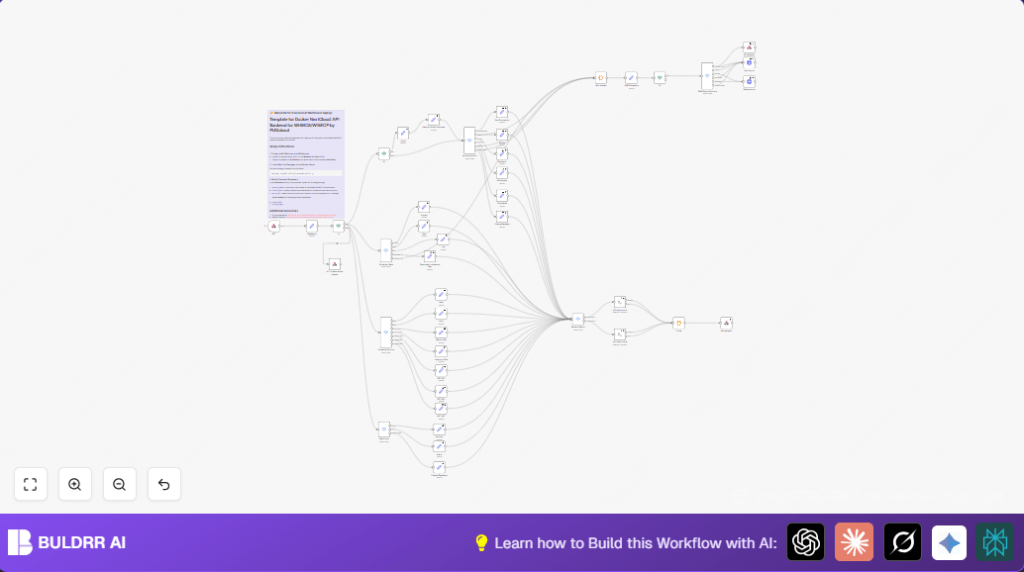
This n8n workflow automates deploying and managing NextCloud Docker containers through a simple API call.
It stops manual server setup errors and saves hours per deployment.
The workflow starts containers, mounts disk images, sets up Docker Compose and NGINX proxy files, updates DNS, and manages NextCloud users automatically.
It works by accepting commands via a secure webhook, running scripts on the right Docker server over SSH, and replying with success or error messages.
Who Should Use This Workflow
This workflow is best for system administrators who deploy NextCloud in Docker on multiple servers.
It helps those who want to stop using error-prone shell scripts and manual configs.
You should use it if managing Docker containers and DNS for clients is slow and causes downtime.
Tools and Services Used
- n8n Webhook node: Receives API commands with Basic Auth security.
- SSH nodes: Run shell scripts remotely on Docker servers to manage containers and disk mounts.
- Docker and Docker Compose: Handles container lifecycle and environment using custom YAML files.
- NGINX proxy: Routes traffic using generated configuration files for NextCloud and Collabora.
- PowerDNS API: Updates DNS CNAME records via HTTP PATCH requests.
- Respond to Webhook node: Sends back JSON success or error responses to the API caller.
Inputs, Processing Steps, and Outputs
Inputs
- JSON data via POST API with domain, server domain, command type, and credentials.
- Parameters defining Docker paths and mount points.
- Basic Auth credentials securing webhook access.
Processing Steps
- Validate if server domain in API call matches allowed servers.
- Route commands using Switch nodes based on the “command” field to appropriate handlers.
- Select the correct Docker server SSH node by matching server domain.
- Execute shell scripts that handle creating directories, writing docker-compose YAML, mounting disk images, copying NGINX configs, starting/stopping containers, suspending, unsuspending, terminating containers, and changing packages.
- Use HTTP Request node to patch DNS records using PowerDNS API when domains change.
- Retrieve NextCloud app info or users, or change NextCloud user passwords by running OCC commands inside containers.
- Send JSON response back to API caller showing the status and any error messages from commands.
Outputs
- Docker NextCloud containers running as required per client specifications.
- Mounted disk image volumes correctly attached to the containers.
- Updated DNS CNAME records to route domain traffic properly.
- NGINX proxy config files available to route user requests and handle WebSocket connections.
- Clear JSON API responses confirming success or detailing failures.
Beginner Step-by-Step: How to Use This Workflow in n8n
Step 1: Import the Workflow
- Download the workflow file using the Download button on this page.
- In the n8n editor, open the top-left menu and choose Import from File.
- Select the downloaded workflow file and load it into n8n.
Step 2: Configure Credentials
- Go to the imported Webhook node named
APIand assign Basic Auth credentials created for the API user. - Set up SSH credentials for Docker servers inside the SSH nodes, matching server domains like
d01-test.uuq.plord02-test.uuq.pl. - Provide the PowerDNS API key and endpoint in the HTTP Request node for DNS updates.
Step 3: Update Parameters If Needed
- In the Parametrs node, confirm or change directories for
clients_dirandmount_diraccording to your infrastructure. - Update any domain names, emails, or paths inside the Set nodes with your actual values.
Step 4: Test and Activate
- Trigger the webhook manually with a test API POST call containing proper JSON command and credentials.
- Check the workflow execution logs to confirm steps succeed without errors.
- Activate the workflow by switching it ON in n8n to run in production.
- You may want to link self-host n8n to keep this running securely on your own server.
Customization Ideas
- Add more Docker servers by creating new SSH nodes and updating the
Servers Switchnode rules. - Change client directory or disk mount paths in the Parametrs node, if folder structure differs.
- Modify RAM and CPU settings dynamically by editing the Docker Compose YAML template inside the corresponding Set node.
- Improve API security by adding rate limits or more complex authentication on the Webhook node.
- Add notifications, like email or Slack, using additional n8n nodes to alert on deployment success or failure.
Edge Cases and Troubleshooting
Unauthorized Access Errors
Cause: Missing or wrong Basic Auth credentials on the Webhook node.
Fix: Set the correct credentials in the node settings. Test with known good credentials.
Docker Container Startup Failures
Cause: Incorrect environment variables or volume paths in generated Docker Compose file.
Fix: Double-check API input for domain names and passwords. Review YAML generation logic in the Deploy-docker-compose Set node.
Disk Mounting Issues
Cause: Missing mount directory permissions or invalid fstab entries.
Fix: Ensure mount points exist with 777 permissions. Check mount scripts and confirm fstab updates and mount commands run properly.
Summary of Benefits and Outcomes
✓ Saves several hours per NextCloud Docker deployment.
✓ Cuts manual errors by automating container and network setup.
✓ Lets users manage NextCloud lifecycle with simple API calls.
✓ Automates DNS CNAME record updates for smooth domain routing.
✓ Provides clear success or error JSON responses for easy integration.
