

Opening Problem Statement
Meet Joe, a community manager passionate about nurturing the thriving n8n automation ecosystem. Every day, Joe spends several hours manually gathering and analyzing data on the most influential n8n workflow creators and their popular workflows. This tedious, error-prone process involves scouring GitHub repositories, pulling data about usage stats, unique visitors, and user engagement, and then compiling these insights into readable reports for the community.
Before discovering this workflow, Joe often felt overwhelmed and stretched thin — not only because of the time wasted but also because manual reporting introduced delays and inconsistency, preventing the community from quickly recognizing top contributors. Joe needed a reliable, automated assistant that could gather freshest stats daily, analyze them intelligently, and generate insightful reports without lifting a finger.
What This Automation Does
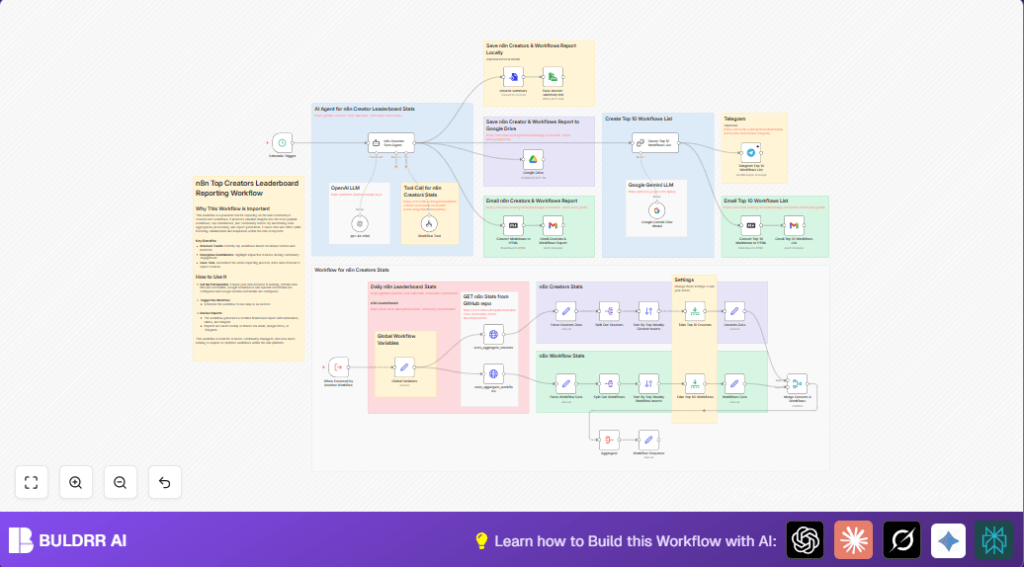
This unique n8n workflow is Joe’s perfect automation partner for leaderboard reporting within the n8n community, leveraging cutting-edge AI and integration tools. When triggered (either on schedule or on demand), it performs these key actions:
- Fetches live JSON data files of creator and workflow statistics from a GitHub repository.
- Parses and processes this raw data into structured records representing top workflows and creators.
- Enriches this data by merging creator and workflow stats on matching usernames for richer insights.
- Uses AI agents and large language models (OpenAI GPT-4o Mini and Google Gemini) to generate a detailed markdown report summarizing the creators’ impact and the workflows’ popularity, including tables and community analysis.
- Converts reports from markdown to HTML for versatile sharing options.
- Distributes the reports via multiple channels: saves locally, uploads to Google Drive, sends emails through Gmail, and posts messages to Telegram channels.
- Extracts top 10 creators and top 50 workflows based on unique weekly inserters for focused highlights.
By automating these tasks, Joe now saves several hours every day and ensures the community always has up-to-date, insightful leaderboard reports delivered seamlessly.
Prerequisites ⚙️
- n8n account set up with access to create and run workflows.
- OpenAI API credentials for GPT-4o Mini language model (for AI text generation).
- Google Gemini API credentials for additional AI language support.
- Google Drive account with OAuth credentials to save and store reports.
- Gmail account configured in n8n for sending email reports.
- Telegram bot credentials if you want to post reports to Telegram channels.
- Access to the GitHub repository containing the JSON data files for n8n community creators and workflows:
https://github.com/teds-tech-talks/n8n-community-leaderboard - (Optional) a local file path for saving reports if running a local instance.
🔑 Ensure all API credentials are properly configured in n8n’s credential manager to enable seamless node connections.
Step-by-Step Guide to Build and Use This Workflow
1. Set Up Global Variables
Navigate to Set Node → Global Variables. Here, define key variables such as the GitHub raw base URL for the JSON data and filenames for creators and workflows stats. For example:
path = https://raw.githubusercontent.com/teds-tech-talks/n8n-community-leaderboard/refs/heads/main/
workflows-filename = stats_aggregate_workflows
creators-filename = stats_aggregate_creators
datetime = (current date in yyyy-MM-dd format)
This node provides a dynamic source path so that HTTP requests can pull latest data files daily.
Common mistake: Make sure the URL path ends with a slash and filenames are exactly as they appear in the repo.
2. Retrieve Creator and Workflow Stats from GitHub JSON Files
Use two HTTP Request Nodes: one named stats_aggregate_creators and another stats_aggregate_workflows. Set their URLs using the variables defined previously:
URL = {{$json.path}}{{$json['creators-filename']}}.json
URL = {{$json.path}}{{$json['workflows-filename']}}.json
These will fetch the raw stats data every time the workflow runs.
Expected outcome: JSON arrays containing community stats will be loaded into workflow data.
3. Parse Retrieved JSON Data into Arrays
Insert two Set Nodes called Parse Creators Data and Parse Workflow Data. These nodes transform the HTTP response payloads into nicely formatted arrays accessible for processing. You assign:
data = {{$json.data}}
Here, you explicitly frame the raw JSON into an array property to enable subsequent splitting and handling.
4. Split and Sort Data
Add two Split Out Nodes named Split Out Creators and Split Out Workflows on each data array. This creates one item per creator or workflow for easy individual processing.
Then, use Sort Nodes named Sort By Top Weekly Creator Inserts and Sort By Top Weekly Workflow Inserts to order creators and workflows descending by their weekly inserter counts.
Tip: Sorting helps identify top contributors and most popular workflows quickly.
5. Limit the Number of Items
Use two Limit Nodes: Take Top 10 Creators and Take Top 50 Workflows to focus your report on the most impactful community members and workflows, trimming the lists accordingly.
6. Prepare Data for Merging
Add Set Nodes named Creators Data and Workflows Data. Map relevant fields, such as creator names, usernames, bios, and unique inserter counts for creators; and workflow names, descriptions, unique visitors, inserters, creation dates, and avatars for workflows.
This structured data is essential for merging.
7. Merge Creator and Workflow Data
Use the Merge Node named Merge Creators & Workflows with mode “combine” and join on the “username” field, enriching creators’ stats with their respective workflows.
8. Aggregate Data for Summary
The Aggregate Node collates all merged data into a single item that can be fed into AI for report generation.
9. Generate Detailed Markdown Report with AI Agent
Use the n8n Creators Stats Agent node, powered by LangChain’s agent integration, configured with OpenAI GPT-4o Mini to provide a system message. This agent requests a comprehensive Markdown report analyzing creators’ workflows, notable features, and community impact.
Parameters include instructions to generate tables, summaries, and community analysis.
10. Convert Markdown to Text File and Save Locally
The Convert To File Node named creator-summary converts the AI’s markdown output into a text file format. Following this, the Read/Write File Node saves the markdown report locally on Joe’s machine (adjust the file path as needed).
11. Upload Report to Google Drive
The Google Drive Node creates a new text file with a timestamped name containing the report content for shared access and backup.
12. Convert Markdown to HTML and Send Email Report
The Markdown Node converts markdown to HTML to provide email-friendly formatting. The Gmail Node then sends the final report to Joe’s email address.
13. Generate and Share Top 10 Workflows List
Using the Google Gemini Chat Model Node, the workflow creates a concise top 10 workflows list with hyperlinks based on weekly inserters from the report. This is converted to HTML and emailed, and also sent as a Telegram chat message via the Telegram Node.
14. Trigger Setup & Workflow Execution
The whole workflow is set to run daily at 10 PM using a Schedule Trigger Node. Alternatively, it can be triggered manually or by another workflow using the Execute Workflow Trigger Node.
Customizations ✏️
- Change Reporting Frequency: Adjust the Schedule Trigger Node to run hourly, weekly, or on custom intervals depending on your community reporting needs.
- Extend Creator Metrics: In the Creators Data Set Node, add new fields like GitHub followers, community forum contributions, or social media mentions to enrich creator profiles.
- Add Slack Notifications: Insert a Slack node (not present here, but easily added) after report generation to notify your team instantly.
- Local Backup Only: If you prefer not to use Google Drive or email, disable those nodes and use only the local file saving nodes for offline archival.
- Change Report Language Model: Swap out OpenAI GPT-4o Mini with a different LLM, like Google Gemini or another OpenAI model, by adjusting credentials and node settings.
Troubleshooting 🔧
- Problem: “HTTP Request returns 404 or cannot fetch JSON data”
Cause: Incorrect GitHub raw URL or filename typo.
Solution: Verify the path and filename variables in the Global Variables node for exact naming and correct base URL syntax. - Problem: “AI Agent does not return report or errors out”
Cause: API key expired, rate limit exceeded, or prompt misconfiguration.
Solution: Refresh OpenAI API credentials, check usage limits, ensure prompt JSON formatting is accurate in the n8n Creators Stats Agent node. - Problem: “Email not sent or fails”
Cause: Invalid Gmail OAuth2 credentials or SMTP issues.
Solution: Reauthorize Gmail node credentials in n8n, double-check recipient email, and test sending with simpler content first.
Pre-Production Checklist ✅
- Verify API credentials for OpenAI, Google Gemini, Gmail, Google Drive, and Telegram are valid and active.
- Test HTTP requests independently to confirm JSON data fetching works correctly from GitHub.
- Run the workflow manually the first time to watch each node’s output and validate data flow.
- Confirm local save path in ReadWriteFile node is writable and correct.
- Check AI-generated report for completeness and formatting.
Deployment Guide
Activate the schedule trigger for daily automated execution. Monitor logs periodically in n8n to catch any errors or rate limiting issues from API services.
If running on a self-hosted n8n instance, ensure your environment has network access to GitHub, OpenAI, Google APIs, and Gmail.
This workflow requires no complex deployment steps—it is plug-and-play once set up.
FAQs
- Q: Can I use this workflow without a Google Drive account?
A: Yes, you can disable the Google Drive node. Reports can still be saved locally or emailed. - Q: Does this workflow consume many API credits?
A: AI nodes will use OpenAI and Google Gemini API calls; monitor your usage plan accordingly. - Q: Is my data safe?
A: This workflow only processes publicly available statistics and your own credentials securely managed in n8n.
Conclusion
By building and deploying this AI-powered n8n leaderboard reporting workflow, you’ve automated the entire process of gathering, analyzing, and sharing insightful community stats for n8n workflow creators and their popular workflows.
Joe now enjoys real-time, error-free daily reports highlighting top contributors and trending workflows, saving multiple hours a day and enabling him to focus on community growth and support.
Next steps could include integrating Slack notifications, adding more advanced analytics, or expanding coverage to social media contributions for a richer community picture.
You’re well on your way to mastering n8n automation for community engagement—keep experimenting and sharing your insights!