

Create OpenAI Citation Workflow in n8n for File Retrieval RAG

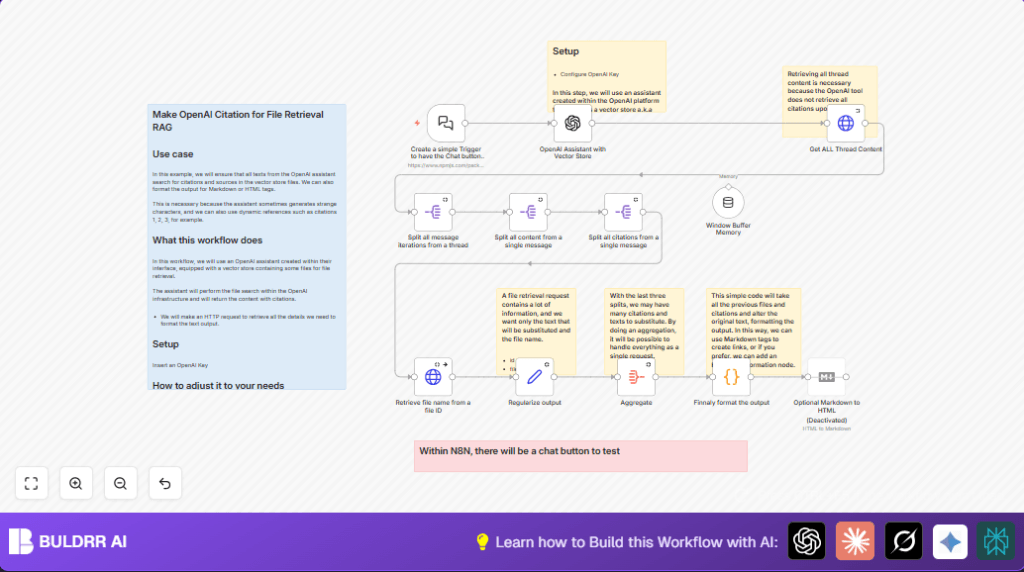
This n8n workflow integrates an OpenAI assistant with vector store file retrieval to produce formatted text output with citations. It solves the problem of inconsistent citation generation and enables dynamic references with Markdown or HTML formatting.
openAi
httpRequest
aggregate
+6
Workflow Identifier: 2151
NODES in Use: aggregate, memoryBufferWindow, chatTrigger, openAi, httpRequest, splitOut, set, code, markdown

Press CTRL+F5 if the workflow didn't load.

Learn how to Build this Workflow with AI:

Visit through Desktop for Best experience

1. Opening Problem Statement

Meet Davi, a knowledge worker who relies heavily on OpenAI’s assistant to retrieve information from multiple documents stored as vector data. Every time Davi asks a question, the assistant fetches relevant content from these files. But there’s a catch: the assistant often outputs results with strange characters or incomplete citations, making it difficult for Davi to verify the sources or provide clean, professional output. This unnecessarily wastes his time — trying to manually decipher, find the right document names, or polish the response for sharing with colleagues.

Before using this automation, Davi spent upwards of an hour per day cross-checking citations and formatting responses, leading to delays and occasional errors. For someone needing quick and accurate reference data from a large vector store, this was a significant bottleneck impacting productivity and trust in the AI output.

2. What This Automation Does

This n8n workflow solves Davi’s problem by orchestrating a seamless conversation with an OpenAI assistant equipped with a vector store of files. Here’s what happens when the workflow runs:

  • The chat is triggered directly within n8n via a LangChain Chat Trigger node, providing an easy-to-use chat button interface.
  • The OpenAI assistant with vector retrieval fetches relevant file passages based on user queries.
  • A follow-up HTTP request fetches all thread messages containing text citations to ensure complete reference data.
  • Multiple n8n Split Out nodes break down the messages to extract each citation and its related content.
  • For each citation, an HTTP request node retrieves the original file name from OpenAI’s file management API.
  • The workflow aggregates all citations and formats the final output replacing raw text citations with formatted references using Markdown tags.

Beyond fixing strange characters and missing cites, the workflow saves Davi at least 30 minutes daily previously spent manually verifying and formatting references. It also ensures scalable citation retrieval from any number of vector documents.

3. Prerequisites ⚙️

  • n8n account with access to community nodes
  • OpenAI account with API key configured in n8n credentials 🔑
  • Knowledge of LangChain OpenAI assistant configured with associated vector store files

4. Step-by-Step Guide

Step 1: Setup OpenAI assistant trigger in n8n

Navigate to n8n editor, click + New Workflow. Add the LangChain Chat Trigger node named Create a simple Trigger to have the Chat button within N8N. This node provides an endpoint for the chat UI within n8n. No configuration required here.

Expected outcome: You get a webhook/chat interface to send queries to the workflow.

Common issue: Forgetting to activate webhook can cause chat button not to show.

Step 2: Add the OpenAI Assistant node with vector store

Add the OpenAI Assistant with Vector Store node (@n8n/n8n-nodes-langchain.openAi). Link the trigger node to this assistant node. Configure your assistantId that corresponds to the vector store-enabled assistant you created in OpenAI’s platform.

This node queries the vector store for relevant file passages with citations.

Expected: Receiving JSON output containing user conversation and retrieved file passage data.

Common mistake: Not supplying valid assistantId or API credentials leads to errors.

Step 3: Retrieve full thread content via HTTP Request

Add the HTTP Request node named Get ALL Thread Content. Configure it with these settings:

  • Method: GET
  • URL:
  • =https://api.openai.com/v1/threads/{{ $json.threadId }}/messages
  • Authentication: Use the OpenAI API credential
  • Add header parameter: “OpenAI-Beta” with value “assistants=v2”

Purpose: This fetches all messages in the conversation because OpenAI’s assistant doesn’t include all citations in the initial response.

Expected: JSON array of all thread messages.

Common pitfall: Missing header causes API call failure.

Step 4: Split messages and citations into manageable parts

Add Split Out nodes in sequence:

  • Split all message iterations from a thread splits the data array into individual messages.
  • Split all content from a single message splits the content field inside each message into separate texts.
  • Split all citations from a single message splits the text.annotations to isolate each citation reference.

Outcome: Isolated text and citations ready for filename retrieval.

Tip: Keep alwaysOutputData enabled on these nodes to ensure smooth data flow.

Step 5: Retrieve filenames for each citation file ID

Add an HTTP Request node named Retrieve file name from a file ID. Configure:

  • Method: GET
  • URL:
  • =https://api.openai.com/v1/files/{{ $json.file_citation.file_id }}
  • Authentication: OpenAI API
  • Query Parameter: limit=1

This fetches metadata like filename for each citation’s file ID.

Expected: JSON payload containing file info.

Note: Node is set to continue on error just in case of missing files to prevent workflow breakage.

Step 6: Regularize and prepare citation data

Add a Set node named Regularize output after the HTTP Request. Configure mappings:

  • id = {{$json.id}}
  • filename = {{$json.filename}}
  • text = {{$('Split all citations from a single message').item.json.text}}

This cleans and prepares citation fields for aggregation.

Step 7: Aggregate all citation data into single array

Add the Aggregate node named Aggregate after the regularize step and set to aggregateAllItemData.

This allows subsequent nodes to process all citations in one go.

Step 8: Format the final output with citations

Add a Code node named Finnaly format the output. Use this JavaScript code to replace raw citations with filename references in Markdown:

let saida = $('OpenAI Assistant with Vector Store').item.json.output;

for (let i of $input.item.json.data) {
  saida = saida.replaceAll(i.text, "  _("+ i.filename+")_  ");
}

$input.item.json.output = saida;
return $input.item;

This step merges file names into the assistant’s output, creating properly formatted citations.

Optional: Un-disable Optional Markdown to HTML node to convert Markdown citations into HTML links if desired.

5. Customizations ✏️

  • Change Citation Format: In the Finnaly format the output Code node, modify the replacement string to embed clickable links instead of just filenames, e.g., saida = saida.replaceAll(i.text, `[${i.filename}](https://yourlink.com/files/${i.id})`);.
  • Enable HTML Output: Enable the Optional Markdown to HTML node to convert Markdown formatting into HTML tags for web publishing.
  • Expand Vector Store: Add more documents to your OpenAI vector store and update your assistantId accordingly to improve search coverage.
  • Adjust Chat Interface: Customize the LangChain Chat Trigger node parameters to change UI texts or chat behaviors.

6. Troubleshooting 🔧

Problem: “Error authenticating with OpenAI API”
Cause: Incorrect or expired API key credentials in n8n.
Solution: Go to Credentials in n8n, update the OpenAI API key under your credential profile, and test connection.

Problem: “No citations retrieved in output”
Cause: Missing or incorrect threadId propagation, or partial API response.
Solution: Check that the Get ALL Thread Content node is properly chained, and the threadId is correctly passed from previous nodes. Verify API call returns full messages.

7. Pre-Production Checklist ✅

  • Confirm OpenAI API key is valid and has access to ChatGPT and file APIs.
  • Test chat trigger manually by sending example queries.
  • Verify that vector store assistantId matches your OpenAI assistant setup.
  • Ensure HTTP Request nodes return expected JSON payloads for threads and files.
  • Run the workflow with test data and verify citations populate correctly in the output.
  • Backup your credentials and export this workflow for rollback safety.

8. Deployment Guide

Activate the workflow in n8n by toggling the Active switch. The chat button will appear in the n8n interface for users to interact with the vector store-powered OpenAI assistant.

Monitor execution via n8n’s built-in logs to ensure smooth operation. Adjust API keys or node parameters as needed while scaling query volumes.

9. FAQs

Q1: Can I use another AI assistant besides OpenAI?
A: This workflow is specifically built to interact with OpenAI’s vector store-enabled assistant via LangChain nodes. Using alternative assistants would require node modifications.

Q2: Does this workflow consume many API calls?
A: Yes, each chat interaction plus multiple HTTP requests for metadata consumes API calls. Monitor usage to avoid overruns.

Q3: Is my data secure with this workflow?
A: Your OpenAI API key and data are managed via n8n credentials securely. Always follow best security practices with keys.

10. Conclusion

By completing this workflow, you’ve created a powerful OpenAI citation automation integrated into n8n that fixes citation errors and formats references dynamically with Markdown or HTML possibilities. This tool saves users like Davi at least 30 minutes daily, improves trust in AI-generated content, and handles complex vector store file retrievals with ease.

Next, consider automating multi-assistant workflows, integrating other vector stores, or adding export features to PDF or knowledge bases.

Happy automating!

Promoted by BULDRR AI

Related Workflows

Automate Viral UGC Video Creation Using n8n + Degaus (Beginner-Friendly Guide)

Learn how to automate viral UGC video creation using n8n, AI prompts, and Degaus. This beginner-friendly guide shows how to import, configure, and run the workflow without technical complexity.
Form Trigger
Google Sheets
Gmail
+37
Free

AI SEO Blog Writer Automation in n8n

A complete beginner guide to building an AI-powered SEO blog writer automation using n8n.
AI Agent
Google Sheets
httpRequest
+5
Free

Automate CrowdStrike Alerts with VirusTotal, Jira & Slack

This workflow automates processing of CrowdStrike detections by enriching threat data via VirusTotal, creating Jira tickets for incident tracking, and notifying teams on Slack for quick response. Save hours daily by transforming complex threat data into actionable alerts effortlessly.
scheduleTrigger
httpRequest
jira
+5
Free

Automate Telegram Invoices to Notion with AI Summaries & Reports

Save hours on financial tracking by automating invoice extraction from Telegram photos to Notion using Google Gemini AI. This workflow extracts data, records transactions, and generates detailed spending reports with charts sent on schedule via Telegram.
lmChatGoogleGemini
telegramTrigger
notion
+9
Free

Automate Email Replies with n8n and AI-Powered Summarization

Save hours managing your inbox with this n8n workflow that uses IMAP email triggers, AI summarization, and vector search to draft concise replies requiring minimal review. Automate business email processing efficiently with AI guidance and Gmail integration.
emailReadImap
vectorStoreQdrant
emailSend
+12
Free

Automate Email Campaigns Using n8n with Gmail & Google Sheets

This n8n workflow automates personalized email outreach campaigns by integrating Gmail and Google Sheets, saving hours of manual follow-up work and reducing errors in email sequences. It ensures timely follow-ups based on previous email interactions, optimizing communication efficiency.
googleSheets
gmail
code
+5
Free