
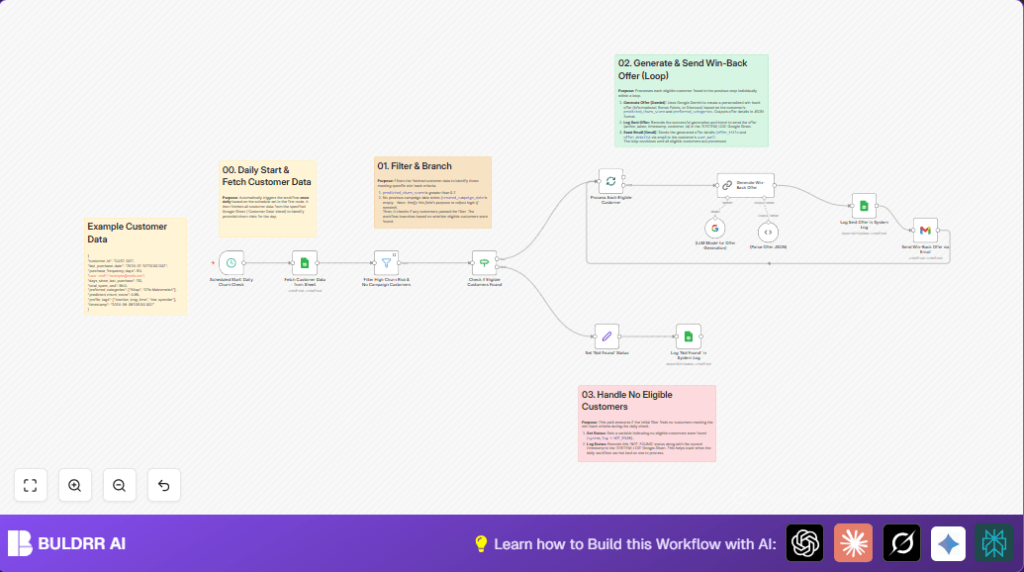

Opening Problem Statement
Meet Onur, the customer retention manager at a mid-sized e-commerce business specializing in books and office supplies. Each day, Onur spends hours manually sorting through sprawling customer spreadsheets to identify who might be about to stop purchasing. This daily churn assessment is not only time-consuming but prone to error and oversight. Worse, without timely and personalized outreach, many customers slip away silently, eroding revenue and growth potential.
Imagine losing thousands of dollars a month just because the right offer didn’t reach the right person at the perfect time. Onur’s challenge is striking: how to accurately detect at-risk customers and engage them with customized win-back offers without burning out the team or missing key opportunities.
What This Automation Does
This specific n8n workflow tackles Onur’s problem head on by:
- Automatically triggering once daily to fetch comprehensive customer data from a dedicated Google Sheets document.
- Filtering customers with a high predicted churn score (above 0.7) who have not yet been targeted in previous campaigns.
- Using Google Gemini AI to generate personalized win-back offers based on each customer’s churn risk score and preferred product categories.
- Logging every sent offer and those days when no eligible customers are found in a system log (also in Google Sheets) to track outreach consistency and success metrics.
- Sending the tailored offers directly to customers’ email inboxes via Gmail integration.
- Processing customers one-by-one in batches to maintain system performance and ensure individualized handling.
This workflow saves Onur precious hours every day, reduces manual errors, and most importantly, delivers targeted engagement for better customer reactivation chances.
Prerequisites ⚙️
- n8n account to build and run the workflow
- Google Sheets account with access to sheets named “Customer Data” and “SYSTEM_LOG” to store customer info and logging respectively 📊
- Google OAuth credentials connected to your n8n for Sheets access 🔑
- Google Gemini (PaLM) AI API account for personalized offer generation 🔐
- Gmail account set up with OAuth credentials for sending emails 📧
- Optional but recommended: a self-hosted n8n instance for better control and security (consider hosting offers like Hostinger)
Step-by-Step Guide
Step 1: Configure Scheduled Start Node for Daily Trigger
Navigate to your n8n workflow editor, find Scheduled Start: Daily Churn Check (a Schedule Trigger node).
- Click the node → under parameters, verify the schedule is set to run every day (interval set to 1 day)
- You should see the trigger set to fire once daily automatically.
- This node initiates the entire workflow each day without manual intervention.
- Common mistake: Forgetting to save or activate the trigger, which stops the workflow from running automatically.
Step 2: Fetch Customer Data from Google Sheets
Next is the Fetch Customer Data from Sheet node of type Google Sheets.
- Click the node → under parameters, select your Google Sheets document ID that contains your customer data.
- Specify the sheet name exactly as “Customer Data”.
- The node is configured to retrieve all rows without limiting to first match, ensuring the entire dataset is available.
- Check the OAuth2 credentials connection to your Google Sheets account in the credentials tab.
- Upon executing this node in isolation, you should see a JSON array with all customer records.
- Common mistake: Incorrect Sheet name or document ID will cause no data to load.
Step 3: Filter High Churn Risk Customers Without Previous Campaigns
This uses a Filter node named Filter High Churn Risk & No Campaign Customers to narrow down targets.
- It filters customers whose
predicted_churn_scoreis greater than 0.7. - The current workflow notes to verify a field like
created_campaign_dateto exclude those already contacted; however, this filter only implements the churn score check. You may want to enhance it by adding that condition. - This ensures only customers with significant risk who haven’t been targeted before proceed for offers.
- Common mistake: Not validating the existence of
created_campaign_datemight lead to repeated offers to the same customers.
Step 4: Check for Eligible Customers Using an IF Node
The Check if Eligible Customers Found IF node determines further path:
- If no customers pass the filter (empty dataset), it triggers the ‘No Eligible Customers’ path.
- If eligible customers exist, it proceeds to batch processing.
- Common mistake: Incorrect expression in the condition can cause the wrong branch to be selected.
Step 5: Handle No Eligible Customers Path
If no customers are found, two nodes execute:
- Set ‘Not Found’ Status node sets a JSON field
system_logto “NOT_FOUND” with current timestamp. - Log ‘Not Found’ in System Log, a Google Sheets node, appends this status to the “SYSTEM_LOG” sheet to keep audit trails on no-action days.
- Common mistake: Incorrect sheet referencing can break logging.
Step 6: Batch Processing of Eligible Customers
Process Each Eligible Customer node splits data into batches for sequential handling, improving performance and avoiding rate limits.
- No specific batch size set here, so default batching applies.
- Common mistake: Setting too large batch sizes may overload API requests.
Step 7: Generate Personalized Win-Back Offer with Google Gemini AI
This critical step uses a @n8n/n8n-nodes-langchain.chainLlm named Generate Win-Back Offer connected to Google Gemini (@n8n/n8n-nodes-langchain.lmChatGoogleGemini node) for AI processing.
- The AI prompt instructs Gemini to create customized offers based on churn risk score and preferred categories.
- Offers vary:
- 0.7-0.8 churn score: Informational messages encouraging exploration
- 0.8-0.9: Bonus points offer
- 0.9-1.0: Discount percentage offer
- The output is parsed via the (Parse Offer JSON) node ensuring structured JSON output adhered to required schema.
- Common mistake: Prompt errors or API credential misconfigurations lead to failed generation.
Step 8: Log Sent Offers in the System Log Google Sheet
The Log Sent Offer in System Log Google Sheets node appends records containing timestamp, action taken, and customer ID for every successful offer sent.
- Serves as an essential audit log for campaign management and troubleshooting.
- Common mistake: Failure to map fields properly causes incomplete logs.
Step 9: Email Win-Back Offer Using Gmail Node
The Send Win-Back Offer via Email node uses Gmail integration to send the customized offer as a plain text email.
- The recipient email is fetched from batched customer data under
user_mail. - Email subject and body are populated dynamically from the AI-generated offer data.
- Common mistake: OAuth2 invalid or expired credentials will block sending.
Customizations ✏️
- Add Created Campaign Date Filter: In the Filter High Churn Risk & No Campaign Customers node, add a condition to exclude customers with a non-empty
created_campaign_date. This prevents repeat offers and makes filtering more accurate. - Change Offer Channel: Modify the Generate Win-Back Offer AI prompt and output schema to support SMS or push notification options, then add respective messaging nodes to send offers via different channels.
- Customize Offer Criteria: Adjust AI prompt logic and thresholds in the Generate Win-Back Offer node to refine different perk levels or introduce new offer types based on business needs.
- Batch Size Configuration: Configure the Process Each Eligible Customer SplitInBatches node to smaller or larger batch sizes depending on API limits or campaign scale.
- Language Customization: Translate or tailor email content in the AI prompt dynamically based on customer locale data for multi-language campaigns.
Troubleshooting 🔧
Problem: “No data returned from Google Sheets node”
Cause: Wrong sheet name, document ID, or missing permissions.
Solution: Verify document ID and sheet name match exactly what’s in Google Sheets. Confirm OAuth2 credential permissions are granted at both Google Cloud project and spreadsheet share level.
Problem: “Failed to generate AI response or invalid JSON output”
Cause: Prompt syntax issues or API credential errors.
Solution: Review AI prompt carefully, ensure it matches expected structure. Test Google Gemini API keys and quota. Use the (Parse Offer JSON) node to validate outputs.
Problem: “Emails not sending despite successful offer generation”
Cause: Gmail OAuth tokens expired or revoked.
Solution: Reauthorize Gmail OAuth credentials in n8n. Double-check recipient email fields are correct from input data.
Pre-Production Checklist ✅
- Ensure Google Sheets document with “Customer Data” and “SYSTEM_LOG” sheets exists and columns match expected fields.
- Validate Google OAuth2 credentials and scopes for Sheets and Gmail.
- Test Google Gemini API access and credential validity.
- Run workflow manually initially to confirm customer fetch and filtering logic.
- Inspect AI prompt output and ensure JSON parsing works as expected.
- Send a test email to verify Gmail integration.
- Backup your Google Sheet data before running the workflow for the first time.
Deployment Guide
Activate the Scheduled Start: Daily Churn Check node to enable automated daily execution. Monitor the “SYSTEM_LOG” sheet to review daily operations and audit logs.
You can use n8n’s built-in execution history and error logs to troubleshoot any unexpected issues post-deployment.
FAQs
- Can I use other AI models besides Google Gemini?
- Yes, you can swap in other supported LLM nodes in n8n, such as OpenAI or other Langchain integrations, adjusting the prompt accordingly.
- Does this workflow consume many API credits?
- The AI generation calls depend on your usage volume; batching helps control this. Google Sheets and Gmail API usage are generally free within generous limits.
- Is sending customer data to an AI service safe?
- Your data privacy depends on the AI provider. Google Gemini is managed by Google Cloud with enterprise-grade security, but review compliance policies before using.
- Can this scale for thousands of customers?
- Yes, the batching mechanism and efficient Google Sheets reading support large datasets, though you should monitor rate limits and API quotas.
Conclusion
By following this guide, you’ve built an advanced daily automation that identifies at-risk customers, crafts personalized win-back offers using cutting-edge Google Gemini AI, and delivers them via Gmail, all logged in Google Sheets for accountability.
This reduces manual hours substantially and boosts retention by targeting only those customers who truly need engagement. Next steps could include adding multi-channel messaging, integrating with CRM systems, or deeper data enrichment for more nuanced personalization.
You’re empowered now to keep your customers closer and your business healthier — all with n8n’s flexible automation!