
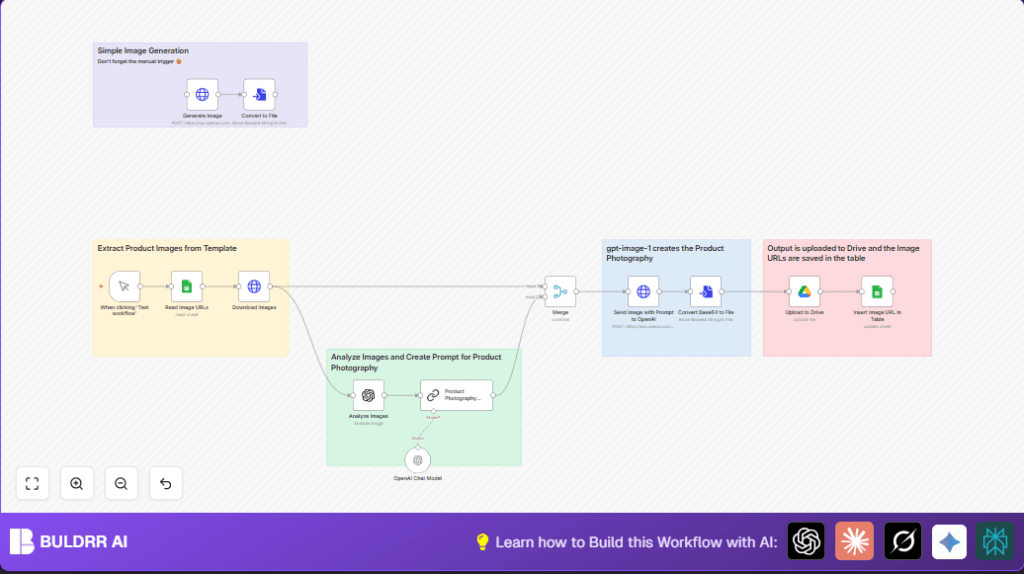

Automate Product Photography with n8n & OpenAI

Struggling with creating professional product photos? This unique n8n workflow uses Google Sheets, OpenAI, and Google Drive to analyze product images and generate realistic photography prompts, saving hours of manual editing and improving your ecommerce visuals.
lmChatOpenAi
googleSheets
httpRequest
+7
Workflow Identifier: 2130
NODES in Use: lmChatOpenAi, merge, googleSheets, httpRequest, openAi, chainLlm, convertToFile, googleDrive, manualTrigger, stickyNote

Press CTRL+F5 if the workflow didn't load.

Learn how to Build this Workflow with AI:

Visit through Desktop for Best experience

1. Opening Problem Statement

Meet Anna, an ecommerce store owner who manages hundreds of product images weekly. Each photo needs to be transformed into stunning, professional-looking product shots for her online store. However, the manual work of downloading images, conceptualizing ideal photography setups, editing, and then organizing files wastes Anna several hours every week. Mistakes during editing and inconsistent photo styles cause loss in customer trust and reduce sales.

This tedious process not only eats up Anna’s valuable time but also leads to delayed product launches and increased operational costs. What if Anna could automate this workflow to streamline her product photography generation from existing images while maintaining a high-quality, consistent look?

2. What This Automation Does

This n8n workflow leverages Google Sheets, OpenAI’s GPT-4 models, and Google Drive to automate product photography enhancements with AI-generated prompts and edits. Here’s what happens when it runs:

  • Reads product image URLs from a centralized Google Sheets document.
  • Downloads images from those URLs for processing.
  • Analyzes the images using OpenAI’s image analysis capabilities to generate brief, descriptive content.
  • Creates detailed AI prompts targeting highly realistic product photography styles, including human model interactions and lighting details.
  • Uses OpenAI’s image editing endpoint to apply these prompts for enhanced, cinema-quality product photos.
  • Uploads the final images directly to Google Drive and records the new image URLs back in the Google Sheets for tracking.

By automating these steps, the workflow saves hours each week, eliminates manual errors, and ensures all product photos have a consistent, professional appearance optimized for ecommerce.

3. Prerequisites ⚙️

  • Google Sheets account with a dedicated spreadsheet containing product image URLs 📊
  • Google Drive account to upload finished images 📁
  • OpenAI API account with access to GPT-4 models and image editing endpoints 🔑
  • n8n account to create and run the workflow ⏱️

Optional: You can self-host n8n with resources like Hostinger for more control and security.

4. Step-by-Step Guide

Step 1: Set Up Manual Trigger

In n8n, start by adding the Manual Trigger node named “When clicking ‘Test workflow'”. This allows you to initiate the process manually for testing and production.

You will see a large blank canvas — the workflow begins here.

Step 2: Connect to Google Sheets to Read Image URLs

Add the Google Sheets node named “Read Image URLs.” Configure it to read from your specific spreadsheet and sheet where product image URLs are stored. Use your Google Sheets OAuth credentials to authenticate.

Example: Document ID set to your spreadsheet, Sheet Name set to the correct gid=0 or sheet title.

Upon execution, it fetches a list of image URLs and row numbers.

Common mistake: Incorrect document ID or insufficient permissions will cause read errors.

Step 3: Download Images from URLs

Add an HTTP Request node titled “Download Images.” Set the URL to dynamically fetch from the data (e.g., {{ $json['Image-URL'] }}).

This node downloads image binary data for each URL, preparing them for analysis.

Visual check: You’ll see binary data in the node’s output after successful execution.

Step 4: Analyze Images Using OpenAI AI

Add the OpenAI Image Analysis node named “Analyze Images.” Configure it with your OpenAI API key and set the operation to analyze images, receiving the base64 image from the previous node.

Set the text prompt to “Briefly explain in less than 5 words what this image is about.” This provides a concise descriptive summary.

Expected outcome: A safety-checked, short image description in the output.

Step 5: Generate Product Photography Prompt

Use the Chain LLM node named “Product Photography Prompt” to feed the analyzed text description into a prompt that instructs OpenAI to create a detailed, realistic product photography prompt.

The prompt specifically requires the product to be shown with a human model’s face visible for wearable or held products, lighting and angle details, and a cinematic grain effect for professional aesthetics.

Example prompt input: “Image description: [analyzed content from previous node].” The output is a crafted prompt string ready for image generation.

Step 6: Combine Outputs with Merge Node

Add a Merge node configured to combine all outputs by position, unifying the original data, image analysis, and generated prompts.

This consolidated dataset helps pass all relevant info downstream.

Step 7: Send Image and Prompt to OpenAI Editing

Add an HTTP Request node named “Send Image with Prompt to OpenAI.” Configure it to POST to https://api.openai.com/v1/images/edits.

Use multipart form-data body with the following parameters:

  • model: “gpt-image-1”
  • prompt: output from the “Product Photography Prompt” node
  • image: binary data of the downloaded image
  • quality: “high”
  • size: “1536×1024”

This calls OpenAI’s image editing endpoint which modifies the product image per the photography prompt.

Step 8: Convert Base64 Response to File

Add the Convert to File node to transform the base64 response from the OpenAI endpoint into a proper binary file format for uploading.

Step 9: Upload Final Image to Google Drive

Use the Google Drive node “Upload to Drive” to upload the final product photos to a specific Drive folder configured by folder ID.

The file is named using the analyzed image content for easy identification.

Step 10: Update Google Sheets with New Image URLs

Add a final Google Sheets node named “Insert Image URL in Table.” Set it to update rows matching the original image URLs and insert the new Drive webViewLink and prompt used for generation.

This keeps your product image record complete and up to date.

5. Customizations ✏️

Customization 1: Change model for image generation
In the HTTP Request node “Send Image with Prompt to OpenAI,” switch the model parameter to newer or different image models offered by OpenAI for varying styles.

Customization 2: Adjust prompt details
Edit the “Product Photography Prompt” node’s prompt message to tailor the lighting, model pose, or style instructions to fit your brand’s aesthetic.

Customization 3: Add watermarking step
Insert an additional image processing node after “Send Image with Prompt to OpenAI” to programmatically add watermarks before uploading to Drive.

6. Troubleshooting 🔧

Problem: “Google Sheets read permission denied”
Cause: OAuth credentials aren’t correctly authorized.
Solution: Reauthenticate Google Sheets node by updating credentials and ensuring access permissions are granted.

Problem: “OpenAI image editing request fails”
Cause: Incorrect content-type or missing image binary in HTTP Request.
Solution: Confirm HTTP Request node uses multipart/form-data and binary data field references correct image data property.

7. Pre-Production Checklist ✅

  • Verify Google Sheets document ID and sheet names match exactly.
  • Confirm OpenAI API key is valid and has required scopes.
  • Test manual trigger to ensure workflow runs end-to-end without node errors.
  • Test upload folder permissions on Google Drive.
  • Backup existing Google Sheets data before live runs.

8. Deployment Guide

Activate the workflow by toggling it on in n8n. Use the manual trigger for scheduled runs or connect it to external triggers like CRON as needed.

Monitor logs in n8n dashboard for errors or alert nodes for failure notifications.

9. FAQs

Q: Can I use Dropbox instead of Google Drive for uploads?
A: Yes, with modification you can replace the Google Drive node with Dropbox integration, adjusting upload paths accordingly.

Q: Does this consume many OpenAI API credits?
A: Image generation and editing can be API-intensive. Monitor usage in your OpenAI dashboard to manage costs.

Q: Is all image data secure?
A: Data transits securely via OAuth and OpenAI HTTPS endpoints. Avoid sharing sensitive images on public sheets.

10. Conclusion

By following this comprehensive guide, you’ve created an advanced AI-powered automation that reads product images, analyzes them, and generates stunningly realistic product photographs automatically. This saves hours weekly, reduces errors, and elevates your ecommerce store’s visual presentation.

Next, consider building automations to auto-generate marketing copy for your products using OpenAI, or connect this workflow with social media platforms for instant photo sharing.

Happy automating with n8n and OpenAI!

Promoted by BULDRR AI

Related Workflows

Automate Viral UGC Video Creation Using n8n + Degaus (Beginner-Friendly Guide)

Learn how to automate viral UGC video creation using n8n, AI prompts, and Degaus. This beginner-friendly guide shows how to import, configure, and run the workflow without technical complexity.
Form Trigger
Google Sheets
Gmail
+37
Free

AI SEO Blog Writer Automation in n8n

A complete beginner guide to building an AI-powered SEO blog writer automation using n8n.
AI Agent
Google Sheets
httpRequest
+5
Free

Automate CrowdStrike Alerts with VirusTotal, Jira & Slack

This workflow automates processing of CrowdStrike detections by enriching threat data via VirusTotal, creating Jira tickets for incident tracking, and notifying teams on Slack for quick response. Save hours daily by transforming complex threat data into actionable alerts effortlessly.
scheduleTrigger
httpRequest
jira
+5
Free

Automate Telegram Invoices to Notion with AI Summaries & Reports

Save hours on financial tracking by automating invoice extraction from Telegram photos to Notion using Google Gemini AI. This workflow extracts data, records transactions, and generates detailed spending reports with charts sent on schedule via Telegram.
lmChatGoogleGemini
telegramTrigger
notion
+9
Free

Automate Email Replies with n8n and AI-Powered Summarization

Save hours managing your inbox with this n8n workflow that uses IMAP email triggers, AI summarization, and vector search to draft concise replies requiring minimal review. Automate business email processing efficiently with AI guidance and Gmail integration.
emailReadImap
vectorStoreQdrant
emailSend
+12
Free

Automate Email Campaigns Using n8n with Gmail & Google Sheets

This n8n workflow automates personalized email outreach campaigns by integrating Gmail and Google Sheets, saving hours of manual follow-up work and reducing errors in email sequences. It ensures timely follow-ups based on previous email interactions, optimizing communication efficiency.
googleSheets
gmail
code
+5
Free