
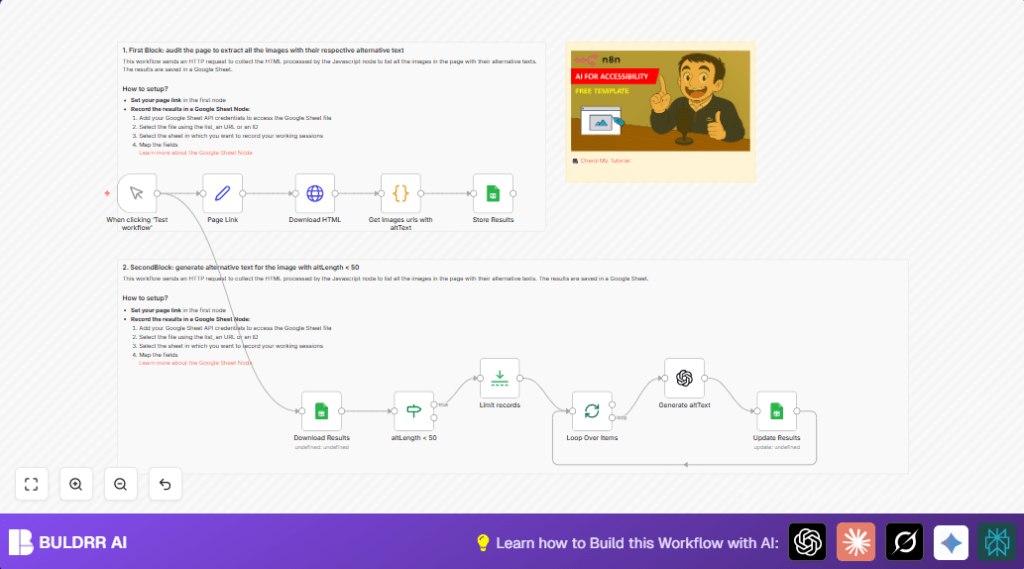

Automate Image Alt Text Auditing & Enhancement with n8n & OpenAI

Discover how this n8n workflow automates auditing and enhancing image alt text from any webpage using OpenAI GPT-4. It helps fix poor or missing alt attributes quickly and accurately, saving hours of manual work and improving web accessibility.
manualTrigger
set
httpRequest
+6
Workflow Identifier: 2127
NODES in Use: manualTrigger, set, httpRequest, code, googleSheets, if, limit, splitInBatches, openAi

Press CTRL+F5 if the workflow didn't load.

Learn how to Build this Workflow with AI:

Visit through Desktop for Best experience

Opening Problem Statement

Meet Anna, a digital marketing manager responsible for her company’s website accessibility compliance. Anna recently audited her website and found nearly 200 images scattered across various pages, many missing alternative (alt) text or having unclear descriptions. Manually reviewing each image’s HTML to fix alt attributes was daunting, consuming Anna’s entire week and still prone to overlooking or miswriting descriptions. Poor alt text not only hurts accessibility for visually impaired users but also impacts SEO rankings and user engagement metrics.

Anna needed a way to automate this tedious and error-prone task, directly extracting images and their current alt texts from webpage HTML, identifying short or missing alt texts, then generating improved descriptive alternatives to update her records. Could technology streamline her workflow and ensure better, consistent image accessibility?

What This Automation Does

This unique n8n automation workflow simplifies and accelerates the process of auditing and improving image alt texts on any webpage. When you run this workflow, here’s what happens:

  • Extracts all image tags from the HTML of a specified webpage, collecting each image’s source URL and existing alt text.
  • Records the extracted image data into a Google Sheets document for easy viewing and tracking.
  • Identifies images where the alt text is too short (less than 100 characters), signaling a need for better descriptions.
  • Uses OpenAI GPT-4 (Langchain) to generate improved alternative text for images with insufficient alt descriptions, limiting result length for readability.
  • Updates the Google Sheet with new AI-generated alt texts alongside original data for auditing and review.
  • Allows selective batch processing via n8n’s batching node to limit the number of images processed in one go, saving API calls and speeding testing.

By automating this cycle, the workflow saves several hours per webpage audit, reduces human error, and helps enhance accessibility and SEO seamlessly.

Prerequisites ⚙️

  • n8n account with ability to create workflows and connect nodes.
  • Google Sheets API credentials to allow appending and updating image alt data in a Google Sheet spreadsheet. 📊
  • OpenAI API Key for GPT-4 model access through the Langchain OpenAI node to generate alt text. 🔑
  • A valid public webpage URL to audit images from.
  • Optional self-hosting solution for n8n if preferred, e.g., using Hostinger & Buldrr.

Step-by-Step Guide

Step 1: Set the Webpage URL to Audit

Start by locating the Page Link node (a Set node). Click it to open its parameters. Here, you’ll find fields for url and baseUrl. Replace the current values with the webpage you want to audit. Example:

url: https://www.samirsaci.com/sustainable-business-strategy-with-data-analytics/
baseUrl: https://www.samirsaci.com

This distinction helps resolve relative image URLs later.

Expected outcome: The workflow knows which page HTML to download.

Common mistake: Forgetting to update baseUrl to match the domain causing broken image links.

Step 2: Trigger the Workflow Manually

The trigger node named When clicking ‘Test workflow’ is a Manual Trigger. Click “Execute Workflow” or “Test Workflow” button at the top of n8n to start the process.

You should see data flow through to downloading the webpage source HTML.

Step 3: Fetch the Webpage HTML

The Download HTML node is an HTTP Request node configured with the URL from the Page Link node. This node fetches the raw webpage content.

URL: {{ $json.url }} dynamically pulls from the set node.

Expected outcome: The next node receives the full HTML string.

Common mistake: Failing if URL is incorrect or blocked by server user-agent filters.

Step 4: Extract Image Tags and Alt Text

Next, the Get Images urls with altText node is a Code node running a JavaScript script. It parses the downloaded HTML to find all tags then extracts their src and alt attributes.

Key code snippet:

const html = $input.first().json.data;
const baseUrl = $('Page Link').first().json.baseUrl;

const imgTagRegex = /]*>/gi;
const altAttrRegex = /alts*=s*["']([^"']*)["']/i;
const srcAttrRegex = /srcs*=s*["']([^"']*)["']/i;

const imageTags = html.match(imgTagRegex) || [];

const results = imageTags.map((tag, index) => {
  const altMatch = tag.match(altAttrRegex);
  const srcMatch = tag.match(srcAttrRegex);

  let alt = altMatch ? altMatch[1] : '[No alt text]';
  let src = srcMatch ? srcMatch[1] : '[No src]';

  if (src !== '[No src]' && !src.startsWith('http')) {
    if (baseUrl.endsWith('/') && src.startsWith('/')) {
      src = baseUrl + src.slice(1);
    } else if (!baseUrl.endsWith('/') && !src.startsWith('/')) {
      src = baseUrl + '/' + src;
    } else {
      src = baseUrl + src;
    }
  }

  return {
    index: index + 1,
    src,
    alt,
    altLength: alt.length,
  };
});

return results.map(item => ({ json: item }));

This code also calculates alt text length to identify short descriptions.

Expected outcome: Array of images with src, alt, and altLength for next steps.

Common mistake: HTML malformed or images loaded dynamically won’t appear.

Step 5: Store Image Data to Google Sheets

The node Store Results is a Google Sheets node set to append the image data into a spreadsheet. Configure with your Google Sheet document ID and sheet name (usually gid=0 for first sheet).

Field mappings include: alt, src, page (URL), index, and altLength.

Expected outcome: A spreadsheet tracking all images extracted from the webpage.

Common mistake: Incorrect or missing Google Sheets API credentials.

Step 6: Download Stored Data and Filter for Short Alt Texts

The node Download Results pulls data back from the Google Sheet. Then the altLength < 50 If node filters the records where alt text length is less than 100 characters. This selects images needing better alt text.

Common mistake: Mismatch between sheet columns and node mappings.

Step 7: Limit Records for Processing

The Limit records node (Limit node) restricts how many images with short alt text get processed at once. It is set to max 5 items to control OpenAI API usage and speed up testing.

Expected outcome: A manageable subset for alt text regeneration.

Step 8: Process Each Image Batch for Alt Text Generation

The Loop Over Items node (SplitInBatches) takes the limited images and iterates over them one by one.

Within this loop, the Generate altText node is an OpenAI (Langchain) node calling GPT-4 to analyze the image URL and create improved alt text under 150 characters.

Example prompt:

Please generate the alternative text (alt text) for this image under 150 characters.

Expected outcome: New, descriptive alt text output for each selected image.

Common mistake: API key restrictions or exceeding rate limits.

Step 9: Update Google Sheets with New Alt Text

The Update Results node (Google Sheets) updates rows by index with the newly generated alt text in the newAlt column for review.

This completes the feedback loop from scraping and identifying issues to auto-generating fixes and storing them centrally.

Common mistake: Mismatched row indexing or permissions preventing sheet update.

Customizations ✏️

  • Adjust Alt Length Threshold: In the altLength < 50 node, change the threshold value from 100 to any other number to fine-tune which images the workflow picks for alt text generation.
  • Change Maximum Batch Size: Modify the Limit records node’s maxItems value to increase or decrease how many images get processed per run based on your OpenAI quota or project scope.
  • Use a Different OpenAI Model: In the Generate altText node, select a different GPT-4 or other OpenAI model suitable for your use case or cost preferences.
  • Expand Data Logging: Add more fields from the image tag by extending the Get Images urls with altText code node, such as image titles or dimensions if needed.
  • Store Results in CSV or Database: Instead of Google Sheets, swap the storage nodes with ones writing to CSV files or a database backend if preferred.

Troubleshooting 🔧

Problem: No images returned from the Code node

Cause: The webpage contains images loaded dynamically by JavaScript after page load, which HTTP request cannot capture.

Solution: Use a rendering HTTP request or a web scraper that runs JavaScript (like Puppeteer) or an n8n community node supporting headless browsers to capture dynamic content.

Problem: Google Sheets update fails with permission error

Cause: Incorrect Google Sheets API credentials or missing edit access to the spreadsheet.

Solution: Verify API keys, enable required scopes, and ensure the service account or OAuth user has edit permissions on the target sheet.

Problem: OpenAI API rate limit exceeded or authentication errors

Cause: Invalid or insufficient OpenAI API key, or too many requests in a short time.

Solution: Confirm API key correctness, check usage quotas, and implement batching limits in the workflow to spread requests.

Pre-Production Checklist ✅

  • Verify the Page Link node has the correct and accessible webpage URL.
  • Test HTTP Request node independently to ensure page HTML downloads successfully.
  • Check JavaScript code node output lists all expected images with correct src and alt attributes.
  • Confirm Google Sheets nodes have valid credentials and spreadsheet access to append and update data.
  • Run tests limiting batch size to avoid unexpected API usage surges.
  • Ensure OpenAI API key is active and GPT-4 model available.
  • Backup existing Google Sheets data if using live spreadsheets for audit safety.

Deployment Guide

Once configured and tested, activate the workflow by enabling it in n8n and triggering via the manual trigger or schedule it as needed.

Monitor executions in n8n for any errors and check logs for smooth data passing. Adjust batch size or API limits based on usage.

This workflow is ideal for recurring webpage accessibility audits or SEO image checks in professional teams.

FAQs

  • Q: Can I use this workflow for any website?

    A: It works best for static HTML content. Sites that heavily use JavaScript for image loading may require additional scraping tools.
  • Q: Does invoking OpenAI GPT-4 increase costs?

    A: Yes, API usage is metered. Use batch limits and test with fewer images.
  • Q: Is my image data safe?

    A: Data flows through n8n and Google Sheets securely under your account control. Don’t share credentials.
  • Q: Can this workflow handle hundreds of images?

    A: Yes, but consider batch size and API rate limits for smooth operation.

Conclusion

By following this detailed n8n workflow guide, you automated the tedious and error-prone task of auditing and enhancing image alternative texts on any webpage. This workflow extracts images, identifies weak alt texts, and leverages OpenAI GPT-4 to generate concise, meaningful replacements, all tracked via Google Sheets.

For professionals like Anna, this saves hours of manual reviews, improves web accessibility for users with disabilities, and boosts SEO performance—delivering real measurable value.

Next, consider expanding this workflow to automatically update live website HTML via CMS APIs or integrate it with image SEO audit dashboards to visualize progress over time. Happy automating!

Promoted by BULDRR AI

Related Workflows

Automate Viral UGC Video Creation Using n8n + Degaus (Beginner-Friendly Guide)

Learn how to automate viral UGC video creation using n8n, AI prompts, and Degaus. This beginner-friendly guide shows how to import, configure, and run the workflow without technical complexity.
Form Trigger
Google Sheets
Gmail
+37
Free

AI SEO Blog Writer Automation in n8n

A complete beginner guide to building an AI-powered SEO blog writer automation using n8n.
AI Agent
Google Sheets
httpRequest
+5
Free

Automate CrowdStrike Alerts with VirusTotal, Jira & Slack

This workflow automates processing of CrowdStrike detections by enriching threat data via VirusTotal, creating Jira tickets for incident tracking, and notifying teams on Slack for quick response. Save hours daily by transforming complex threat data into actionable alerts effortlessly.
scheduleTrigger
httpRequest
jira
+5
Free

Automate Telegram Invoices to Notion with AI Summaries & Reports

Save hours on financial tracking by automating invoice extraction from Telegram photos to Notion using Google Gemini AI. This workflow extracts data, records transactions, and generates detailed spending reports with charts sent on schedule via Telegram.
lmChatGoogleGemini
telegramTrigger
notion
+9
Free

Automate Email Replies with n8n and AI-Powered Summarization

Save hours managing your inbox with this n8n workflow that uses IMAP email triggers, AI summarization, and vector search to draft concise replies requiring minimal review. Automate business email processing efficiently with AI guidance and Gmail integration.
emailReadImap
vectorStoreQdrant
emailSend
+12
Free

Automate Email Campaigns Using n8n with Gmail & Google Sheets

This n8n workflow automates personalized email outreach campaigns by integrating Gmail and Google Sheets, saving hours of manual follow-up work and reducing errors in email sequences. It ensures timely follow-ups based on previous email interactions, optimizing communication efficiency.
googleSheets
gmail
code
+5
Free