

Automate Daily Product Hunt Data Fetch with n8n & Google Sheets

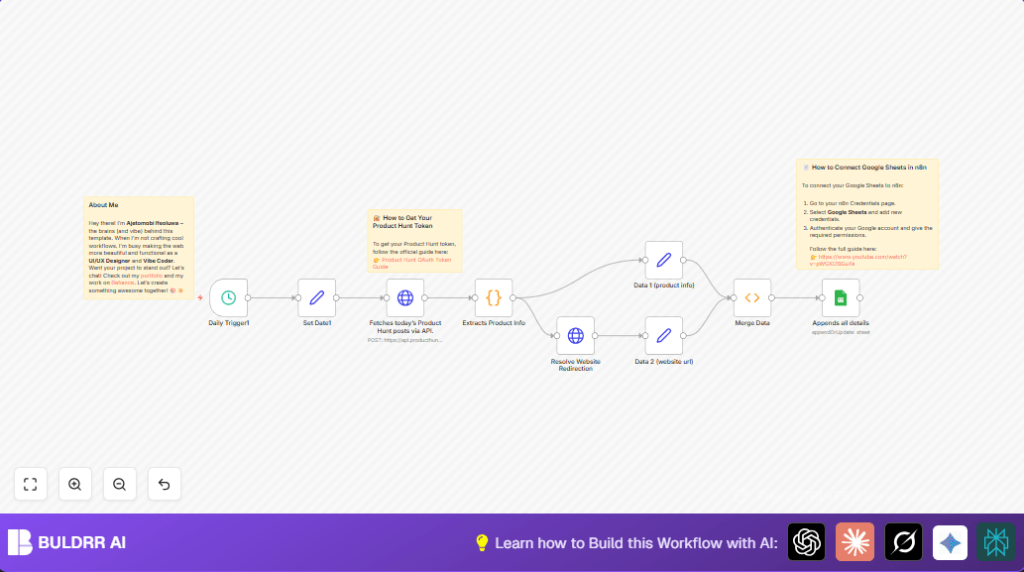
Struggling to manually track daily Product Hunt launches? This n8n workflow automates fetching, processing, and updating today’s Product Hunt data into Google Sheets, saving hours daily.
scheduleTrigger
httpRequest
googleSheets
+4
Workflow Identifier: 2114
NODES in Use: Schedule Trigger, Set, Sticky Note, HTTP Request, Code, Function, Google Sheets

Press CTRL+F5 if the workflow didn't load.

Learn how to Build this Workflow with AI:

Visit through Desktop for Best experience

1. Opening Problem Statement

Meet Sarah, a product manager who wants to stay ahead by monitoring new launches on Product Hunt every day. But manually visiting the site, copying product data, and updating her team’s Google Sheets tracker eats up at least 30 minutes daily — time she could spend strategizing or developing products. Worse, manual entry errors lead to misinformation and missed opportunities.

This is a common pain for many professionals who rely on timely and accurate product launch data. Without an automated system, tracking these launches is tedious, error-prone, and delays critical decision-making.

2. What This Automation Does

This n8n workflow is designed specifically to fetch daily Product Hunt data and automatically update it in Google Sheets, completely hands-free. When triggered once a day, it:

  • Triggers at midnight every day to start the fetching process.
  • Queries the Product Hunt API to get all products posted that day using a GraphQL request.
  • Extracts relevant product information like name, tagline, description, and website.
  • Checks each product’s website for any redirection URLs and cleans them for clarity.
  • Merges the clean product and website data into a cohesive format.
  • Appends or updates this detailed data automatically in a specified Google Sheet for team access.

With this automation, Sarah saves over 3.5 hours weekly, eliminating tedious manual work and dramatically improving data accuracy and timeliness.

3. Prerequisites ⚙️

  • n8n account with access to the Workflow Editor.
  • A valid Product Hunt API key (OAuth token) for authentication. See official guide linked inside the workflow notes.
  • Google Sheets account with a target spreadsheet set up for data input.
  • Google Sheets credentials set up in n8n for service account authentication.

4. Step-by-Step Guide

Step 1: Set up the Daily Trigger node

Navigate to the n8n editor, click Add NodeSchedule Trigger. Configure the interval to trigger once daily (the default empty interval triggers daily). This starts the workflow automatically each day at midnight. You should see the node named “Daily Trigger1” in your workflow.

Common mistake: Setting an incorrect interval will cause the workflow not to run daily or run too frequently.

Step 2: Configure Set Date1 node to get today’s date

Click Add NodeSet. Add a string field named today with the value {{ new Date().toISOString().split('T')[0] }}. This extracts today’s date in YYYY-MM-DD format to use for API queries. You should see the field “today” set correctly.

Common mistake: Missing or mistyping the JavaScript expression might cause failed date retrieval.

Step 3: Fetch today’s Product Hunt posts via API

Add an HTTP Request node named “Fetches today’s Product Hunt posts via API.” with the following configuration:

  • Method: POST
  • URL: https://api.producthunt.com/v2/api/graphql
  • Headers: Add Authorization with value Bearer YOUR_PRODUCT_HUNT_API_KEY and User-Agent as Mozilla/5.0
  • Body Parameters: A GraphQL query to fetch products posted between today’s 00:00:00 and 23:59:59 UTC, using the today value from the Set node.

Replace YOUR_PRODUCT_HUNT_API_KEY with your actual token. Once done, save and test to see JSON output with product posts.

Common mistake: Forgetting to replace the API key will result in authorization errors.

Step 4: Extract Product Information With Code Node

Add a Code node called “Extracts Product Info” to parse the API response. Copy and paste the following JavaScript code:

return $json.data.posts.edges.map(edge => {
  return {
    json: {
      name: edge.node.name,
      tagline: edge.node.tagline,
      description: edge.node.description,
      website: edge.node.website
    }
  };
});

This transforms the raw API data into a cleaner array of product objects.

Common mistake: Modifying the query incorrectly may cause mapping errors.

Step 5: Resolve Website Redirection

Add an HTTP Request node named “Resolve Website Redirection” with these settings:

  • URL: {{ $json.website }} (dynamically from product info)
  • Options: Enable fullResponse, disable follow redirects, and ignore response code.

This node checks if the product URL redirects and captures the actual redirect URL.

Common mistake: Enabling automatic redirects here will mask the redirect location header.

Step 6: Extract Redirect URL and Set Fields

Add a Set node “Data 2 (website url)” to capture the redirect URL from response headers:

  • Add field next_url with value {{ $json["headers"]["location"] }}

Also, add another Set node “Data 1 (product info)” to hold product details (name, tagline, description) from JSON.

Step 7: Merge Product Info with Redirect URLs

Add a Function node named “Merge Data” with the following code:

// Fetch arrays from previous nodes
let productData = $items("Data 1 (product info)") || [];
let redirectData = $items("Data  2 (website url)") || [];

const mergedItems = [];

for (let i = 0; i < productData.length; i++) {
  let product = productData[i].json;
  let url = redirectData[i]?.json?.next_url || null;
  if (url && url.includes('?ref=producthunt')) {
    url = url.replace('?ref=producthunt', '');
  }
  mergedItems.push({json: {
    name: product.name,
    tagline: product.tagline,
    description: product.description,
    next_url: url
  }});
}

return mergedItems;

This creates a clean dataset combining name, details, and redirect-cleaned URLs.

Common mistake: Incorrect node names in the function references can cause failure.

Step 8: Append or Update Data in Google Sheets

Add a Google Sheets node named "Appends all details" configured as follows:

  • Operation: Append or Update
  • Spreadsheet and Sheet: Select your target Google Sheet and worksheet
  • Map columns to name, tagline, description, and next_url
  • Set matching column to name to update existing rows
  • Authenticate using service account credentials

Upon execution, this node updates your Google Sheet with daily Product Hunt launches.

Common mistake: Incorrect spreadsheet ID or worksheet name will result in failures or data going to the wrong place.

5. Customizations ✏️

  • Change Trigger Time: Modify the Schedule Trigger node to run at a different time of day to fit your time zone or reporting needs.
  • Add More Fields: In the Code node "Extracts Product Info," adjust the mapping code to include more Product Hunt post details like upvotes, comments, or user handles if needed.
  • Send Slack Notifications: Add a Slack node after Google Sheets to notify your team immediately when new products are logged.
  • Filter by Category: Modify the GraphQL query in the HTTP Request node to restrict results to specific product categories.
  • Save to CSV instead: Replace the Google Sheets node with a Write Binary File node to save daily product data as CSV files in cloud storage.

6. Troubleshooting 🔧

Problem: Unauthorized error fetching from Product Hunt API

Cause: Missing or invalid API token in the Authorization header.

Solution: Double-check that you replaced YOUR_PRODUCT_HUNT_API_KEY with your real token. Navigate to the HTTP Request node and verify header settings.

Problem: Redirect URL not being fetched

Cause: The HTTP Request node has follow redirects enabled, so it doesn’t expose the location header.

Solution: In the "Resolve Website Redirection" node, set followRedirect and followAllRedirects to false. This allows access to the redirect location in headers.

Problem: Google Sheets update fails

Cause: Wrong spreadsheet or sheet ID/name, or invalid credentials.

Solution: Go to the Google Sheets node, confirm your document ID and sheet name are correct. Also verify your Google Sheets credentials under the credentials section and reauthorize if needed.

7. Pre-Production Checklist ✅

  • Confirm Product Hunt API token is active and has necessary scopes.
  • Verify Google Sheets document exists and credentials have edit permission.
  • Test running the workflow manually with today's date input to ensure API data is fetched.
  • Make sure HTTP Request nodes handle errors or network issues gracefully with retry settings.
  • Backup your existing Google Sheets data before live deployment.

8. Deployment Guide

Once tested successfully, activate the workflow by toggling the active switch in n8n. It will run silently every day fetching Product Hunt posts and updating your Google Sheet automatically.

Monitor initial runs via the execution logs to ensure smooth operation. Adjust schedule if you notice timing misalignment with your timezone.

9. FAQs

Q: Can I use a personal Google account for Sheets authentication?

A: Yes, but service accounts are recommended for smooth automated access without manual login.

Q: Does this workflow consume many API credits?

A: Product Hunt API is generally free but confirm your rate limits and adjust query frequency if needed.

Q: What if my product websites don’t redirect?

A: The redirect check gracefully handles this by returning a null URL, so no issues arise.

Q: Can I scale this to fetch more products per day?

A: Modify the GraphQL query's first parameter from 10 to a higher number, but ensure your API rate limits allow this.

10. Conclusion

By following this guide, you’ve set up a fully automated daily data pipeline that fetches the latest Product Hunt launches and updates your Google Sheets in real time. This saves precious hours each week and keeps your team informed with accurate, up-to-date product info.

Next, consider adding notifications to your Slack or email channel, or expanding to archive weekly summaries for historical trend analysis. You’ve taken a crucial step towards smarter, more efficient product monitoring with n8n!

Promoted by BULDRR AI

Related Workflows

Automate Viral UGC Video Creation Using n8n + Degaus (Beginner-Friendly Guide)

Learn how to automate viral UGC video creation using n8n, AI prompts, and Degaus. This beginner-friendly guide shows how to import, configure, and run the workflow without technical complexity.
Form Trigger
Google Sheets
Gmail
+37
Free

AI SEO Blog Writer Automation in n8n

A complete beginner guide to building an AI-powered SEO blog writer automation using n8n.
AI Agent
Google Sheets
httpRequest
+5
Free

Automate CrowdStrike Alerts with VirusTotal, Jira & Slack

This workflow automates processing of CrowdStrike detections by enriching threat data via VirusTotal, creating Jira tickets for incident tracking, and notifying teams on Slack for quick response. Save hours daily by transforming complex threat data into actionable alerts effortlessly.
scheduleTrigger
httpRequest
jira
+5
Free

Automate Telegram Invoices to Notion with AI Summaries & Reports

Save hours on financial tracking by automating invoice extraction from Telegram photos to Notion using Google Gemini AI. This workflow extracts data, records transactions, and generates detailed spending reports with charts sent on schedule via Telegram.
lmChatGoogleGemini
telegramTrigger
notion
+9
Free

Automate Email Replies with n8n and AI-Powered Summarization

Save hours managing your inbox with this n8n workflow that uses IMAP email triggers, AI summarization, and vector search to draft concise replies requiring minimal review. Automate business email processing efficiently with AI guidance and Gmail integration.
emailReadImap
vectorStoreQdrant
emailSend
+12
Free

Automate Email Campaigns Using n8n with Gmail & Google Sheets

This n8n workflow automates personalized email outreach campaigns by integrating Gmail and Google Sheets, saving hours of manual follow-up work and reducing errors in email sequences. It ensures timely follow-ups based on previous email interactions, optimizing communication efficiency.
googleSheets
gmail
code
+5
Free