

1. Opening Problem Statement
Meet Thomas, a small business owner who relies heavily on Google Keep to jot down expenses and important notes throughout the day. Every month, Thomas spends up to 4 hours manually exporting his notes, filtering relevant financial entries, and entering them into Google Sheets for budgeting. He often misses or misreads details buried within the notes, causing errors in his financial tracking and costing him both time and money.
Thomas desperately needs a way to automate extracting meaningful information from his Google Keep exports without manually handling the mass of unstructured JSON files Google Takeout generates. This workflow is designed to solve exactly that pain.
2. What This Automation Does
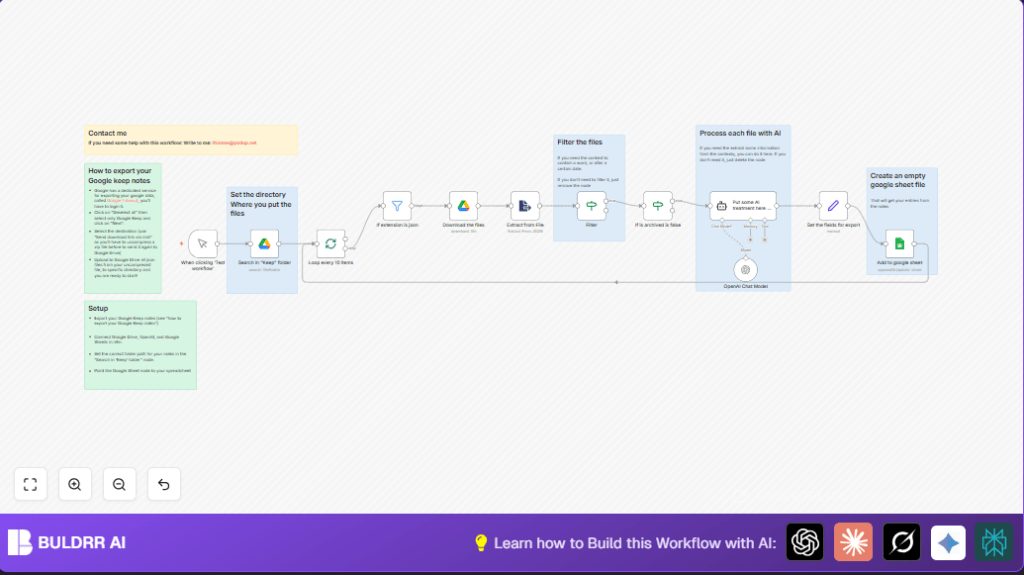
This custom n8n workflow automates the entire process of moving data from Google Keep notes into an organized Google Sheets budget. Here’s what happens when it runs:
- Fetches all exported JSON note files from a specific Google Drive folder.
- Filters notes to only process those that are not archived and that contain expense-related keywords (like “dépensé” or “depense”).
- Downloads each relevant JSON file and extracts the full text content.
- Uses a powerful AI model (OpenAI GPT-4o-mini) to analyze the note’s content and extract exact amounts spent in euros.
- Transforms timestamps into readable creation and edit dates.
- Appends or updates this cleaned, structured data into a Google Sheet for easy tracking and review.
Thanks to this setup, Thomas could potentially save over 3 hours each month and eliminate costly manual data entry errors from his budget process.
3. Prerequisites ⚙️
- n8n Account: Whether cloud-based or self-hosted (optional)
- Google Drive Account with exported Google Keep notes uploaded
- Google Sheets account with an existing or new spreadsheet file to store data
- OpenAI API account for AI-powered text extraction
- Connected credentials for Google Drive, Google Sheets, and OpenAI within n8n
4. Step-by-Step Guide
Step 1: Start with a Manual Trigger
In n8n, add a Manual Trigger node named “When clicking ‘Test workflow’”.
This lets you run the workflow anytime to test or extract data on-demand.
Expected outcome: Manual trigger is ready to initiate the data flow.
Step 2: Search Your Google Drive for Keep Notes
Add a Google Drive node named “Search in ‘Keep’ folder”.
– Go to Google Drive export and upload all your Google Keep JSON files into a specific folder.
– In the node, set the folder ID to that folder’s ID.
You’ll see a list of files returned from that folder.
Common mistake: Not setting the correct folder ID will result in no files found.
Step 3: Split Files into Batches for Processing
Add a SplitInBatches node named “Loop every 10 items”.
Link it to the Google Drive node. Set batch size to 10 for manageable processing chunks.
This ensures the workflow processes files efficiently and prevents rate limits.
Step 4: Filter Only JSON Files
Add an If node with the type “Filter” named “If extension is json”.
Set the condition to check the file extension “equals json” using {{$json.name.split('.').pop()}}.
This filters out non-JSON files that shouldn’t be processed.
Step 5: Download Each JSON File
Add another Google Drive node named “Download the files” with operation set to “download”.
Pass the file ID from the filter node data.
Expect to receive the raw file content for extraction in the next step.
Step 6: Extract JSON Content from File
Add Extract From File node configured with “fromJson” operation.
This will parse the downloaded JSON file and give structured data accessible in subsequent steps.
Step 7: Filter for Financial Notes
Add an If node named “Filter”.
Set conditions to check if the note’s textContentHtml includes keywords like “dépensé” or “depense”—French words related to spending.
This step narrows down to only notes related to expenses.
Step 8: Check If Note is Archived
Add another If node named “If is archived is false”.
Check that the data.isArchived field is false to exclude archived notes.
Step 9: Use AI to Extract Amounts
Add a Langchain OpenAI Chat Model node named “OpenAI Chat Model” with model set to “gpt-4o-mini”.
Feed the note’s text content for the AI to extract euro amounts or financial figures.
You also have an alternative node “Put some AI treatment here if you need it” using an AI Agent node, with a prompt like:
=Extract the amount in euros of the input. output just the amount and nothing else.
Here is the input:{{ $json.data.textContent }}Step 10: Set Fields for Export
Add a Set node named “Set the fields for export”.
Map necessary fields including textContent, Created and Edited timestamps converted to readable dates, isArchived flag, and the extracted AI amount.
Step 11: Append Data to Google Sheets
Add a Google Sheets node named “Add to google sheet”.
Select your target spreadsheet and sheet name.
Set columns to auto map from input data.
Use operation “appendOrUpdate” to add new entries or update existing rows.
Expected outcome: Your Google Keep expense notes are now structured and stored neatly for analysis.
5. Customizations ✏️
- Change Expense Keyword Filter: In “Filter” node, add or change keywords to narrow or broaden which notes to process, e.g. including “invoice” or “payment”.
- Switch AI Model: In “OpenAI Chat Model” node, select a different GPT model to optimize cost vs accuracy.
- Batch Size Adjustment: Change batch size in “Loop every 10 items” node to manage workload based on API limits.
- Export Additional Fields: Add more fields in “Set the fields for export” node for richer data like note labels or location.
- Skip AI Extraction: Delete or bypass the AI node if you only want raw textual exports without amounts.
6. Troubleshooting 🔧
Problem: “No files found in the specified Google Drive folder.”
Cause: Incorrect folder ID in “Search in ‘Keep’ folder” node.
Solution: Double-check and paste the correct Google Drive folder ID containing your exported notes.
Problem: “AI node returns empty or nonsense amount output.”
Cause: Note text is poorly formatted or too complex.
Solution: Refine the AI prompt in the “Put some AI treatment here if you need it” node or try a more capable model like GPT-4.
Problem: “Google Sheets node fails to append data.”
Cause: Incorrect spreadsheet ID or insufficient Sheet permissions.
Solution: Verify your Google Sheets credentials and spreadsheet ID, and ensure the sheet is shared with your connected Google account.
7. Pre-Production Checklist ✅
- Confirm all Google Drive, Sheets, and OpenAI credentials are connected and test successful.
- Ensure your exported Google Keep JSON files are uploaded to the correct Drive folder.
- Test the manual trigger to verify files are processed and outcomes appear in Google Sheets.
- Back up your Google Sheets data before running the workflow to avoid unintended overwrites.
- Check AI prompt results on a small set of data before scaling.
8. Deployment Guide
Activate the workflow in n8n after thorough testing.
You can schedule it to run periodically by adding a Cron node before the “Search in ‘Keep’ folder” node.
Monitor executions in n8n to verify success and quickly troubleshoot any errors.
Make sure OpenAI API quotas are sufficient to handle your note volume.
9. FAQs
Q: Can I use a cheaper or open-source AI instead of OpenAI?
A: Yes, but you’ll need to swap the AI node and adjust prompts accordingly. Be aware of differences in capability.
Q: Does processing many notes consume a lot of API credits?
A: Yes, especially with large volumes. Adjust batch size and AI model to control cost.
Q: Is my data secure in this workflow?
A: Your data stays within your connected accounts. Use n8n self-hosting for additional privacy control.
10. Conclusion
By following this detailed setup, you’ve automated extracting and organizing Google Keep expense notes into Google Sheets with AI-enhanced data extraction. This eliminates hours of tedious manual work and reduces errors significantly.
Next, consider expanding this automation by adding Slack notifications for new entries or integrating with your accounting software for automatic expense reporting.
Keep exploring n8n’s powerful nodes to tailor workflows precisely to your needs!