

Automate Gmail Attachments to Google Drive Folders with n8n

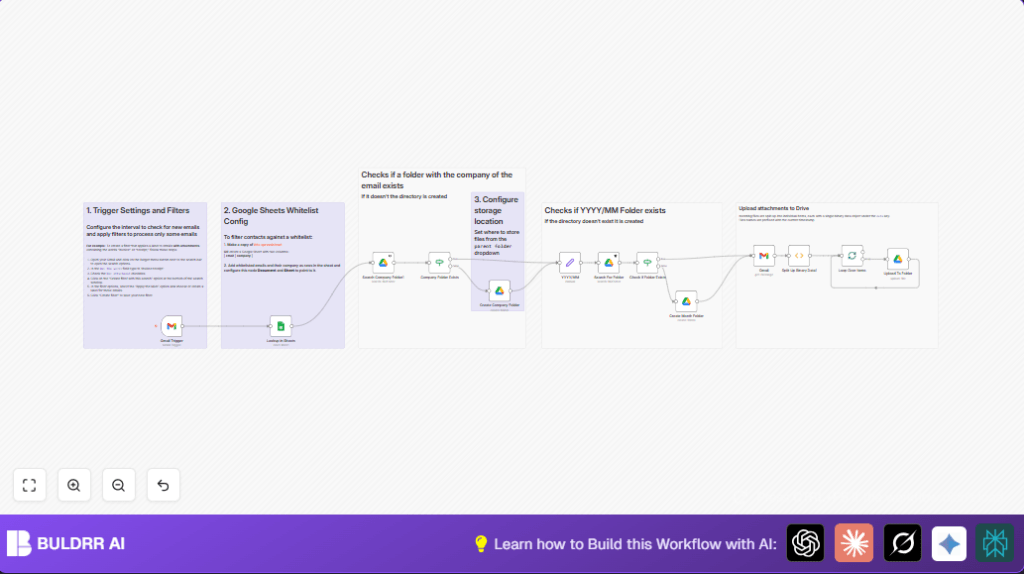
This workflow automates saving Gmail email attachments into organized Google Drive folders based on company and date. It eliminates manual download and sorting by creating folders dynamically and uploading files seamlessly.
gmailTrigger
googleSheets
googleDrive
+6
Workflow Identifier: 2104
NODES in Use: gmailTrigger, googleSheets, googleDrive, gmail, function, if, set, splitInBatches, stickyNote

Press CTRL+F5 if the workflow didn't load.

Learn how to Build this Workflow with AI:

Visit through Desktop for Best experience

1. Opening Problem Statement

Meet Sarah, a small business accountant who spends at least an hour daily downloading invoice attachments from emails and uploading them manually to Google Drive. She struggles with keeping files organized by company and date, leading to misplaced invoices and lost time during tax season. Each misplaced invoice could mean delayed payments or even audit risks.

Imagine losing several hours each week to repetitive tasks like these — not to mention the errors of misfiling documents manually. Sarah needed a way to automatically sort and store her incoming invoices into well-structured folders without lifting a finger.

2. What This Automation Does

This n8n workflow seamlessly connects Gmail and Google Drive to handle Sarah’s email invoices. When it detects an email with an attachment and a specific label, it:

  • Checks if the email sender is in a whitelist stored in a Google Sheet to filter authorized companies.
  • Looks for a company folder inside a main “Invoices” Drive folder. Creates one if missing.
  • Generates a year/month folder inside the company folder based on the email date. Creates it if absent.
  • Extracts and splits all attachments from the email.
  • Uploads each attachment file with a timestamp prefix into the appropriate Drive folder.
  • Keeps metadata like sender and received time as Drive file properties for easy tracking.

By using this workflow, Sarah saves hours every week, avoids costly filing mistakes, and gains searchable, well-organized invoice storage in Drive.

3. Prerequisites ⚙️

  • Gmail account with OAuth credentials configured in n8n 📧
  • Google Drive account with OAuth credentials for folder and file management 📁
  • Google Sheets account to maintain the whitelist of approved emails and companies (also with OAuth) 📊
  • n8n account to build and run the workflow 🔌
  • Optional: Self-hosted n8n instance for enhanced control (e.g., via Hostinger) 🔐

4. Step-by-Step Guide

Step 1: Set up the Gmail Trigger node to watch inbound labeled emails

Navigate to Nodes > Add Node > Gmail Trigger. Configure it to poll every 15 minutes and apply the Gmail label created for invoices (e.g., “Label_2”).

This node continuously watches for new matching emails.
Common mistake: forgetting to label incoming emails properly in Gmail will cause no emails to trigger.

Step 2: Lookup sender email in a Google Sheets whitelist

Add a Google Sheets node and select your whitelist sheet with columns “email” and “company.” Set the filter to look up the sender’s email from the Gmail Trigger node.

This ensures only emails from authorized senders proceed. Missing or incorrect Sheet ID or name leads to lookup failure.

Step 3: Search for a company folder in Google Drive

Add the Google Drive node set to search folders. Use the company name from the Sheet lookup as the query.

If the company folder exists, you proceed. Otherwise, create one in the next step.

Step 4: Conditionally create a company folder

Add an If node to check if the previous search returned a folder. If not, create a new folder within the “Invoices” root folder on Drive using another Google Drive node.

Ensure the root folder ID “Invoices” is set correctly here.

Step 5: Extract year/month from email date and prepare folder path

Use a Set node to build a “YYYY/MM” string based on the email received date.

Store this as the folder name for the month folder inside the company folder.

Step 6: Search or create the month folder inside the company folder

Add a Google Drive node to search for the “YYYY/MM” folder under the company folder.

Then, add an If node to check if it exists. If not, create the month folder.

Step 7: Get full Gmail message details including attachments

Use a Gmail node with operation “get” and provide the message ID from the trigger node. Enable downloading attachments.

Careful: skipping this causes attachments to be absent.

Step 8: Split attachments into separate items

Add a Function node with this JavaScript code to handle multiple attachments:

let results = [];

for (item of items) {
  for (key of Object.keys(item.binary)) {
    results.push({
      json: { fileName: item.binary[key].fileName },
      binary: { data: item.binary[key] }
    });
  }
}

return results;

This splits each attachment into its own workflow item for individual uploading.

Step 9: Upload each attachment to the final Drive folder

Use a Split In Batches node to process one file at a time.

Follow it with a Google Drive Upload node set to save each file to the correct “YYYY/MM” folder found or created earlier. Name files with a timestamp prefix for uniqueness.

Attach metadata properties for sender email and time received for traceability.

5. Customizations ✏️

  • Change Email Filters: In the Gmail Trigger, modify the label or filter criteria to catch different types of emails like receipts or contracts instead of invoices.
  • Use Different Folder Structure: Change the Set node to build a different folder naming scheme, e.g., “YYYY-MM-DD” or include company codes.
  • Add a Slack Notification: Insert a Slack node after uploads to notify the team automatically when new files arrive.
  • Expand Whitelist Columns: Add more company metadata in the Google Sheets to use as Drive folder properties or for advanced filtering.
  • Automate Label Application in Gmail: Use Gmail filters to automatically label incoming emails to trigger the workflow without manual intervention.

6. Troubleshooting 🔧

Problem: “No emails triggering the workflow”

Cause: Emails do not have the configured label or Gmail Trigger polling interval too high.

Solution: Ensure Gmail filter is applying the label correctly; reduce poll interval to every 5 or 15 minutes.

Problem: “Google Sheets lookup returns empty”

Cause: Incorrect Sheet ID, sheet name, or lookup column setup.

Solution: Verify document and sheet IDs match your whitelist; confirm column names and data are accurate.

Problem: “Folders not being created”

Cause: Wrong Drive folder ID for root or permission errors.

Solution: Check Drive OAuth credentials and the folder ID configured in Create Folder nodes.

7. Pre-Production Checklist ✅

  • Verify Gmail label is applied to test emails.
  • Confirm whitelist Google Sheet contains test email and company data.
  • Test Drive folder IDs for “Invoices” root folder.
  • Run the workflow manually with a sample email to ensure attachments upload correctly.
  • Backup your Drive data to prevent accidental overwrites.

8. Deployment Guide

Activate the workflow in n8n after final testing. Make sure credentials are valid and connections established.

Monitor initial runs through n8n’s execution logs to catch any upload errors or API limits.

Adjust poll intervals as needed depending on email volume.

9. FAQs

  • Can I use Outlook instead of Gmail? Currently, this workflow is designed for Gmail. Adapting to Outlook would require different trigger nodes and APIs.
  • Does this use many Google Drive API calls? Yes, each folder search and file upload counts. Monitor quotas if processing high volume.
  • Is my data secure? Yes, all OAuth credentials are managed securely within n8n.
  • Can I handle hundreds of emails daily? Splitting uploads in batches allows scaling, but monitor API quotas and consider paid Google Workspace plans.

10. Conclusion

By now, you have built a powerful n8n workflow that automatically downloads invoice attachments from Gmail, validates senders against a whitelist, and neatly organizes files into company and monthly folders in Google Drive.

This saves countless hours each month and greatly reduces errors caused by manual handling. You’ve also gained a repeatable pattern for processing emails with attachments into Drive.

Next steps could include automating Slack notifications, integrating OCR processing, or adding new email triggers for other document types.

You’re well on your way to efficient document automation. Keep experimenting and expanding your workflows! ⚙️

Promoted by BULDRR AI

Related Workflows

Automate Viral UGC Video Creation Using n8n + Degaus (Beginner-Friendly Guide)

Learn how to automate viral UGC video creation using n8n, AI prompts, and Degaus. This beginner-friendly guide shows how to import, configure, and run the workflow without technical complexity.
Form Trigger
Google Sheets
Gmail
+37
Free

AI SEO Blog Writer Automation in n8n (Beginner Guide)

A complete beginner guide to building an AI-powered SEO blog writer automation using n8n.
AI Agent
Google Sheets
httpRequest
+5
Free

Automate CrowdStrike Alerts with VirusTotal, Jira & Slack

This workflow automates processing of CrowdStrike detections by enriching threat data via VirusTotal, creating Jira tickets for incident tracking, and notifying teams on Slack for quick response. Save hours daily by transforming complex threat data into actionable alerts effortlessly.
scheduleTrigger
httpRequest
jira
+5
Free

Automate Telegram Invoices to Notion with AI Summaries & Reports

Save hours on financial tracking by automating invoice extraction from Telegram photos to Notion using Google Gemini AI. This workflow extracts data, records transactions, and generates detailed spending reports with charts sent on schedule via Telegram.
lmChatGoogleGemini
telegramTrigger
notion
+9
Free

Automate Email Replies with n8n and AI-Powered Summarization

Save hours managing your inbox with this n8n workflow that uses IMAP email triggers, AI summarization, and vector search to draft concise replies requiring minimal review. Automate business email processing efficiently with AI guidance and Gmail integration.
emailReadImap
vectorStoreQdrant
emailSend
+12
Free

Automate Email Campaigns Using n8n with Gmail & Google Sheets

This n8n workflow automates personalized email outreach campaigns by integrating Gmail and Google Sheets, saving hours of manual follow-up work and reducing errors in email sequences. It ensures timely follow-ups based on previous email interactions, optimizing communication efficiency.
googleSheets
gmail
code
+5
Free