

1. Opening Problem Statement
Meet Kenji, a freelance forex trader based in Tokyo who tracks the Japanese Yen (JPY) exchange rate daily. Kenji often wastes ten to fifteen minutes multiple times a day manually scanning various financial news websites for any updates on the Yen’s value. Missing a crucial update means potentially losing significant profit opportunities or making bad trading decisions. This manual process is prone to human error and results in delayed reactions to market changes.
Kenji needs a way to get instantly notified about the latest news on Japanese Yen exchange rates without repeatedly opening web browsers or RSS readers. He wants those updates delivered directly to his smartphone via Telegram so he can act swiftly.
2. What This Automation Does
This n8n workflow automates the entire process of tracking Japanese Yen currency updates from an RSS news feed and pushes real-time notifications to Telegram. Here’s what happens when the workflow runs:
- It automatically fetches the latest RSS feed entries from a configured URL at a fixed interval (every 1 hour or as you set).
- Compares each feed item’s publication date to the most recent update already sent, filtering out old or duplicate news.
- Sends a formatted Telegram message with the headline and a link to the specific news update if it’s new.
- Updates the stored timestamp of the latest news processed to avoid repeated alerts.
- Runs on a schedule without manual intervention, saving Kenji at least 10-15 minutes daily, increasing his responsiveness to market changes.
3. Prerequisites ⚙️
- n8n account with access to automation editor
- Telegram account with a bot set up and Telegram API credentials handy (for sending messages)
- RSS feed URL for your preferred Japanese Yen news source or currency exchange updates
4. Step-by-Step Guide
Step 1: Create a Cron Trigger to Schedule the Workflow
Navigate to the n8n editor. Click + Add Node → select Cron node located in the “Trigger” category. Configure it to trigger every hour or according to your preferred interval:
{
"mode": "everyX",
"value": 1
}You should see this node activating the workflow at a regular time interval, initiating the RSS feed reading process automatically.
Common mistake: Not setting the time zone correctly might lead to unexpected trigger times. Ensure the workflow timezone is set to “Asia/Taipei” (or your local time).
Step 2: Add and Configure the RSS Feed Read Node
Click + → search for RSS Feed Read. Enter the RSS feed URL that provides Japanese Yen exchange rates, for example, https://www.example.com/jpy-rates-feed.
The node will pull the latest feed items on each trigger. You should see JSON data including fields such as title, link, and isoDate.
Common mistake: Double-check the RSS feed URL is valid and reachable; otherwise, the node will fail to fetch updates.
Step 3: Add a Function Node to Retrieve the Latest Read Date
Add a Function node named “Latest Read”. This node reads the workflow’s global static data stores the timestamp of the last news sent. Copy and paste the following code:
const staticData = this.getWorkflowStaticData('global');
latestRead = staticData.latestRead;
for (let item of items) {
item.json.latestRead = latestRead || '2021-06-01';
}
return items;What this does: attaches the last processed news date as latestRead to each RSS feed item for comparison.
Common mistake: Mistyping variable names will cause errors. Make sure to copy it exactly.
Step 4: Add an IF Node to Filter New RSS Items
Insert an IF node to compare each RSS item’s date to the latest read timestamp. Configure two conditions:
- Number condition: Compare
new Date(LatestRead).getTime()andnew Date(isoDate).getTime()to confirm the news is newer. - String condition: Check if the
titlefield contains a specific keyword if you want to filter relevant news.
If both conditions pass, the new data will continue down the “true” path; otherwise, it’s ignored.
Common mistake: Misconfiguring the date conversion formula or field names can cause the filter to fail.
Step 5: Add a Function Node to Update the Latest Read Timestamp
Add another Function node called “Write Latest Read” to update the static data with the newly processed news date. Use this code:
const staticData = this.getWorkflowStaticData('global');
if (items.length > 0) {
staticData.latestRead = items[0].json.isoDate || staticData.latestRead;
}
return items;This updates the timestamp so the workflow knows where to resume next time.
Common mistake: Not updating staticData causes repetitive messages.
Step 6: Add the Telegram Node to Send Messages
Add a Telegram node configured with your Telegram Bot API credentials and Chat ID where you want to receive updates.
Set the message text like this:
💹 #日幣匯率 {{$json["title"]}}
{{$json["link"]}}This formats the message in Japanese indicating yen exchange rate news, followed by the article link.
Common mistake: Forgetting to fill in Telegram credentials or Chat ID will cause failure to send messages.
Step 7: Add No Operation (NoOp) Node on “False” Path
Place a NoOp node linked to the “false” output of the IF node to silently discard any outdated or irrelevant news without errors.
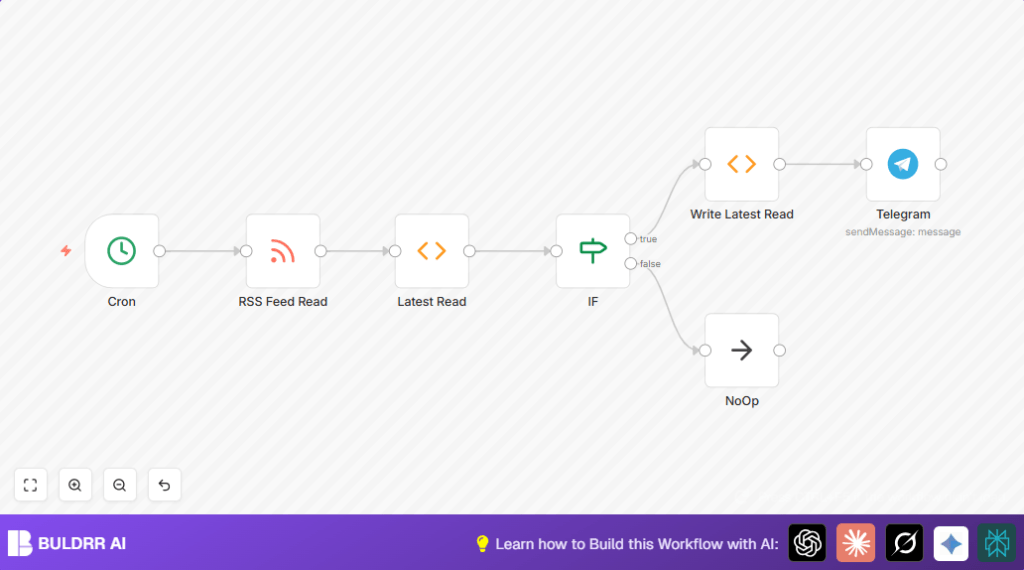
Step 8: Connect All Nodes in Order
Ensure your node connections as follows:
- Cron → RSS Feed Read → Latest Read → IF;
- IF true → Write Latest Read → Telegram;
- IF false → NoOp.
You can now save and activate your workflow.
5. Customizations ✏️
- Change RSS Feed Source: In the “RSS Feed Read” node, replace the URL with your preferred financial news or currency updates feed.
- Adjust Notification Frequency: Modify the Cron trigger’s schedule to run every 30 minutes or specific times of day for more frequent alerts.
- Customize Telegram Message: In the Telegram node, edit the text parameter to include additional info like exchange rate values or emoji for better readability.
- Add Keyword Filters: In the IF node, modify the string condition’s keyword to filter specific news topics like inflation or policy changes affecting the Yen.
6. Troubleshooting 🔧
Problem: “Telegram node returns unauthorized error”
Cause: Incorrect Telegram bot API token or missing Chat ID.
Solution: Double-check and update Bot credentials in the Telegram node settings. Ensure the bot is added to the chat group if using group chat.
Problem: “RSS Feed node fails to fetch URL”
Cause: Invalid or unreachable RSS feed URL.
Solution: Verify URL correctness and network connectivity. Test the URL in a browser to confirm accessibility.
Problem: “IF node does not filter new items correctly”
Cause: Date formats or variable names mismatch.
Solution: Confirm date parsing expressions in the IF node conform exactly to node output fields and date syntax.
7. Pre-Production Checklist ✅
- Validate your RSS feed URL returns fresh data with correct fields (
title,isoDate,link). - Test Telegram bot sending messages manually with test text to correct Chat ID.
- Run the workflow manually to verify node connections and data flow.
- Confirm your time zone in the workflow settings matches your actual location for cron scheduling.
8. Deployment Guide
Once tested, turn on the workflow by activating it in n8n. This sets your automation live on the scheduled time intervals.
Monitor Telegram messages to ensure alerts are timely. Check n8n executions list for any errors or failed runs.
If self-hosting n8n, ensure server uptime for continuous workflow operation. Otherwise, rely on n8n cloud.
9. FAQs
Q: Can I use a different messaging app instead of Telegram?
A: Yes, you can integrate with other messaging nodes such as Slack or WhatsApp, but this workflow uses Telegram for simplicity.
Q: Does this workflow consume Telegram API credits?
A: Telegram bot API calls are generally free with generous limits for typical usage like this.
Q: Is my data secure?
A: This workflow only processes publicly available RSS feed data and sends messages securely through Telegram’s API.
10. Conclusion
By setting up this n8n workflow, Kenji transformed his manual news tracking process into an automated, real-time alert system directly on Telegram. This automation saves him at least 10 to 15 minutes per day and drastically reduces the chances of missing vital Japanese Yen exchange rate news. You’ve learned to fetch RSS feeds, filter new content, update static data timestamps, and send Telegram messages — all essential skills to build powerful bot-driven notifications.
Next, consider expanding to multi-currency alerts, integrating actual currency APIs for real-time rates, or adding sentiment analysis to your news updates. Automation like this not only saves time but sharpens your edge in fast-moving markets. Start automating today!