
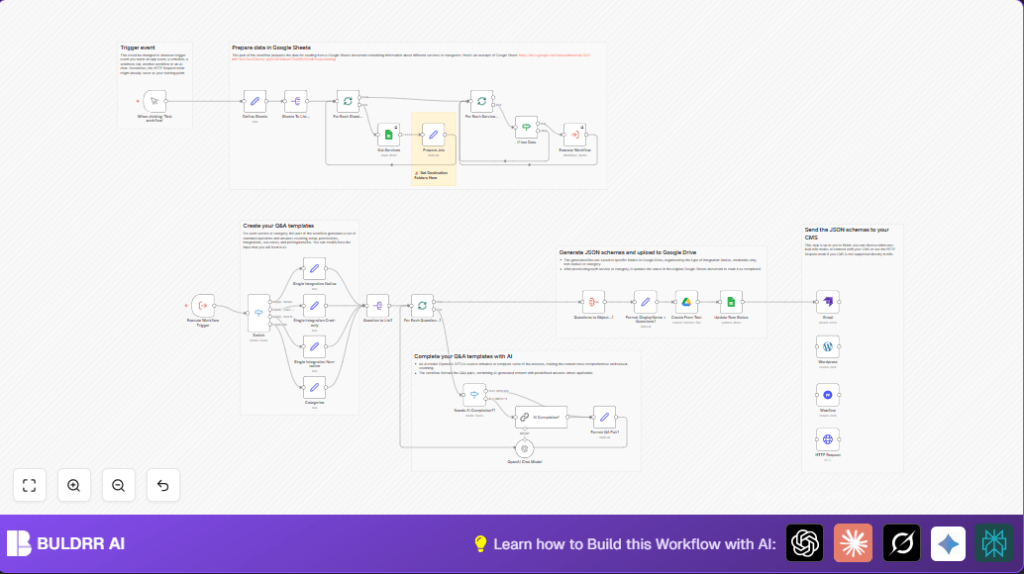

Generate AI-Enriched FAQ JSON from Google Sheets with n8n

This n8n workflow automates reading integration data from Google Sheets, enriches FAQ content using OpenAI, and generates structured JSON FAQs uploaded to Google Drive. It solves manual, error-prone FAQ creation, offering a scalable, AI-enhanced documentation solution.
manualTrigger
googleSheets
lmChatOpenAi
+14
Workflow Identifier: 2090
NODES in Use: manualTrigger, set, splitOut, splitInBatches, googleSheets, switch, lmChatOpenAi, chainLlm, googleDrive, executeWorkflow, executeWorkflowTrigger, if, aggregate, strapi, wordpress, webflow, httpRequest

Press CTRL+F5 if the workflow didn't load.

Learn how to Build this Workflow with AI:

Visit through Desktop for Best experience

1. Opening Problem Statement

Meet Sarah, a product manager at a fast-growing software company. She is responsible for maintaining the FAQ documentation for over 100 different software integrations that her team supports. Every time a new integration is added or existing features change, Sarah has to manually gather details from spreadsheets, write clear FAQs, and publish updated JSON files for their website and CMS. This process is tedious, time-consuming, and error-prone — often taking hours each week and causing delays in delivering up-to-date user help content. Sarah realizes this manual approach wastes dozens of hours monthly, leading to frustration and inconsistent documentation.

Fortunately, there is a more efficient way. Leveraging n8n’s automation platform combined with AI-powered text completion, Sarah can fully automate the generation of well-structured, enriched FAQ JSON schemas based on her team’s Google Sheets data. This not only reduces manual labor but also ensures consistently polished, accurate, and current FAQ content.

2. What This Automation Does

This specialized n8n workflow streamlines the creation of dynamic FAQ JSON files for integration documentation by performing the following when triggered:

  • Reads multiple sheets in a Google Sheets document, each representing different types of integrations or categories.
  • Processes each integration/service entry to generate FAQ question and answer pairs, including common questions about setup, permissions, use cases, and pricing.
  • Uses OpenAI’s GPT model to intelligently enhance or complete answers, making them sound natural and comprehensive.
  • Formats and consolidates the enriched Q&A data into well-organized JSON schemas ready for use in FAQs or help centers.
  • Uploads the generated JSON files into designated folders on Google Drive, neatly categorizing them by integration type.
  • Updates the status of each processed row in Google Sheets to prevent duplicate processing and keep track of completed items.

With this automation, Sarah can eliminate manual copy-pasting and writing, saving hours weekly and ensuring her FAQ documentation stays fresh and user-friendly.

3. Prerequisites ⚙️

  • n8n account (cloud or self-hosted)
    Optional: Self-hosting guides available at Hostinger for better control and cost efficiency.
  • Google Sheets account with access to the FAQ master spreadsheet
  • Google Drive account for storing generated JSON files
  • OpenAI account to utilize GPT AI completion
  • Optionally, CMS accounts such as Strapi, WordPress, or Webflow if you want to push FAQ data directly

4. Step-by-Step Guide

Step 1: Trigger the Workflow Manually

Navigate to your n8n workflow and click “Test workflow” or trigger the manual trigger node named When clicking ‘Test workflow’. This will start the FAQ generation sequence.

You should see the trigger node activate and initiate the data import process.

Common mistake: Forgetting to activate the workflow will prevent the process from running.

Step 2: Define the Google Sheets Tabs to Process

The Define Sheets node specifies which sheets inside your spreadsheet contain FAQ source data. This uses a raw JSON set node listing sheets like Single Integration Native, Single Integration Cred-only, Single Integration Non-native, and Categories.

Make sure the sheet names match exactly those in your Google Sheets document.

Expected outcome: These sheet names will be fed into the subsequent nodes for batch processing.

Step 3: Split Sheets for Batch Processing

Sheets To List... splits the list of sheet names to process each in sequence, followed by For Each Sheet... which batches process individual sheets.

This approach lets the workflow handle multiple sheets and their rows without overloading the system.

Step 4: Read Services Data from Each Sheet

The Get Services Google Sheets node reads service or category details from each sheet filtered by a “status” column to catch unprocessed rows.

Be sure your sheets include a status column to enable marking processed rows later.

Step 5: Prepare Data and Assign Google Drive Folder

Prepare Job node sets variables like the sheet name, row data, and importantly, the Google Drive folder ID where JSON output will be saved. You must update these folder IDs in the node configuration to your actual Drive folder locations.

Outcome: Each integration’s data is now ready for processing and classified by folder destination.

Step 6: Branch Processing Based on Sheet Type

Switch node routes the data flow depending on sheet type (Native Integration, Credential-only, Non-native, Categories) to use different question templates accordingly.

This allows customized FAQ generation logic tailored for each integration type.

Step 7: Apply Customized FAQ Templates

Each branch uses a Set node to create standard questions and answers for that integration or category, covering setup, permissions, integrations, use cases, and pricing FAQs.

These are pre-filled templates using expressions that pull details from the current integration data (like displayName).

Step 8: Split Questions for AI Completion

Question to List1 and For Each Question...1 prepare lists of questions, batching through each FAQ item for AI enhancement.

The Needs AI Completion?1 switch node decides which questions require AI-generated improvements based on a boolean flag.

Step 9: Complete Answers with OpenAI GPT

AI Completion1 sends the selected questions and existing partial answers to OpenAI’s GPT-4o-mini model for natural, context-aware completion.

The chat model node OpenAI Chat Model powers this AI completion process, producing refined, high-quality answers.

Copy-paste example AI prompt used (inside AI Completion1):

### The question
{{ $json.question }}
### Prefered answer format
{{ $json.ai_completion_format ? 'markdown bullet list' : 'markdown' }}
### User's answer
{{ $json.answer }}
{{
$json.ai_example
  ? `### GuidancenWhen giving answer, follow this blueprint: ${$json.ai_example}`
  : ''
}}

Step 10: Format and Aggregate Completed Q&A

Format QA Pair1 merges AI-generated enhancements with existing answers to form a polished question-answer pair.

Questions to Object...1 aggregates all QA pairs for the current integration to a single JSON object for export.

Step 11: Add Integration Name and Prepare JSON

Format DisplayName + Questions1 appends the integration or category name to the aggregated FAQ data, ready for file creation.

Step 12: Create FAQ JSON Files in Google Drive

Create From Text generates a formatted JSON file in the appropriate Drive folder, named using the integration name and date.

This node is critical to automatically publishing your FAQ files to your Drive storage.

Step 13: Update Google Sheet Status

Update Row Status marks the source row for the processed integration or category as “done,” ensuring it is not processed again.

Common mistake: Forgetting to include a status column or map row numbers correctly can cause repeat processing.

Step 14: Optional: Push FAQs to your CMS

If desired, you can extend this workflow by using nodes like Strapi, WordPress, Webflow, or custom HTTP requests to upload the FAQ JSON directly into your content management system.

This step is flexible to your publishing needs.

5. Customizations ✏️

  • Change AI Model: In the OpenAI Chat Model node, modify the model parameter to another OpenAI version or provider to change answer style or quality.
  • Add More FAQ Templates: In the Set nodes like Single Integration Native, add or modify question-answer pairs to tailor for your specific integrations or categories.
  • Redirect Output Folders: Update the folder IDs in Prepare Job to change where JSON files are saved in Google Drive, organizing by date, team, or project.
  • Integrate Additional CMS: Add new CMS nodes or HTTP Request nodes after Update Row Status to automate publishing FAQs to alternative platforms.
  • Switch Trigger: Replace the Manual Trigger node with a Webhook, Scheduler, or external event node to automate FAQ updates on a schedule or webhook call.

6. Troubleshooting 🔧

  • Problem: “No rows found or empty data after Get Services.”
    Cause: The Google Sheets document’s status column may not filter correctly or all rows are marked done.
    Solution: Check the status column values, ensure some rows have an empty or specific value that matches the filter in Get Services node.
  • Problem: “AI Completion node returns errors or empty output.”
    Cause: Incorrect OpenAI API key or model configuration.
    Solution: Verify your API key in n8n credentials, check usage limits, and test with simpler prompts.
  • Problem: “JSON file not created on Google Drive.”
    Cause: Incorrect folder IDs or missing permissions.
    Solution: Confirm Google Drive folder IDs in Prepare Job node are correct and your credentials have write access.

7. Pre-Production Checklist ✅

  • Verify Google Sheets contains properly formatted tabs with expected column headers including ‘status’ and unique row identifiers.
  • Ensure Google Drive folders exist and folder IDs are correctly set in the workflow.
  • Test n8n connections to Google Sheets, Drive, and OpenAI separately for authorization and API access.
  • Perform a manual test run triggering the manual node and validate output JSON files on Drive.
  • Confirm row status updates in sheets to avoid duplication.
  • Backup your spreadsheet data before mass workflow runs.

8. Deployment Guide

Activate your workflow in n8n by toggling the activation switch after confirming successful test runs.

Schedule regular runs or connect webhook triggers to automate FAQ updates on new integration data changes.

Monitor execution logs in n8n to track success or any errors. Enable alerts for failed runs.

9. FAQs

  • Q: Can I use another AI provider instead of OpenAI?
    A: Yes, n8n supports multiple AI nodes; just replace the OpenAI node with your preferred service if available.
  • Q: Does this workflow consume many OpenAI tokens?
    A: Token usage depends on question length and model; batching and template control help minimize consumption.
  • Q: Is my data secure using this workflow?
    A: Yes, n8n supports encrypted credentials and you control data flow; ensure compliance with your data privacy policies.

10. Conclusion

By following this detailed guide, you have created a powerful n8n automation that reads integration details from Google Sheets, intelligently enhances FAQs with OpenAI, and outputs organized JSON files to Google Drive. You saved Sarah countless hours otherwise spent writing documentation and ensured FAQ data remains consistent and up-to-date.

Next, consider extending your FAQs by integrating with custom CMS platforms or adding multi-language support using n8n’s translation nodes. With the flexibility of n8n and AI, you can scale your documentation efforts efficiently and with less manual work.

Happy automating!

Promoted by BULDRR AI

Related Workflows

Automate Viral UGC Video Creation Using n8n + Degaus (Beginner-Friendly Guide)

Learn how to automate viral UGC video creation using n8n, AI prompts, and Degaus. This beginner-friendly guide shows how to import, configure, and run the workflow without technical complexity.
Form Trigger
Google Sheets
Gmail
+37
Free

AI SEO Blog Writer Automation in n8n

A complete beginner guide to building an AI-powered SEO blog writer automation using n8n.
AI Agent
Google Sheets
httpRequest
+5
Free

Automate CrowdStrike Alerts with VirusTotal, Jira & Slack

This workflow automates processing of CrowdStrike detections by enriching threat data via VirusTotal, creating Jira tickets for incident tracking, and notifying teams on Slack for quick response. Save hours daily by transforming complex threat data into actionable alerts effortlessly.
scheduleTrigger
httpRequest
jira
+5
Free

Automate Telegram Invoices to Notion with AI Summaries & Reports

Save hours on financial tracking by automating invoice extraction from Telegram photos to Notion using Google Gemini AI. This workflow extracts data, records transactions, and generates detailed spending reports with charts sent on schedule via Telegram.
lmChatGoogleGemini
telegramTrigger
notion
+9
Free

Automate Email Replies with n8n and AI-Powered Summarization

Save hours managing your inbox with this n8n workflow that uses IMAP email triggers, AI summarization, and vector search to draft concise replies requiring minimal review. Automate business email processing efficiently with AI guidance and Gmail integration.
emailReadImap
vectorStoreQdrant
emailSend
+12
Free

Automate Email Campaigns Using n8n with Gmail & Google Sheets

This n8n workflow automates personalized email outreach campaigns by integrating Gmail and Google Sheets, saving hours of manual follow-up work and reducing errors in email sequences. It ensures timely follow-ups based on previous email interactions, optimizing communication efficiency.
googleSheets
gmail
code
+5
Free