
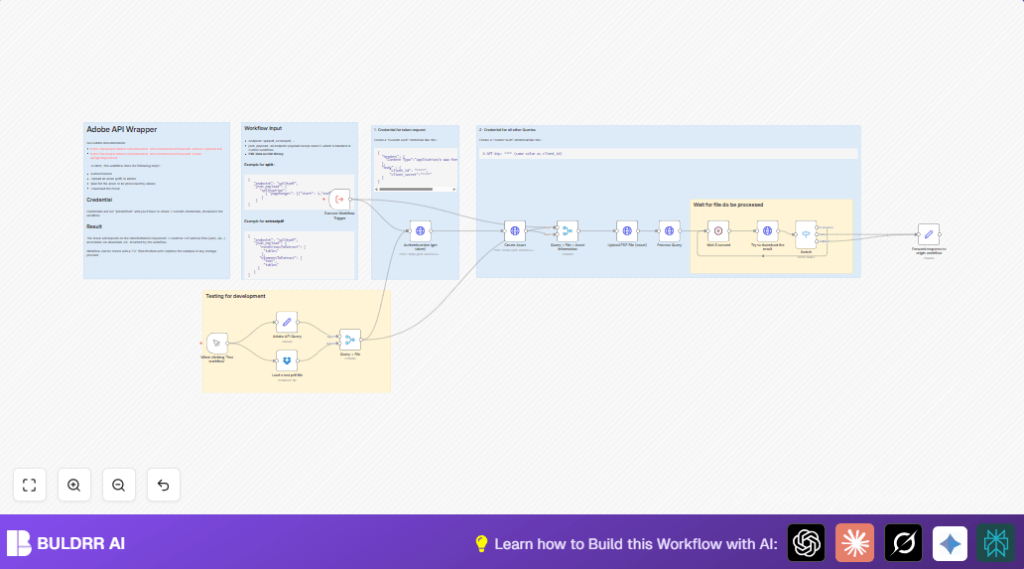

What This Automation Does
This workflow connects n8n with Adobe PDF Services API.
It sends PDF files for table and text extraction automatically.
No manual steps needed to upload, trigger processing, or download results.
The workflow saves many hours by handling all tasks through API calls.
Tools and Services Used
- n8n: Automation platform to build and run the workflow.
- Adobe PDF Services API: Cloud API to extract tables and text from PDFs.
- Dropbox: Cloud storage to fetch sample PDF files.
How This Workflow Works: Inputs → Processing Steps → Output
Inputs
- PDF files loaded from Dropbox as binary data.
- User-defined extraction parameters (tables, text) set in JSON.
- Adobe API credentials for authentication.
Processing Steps
- Get OAuth token from Adobe using client ID and secret.
- Create an asset at Adobe and get upload URL.
- Upload PDF binary to Adobe asset URL.
- Send extraction request specifying tables and text.
- Wait 5 seconds to allow Adobe to process PDF.
- Try to download processed extraction result.
- Use Switch node to check if processing is done or still in progress; retry if needed.
Output
- Extraction results returned as JSON or zipped files.
- Final data sent back to origin workflow cleanly.
Beginner Step-by-step: How to Use This Workflow in n8n Production
Download and Import Workflow
- Download this workflow file using the Download button on the page.
- In your n8n editor, click on “Import from File.”
- Select the downloaded workflow file to add it.
Configure Credentials and Settings
- Go to Credentials in n8n.
- Add Adobe PDF Services API credentials: input client ID and client secret as custom and HTTP header auth.
- Connect Dropbox credentials for reading PDF files.
- Update any paths or IDs in the Dropbox or Adobe nodes if needed.
- Check the JSON in the “Adobe API Query” node to set which parts of the PDF to extract.
Test and Activate Workflow
- Trigger the Manual Trigger node and click “Execute Workflow”.
- Watch the workflow run and check if it completes without errors.
- Once tested, activate the workflow for production by enabling the toggle in n8n.
Consider linking with self-host n8n if wanting to run this workflow on own server for better control.
Customizations and Enhancements
- Change “Adobe API Query” node’s JSON to extract images or forms instead of tables and text.
- Replace Dropbox node with Google Drive or OneDrive for different PDF sources.
- Adjust the wait time in the “Wait 5 second” node to match Adobe processing speed.
- Add more status options in the Switch node to manage other Adobe response states.
- Attach new nodes after extracting results to send data into spreadsheets, email, or Slack.
Troubleshooting Common Issues
- 401 Unauthorized error: Check Adobe client ID and client secret in credentials. Update expired keys.
- 404 Not Found error: Verify the “Create Asset” API call response. Confirm Adobe API endpoints are current.
- Workflow stuck on “in progress”: Increase wait time or retries in the workflow to allow for longer processing.
Pre-Production Checklist
- Manually fetch Adobe API token to confirm credentials work.
- Verify PDF files load correctly and show binary data from Dropbox node.
- Test entire workflow once before scheduling runs.
- Backup any important workflows before making major changes.
Conclusion
✓ Save 8-10 hours per batch by automating PDF data extraction.
✓ Reduce manual errors caused by uploading and downloading steps.
✓ Get ready-to-use extracted data for tables and text from any PDF.
→ Focus on analyzing data instead of processing PDFs.
→ Easily change PDF processing tasks or storage integration as needed.
