

1. Opening Problem Statement
Meet Sarah, the finance manager at a fast-growing software company. Every month, she receives multiple invoices from Paddle, a popular payment platform, via email. Sarah has to manually download each invoice PDF, rename it with the correct date, and organize it into the appropriate Google Drive folder for accounting and audit purposes. This process takes her about 2 hours each billing cycle, often causing delays and occasional mistakes like lost or renaming errors, which jeopardizes accurate financial record-keeping and wastes valuable time she could spend analyzing reports.
Handling these invoice emails manually is tedious and error-prone, especially as the number of transactions grows. Sarah needs a reliable solution that automatically identifies, downloads, renames, and stores Paddle invoice PDFs without her intervention.
2. What This Automation Does
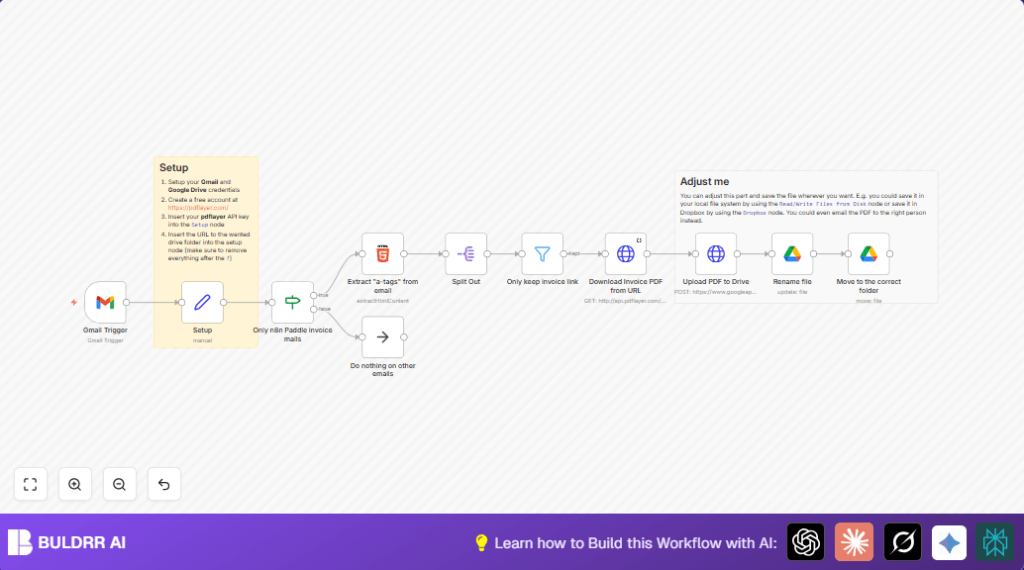
This unique n8n automation workflow is designed specifically for the Paddle invoice email use case. Once active, here is what happens automatically:
- Monitors Gmail inbox continuously to detect any incoming emails sent from
[email protected]with the subject containing “Your invoice”. - Extracts all hyperlink “a-tags” from the matching invoice emails to find URLs pointing to Paddle invoice receipts.
- Filters and isolates the exact Paddle invoice receipt URL by looking for links containing
/receipt/which confirms it’s the invoice PDF link. - Converts the online invoice page into a PDF file by using the pdflayer API, effectively downloading a clean PDF version of the invoice.
- Uploads the downloaded PDF file to the user’s configured Google Drive folder for easy access and centralized storage.
- Renames the uploaded PDF file with a date-stamped pattern like
n8n_cloud_invoice_YYYY-MM-DD.pdffor consistent, chronological record-keeping. - Moves the renamed PDF into the exact target Google Drive folder specified in the initial setup node.
Overall, Sarah can save well over 2 hours each billing cycle, eliminate human error, and ensure every Paddle invoice is automatically captured and documented in her cloud storage without lifting a finger.
3. Prerequisites ⚙️
- Gmail account with API access and OAuth2 configured in n8n (used to monitor and extract emails) 📧
- Google Drive account with OAuth2 credentials configured in n8n for upload, rename, and move file operations 📁
- API key from pdflayer.com to convert URLs to PDF documents 🔑
- n8n automation platform account (self-hosted or cloud) to run this workflow 🔌
Optionally, you can self-host your n8n instance for full control. Services like Hostinger offer easy deployment options.
4. Step-by-Step Guide
Step 1: Configure Gmail Trigger to Monitor Invoice Emails
In your n8n instance, locate and select the Gmail Trigger node. Under the credentials, connect your Gmail OAuth2 account (e.g., “Nik’s gmail”). Set the polling to every minute to check incoming emails in near real-time.
Expected outcome: The workflow listens continuously for any new emails arriving in your Gmail inbox.
Common mistake: Forgetting to grant full Gmail API read access or not setting up the correct credentials will result in no emails triggering the workflow.
Step 2: Setup Initial Variables in the Setup Node
Next, open the Setup node. Enter your pdflayer API key as api_key (replace `{{ your_key_here }}`) and the Google Drive folder URL where you want to save the invoices as url_to_drive_folder. Make sure to only use the root folder URL, without any query parameters.
Expected outcome: The workflow now knows where to fetch API data and where to save files.
Common mistake: Inputting the full folder URL with extra parameters; it should end cleanly before any ‘?’ in the URL.
Step 3: Filter Only Paddle Invoice Emails
The Only n8n Paddle invoice mails (If) node filters the emails triggered by Gmail to process only those from [email protected] that contain “Your invoice” in the subject line.
Expected outcome: It ensures subsequent nodes run only on wanted invoice emails, ignoring irrelevant messages.
Common mistake: Case-sensitive filter could cause emails not to pass; ensure the filter setup exactly matches the sender and subject patterns.
Step 4: Extract “a-tags” from the Email HTML
The Extract “a-tags” from email node uses the HTML Extract node to pull all link URLs from the email body. This grabs candidate links for the invoice PDF.
Expected outcome: An array of all hyperlinks present in the email’s HTML content.
Common mistake: If the email format changes or the HTML property is missing, this may fail to extract links.
Step 5: Split Out the Extracted Links
The Split Out node separates each link into its own item to allow individual evaluation.
Expected outcome: Multiple workflow items, each corresponding to a single extracted URL.
Common mistake: None specific, but ensure the field “link” is correctly set as input for splitting.
Step 6: Filter Links to Only Keep Invoice Receipt URLs
The Only keep invoice link node filters these links further, keeping only those containing /receipt/, which are Paddle’s official invoice receipt URLs.
Expected outcome: One or few URLs remaining that point directly to the invoice receipts.
Common mistake: Overly restrictive filter or typo may exclude valid invoice links.
Step 7: Download the Invoice PDF Using pdflayer API
In the Download Invoice PDF from URL HTTP Request node, the workflow sends a GET request to pdflayer API. It includes the API key and the invoice URL in the query parameters, specifying the output as a PDF of size A4.
Method: GET
URL: http://api.pdflayer.com/api/convert
Query Parameters:
- access_key = {{ $json.api_key }}
- document_url = {{ $json.link }}
- page_size = A4
Expected outcome: The API returns the PDF binary data of the invoice webpage.
Common mistake: Invalid API keys or wrong URLs will cause the download to fail or return errors.
Step 8: Upload the PDF to Google Drive
Next, the Upload PDF to Drive HTTP Request node uploads the downloaded PDF binary to Google Drive. It uses the Google Drive OAuth2 credentials and the uploadType=media parameter.
Expected outcome: The file appears in your Google Drive root folder initially.
Common mistake: Forgetting to set the content type to binary or not connecting the right credentials will cause upload failures.
Step 9: Rename the Uploaded PDF File
The Rename file Google Drive node changes the file name to a consistent pattern like n8n_cloud_invoice_YYYY-MM-DD.pdf, with the current date.
Expected outcome: The invoice PDF is easier to identify by naming it by date.
Common mistake: Mistyping the date format string will lead to incorrect file names.
Step 10: Move the File into the Target Drive Folder
Finally, the Move to the correct folder Google Drive node moves the renamed file into the user-specified folder URL from the Setup node.
Expected outcome: All invoice PDFs are neatly organized in the correct folder.
Common mistake: Folder URL parsing error or missing permissions on Drive folder can prevent the move.
5. Customizations ✏️
- Change provider from Paddle: Modify the If node filters to detect emails from other invoicing providers by adjusting the
from.value[0].addressand subject filters. - Save PDFs to Dropbox or local disk: Instead of Google Drive, replace the upload and move nodes with the Dropbox or Filesystem nodes to adapt storage.
- Send invoice PDFs by email: Add a Gmail or SMTP node after upload to auto-forward the invoice PDF to your accountant or team.
- Change PDF generation API: Swap pdflayer API with other services like PDFShift or Google Docs export by updating the HTTP request parameters accordingly.
- Add Slack notifications: Use a Slack node to notify your team instantly when new invoices have been saved.
6. Troubleshooting 🔧
Problem: “No emails triggering the workflow”
Cause: Incorrect Gmail trigger credentials or missing API permissions.
Solution: Re-authenticate Gmail credentials in the Gmail Trigger node. Verify Gmail API scopes in Google Cloud Console.
Problem: “Invoice PDF download fails or returns errors”
Cause: Invalid or expired pdflayer API key, or the invoice URL is malformed.
Solution: Check and update your pdflayer key in Setup node. Test invoice URLs separately.
Problem: “Uploaded PDF does not appear in Drive”
Cause: Incorrect Google Drive credentials or insufficient folder permissions.
Solution: Reconnect Google Drive node credentials. Confirm permission to write in the target folder.
7. Pre-Production Checklist ✅
- Ensure Gmail OAuth2 credentials have correct read permissions.
- Confirm pdflayer API key is active and has usage quota left.
- Validate Google Drive OAuth2 credentials and permissions for file creation, renaming, and moving.
- Test the workflow by sending a test Paddle invoice email to your Gmail inbox.
- Backup any existing invoice files in Drive to avoid overwrites.
8. Deployment Guide
Once tested, activate the workflow by simply turning on the toggle in n8n. The workflow will then run every minute, monitoring for new Paddle invoice emails.
Monitor execution logs in n8n’s UI for errors or failures. You can also set up additional nodes for alerting if desired.
9. FAQs
Q1: Can I use this with other email providers besides Gmail?
Currently, this workflow uses the Gmail Trigger node and Gmail OAuth2 credentials. Adapting it to other email services would require replacing or supplementing the trigger node.
Q2: Does using the pdflayer API incur additional costs?
Yes, pdflayer is a paid service with a free tier. You should monitor your usage to avoid unexpected charges.
Q3: Is my invoice data secure?
This workflow uses OAuth2 credentials and HTTPS-based API calls, ensuring encrypted data transfer. However, you should always follow best practices for credential management.
10. Conclusion
By implementing this tailored n8n workflow, Sarah has completely automated her Paddle invoice processing. She no longer manually downloads, renames, or organizes invoices, saving over two hours monthly and drastically reducing errors.
Try extending this workflow to other invoice providers or automatically notifying your finance team on Slack or email once invoices are available. This setup unlocks a new level of financial automation precision with n8n.
Happy automating!