
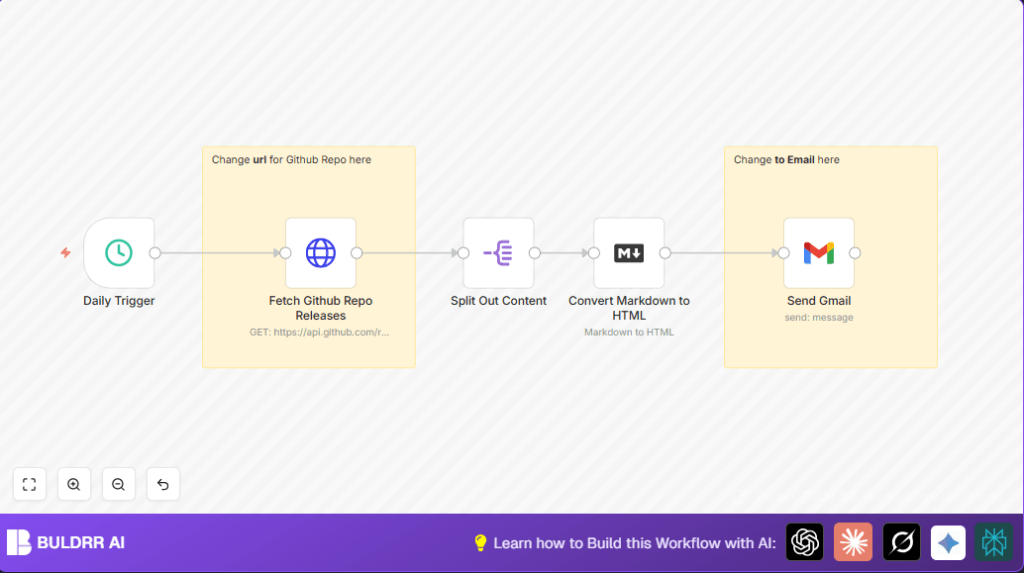

1. Opening Problem Statement
Meet Nico, a software release manager who needs to keep his team and stakeholders instantly informed whenever a new version of his project is released on GitHub. Each manual check wastes about 30 minutes daily, totaling over 12 hours monthly just on release tracking. Missed updates have caused delayed feature rollouts and confused communications across departments. Nico’s challenge is clear: How can he automate release notifications reliably and effortlessly?
2. What This Automation Does
This n8n workflow automates the entire process of fetching the latest GitHub repository releases and sending a formatted email notification. Here’s what happens when it runs daily:
- Automatically triggers once every day without manual input using the Schedule Trigger node.
- Fetches the latest release data from a specified GitHub repository via an HTTP Request node.
- Extracts the release body content from the API response using the Split Out node, isolating the relevant markdown description.
- Converts the release notes from markdown to rich HTML format using the Markdown node for a professional email appearance.
- Sends a customized Gmail message containing the formatted release information directly to a predefined email address, ensuring recipients get clear, attractive updates.
Through this process, Nico saves over 10 hours per month and eliminates the risk of missing critical release notifications. The workflow is hands-off, dependable, and requires zero coding knowledge once set up.
3. Prerequisites ⚙️
- n8n Account – access to create and run workflows.
- Gmail Account 📧 with OAuth2 credentials configured in n8n for sending emails.
- GitHub Repository URL from which to fetch releases.
- Basic Markdown knowledge to understand the conversion process (optional).
4. Step-by-Step Guide
Step 1: Set Up the Daily Trigger Node
Navigate to Add Node → Core Nodes → Schedule Trigger. In the settings panel, configure the interval to trigger once every 24 hours to check for new GitHub releases daily. You should see a test trigger option—run it to confirm it executes successfully.
Common mistake: Not setting a recurring interval will cause the workflow to trigger only once.
Step 2: Configure the HTTP Request Node to Fetch GitHub Releases
Add the HTTP Request node and connect it to the Schedule Trigger output. Set the request URL to https://api.github.com/repos/n8n-io/n8n/releases/latest. This endpoint returns the latest release info in JSON format.
Leave options empty unless you require authentication for private repos by adding headers. Upon execution, you should receive a JSON payload with release details.
Common mistake: Using an incorrect URL or missing authentication tokens for private repos will result in errors.
Step 3: Extract the Release Notes Using the Split Out Node
Add the Split Out node next. Configure it to split the body field from the JSON response received from GitHub. This isolates the release notes markdown text for further processing.
Connect the HTTP Request node to this node. After running, confirm the output only contains the release note content.
Common mistake: Splitting the wrong field or a non-existent field will produce empty output.
Step 4: Convert Markdown to HTML
Add the Markdown node to convert the markdown text into HTML format. Set the mode to markdownToHtml and use an expression to pass the body text as input:
={ $json.body }This step ensures the email looks clean and formatted when received. After the node runs, verify the output contains HTML in a key such as html.
Common mistake: Forgetting to specify the conversion mode or using the wrong field will cause invalid HTML output.
Step 5: Send the Email Using the Gmail Node
Finally, add the Gmail node. Connect it to the Markdown node. In the parameters, enter the recipient email address (e.g., [email protected]), set the subject line (e.g., new stable version of n8n released), and map the message content to the html field output from the previous node. Enable Append Attribution if desired.
Authenticate with your Gmail OAuth2 credentials configured in n8n. Run a test to ensure the email is delivered correctly.
Common mistake: Not authorizing Gmail credentials or incorrect recipient address will cause send failures.
5. Customizations ✏️
- Change GitHub Repository URL: In the HTTP Request node, replace the default URL with your own repo’s releases API link to get notifications for any project.
- Modify Recipient Email: In the Gmail node, update the sendTo field to notify different team members or mailing lists as needed.
- Adjust Email Subject: Personalize the subject field in Gmail node to better fit your team’s style or add dynamic release version numbers using expressions.
- Custom Email Format: Add more markdown fields in the GitHub API response and convert them into a richer HTML layout using additional Markdown nodes or code nodes for advanced formatting.
- Schedule Frequency: Change the Schedule Trigger interval for more frequent or less frequent checks based on your release cadence.
6. Troubleshooting 🔧
Problem: “HTTP Request returns 404 or empty JSON”
Cause: Incorrect GitHub API URL or private repo needing authentication.
Solution: Verify the URL, add authentication headers if private, and test the request separately.
Problem: “Email not sent or Gmail node errors out”
Cause: OAuth2 token expired or credentials not linked.
Solution: Re-authenticate Gmail node credentials in n8n, check email address syntax.
Problem: “Markdown node outputs raw text instead of HTML”
Cause: Conversion mode not set or using wrong input field.
Solution: Ensure mode is set to markdownToHtml and markdown text is correctly passed from the Split Out node.
7. Pre-Production Checklist ✅
- Confirm GitHub API URL points to the correct repository release endpoint.
- Test the Schedule Trigger fires as expected over a 24-hour cycle.
- Verify HTTP Request returns valid JSON with the latest release data.
- Check Split Out splits the
bodyfield accurately. - Ensure Markdown node converts to proper HTML.
- Send a test email from the Gmail node and check recipient inbox.
- Backup your workflow before major changes for easy rollback.
8. Deployment Guide
Activate the workflow by turning the toggle ON in n8n’s editor. Monitor the executions tab for errors and success logs. This workflow runs automatically every 24 hours; adjust timing if required for your team. For enhanced reliability, consider self-hosting your n8n instance with Hostinger to ensure uptime and security.
9. FAQs
Q: Can I use this with private GitHub repositories?
A: Yes, add authentication headers in the HTTP Request node using a personal access token for private repos.
Q: Does sending emails consume Gmail API quotas?
A: Yes, but typical release notification volumes rarely approach daily limits.
Q: Is the workflow secure?
A: All data flows within your n8n instance securely. Store credentials safely using n8n’s credential manager.
10. Conclusion
By completing this n8n workflow, you have automated the tedious and error-prone task of tracking GitHub releases and sending timely email notifications. Nico now saves hours each month and keeps the entire team aligned effortlessly. Next, consider expanding this workflow to post release notes to Slack or update a changelog spreadsheet automatically. With these simple automations, you’re enhancing productivity and communication across your projects.
Keep exploring n8n for more ways to automate your daily workflows. You’ve got this!
