
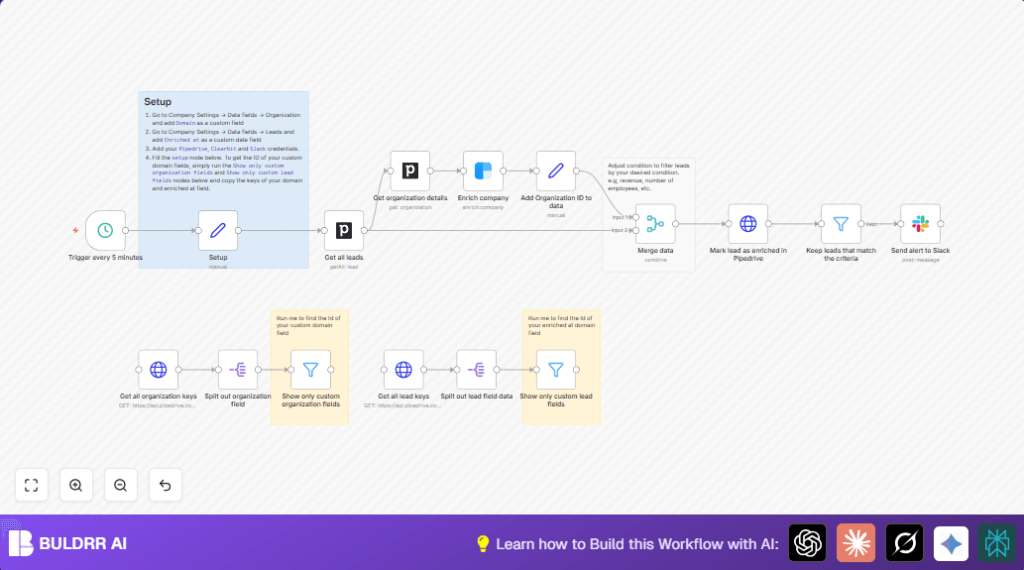

Automate Lead Enrichment & Alerts with Pipedrive, Clearbit, and Slack

Tired of manually enriching and sorting your sales leads? This workflow automates Pipedrive lead enrichment via Clearbit and sends qualified lead alerts straight to Slack, saving hours of manual work and reducing errors.
pipedrive
clearbit
slack
+7
Workflow Identifier: 2046
NODES in Use: stickyNote, clearbit, pipedrive, set, filter, scheduleTrigger, merge, slack, httpRequest, splitOut

Press CTRL+F5 if the workflow didn't load.

Learn how to Build this Workflow with AI:

Visit through Desktop for Best experience

1. Opening Problem Statement

Meet Sarah, a busy sales operations manager at a fast-growing SaaS company. Every day, Sarah struggles to keep her sales team’s CRM—Pipedrive—accurate and up to date with enriched lead information. Manually researching each lead to gather company data like domain details, employee count, and revenue is a tedious, error-prone task that can take hours weekly. Without accurate enrichment, her team misses timely outreach opportunities and wastes resources chasing low-quality leads. Sarah needs a reliable automation that enriches leads automatically and notifies her team about high-value prospects immediately.

2. What This Automation Does

This unique n8n workflow automates the entire process of enriching Pipedrive leads with company data using Clearbit and sends targeted alerts to a Slack channel for qualified leads. Here’s exactly what happens when this workflow runs every 5 minutes:

  • It pulls all active leads from Pipedrive and fetches details on their associated organizations.
  • It enriches company profiles by querying Clearbit’s API using the domain custom field from Pipedrive.
  • It merges enriched data back into the lead records, adding critical metrics like estimated annual revenue and employee count.
  • It filters leads based on tailored criteria — here, leads tagged “B2B” with over 5 million in revenue and more than 100 employees.
  • It marks enriched leads in Pipedrive with a timestamp to avoid duplicate work.
  • It sends a detailed alert message to a specified Slack channel with key lead details like company name, website, revenue, and employee count.

This workflow can save Sarah and her team hours each week, increase lead quality visibility, and speed up follow-ups significantly.

3. Prerequisites ⚙️

  • n8n Account: To build and run this automation.
  • Pipedrive CRM Account: With admin access to add custom fields and API credentials.
  • Clearbit Account: For company enrichment API access.
  • Slack Workspace: Access and permission to post messages to a channel.
  • API Credentials: Set up in n8n for Pipedrive, Clearbit, and Slack nodes.

4. Step-by-Step Guide

Step 1: Add Custom Fields in Pipedrive

Navigate to Company Settings > Data fields > Organization in Pipedrive. Add a custom field named Domain with the type “Text”. Then, go to Leads Data Fields and add Enriched at as a custom date field. These fields will store company domain info and enrichment timestamp.

Common mistake: Forgetting to copy the internal key ID for these custom fields needed later.

Step 2: Set Up Credentials in n8n

Go to n8n Settings > Credentials, and add your API keys for Pipedrive, Clearbit, and Slack. This workflow uses these to authenticate requests.

Step 3: Configure the Setup Node

Open the Setup node to fill in key configuration details with your custom field IDs from step 1 and your Slack channel name (e.g., #sales-leads).

You’ll see placeholder values like —replace these with actual IDs.

Step 4: Run “Show Only Custom Organization Fields” Node

This node pulls all organization fields and filters them for custom fields to help you find the Domain field ID.

After running, copy the key value of the Domain custom field.

Step 5: Run “Show Only Custom Lead Fields” Node

Similarly, run this node to extract all lead custom fields and find the Enriched at custom field ID for leads.

Step 6: Configure “Get all leads” Node

This node fetches all active leads from Pipedrive. It is preset to filter archived leads out.

Step 7: Retrieve Organization Details

For each lead, the workflow gets the associated organization’s details by ID using the Get organization details Pipedrive node.

Step 8: Enrich Company Data with Clearbit

The Enrich company node calls the Clearbit API using the domain field from the organization data to enrich company info.

Step 9: Map Organization ID to Data

The node Add Organization ID to data adds the Pipedrive organization ID to the enriched data for easy merging later.

Step 10: Merge Company Data with Lead

The Merge data node enriches leads by joining enriched organization data based on organization ID.

Step 11: Mark Lead as Enriched

Using the Mark lead as enriched in Pipedrive HTTP node, this writes the current date to the “Enriched at” custom field on each enriched lead to track status and prevent redundant enrichment.

Step 12: Filter Leads by Criteria

The Keep leads that match the criteria filter node checks if leads are tagged “B2B”, have revenue over 5 million, and more than 100 employees. Customize these conditions in this node.

Step 13: Send Slack Alerts for Qualified Leads

If a lead passes the filter, the Send alert to Slack node posts a formatted message with company name, website, revenue, and employee count to your Slack channel.

Example message:
New high-quality lead 🤑
Company Name: Acme Corp
Website: https://acme.com
Revenue: 10,000,000
Number of employees: 500

5. Customizations ✏️

  • Adjust Lead Qualification Criteria: In the Keep leads that match the criteria node, change $json.metrics.estimatedAnnualRevenue threshold or add conditions like company location or lead source.
  • Customize Slack Notification Format: Edit the Send alert to Slack node’s message template to add more fields such as industry, LinkedIn profile, or direct lead contact info.
  • Add More Data Enrichment Sources: Insert additional API nodes (e.g., LinkedIn or ZoomInfo) after Clearbit to gather richer company data.
  • Notify Different Slack Channels: Modify the Setup node’s slackChannel variable dynamically based on lead region or size by adding a code node before the Slack node.
  • Schedule Frequency Adjustment: In the Trigger every 5 minutes node, adjust the interval to run hourly or daily depending on data volume.

6. Troubleshooting 🔧

Problem: Pipedrive API Returning Authentication Errors

Cause: Incorrect or expired API key in credentials.

Solution: Go to n8n > Credentials > Update your Pipedrive API key with a valid one and test credentials.

Problem: Clearbit Node Returns No Data

Cause: The domain field is missing or incorrect in Pipedrive organization records.

Solution: Double-check custom field IDs in the Setup node and ensure domain values exist in Pipedrive for organizations.

Problem: Slack Messages Not Posting

Cause: Slack API token lacks required permissions or incorrect channel ID.

Solution: Reauthorize Slack credentials with chat:write permission and verify the slackChannel variable is correct.

7. Pre-Production Checklist ✅

  • Verify Pipedrive custom fields exist and keys used in Setup node match exactly.
  • Test API credentials for Pipedrive, Clearbit, and Slack.
  • Run test lead enrichment end-to-end with a single lead to ensure enrichment, merge, and Slack alert flow correctly.
  • Confirm date stamping works by checking “Enriched at” field update in Pipedrive.
  • Backup your Pipedrive data before bulk updates as a rollback safety.

8. Deployment Guide

Activate the Trigger every 5 minutes node to start the workflow scheduling. Monitor recent executions in n8n’s dashboard for errors or failed API calls. Adjust frequency as needed for your lead volume. Set log retention in n8n settings to review past runs if troubleshooting is needed.

9. FAQs

Can I use this workflow with other CRMs?

This workflow is designed for Pipedrive’s API, but you can adapt similar concepts with other CRMs that support API access and custom fields.

Does Clearbit API usage cost extra?

Yes, Clearbit has pricing based on API calls. Monitor your API usage to avoid unexpected charges.

Is the lead data stored securely?

Yes, all API integrations happen through secure, credentialed nodes. Data stays within your n8n instance and connected services.

10. Conclusion

By completing this automation, you’ve transformed manual Pipedrive lead enrichment into a powerful, hands-free process that improves lead quality and speeds your team’s response time. You are now cutting hours of repetitive research, avoiding missed opportunities, and keeping your sales pipeline sharp and focused.

Next steps could include automating lead scoring, integrating email follow-ups, or syncing enriched data to your marketing platforms to create even more seamless workflows.

With this automation in place, your sales operations become smarter and more efficient, letting you focus on closing deals instead of data entry!

Promoted by BULDRR AI

Related Workflows

Automate Viral UGC Video Creation Using n8n + Degaus (Beginner-Friendly Guide)

Learn how to automate viral UGC video creation using n8n, AI prompts, and Degaus. This beginner-friendly guide shows how to import, configure, and run the workflow without technical complexity.
Form Trigger
Google Sheets
Gmail
+37
Free

AI SEO Blog Writer Automation in n8n (Beginner Guide)

A complete beginner guide to building an AI-powered SEO blog writer automation using n8n.
AI Agent
Google Sheets
httpRequest
+5
Free

Automate CrowdStrike Alerts with VirusTotal, Jira & Slack

This workflow automates processing of CrowdStrike detections by enriching threat data via VirusTotal, creating Jira tickets for incident tracking, and notifying teams on Slack for quick response. Save hours daily by transforming complex threat data into actionable alerts effortlessly.
scheduleTrigger
httpRequest
jira
+5
Free

Automate Telegram Invoices to Notion with AI Summaries & Reports

Save hours on financial tracking by automating invoice extraction from Telegram photos to Notion using Google Gemini AI. This workflow extracts data, records transactions, and generates detailed spending reports with charts sent on schedule via Telegram.
lmChatGoogleGemini
telegramTrigger
notion
+9
Free

Automate Email Replies with n8n and AI-Powered Summarization

Save hours managing your inbox with this n8n workflow that uses IMAP email triggers, AI summarization, and vector search to draft concise replies requiring minimal review. Automate business email processing efficiently with AI guidance and Gmail integration.
emailReadImap
vectorStoreQdrant
emailSend
+12
Free

Automate Email Campaigns Using n8n with Gmail & Google Sheets

This n8n workflow automates personalized email outreach campaigns by integrating Gmail and Google Sheets, saving hours of manual follow-up work and reducing errors in email sequences. It ensures timely follow-ups based on previous email interactions, optimizing communication efficiency.
googleSheets
gmail
code
+5
Free