

Automate Lead & Company Management with Calendly, Clearbit & HubSpot in n8n

Struggling to manually update your CRM after each Calendly booking? This n8n workflow automates lead enrichment and company data syncing using Calendly, Clearbit, and HubSpot, saving hours and boosting data accuracy.
calendlyTrigger
clearbit
hubspot
+4
Workflow Identifier: 2044
NODES in Use: calendlyTrigger, filter, clearbit, if, hubspot, noOp, stickyNote

Press CTRL+F5 if the workflow didn't load.

Learn how to Build this Workflow with AI:

Visit through Desktop for Best experience

1. Opening Problem Statement

Meet Sarah, a busy sales manager at a fast-growing SaaS startup. Every time someone books a discovery call through Calendly, she spends 30+ minutes manually updating their details in the HubSpot CRM — checking if the company exists, enriching company and contact data, and entering everything accurately. This repetitive, error-prone task steals her time and creates delays in the sales pipeline. If only there was a way to automatically enrich leads and sync company data right when a meeting is booked, Sarah could focus more on selling and less on admin.

2. What This Automation Does ⚙️

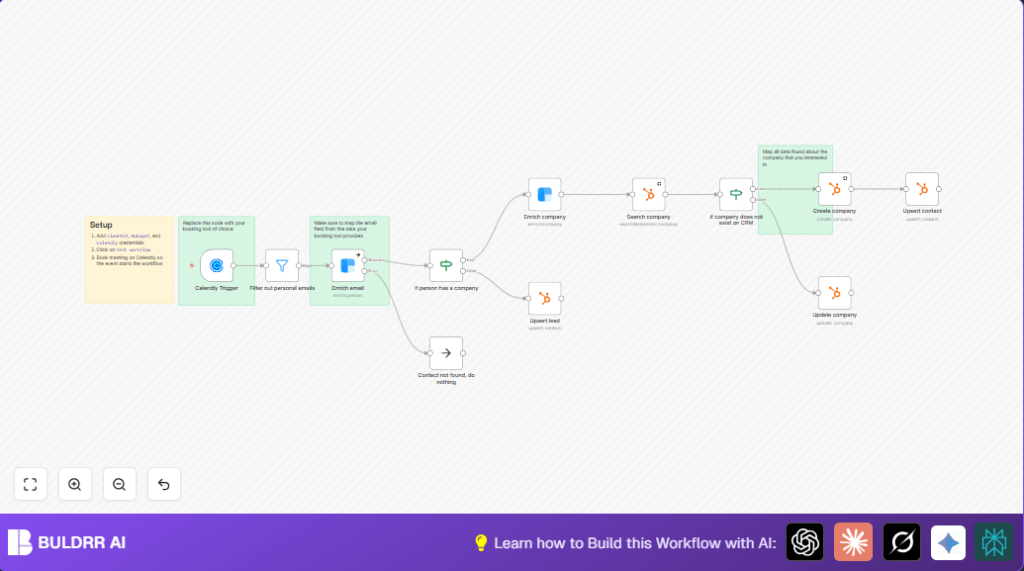
This powerful n8n workflow triggers whenever a new Calendly meeting invitee is created, automatically enriching and managing lead and company data in HubSpot. Here’s what it accomplishes:

  • Filters out generic personal emails to focus on business contacts.
  • Enriches the lead’s email with Clearbit to gather detailed contact info.
  • Checks if the lead’s company exists in HubSpot by domain.
  • If the company does not exist, it enriches the company data via Clearbit and creates the company record in HubSpot.
  • If the company exists, it updates the company information with fresh data from Clearbit.
  • Upserts (creates or updates) the contact and lead data in HubSpot, associating them with the right company.

By automating these steps, this workflow can save Sarah several hours per week, eliminate manual errors, and ensure up-to-date enriching data flows into her CRM seamlessly.

3. Prerequisites ⚙️

  • 📧 Calendly Account connected via Calendly Trigger node.
  • 🔐 Clearbit API Key for company and person enrichment.
  • 🔑 HubSpot Account with OAuth2 credentials configured (HubSpot nodes for company and contact management).
  • ⏱️ n8n Account — can self-host or use n8n.cloud. (For self-hosting options check out Hostinger guide.)

4. Step-By-Step Guide ✏️

Step 1: Add Your Credentials

Go to n8n Settings → Credentials and add your Clearbit API key, HubSpot OAuth2 credentials, and Calendly API key. This enables secure access for the nodes.

Common mistake: Not authorizing OAuth2 tokens in HubSpot will cause authentication errors.

Step 2: Set Up Calendly Trigger Node

Drag in the Calendly Trigger node. Configure it to trigger on the “invitee.created” event. This means the workflow starts right after a new meeting booking.

Copy the webhook URL generated by n8n and add it as a webhook subscription in your Calendly account dashboard under integrations.

Visual: You should see the trigger node ready and waiting with your webhook URL.

Tip: Test by booking a dummy meeting to confirm triggers fire.

Step 3: Filter Out Personal Email Addresses

Add the Filter node named “Filter out personal emails.” Configure it with multiple “not contains” conditions for domains like gmail.com, yahoo.com, outlook.com, etc., to ensure only business emails pass through.

This prevents cluttering your CRM with non-business leads.

Step 4: Enrich Email With Clearbit

Add the Clearbit node configured in “person” mode, using the email from the Calendly payload. This pulls enriched contact data like full name, job title, and company domain.

Code to reference within node:

email = {{$json.payload.email}}

Common mistake: Passing a non-business email here leads to failed enrichments.

Step 5: Check if the Person Has a Company Domain

Use an If node titled “If person has a company.” The condition checks if {{$json.employment.domain}} is not null. If true, proceed to enrich company data; otherwise, upsert lead without company.

Step 6: Enrich Company Data With Clearbit

The “Enrich company” node uses Clearbit on {{$json.employment.domain}} to pull company metrics, description, location, Twitter info, funding, and employee count.

Step 7: Search Company in HubSpot

Next, the “Search company” node searches HubSpot CRM by the company domain to find if the company record exists.

Step 8: Branch Workflow Based on Company Existence

The “if company does not exist on CRM” If node checks if the company was found. If the company doesn’t exist, it triggers the “Create company” node with data from Clearbit. If it exists, it triggers “Update company” for refreshing details.

Step 9: Upsert Contact

After company creation or update, the “Upsert contact” node adds or updates the contact in HubSpot associating it with the company ID.

Key fields mapped: email, associatedCompanyId.

Step 10: Upsert Lead Without Company

If no company domain found, the lead is upserted solo using the “Upsert lead” node.

Step 11: No Operation When Contact is Not Found

The “Contact not found, do nothing” node provides a graceful exit if expected data is missing during processing.

5. Customizations ✏️

  • Replace Calendly integration: Swap out the “Calendly Trigger” node with your chosen booking or lead capture tool node. Re-map email and event data accordingly.
  • Add LinkedIn enrichment: Add a code or HTTP Request node to query LinkedIn’s API after the Clearbit enrichment for more detailed professional info.
  • Filter by industry: In the “If person has a company” node, add conditions to only continue if the company industry matches specific sectors, e.g., “Software” or “Technology.”
  • Custom email domain filters: Edit the “Filter out personal emails” node to exclude or include other domains based on your target market.
  • Additional HubSpot properties: Extend the “Create company” and “Update company” nodes to push custom HubSpot property fields from Clearbit data.

6. Troubleshooting 🔧

Problem: “OAuth2 authentication failed for HubSpot node.”
Cause: Access token expired or incorrectly configured.
Solution: Reauthorize OAuth2 credentials in n8n by navigating to Credentials → HubSpot OAuth2 and generating a new token.

Problem: “Clearbit enrichment error or data missing.”
Cause: Email is personal or malformed.
Solution: Check the “Filter out personal emails” node settings; add more personal domains to exclude before enrichment calls.

Problem: “Calendly Trigger does not receive any events.”
Cause: Webhook URL not configured in Calendly.
Solution: Copy webhook URL from n8n Calendly Trigger node, add in Calendly integrations → Webhooks, and test your booking flow.

7. Pre-Production Checklist ✅

  • Verify Calendly webhook is active and receiving events by booking a test meeting.
  • Test Clearbit API connection with known business emails.
  • Check HubSpot OAuth2 token expiration and refresh if necessary.
  • Run workflow manually with sample data to observe correct data flow and node outputs.
  • Ensure “Filter out personal emails” node block list covers all unwanted email domains.

8. Deployment Guide

Activate the workflow by toggling it ‘ON’ in n8n. Monitor recent executions from the n8n dashboard to ensure workflows trigger and complete successfully as Calendly bookings happen.

Enable error notifications by setting up email alerts for workflow failures to catch any issues early.

9. FAQs

Q: Can I use Google Calendar events instead of Calendly to trigger this workflow?
A: Yes, you can replace the Calendly Trigger node with Google Calendar Watch Events node, but you’ll need to map event data accordingly.

Q: Does this workflow consume API credits on Clearbit?
A: Yes, each enrichment API call counts toward your Clearbit plan limits, so monitor usage accordingly.

Q: Is my data safe with OAuth2 integrations?
A: n8n uses secure OAuth2 token storage and encrypted API credentials to keep your data protected.

10. Conclusion

By building this automated data syncing flow, you have empowered your sales operations with real-time enriched lead and company data directly from Calendly bookings into HubSpot CRM. No more lost time on manual entry—just accurate CRM data that drives faster sales follow-ups.

This workflow can save hours weekly, reduce errors, and create a robust lead nurturing foundation. Next, you could explore adding email outreach automation, integrating LinkedIn enrichment, or creating reports to analyze lead quality over time.

Keep experimenting with n8n and watch your automation skills grow!

Promoted by BULDRR AI

Related Workflows

Automate Viral UGC Video Creation Using n8n + Degaus (Beginner-Friendly Guide)

Learn how to automate viral UGC video creation using n8n, AI prompts, and Degaus. This beginner-friendly guide shows how to import, configure, and run the workflow without technical complexity.
Form Trigger
Google Sheets
Gmail
+37
Free

AI SEO Blog Writer Automation in n8n

A complete beginner guide to building an AI-powered SEO blog writer automation using n8n.
AI Agent
Google Sheets
httpRequest
+5
Free

Automate CrowdStrike Alerts with VirusTotal, Jira & Slack

This workflow automates processing of CrowdStrike detections by enriching threat data via VirusTotal, creating Jira tickets for incident tracking, and notifying teams on Slack for quick response. Save hours daily by transforming complex threat data into actionable alerts effortlessly.
scheduleTrigger
httpRequest
jira
+5
Free

Automate Telegram Invoices to Notion with AI Summaries & Reports

Save hours on financial tracking by automating invoice extraction from Telegram photos to Notion using Google Gemini AI. This workflow extracts data, records transactions, and generates detailed spending reports with charts sent on schedule via Telegram.
lmChatGoogleGemini
telegramTrigger
notion
+9
Free

Automate Email Replies with n8n and AI-Powered Summarization

Save hours managing your inbox with this n8n workflow that uses IMAP email triggers, AI summarization, and vector search to draft concise replies requiring minimal review. Automate business email processing efficiently with AI guidance and Gmail integration.
emailReadImap
vectorStoreQdrant
emailSend
+12
Free

Automate Email Campaigns Using n8n with Gmail & Google Sheets

This n8n workflow automates personalized email outreach campaigns by integrating Gmail and Google Sheets, saving hours of manual follow-up work and reducing errors in email sequences. It ensures timely follow-ups based on previous email interactions, optimizing communication efficiency.
googleSheets
gmail
code
+5
Free