

What This Workflow Does
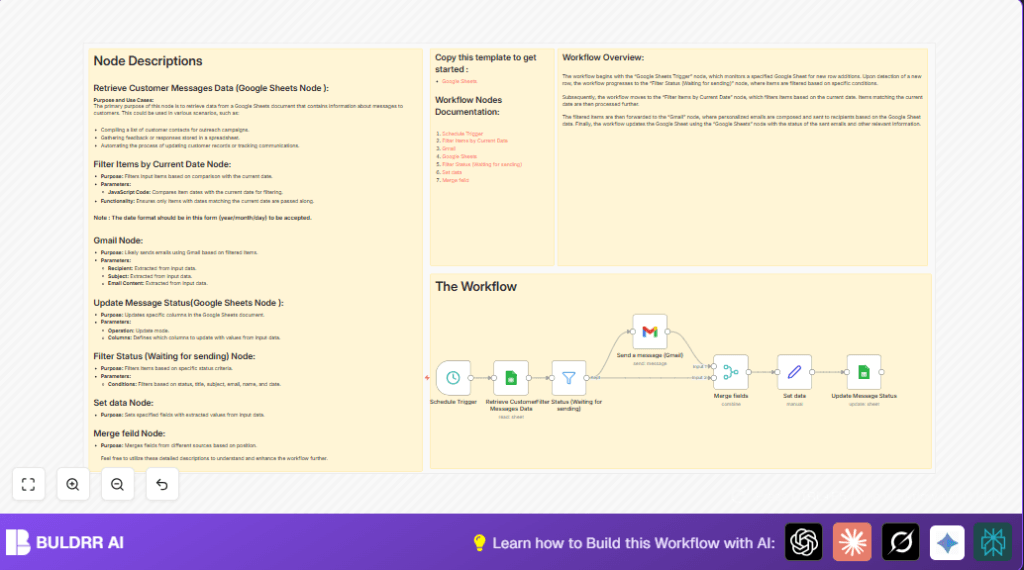
This n8n workflow reads customer messages from Google Sheets, checks if they need to be sent today, sends emails by Gmail, and marks messages as sent in the sheet.
It removes the need for manual checking, sending, and updating data every day.
The workflow runs every minute to catch and send messages right on their scheduled date.
This saves time and stops mistakes in sending emails to wrong people or missing messages.
Scale This to 1,000 Personalized Emails — Without Paying a Rupee
Most email marketing tools like Mailchimp, Brevo, or ConvertKit charge you the moment you cross a few hundred contacts. With this n8n setup using Gmail and Google Sheets, you can send up to 1,000 personalized emails — and pay nothing.
No monthly subscription. No per-email charge. No platform lock-in. You own the system completely.
This is the core advantage. You are not renting a tool. You are building your own email engine with free tools you already use every day.
Who Should Use This Workflow
People who manage many customer emails daily and use Google Sheets to plan messages.
It is useful when manual sending takes too much time and can lead to errors.
Anyone wanting to make sure emails go out on the right day, with correct info, and have tracking in the sheet.
Tools and Services Used
- Google Sheets: Stores customer emails, subjects, status, and scheduled dates.
- Gmail: Sends the personalized email messages.
- n8n: Automation platform to run and connect all nodes.
How This Workflow Works: Inputs → Processing → Output
Step 1: Inputs
The workflow takes data from Google Sheets including Email, Name, Status, Date, Title, and Subject columns.
It uses the current date to compare with the scheduled Date column to find messages to send.
Step 2: Processing
- Filter node selects rows where Status is “Waiting for sending” and Date matches today.
- Merge node joins the filtered data with scheduling info.
- Set node prepares the email fields like To, Subject, and message content.
- Gmail node sends the email based on prepared data.
- After sending, Google Sheets node updates the Status column to “Sent successfully” for each email.
Step 3: Output
The emails are sent to the customers with the right content.
Google Sheets shows updated status to help track which messages were sent.
Beginner Step-by-Step: How to Use This Workflow in n8n
Import Workflow
- Download the workflow file using the Download button on this page.
- Open the n8n editor and select Import from File.
- Upload the downloaded workflow file.
Configure Credentials and IDs
- Add your Google Sheets OAuth2 credentials in n8n.
- Add your Gmail OAuth2 credentials as well.
- If your spreadsheet or sheet names differ, update the Document ID and Sheet Name fields.
Test and Activate
- Manually trigger the workflow or run it to test if emails send correctly.
- Check your Google Sheets for status updates and your Gmail for sent messages.
- If all looks good, activate the workflow to run every minute automatically.
- Monitor executions regularly to catch errors early.
Customizations and Ideas
- Change the email message to HTML format in the Gmail node by switching Email type from Text to HTML.
- Adjust the frequency of the Schedule Trigger node for sending emails less or more often.
- Add more filters to send emails only for priority customers by using a Priority column.
- Integrate other services like CRM for richer customer data.
- Consider using self-host n8n for better data control.
Common Issues and Fixes
No Emails Sent
Make sure Gmail OAuth2 credentials are authorized and not expired.
Reauthenticate if needed.
Filter Node Gives No Output
Check that the Date column in Google Sheets is formatted as yyyy/MM/dd.
Ensure Status is exactly “Waiting for sending” in the sheet.
Wrong Rows Updated
Confirm that the Update node matches rows by the correct ID column.
Pre-Production Checklist
- Verify Google Sheets Document ID and Sheet Name match your spreadsheet.
- Confirm Gmail OAuth2 credentials have necessary permissions.
- Test filter node output to make sure correct rows are selected.
- Send test emails manually and verify delivery.
- Backup your spreadsheet before running updates.
Deployment Guide
Activate the workflow by clicking Active in n8n.
Check execution logs to ensure messages send on schedule.
Adjust the schedule as per time zones or business hours if needed.
Summary
✓ Saves over two hours of manual email sending every day.
✓ Stops errors by automating filtering and sending.
✓ Sends personalized emails exactly when scheduled.
✓ Keeps Google Sheets updated on sent status.
✓ Easy to test and activate inside n8n.
