

What This Automation Does
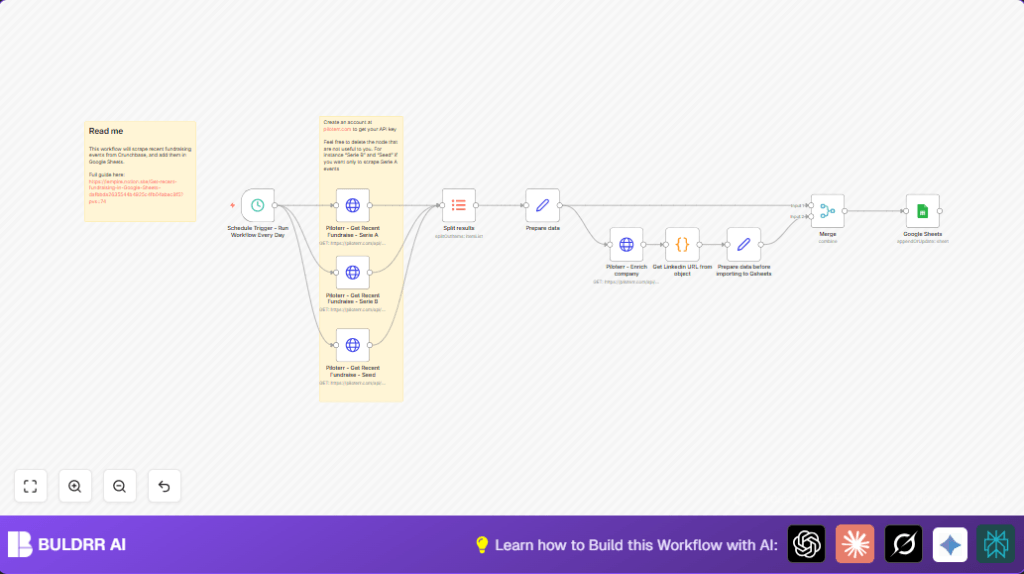
This workflow runs every morning at 8 AM. It fetches the latest fundraisings for Series A, Series B, and Seed rounds from the Piloterr Crunchbase API. Then it cleans and improves that data with extra company info. Finally, it saves the updated fundraising records in a Google Sheets file. This saves time and keeps data fresh and accurate.
The goal is to stop doing the manual copy-paste work. It gives your team a ready-made sheet with all recent startup investments. This helps to spot good opportunities faster and avoid mistakes.
Using n8n automation, the workflow takes these steps: gets recent funding rounds data, breaks it into events, adds company website, traffic, employee counts, and LinkedIn URLs, then joins everything and sends updated entries to Google Sheets. It repeats daily without any clicking.
Inputs, Processing Steps, and Output
Inputs
- Daily trigger at 8 AM from n8n Schedule Trigger node.
- Piloterr API requests to get funding rounds of Series A, B, and Seed announced in last day.
- Company permalinks extracted from funding rounds data.
- Google Sheets credentials to access the spreadsheet.
Processing Steps
- Split API results to separate funding round items.
- Prepare core data fields like company name, investment type, and money raised.
- Call Piloterr company info API in batches to enrich with website, traffic, employee count, and LinkedIn URLs.
- Use JavaScript in Code node to pick LinkedIn URL from nested social objects.
- Format fields like domain from website URL and convert other data for output.
- Merge enriched company data with fundraising summary.
- Append or update the Google Sheet with the merged data, matching on the event link to avoid duplicates.
Output
A Google Sheets document updated daily with complete, clean, and recent startup fundraising data. This makes tracking and analysis simpler for investment teams.
Beginner Step-by-Step: How to Use This Workflow in n8n
Importing the Workflow
- Download the workflow using the Download button on this page.
- Open n8n editor where you want to run the workflow.
- Click on “Import from File” and select the downloaded workflow JSON.
Setting Up After Import
- Add credentials for Piloterr API with the API Key in HTTP Header Auth.
- Add Google Sheets OAuth2 credentials to let n8n access your spreadsheet.
- If needed, update Google Sheets Document ID or Sheet Name in the Google Sheets node to match your target file.
- Check the HTTP Request nodes for correct query parameters if you want to change tracked investment rounds or days range.
- Copy and paste the JavaScript code exactly as given in the Code node for LinkedIn URL extraction.
Testing and Activation
- Run the workflow once manually in n8n to see the output and check for errors.
- Verify that data appears correctly in the Google Sheet.
- Activate the workflow by enabling the Schedule Trigger node to automate daily runs.
If running on your own server or VPS, consider self-host n8n to keep full control.
Tools and Services Used
- Piloterr API: Provides Crunchbase fundraise data and company enrichment.
- n8n automation platform: Runs the workflow nodes for scheduling, HTTP calls, code execution, and Google Sheets interaction.
- Google Sheets: Google cloud spreadsheet used as the central storage and display of investment data.
- JavaScript Code node in n8n: Extracts LinkedIn URLs from nested social network arrays.
Customization Ideas
- Change investment_type parameters in HTTP Request nodes to include Series C or D fundraises.
- Adjust days_since_announcement to get data older than one day.
- Switch Google Sheets target by updating Document ID or Sheet Name for new workflows or reports.
- Tune batch size in the enrichment API calls to balance speed and API quota.
- Remove entire HTTP Request nodes if tracking fewer fundraise phases.
Troubleshooting Common Issues
401 Unauthorized from Piloterr API
Cause: API Key incorrect or missing in the HTTP Header Auth credential.
Fix: Double-check the API Key in n8n Credentials for Piloterr.
Data Not Appending Properly in Google Sheets
Cause: Mismatch in field mapping or wrong matching column used.
Fix: Confirm Google Sheets node uses event_link as the unique matching column and all fields line up exactly with sheet columns.
LinkedIn URL Missing in Output
Cause: LinkedIn info missing or JSON structure changed.
Fix: Check the JavaScript code node to ensure it handles missing links gracefully. Add logging or default null returns.
Summary
✓ Saves manual work fetching startup fundraising data every day.
✓ Keeps a Google Sheet updated with fresh, enriched company info.
→ Gives faster and more accurate insights for investment decisions.
→ Runs automatically with minimal setup in the n8n automation platform.
