
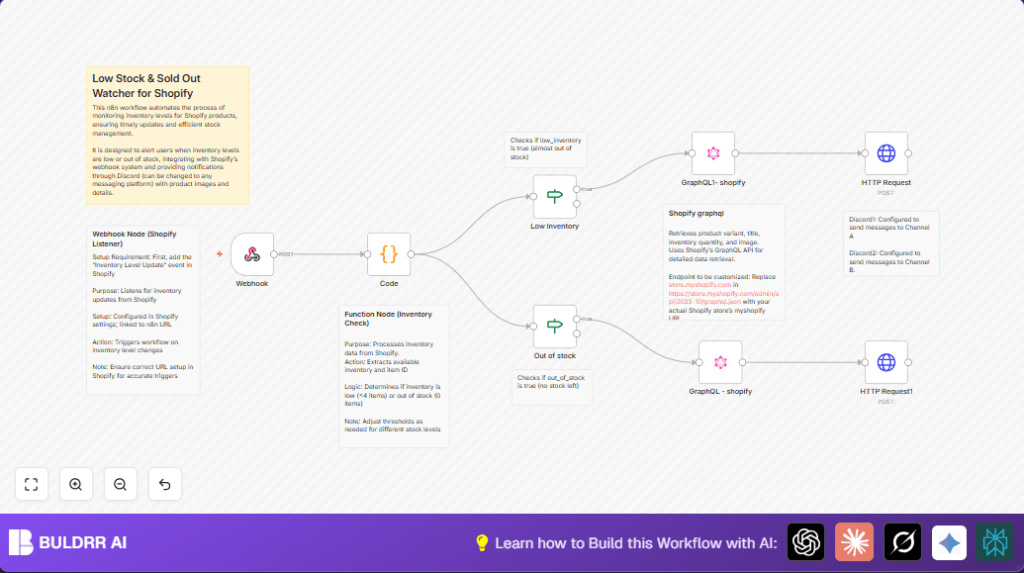

What This Automation Does
This workflow listens to Shopify inventory updates and alerts a Discord channel when stock is low or sold out.
It solves the problem of missing inventory changes that cause lost sales.
The result is faster, automatic notifications to keep the team informed.
Inputs come from Shopify’s “Inventory Level Update” webhook.
Processing checks if stock is below four or zero.
Then it asks Shopify for product details using GraphQL.
Finally, it sends formatted alert messages to Discord.
Because it works automatically, manual checks disappear.
This saves time and reduces mistakes.
Prerequisites ⚙️
- Shopify account with admin access and webhook permissions.
- n8n automation tool access (cloud or self-hosted).
- Discord account with a bot set up (registered and added to the target channels).
- Shopify GraphQL API credentials (API key with access to inventory and product endpoints).
- Discord Bot credentials configured as preset n8n credentials.
Optional: For self-host n8n, consider using Hostinger for reliable service (https://buldrr.com/hostinger).
Step-by-Step Guide
Beginner Step-by-Step: How to Use This Workflow in n8n
1. Download and Import the Workflow
- Use the Download button on this page to save the workflow file.
- Open the n8n editor.
- Go to File and select “Import from File”.
- Select the downloaded workflow JSON file.
Configure Required Settings
- Add Shopify API Key credentials in n8n.
- Add Discord Bot credentials in n8n.
- Update any channel IDs or URLs inside the HTTP Request nodes to match your Discord servers.
- Check the Webhook node URL matches your Shopify webhook setup.
- Review the Code node for the inventory threshold line. Change if needed:
const lowInventory = available > 0 && available < 4;Test the Workflow
- Change an item’s inventory in Shopify to trigger the webhook.
- Watch n8n execution to see if it receives the webhook.
- Check if Discord gets the alert messages.
Activate for Production
- Activate the workflow inside n8n by clicking the Activate button.
- Monitor executions for errors or missed alerts.
This method skips building from zero and gets the workflow working fast.
You only update keys, URLs, and maybe the low stock number.
How the Workflow Works: Inputs, Processing, Outputs
Inputs
- Shopify “Inventory Level Update” webhook sends JSON objects when stock changes.
Processing Steps
- Webhook node receives the webhook data.
- Code node checks JSON for “available” quantity.
- Sets flags: low inventory if below 4, out of stock if zero.
- If nodes split workflow into low or out-of-stock branches.
- Each branch runs a GraphQL node to get product title, variant, image, and quantity using Shopify’s API.
- Different HTTP Request nodes send formatted messages to Discord channels, using embeds colored yellow for low stock and red for sold out.
Outputs
- Discord posts alerts with product name, variant, stock levels, and pictures.
- Team sees alerts in real time and acts quickly.
Customizations ✏️
- Change low stock alert threshold in the Code node by editing:
const lowInventory = available > 0 && available < 4;- Update Discord channels by changing URLs or credentials in the HTTP Request nodes.
- Switch Discord to other messaging platforms by replacing HTTP Request nodes with Slack, Teams, or email nodes and changing payloads accordingly.
- Extend GraphQL queries to include extra product info like SKU, vendor, or tags for richer alerts.
Troubleshooting ????
Problem: Workflow Not Triggering on Shopify Inventory Update
Cause: Webhook URL in Shopify is wrong or event disabled.
Solution: Check Shopify webhook URL matches Webhook node URL exactly.
Make sure “Inventory Level Update” event is enabled in Shopify.
Problem: Alert Messages Not Sending to Discord
Cause: Bad bot API key or inadequate permissions.
Solution: Confirm Discord Bot API Key in n8n is valid.
Verify bot is in the channel with permission to send messages.
Problem: Unexpected JSON Key Errors in Code Node
Cause: Typo or mismatched JSON keys from Shopify webhook.
Solution: Check incoming webhook data in n8n logs.
Update Code node JavaScript keys to exactly match Shopify fields.
Pre-Production Checklist ✅
- Confirm Shopify webhook activated and correct.
- Test webhook by changing product inventory and verify n8n receives data.
- Ensure Discord Bot credentials are working and bot is active in channels.
- Verify GraphQL queries return proper product details.
- Test alert messages in Discord to check formatting and info accuracy.
- Backup workflow configuration for easy restoration.
Deployment Guide
Activate the workflow within n8n by clicking the Activate button.
Monitor webhook requests and execution logs to catch any errors.
For constant availability, use a continuous run on your n8n instance.
If managing self-host n8n, ensure server uptime.
Conclusion
✓ This workflow makes Shopify inventory tracking faster and automatic.
✓ It sends real-time alerts to Discord without manual work.
✓ Improves team response and reduces sales lost from stockouts.
→ Users save time and avoid errors.
→ Teams get clear, detailed product alerts instantly.
