
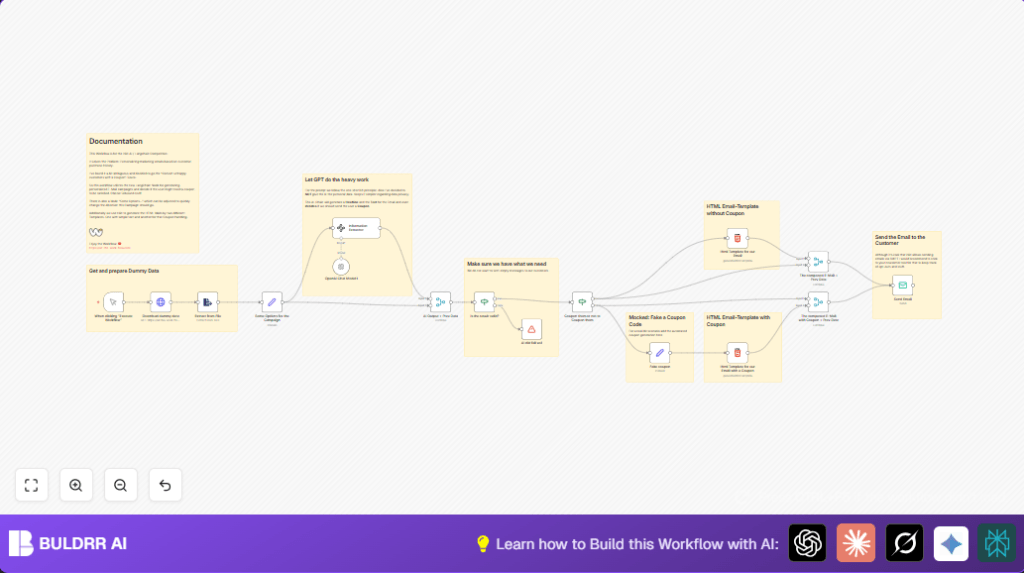

Personalize Email Campaigns with n8n and LangChain AI

Struggling to customize marketing emails based on customer feedback? This n8n workflow uses LangChain AI to analyze purchase reviews and tailor emails, even sending coupons to unhappy customers automatically.
manualTrigger
informationExtractor
emailSend
+9
Workflow Identifier: 2013
NODES in Use: Manual Trigger, Sticky Note, HTTP Request, Extract from File, Set, Information Extractor, OpenAI Chat Model, Merge, If, Stop and Error, HTML, Email Send

Press CTRL+F5 if the workflow didn't load.

Learn how to Build this Workflow with AI:

Visit through Desktop for Best experience

Opening Problem Statement

Meet Sarah, the marketing manager at a growing online merchandise store. Every week, Sarah painstakingly reviews customer feedback from recent purchases—a time-consuming and error-prone process. She knows personalized emails that address specific customer sentiments could boost satisfaction and conversions, but creating these tailored campaigns manually wastes hours and still misses many unhappy customers who could be turned around with a timely coupon offer.

On average, Sarah spends 6-8 hours weekly drafting, customizing, and sending emails, yet about 20% of dissatisfied customers remain unengaged due to lack of personalized follow-up. This results in lost sales opportunities and damages the brand reputation. What if Sarah could automate personalized marketing campaigns that intelligently decide who deserves a coupon and generate compelling email content without handling raw customer data?

What This Automation Does

This unique n8n workflow harnesses the power of LangChain AI and n8n’s automation capabilities to streamline personalized email marketing based on customer purchase data and feedback. When triggered, it:

  • Downloads dummy customer purchase and feedback data automatically.
  • Extracts and prepares the data from an Excel file for processing.
  • Sends the product feedback details to the LangChain AI Information Extractor node, which analyzes sentiment and generates a personalized email headline and body.
  • Automatically determines whether to include a discount coupon in the email based on customer sentiment.
  • If needed, generates a mock coupon code with terms and value embedded.
  • Prepares two distinct HTML email templates: one standard and one with the coupon details included.
  • Validates AI output to avoid sending incomplete or empty emails.
  • Sends the customized email to the customer via SMTP, ready for real deployment with a newsletter service.

This automation saves Sarah approximately 6 hours each week and reduces manual errors by fully automating personalized marketing emails, potentially increasing customer retention and revenue.

Prerequisites ⚙️

  • n8n account (cloud or self-hosted) 🔌
  • OpenAI API account (for LangChain AI) 🔑
  • SMTP Email account credentials for sending emails 📧
  • No personal data input needed—dummy or real purchase feedback data in Excel format (.xlsx) 📁

For those interested in self-hosting n8n, platforms like Hostinger offer great options: https://buldrr.com/hostinger

Step-by-Step Guide to Build This Workflow

Step 1: Manual Trigger to Start Workflow

Open your n8n editor. Drag the Manual Trigger node onto the canvas. This node initiates the workflow manually when you click “Execute Workflow.” No parameters need setting here.

Outcome: You have a starting point for your automation.

Step 2: Download Dummy Customer Data via HTTP Request

Add an HTTP Request node next and connect it to the manual trigger. Configure it to GET the Excel file from URL: https://let-the-work-flow.com/dummy/n8n-contest-merch.xlsx.

This simulates fetching customer purchase and feedback data automatically.

Outcome: The workflow downloads fresh data each run.

Common mistake: Forgetting to select the GET method or entering an incorrect URL.

Step 3: Extract Data from Excel File

Attach the Extract from File node configured with Operation = xls. This node extracts structured data from the downloaded spreadsheet.

Outcome: Workflow reads purchase items and feedback text from the Excel correctly.

Step 4: Set Campaign Options

Add a Set node named “Some Options for the Campaign.” Here, define two string fields:

  • Campaign Target: “Engage the Customer”
  • Flavour: “be friendly and witty but also cool and direct. Critique is valuable and embrace the feedback.”

These parameters instruct the AI how to tone the email content.

Step 5: Use LangChain AI Information Extractor

Connect the Set node to the LangChain Information Extractor node (type: @n8n/n8n-nodes-langchain.informationExtractor). Configure it with a prompt that:

  • Analyzes sentiment from “Item Purchased” and “Feedback” fields.
  • Generates a personalized email headline and body (excluding greetings or salutations).
  • Decides if a coupon should be sent based on the sentiment.
  • Uses the campaign target and flavour settings to adjust tone.

The input schema expects headline, body text, and a boolean for sending a coupon.

Outcome: AI generates a custom marketing message and coupon decision.

Step 6: Pass AI Output through OpenAI Chat Model

Use the OpenAI Chat Model1 node (LangChain GPT-4o-mini model) as language model for the Information Extractor. Credential integration with your OpenAI key is required.

This powers the AI’s natural language generation.

Step 7: Merge AI Output with Original Data

After extraction, merge the AI output back with the original customer data using the Merge node (mode: combine, combineByPosition).

Outcome: You get a comprehensive data set with customer info and generated email content together.

Step 8: Validate AI Output to Avoid Sending Garbage

Add an If node named “Is the result valid?” that checks:

  • Headline is not empty
  • Body is not empty

If valid, workflow continues; otherwise it triggers a stop-and-error node with message “Unexpected Langchain Output.”

This prevents empty or broken emails from sending.

Step 9: Check Coupon Mailing Decision

Another If node “Coupon them or not to Coupon them” branches logic based on the boolean SendCoupon field from AI output. If true:

  • A Set node “Fake coupon” creates a mock coupon code, value, and terms. Example code: F4k3ItT1llY0uM4k3It
  • Then, it uses the HTML Template with Coupon node to wrap email body and coupon info into a styled HTML email.

If false, the workflow uses the simpler HTML Template for our Email node without coupon info.

Step 10: Merge Composed Email HTML and Data

Use Merge nodes to combine the formatted HTML email (with or without coupon) back with the data record for sending.

Step 11: Send the Email

Finally, the Email Send node sends the email via SMTP. The email subject is set to the AI-generated headline, the body is the HTML from previous steps, and the recipient is the customer email field.

Note: For production, it’s best to integrate a newsletter service to manage opt-outs properly.

Customizations ✏️

  • Modify AI Tone and Target: In the Some Options for the Campaign Set node, change “Campaign Target” or “Flavour” to steer the email tone from friendly to professional or humorous.
  • Include Real Coupon Generation: Replace the “Fake coupon” Set node with an API call to your ecommerce platform’s coupon generation endpoint, passing customer data dynamically.
  • Adjust Email Templates: Customize the HTML nodes to use branded colors, fonts, or include images and footer details specific to your company.
  • Switch Trigger Mode: Change the Manual Trigger to a scheduled Cron node to automate sending email batches weekly.
  • Extend with Customer Segmentation: Add filter nodes before AI processing to segment based on geography, purchase value, or product categories.

Troubleshooting 🔧

  • Problem: “Unexpected Langchain Output” error stopping workflow.

    Cause: AI response missing required fields like Headline or Body.

    Solution: Check the Information Extractor node’s prompt and schema carefully. Debug AI call with test inputs ensuring output matches schema.
  • Problem: Email not sending or received.

    Cause: SMTP credentials invalid or misconfigured.

    Solution: Verify SMTP credentials in Email Send node. Test sending emails manually before deploying workflow.
  • Problem: No coupon generated even for unhappy feedback.

    Cause: AI logic or boolean field mapping error.

    Solution: Test AI output separate to confirm boolean “SendCoupon” is true when expected. Adjust prompt to make coupon condition clearer.

Pre-Production Checklist ✅

  • Verify dummy Excel data downloads correctly and fields map as expected.
  • Test AI prompt locally with example feedback texts to confirm headline and body generation.
  • Confirm HTML email renders well on multiple devices via test emails.
  • Ensure SMTP credentials are valid and authorized to send.
  • Run workflow end-to-end and confirm email delivery correctness.
  • Back up your workflow JSON before making large edits.

Deployment Guide

Activate the workflow by enabling the manual trigger or switching to a Cron trigger for scheduled execution.

Monitor email send success and errors via n8n execution logs.

For production, connect the Send Email node to your preferred newsletter platform’s API for better subscriber and opt-out management.

FAQs

  • Can I use a different AI model with this workflow?
    Yes, you can replace the LangChain OpenAI node with another AI provider node supported by n8n, but you might need to adjust the prompt and output schema accordingly.
  • Does this workflow consume OpenAI API credits?
    Yes, every AI call counts as an API request billable by OpenAI.
  • Is customer data safe in this workflow?
    This workflow is designed to keep personal data local and does not send personal identifiers to the AI, maintaining privacy.

Conclusion

By building this n8n workflow, you have automated the generation and delivery of personalized marketing emails that carefully analyze customer feedback and decide when to offer coupons to unhappy customers.

This automation saves your marketing team hours each week, reduces manual errors, and importantly, helps turn dissatisfied customers into loyal fans with minimal effort.

Next, consider extending this setup to integrate real coupon APIs, add customer segmentation for precision targeting, or automate follow-up sequences based on engagement.

Happy automating!

Promoted by BULDRR AI

Related Workflows

Automate Viral UGC Video Creation Using n8n + Degaus (Beginner-Friendly Guide)

Learn how to automate viral UGC video creation using n8n, AI prompts, and Degaus. This beginner-friendly guide shows how to import, configure, and run the workflow without technical complexity.
Form Trigger
Google Sheets
Gmail
+37
Free

AI SEO Blog Writer Automation in n8n

A complete beginner guide to building an AI-powered SEO blog writer automation using n8n.
AI Agent
Google Sheets
httpRequest
+5
Free

Automate CrowdStrike Alerts with VirusTotal, Jira & Slack

This workflow automates processing of CrowdStrike detections by enriching threat data via VirusTotal, creating Jira tickets for incident tracking, and notifying teams on Slack for quick response. Save hours daily by transforming complex threat data into actionable alerts effortlessly.
scheduleTrigger
httpRequest
jira
+5
Free

Automate Telegram Invoices to Notion with AI Summaries & Reports

Save hours on financial tracking by automating invoice extraction from Telegram photos to Notion using Google Gemini AI. This workflow extracts data, records transactions, and generates detailed spending reports with charts sent on schedule via Telegram.
lmChatGoogleGemini
telegramTrigger
notion
+9
Free

Automate Email Replies with n8n and AI-Powered Summarization

Save hours managing your inbox with this n8n workflow that uses IMAP email triggers, AI summarization, and vector search to draft concise replies requiring minimal review. Automate business email processing efficiently with AI guidance and Gmail integration.
emailReadImap
vectorStoreQdrant
emailSend
+12
Free

Automate Email Campaigns Using n8n with Gmail & Google Sheets

This n8n workflow automates personalized email outreach campaigns by integrating Gmail and Google Sheets, saving hours of manual follow-up work and reducing errors in email sequences. It ensures timely follow-ups based on previous email interactions, optimizing communication efficiency.
googleSheets
gmail
code
+5
Free