

Automate n8n Community Creator Stats with AI Agent

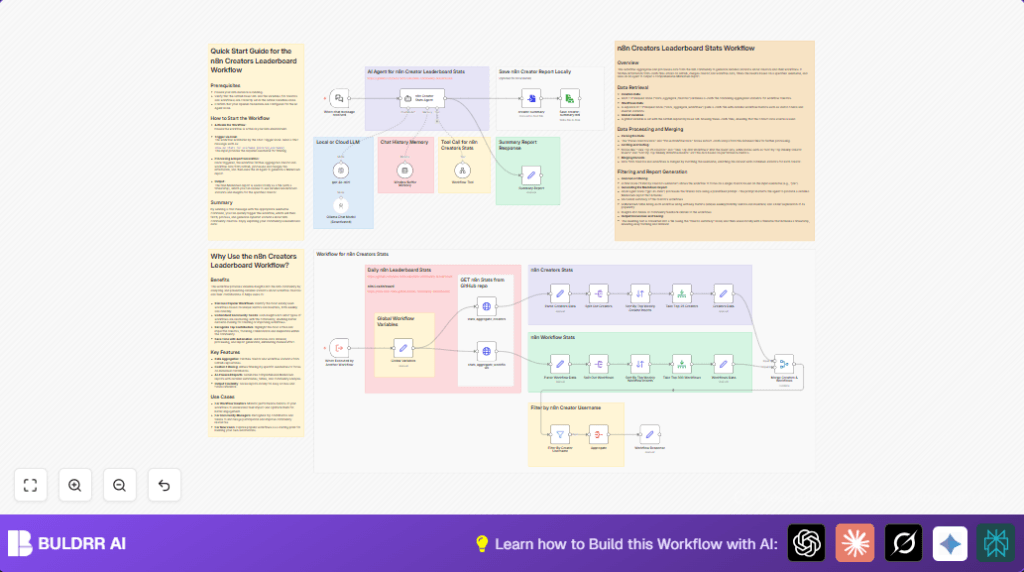
Struggling to analyze n8n community creator and workflow popularity data manually? This workflow automatically fetches community stats from GitHub, merges creator and workflow info, and uses an AI agent to generate insightful Markdown reports for any creator.
httpRequest
lmChatOpenAi
set
+12
Workflow Identifier: 2003
NODES in Use: HTTP Request, Set, Limit, Aggregate, Filter, AI Chat OpenAI, Execute Workflow Trigger, Chat Trigger, Convert To File, Read Write File, Merge, Split Out, Sort, AI Agent, Memory Buffer Window

Press CTRL+F5 if the workflow didn't load.

Learn how to Build this Workflow with AI:

Visit through Desktop for Best experience

Opening Problem Statement

Meet Joe, an active n8n workflow creator and community manager. Joe spends countless hours manually tracking the popularity of different workflow creators in the n8n community. He scrapes data from various GitHub repositories, merges details about creators and their workflows, sorts through hundreds of records, and then tries to summarize insights to present to his community. This tedious process is prone to errors, consumes an enormous amount of his time each week, and delays sharing valuable stats that could inspire new workflows or recognize top contributors.

Joe’s pain is real and specific: sorting through thousands of lines of JSON data manually takes over 4 hours weekly, often leading to incorrect or outdated reports. He wants a way to automatically gather, analyze, and generate detailed reports on the top community workflow creators without any manual intervention.

What This Automation Does 🔧

This n8n workflow, designed for the n8n creators leaderboard community, automates exactly Joe’s challenge by:

  • Fetching aggregated workflow creator and workflow statistics JSON files from a GitHub repository.
  • Parsing and splitting the creator and workflow data for detailed individual analysis.
  • Sorting creators and workflows by popularity metrics such as unique weekly and monthly inserters and visitors.
  • Merging creator and workflow data to enrich insights about each contributor.
  • Filtering results by a specific username input (e.g., Joe’s username) to generate personalized stats.
  • Using an AI agent (GPT-4o Mini) to generate a comprehensive Markdown report summarizing the creator’s workflows, usage trends, and community impact.
  • Converting the summary into a Markdown file and saving it locally with a timestamp for easy future reference.

Thanks to this automation, what took Joe 4+ hours manually now executes in minutes. He gets accurate, detailed reports with insightful analysis automatically, saving time and improving community engagement.

Prerequisites ⚙️

  • n8n automation platform account (self-hosting optional https://buldrr.com/hostinger)
  • GitHub repository access (the workflow pulls JSON stats files from this public repo)
  • OpenAI account and API credentials (for GPT-4o Mini AI agent node)

Step-by-Step Guide ✏️

1. Set Global Variables to Define Data Source URLs

First, locate the “Global Variables” node. Here, you’ll set the base URL for the GitHub repository containing the creator and workflow stats JSON files. Variables include path, workflows-filename, and creators-filename. For example:

https://raw.githubusercontent.com/teds-tech-talks/n8n-community-leaderboard/refs/heads/main/

You should see a list of variables properly assigned. This ensures subsequent HTTP request nodes pull data from the correct source.

Common mistake: Forgetting the trailing slash at the end of the URL, which leads to malformed URLs during HTTP requests.

2. Pull Creator and Workflow Data via HTTP Requests

Check the two HTTP Request nodes named “stats_aggregate_creators” and “stats_aggregate_workflows”. These nodes fetch JSON files from GitHub URLs constructed from the global variables.
Make sure the URL expression
= $json.path + $json['creators-filename'] + '.json' is correctly set.
Trigger the workflow manually or via chat input to test these nodes. You should see the raw JSON data output which contains aggregated stats.

Common mistake: API request failure due to invalid URL or network issues.

3. Parse and Split the Retrieved JSON Data

Next, the “Parse Creators Data” and “Parse Workflow Data” nodes take the JSON responses and set the data arrays for further processing.
Then, use “Split Out Creators” and “Split Out Workflows” nodes to emit individual records for sorting and filtering.

Visual: You’ll see individual creator and workflow objects passing through these nodes.

4. Sort and Limit the Data by Popularity Metrics

Use the “Sort By Top Weekly Creator Inserts” and “Sort By Top Weekly Workflow Inserts” nodes to arrange records descending by usage metrics.
The “Take Top 25 Creators” and “Take Top 300 Workflows” nodes limit the result sets to the most relevant entries.

Expected: Lists trimmed to the top creators and workflows ready for merging.

5. Merge Creator and Workflow Data by Username

The “Merge Creators & Workflows” node combines data for the same username, enriching the dataset with workflow details linked to each creator.

Common mistake: Incorrect join field leading to mismatched or missing merged entries.

6. Filter the Merged Data for a Specific Creator Username

A “Filter By Creator Username” node filters input based on the username provided (e.g., Joe’s username). This focuses the workflow on one creator’s statistics.

7. Aggregate Filtered Results for Final Reporting

The “Aggregate” node collects all filtered data into one output object for clear, concise reporting.

8. Generate a Detailed Markdown Report Using the AI Agent

The powerful “gpt-4o-mini” node integrates OpenAI’s GPT-4o Mini model.
It receives input text and system instructions to create a detailed Markdown report that covers workflow summaries, a table of popular workflows, community trends, and additional insights about the creator’s impact.
Here is an example prompt snippet from the node:

You are tasked with generating a comprehensive Markdown report about a specific n8n community workflow contributor using the provided tools...

Tip: Keep the temperature low (0.1) for factual responses.

9. Convert AI Output to Text File and Save Locally

The “creator-summary” node converts the AI-generated Markdown to a text file.
The “Save creator-summary.md” node writes this file to your local computer with a timestamped filename such as creator-summary-2024-06-15-02-30-00.md.

Ensure write permissions exist on your target save directory.

10. Trigger the Workflow via Chat or Execution Node

Use the “When chat message received” webhook node to start the workflow by sending messages like:
show me stats for username joe
Alternatively, use the “When Executed by Another Workflow” trigger with input JSON providing a username to start processing.

Customizations ✏️

  • Change Data Source URLs: Modify the “Global Variables” node’s path and filename variables to point to a different GitHub repo or JSON data source to analyze stats from another n8n community fork.
  • Adjust Top Creators and Workflows Limits: In the “Take Top 25 Creators” and “Take Top 300 Workflows” nodes, change their maxItems settings to show more or fewer records.
  • Use a Different AI Model: Replace the “gpt-4o-mini” node with another OpenAI model or enable the disabled “Ollama Chat Model” node to experiment with local LLMs.
  • Save Reports to Cloud Storage: Instead of local save, add Google Drive or Dropbox node to upload reports to cloud storage automatically.
  • Modify Report Format: Tweak the AI agent system prompt to change the report style or include additional metrics or charts.

Troubleshooting 🔧

Problem: HTTP Request Failures

Cause: Incorrect URL or no internet connection.

Solution: Verify the URL syntax in the “Global Variables” node and test network connectivity.

Problem: Merge Node Returns Empty Data

Cause: Mismatched username fields during merge, or case sensitivity issues.

Solution: Double-check the exact field names of usernames and ensure the “Merge” node joinMode is set to “enrichInput1” with correct match field “username”.

Problem: AI Agent Generates Incomplete Report

Cause: Low quality or insufficient input data from filter or aggregation steps.

Solution: Test with known good usernames with available data to ensure complete input is passed to the AI node.

Pre-Production Checklist ✅

  • Verify GitHub URLs in “Global Variables” node point to accessible JSON files.
  • Test OpenAI credentials by running the “gpt-4o-mini” node standalone with sample prompts.
  • Trigger the workflow for a test username and confirm correct data is fetched, merged, and reported.
  • Ensure local file system permissions for saving Markdown reports are set correctly.

Deployment Guide

Activate this workflow in your n8n dashboard and keep it enabled. The workflow can be triggered via chat messages or executed by other workflows through JSON input.
Monitor runtime execution and logs within n8n for any errors. Adjust retry settings for HTTP nodes if needed to handle GitHub API rate limits.
Since reports are saved locally, plan a folder backup strategy if these reports are critical.

FAQs

Q: Can I use a different AI model than GPT-4o Mini?

A: Yes, you can swap out the current OpenAI model node for other models like GPT-3.5 or enable local LLMs such as Ollama provided you adjust their configuration.

Q: Will this workflow consume OpenAI API credits?

A: Yes, every AI agent call counts towards your OpenAI usage. Be mindful of your credits and API rate limits.

Q: Is my data secure in this workflow?

A: Yes, the workflow only processes public community data from GitHub and only sends filtered info to OpenAI for report generation. No personal secrets are exposed.

Conclusion

By following this guide, you’ve built an automated system that intelligently retrieves, analyzes, and reports on n8n community workflow creators’ statistics. This automation saves hours of manual labor weekly and provides actionable insights to help community managers, workflow creators, and enthusiasts understand usage trends and top contributors better.

Next, consider expanding this workflow to include notifications when creators hit new milestones, or aggregate insights on specific workflow categories. You could also automate publishing these reports to Slack or email newsletters for wider community engagement.

Enjoy leveraging AI and n8n’s powerful automation capabilities to deepen your community insights with ease!

Promoted by BULDRR AI

Related Workflows

Automate Viral UGC Video Creation Using n8n + Degaus (Beginner-Friendly Guide)

Learn how to automate viral UGC video creation using n8n, AI prompts, and Degaus. This beginner-friendly guide shows how to import, configure, and run the workflow without technical complexity.
Form Trigger
Google Sheets
Gmail
+37
Free

AI SEO Blog Writer Automation in n8n

A complete beginner guide to building an AI-powered SEO blog writer automation using n8n.
AI Agent
Google Sheets
httpRequest
+5
Free

Automate CrowdStrike Alerts with VirusTotal, Jira & Slack

This workflow automates processing of CrowdStrike detections by enriching threat data via VirusTotal, creating Jira tickets for incident tracking, and notifying teams on Slack for quick response. Save hours daily by transforming complex threat data into actionable alerts effortlessly.
scheduleTrigger
httpRequest
jira
+5
Free

Automate Telegram Invoices to Notion with AI Summaries & Reports

Save hours on financial tracking by automating invoice extraction from Telegram photos to Notion using Google Gemini AI. This workflow extracts data, records transactions, and generates detailed spending reports with charts sent on schedule via Telegram.
lmChatGoogleGemini
telegramTrigger
notion
+9
Free

Automate Email Replies with n8n and AI-Powered Summarization

Save hours managing your inbox with this n8n workflow that uses IMAP email triggers, AI summarization, and vector search to draft concise replies requiring minimal review. Automate business email processing efficiently with AI guidance and Gmail integration.
emailReadImap
vectorStoreQdrant
emailSend
+12
Free

Automate Email Campaigns Using n8n with Gmail & Google Sheets

This n8n workflow automates personalized email outreach campaigns by integrating Gmail and Google Sheets, saving hours of manual follow-up work and reducing errors in email sequences. It ensures timely follow-ups based on previous email interactions, optimizing communication efficiency.
googleSheets
gmail
code
+5
Free