

Monitor Palo Alto Security Advisories with n8n Automation

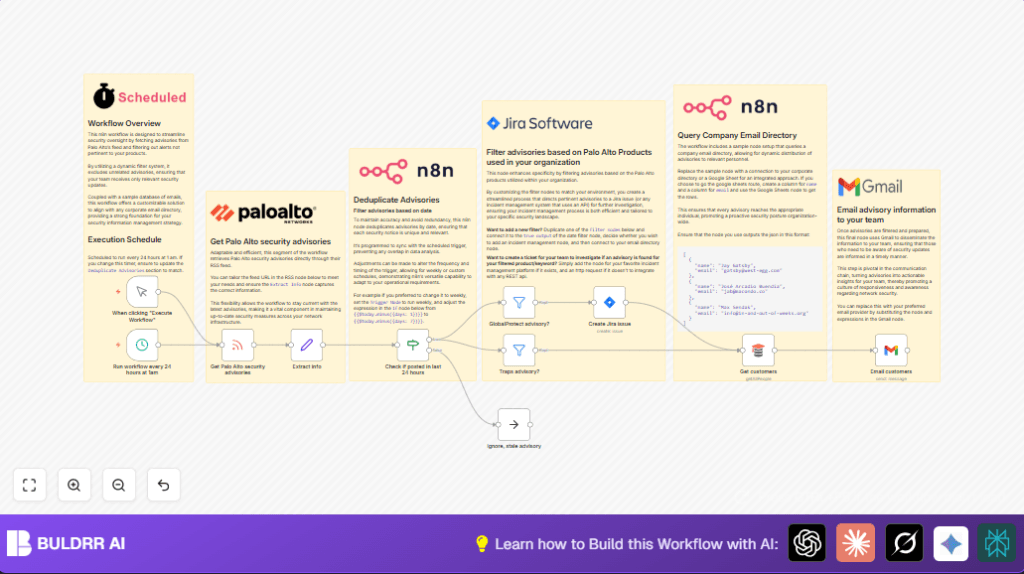
This workflow automates monitoring of Palo Alto security advisories relevant to your products, filtering out unrelated alerts and creating Jira issues automatically. It saves security teams hours daily by ensuring timely, targeted incident tracking and customer notifications.
manualTrigger
rssFeedRead
jira
+8
Workflow Identifier: 1975
NODES in Use: Manual Trigger, RSS Feed Read, Set, If, Filter, Jira, n8nTrainingCustomerDatastore, Gmail, NoOp, Schedule Trigger, Sticky Note

Press CTRL+F5 if the workflow didn't load.

Learn how to Build this Workflow with AI:

Visit through Desktop for Best experience

Opening Problem Statement

Meet Nathan, a security operations analyst responsible for keeping his organization safe from emerging cyber threats. Every day, Nathan must sift through numerous security advisories from various vendors, like Palo Alto Networks, to identify risks that impact his company’s specific products. This manual process is tedious and prone to missed critical alerts, causing delays in mitigation that could lead to costly breaches or downtime. Manually notifying stakeholders and creating incident tickets adds even more overhead, consuming hours that could be better spent on strategic security tasks.

Nathan especially struggles with filtering out irrelevant advisories from Palo Alto’s extensive RSS feed, which includes notices about products his team doesn’t use. Without automation, he spends roughly two hours daily reviewing advisories and creating Jira issues for relevant ones, leading to inefficient incident response and increased risk exposure.

What This Automation Does

Using n8n, this workflow automates Nathan’s process to:

  • Automatically retrieve the latest security advisories from Palo Alto Networks’ official RSS feed every 24 hours at 1 AM.
  • Extract and parse critical advisory details like type, subject, severity, publication date, and link.
  • Filter advisories to only include those relevant to specific Palo Alto products used internally, such as GlobalProtect and Traps.
  • Deduplicate advisories based on date to avoid redundant notifications and issue creations.
  • Create Jira issues automatically for filtered advisories, including rich details like severity and links for incident tracking.
  • Fetch a dynamic customer email list from an internal or customizable directory for targeted advisory communication.
  • Email customers personalized notifications about the relevant security advisories in a simple, clear format via Gmail.

This workflow saves Nathan approximately two hours daily, reduces missed alerts, and ensures timely response coordination with his team and customers.

Prerequisites ⚙️

  • n8n account to build and run the workflow.
  • Gmail account (OAuth2) configured for sending advisory emails.
  • Jira Software Cloud account with API access for issue creation.
  • Access to Palo Alto Networks security advisories RSS feed (https://security.paloaltonetworks.com/rss.xml).
  • Access to a customer email directory or a database node compatible with n8n (e.g., n8nTrainingCustomerDatastore or Google Sheets with name and email columns).
  • Optional but recommended: If self-hosting n8n, Hostinger offers reliable hosting solutions.

Step-by-Step Guide to Setting Up This Workflow

1. Triggering the workflow

Navigate to the n8n editor, drag the Manual Trigger node onto the canvas. This allows you to execute the workflow on demand during setup.

Alternatively, add the Schedule Trigger node and configure it to run every 24 hours at 1 AM by setting “Trigger At Hour” to 1. This automation ensures daily checks of new advisories.

Expected outcome: Scheduled or manual execution triggers fetching of advisories.

Common mistake: Forgetting to activate the schedule node or save credentials before running.

2. Fetch Palo Alto security advisories

Add the RSS Feed Read node and configure the URL to https://security.paloaltonetworks.com/rss.xml. This node fetches the latest advisories.

You should see: The output will contain multiple advisory items each with fields like title, link, and pubDate.

Common mistake: Mistyping the feed URL or leaving options blank can result in empty data.

3. Extract advisory information

Insert a Set node named “Extract info” to parse fields from the advisory titles.

Use JavaScript expressions to extract type, subject, and severity:

type: {{$json.title.match(/[^ ]* ([^:]*):/)[1].trim()}}
subject: {{$json.title.match(/[^ ]* [^:]*: (.*)(?=(Severity:)/)[1].trim()}}
severity: {{$json.title.split('Severity:')[1].replaceAll(')', '').trim().toLowerCase().toTitleCase()}}

Explanation: The code uses regex and string splitting to extract meaningful advisory details from the title field.

Expected outcome: JSON output enriched with easy-to-reference advisory details.

Common mistake: Incorrect syntax or missing parentheses lead to extraction errors.

4. Deduplicate advisories based on date

Add an If node named “Check if posted in last 24 hours”.

Configure it with a dateTime condition where $json.pubDate is greater than {{$today.minus({days:1})}}. This ensures only fresh advisories are processed.

Expected outcome: Advisories older than 24 hours are ignored.

Common mistake: Mismatching date formats or timezone differences can cause filtration failures.

5. Filter advisories by product relevance

Add two Filter nodes named “GlobalProtect advisory?” and “Traps advisory?” each checking if the title contains the product name using the string “contains” operation.

Connect the true outputs to action nodes, and false outputs can lead to a No Operation (NoOp) node or be discarded.

Expected outcome: Only advisories mentioning these specific products proceed.

Common mistake: Forgetting to handle false output leads to workflow halts.

6. Create a Jira issue for relevant advisories

Use the Jira node, authenticate with your Jira Software Cloud credentials.

Set the issue “summary” to substring of the advisory title, and fill description with parsed severity, link, and publication date.

Example summary template:

{{$json.title.substring(14)}}

Example description template:

Severity: {{$json.title.split('(Severity:')[1].replace(')', '').trim()}}
Link: {{$json.link}}
Published: {{$json.pubDate}}

Expected outcome: A detailed Jira issue is created for security team tracking.

Common mistake: Missing required Jira project or issue type leads to API errors.

7. Retrieve customers to notify

Add the n8nTrainingCustomerDatastore node to retrieve all customers dynamically.

This node can be replaced by a Google Sheets node or any directory providing JSON with name and email fields.

Expected outcome: A list of customers loaded for email notifications.

Common mistake: Output format mismatches causing failures in the next email step.

8. Email customers using Gmail

Add the Gmail node using OAuth2 credentials.

Set “Send To” to {{$json.email}} so each customer receives a personalized email.

Message template example:

Dear {{$json.name.split(' ')[0]}},

We wanted to let you know of a new security advisory:

{{$('GlobalProtect advisory?').item.json.title}}
{{$('GlobalProtect advisory?').item.json.link}}

Regards,

Nathan

Expected outcome: Customers get timely advisory notifications enhancing security awareness.

Common mistake: Forgotten Gmail OAuth2 setup or email field mismatches may cause sending failures.

Customizations ✏️

  • Add new product filters: Duplicate an existing Filter node, rename it for a new Palo Alto product, e.g., “Cortex advisory?”, and adjust the condition to match the new product keyword.
  • Change notification channel: Replace the Gmail node with a Slack or Microsoft Teams node to notify your team in chat instead of email.
  • Modify frequency: Adjust the Schedule Trigger node to run weekly or multiple times daily, and update the “Check if posted in last 24 hours” node to match the new interval.
  • Use custom customer directory: Swap the n8nTrainingCustomerDatastore with a Google Sheets node connected to your corporate email list for seamless integration.
  • Expand Jira issue details: Include additional advisory metadata in the Jira description by modifying the expressions in the Create Jira issue node.

Troubleshooting 🔧

Problem: “No new advisories processed or Jira issues created”

Cause: The date filter condition is incorrect or feed URL is unreachable.

Solution: Verify the RSS feed URL is correct and live. Confirm the If node compares pubDate properly using correct date formats and time zone.

Problem: “Emails not sent to customers”

Cause: Gmail OAuth2 credentials missing or improperly configured.

Solution: Re-authenticate Gmail OAuth2 in the Gmail node settings. Ensure field mappings for email and message are correct.

Problem: “Jira API errors on issue creation”

Cause: Missing required Jira project or issue type fields.

Solution: Double-check the Jira node’s project ID and issue type, ensure Jira API permissions are valid, and test with sample data.

Pre-Production Checklist ✅

  • Test the RSS Feed Read node to confirm new advisories are fetched.
  • Validate extraction expressions in the Set node parse titles correctly.
  • Run the If node logic with test advisories to confirm date filtering.
  • Test filter nodes by simulating advisory titles containing your product keywords.
  • Verify Jira node creates test issues successfully.
  • Ensure customer data loads correctly in the datastore or sheet node.
  • Send a test email to confirm Gmail node sends messages properly.
  • Backup workflow and credentials before deployment for rollback purposes.

Deployment Guide

Once tested, activate the Schedule Trigger and save the workflow.

Monitor webhook executions and logs via the n8n dashboard to ensure smooth operation.

Set alerts or monitoring on Jira and Gmail API usage to avoid hitting limits.

Periodically review and update product filters to keep pace with your evolving security environment.

FAQs

Q: Can I use Microsoft Outlook instead of Gmail?
A: Yes, replace the Gmail node with the Outlook node and configure OAuth credentials accordingly.

Q: Does this workflow consume a lot of API credits?
A: No, it only fetches a daily RSS feed and creates issues/emails as relevant, which are minimal API calls.

Q: Is my data secure using this workflow?
A: Yes, n8n runs on your infrastructure or trusted hosting, and OAuth credentials are stored securely within n8n.

Conclusion

By implementing this tailored n8n workflow, Nathan significantly reduces the manual effort of monitoring Palo Alto security advisories, ensuring timely action on critical alerts related to his organization’s products. This automation not only saves labor hours but improves security incident response, minimizing risk exposure. Next, consider expanding this workflow to integrate other vendor advisories, add multi-channel notifications, or incorporate automated remediation triggers to further strengthen your security operations.

With this foundation, you’re empowered to keep your network safer and your team better informed—without the overwhelm.

Promoted by BULDRR AI

Related Workflows

Automate Viral UGC Video Creation Using n8n + Degaus (Beginner-Friendly Guide)

Learn how to automate viral UGC video creation using n8n, AI prompts, and Degaus. This beginner-friendly guide shows how to import, configure, and run the workflow without technical complexity.
Form Trigger
Google Sheets
Gmail
+37
Free

AI SEO Blog Writer Automation in n8n

A complete beginner guide to building an AI-powered SEO blog writer automation using n8n.
AI Agent
Google Sheets
httpRequest
+5
Free

Automate CrowdStrike Alerts with VirusTotal, Jira & Slack

This workflow automates processing of CrowdStrike detections by enriching threat data via VirusTotal, creating Jira tickets for incident tracking, and notifying teams on Slack for quick response. Save hours daily by transforming complex threat data into actionable alerts effortlessly.
scheduleTrigger
httpRequest
jira
+5
Free

Automate Telegram Invoices to Notion with AI Summaries & Reports

Save hours on financial tracking by automating invoice extraction from Telegram photos to Notion using Google Gemini AI. This workflow extracts data, records transactions, and generates detailed spending reports with charts sent on schedule via Telegram.
lmChatGoogleGemini
telegramTrigger
notion
+9
Free

Automate Email Replies with n8n and AI-Powered Summarization

Save hours managing your inbox with this n8n workflow that uses IMAP email triggers, AI summarization, and vector search to draft concise replies requiring minimal review. Automate business email processing efficiently with AI guidance and Gmail integration.
emailReadImap
vectorStoreQdrant
emailSend
+12
Free

Automate Email Campaigns Using n8n with Gmail & Google Sheets

This n8n workflow automates personalized email outreach campaigns by integrating Gmail and Google Sheets, saving hours of manual follow-up work and reducing errors in email sequences. It ensures timely follow-ups based on previous email interactions, optimizing communication efficiency.
googleSheets
gmail
code
+5
Free