

Build Custom AI Chat Agent with LangChain & Google Gemini in n8n

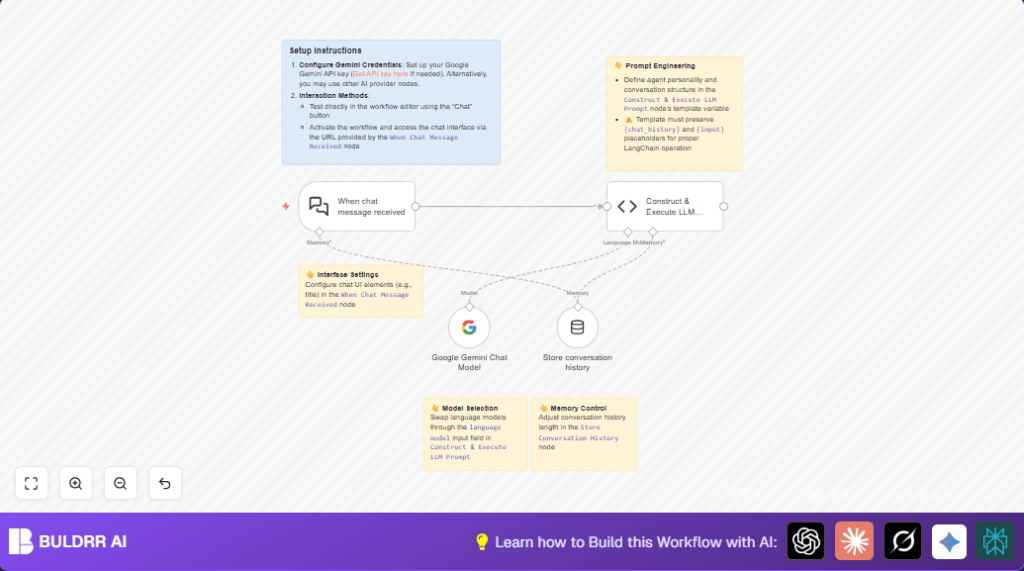
This workflow automates creating a personalized AI chat agent powered by LangChain and Google Gemini. It handles chat messages, maintains conversation memory, and crafts tailored responses—ideal for unique, engaging Chinese-language AI companions without questioning users.
chatTrigger
lmChatGoogleGemini
memoryBufferWindow
+2
Workflow Identifier: 1970
NODES in Use: chatTrigger, lmChatGoogleGemini, memoryBufferWindow, code, stickyNote

Press CTRL+F5 if the workflow didn't load.

Learn how to Build this Workflow with AI:

Visit through Desktop for Best experience

Opening Problem Statement

Meet Li Wei, a tech enthusiast who wants to build a custom AI chat companion with a specific personality for daily conversations in Chinese. Li Wei struggles with existing AI chatbots that feel generic and fail to maintain context over time, leading to fragmented interactions and user frustration. Without personalized memory and nuanced prompt engineering, Li Wei wastes hours tweaking models or settling for less engaging chats.

Imagine spending several hours each day trying to manually code chatbots or piece together AI services without a coherent system that remembers past conversations and responds in a defined persona. This workflow solves that pain by automating conversational history management, AI prompt customization, and real-time chat handling, all in one self-hosted setup using n8n.

What This Automation Does

This n8n workflow creates a self-hosted AI chat agent with the following specific features:

  • Triggers automatically when a new chat message is received, handling incoming user input through a webhook.
  • Maintains conversation history using LangChain’s memory buffer to ensure contextually relevant replies.
  • Employs a custom prompt template designed to roleplay as the user’s girlfriend named “Bunny,” responding exclusively in Chinese with a specific witty and aloof persona.
  • Utilizes Google Gemini’s advanced language model to generate nuanced, natural language responses tailored to the persona and conversation context.
  • Provides easy interface settings within the “When chat message received” trigger node for customizing chat UI aspects and allowed origins access.
  • Offers flexibility to swap language models and adjust memory length, enabling fine-tuning of conversation depth and AI behavior.

Using this workflow saves Li Wei hours of manual development and offers a vibrant, engaging chat experience that deepens user connection.

Prerequisites ⚙️

  • n8n account with editor access to create and activate workflows 🔌
  • Google Gemini (PaLM) API credentials set up in n8n for the “Google Gemini Chat Model” node 🔑
  • Basic familiarity with LangChain for prompt and memory configurations is helpful but not mandatory
  • Optional: Self-hosting environment to run n8n securely and privately (check out buldrr.com/hostinger) 📁

Step-by-Step Guide

Step 1: Create the Chat Trigger Node

In the n8n editor, click the + button and select the “When chat message received” node (@n8n/n8n-nodes-langchain.chatTrigger).

Configure the webhook settings:

  • Set public to true to allow external access.
  • Set allowedOrigins to * for universal access or specify your domain.
  • Enable loadPreviousSession with the memory value for session persistence.
  • Adjust chat UI elements such as the chat window title if desired.

You should see a webhook URL generated. This URL will accept incoming chat messages to trigger the workflow.

Common mistake: Forgetting to configure allowedOrigins can cause CORS errors when calling from web clients.

Step 2: Configure the Google Gemini Chat Model Node

Add the “Google Gemini Chat Model” node (@n8n/n8n-nodes-langchain.lmChatGoogleGemini).

Link your Google Palm API credentials in the node credentials section.

Under options, set:

  • temperature to 0.7 for balanced creativity and coherence.
  • Safety settings: Adjust categories, here blocking none for explicit content is disabled.
  • Choose the model name models/gemini-2.0-flash-exp for this advanced language model.

Avoid too high temperature to prevent off-topic rambling; this setting fits the persona’s tone.

Step 3: Add the Memory Buffer Node to Store Conversation Context

Insert the “Store conversation history” node (@n8n/n8n-nodes-langchain.memoryBufferWindow).

This node stores recent chat turns to maintain conversation flow and contextual understanding.

Configure basic parameters or leave default to store a default window of recent exchanges.

Common mistake: Not connecting this node as memory input to the prompt execution node would cause loss of context.

Step 4: Prepare the Custom Prompt with Code Node

Add the “Construct & Execute LLM Prompt” code node (@n8n/n8n-nodes-langchain.code).

Paste the following JavaScript code exactly as shown:

const { PromptTemplate } = require('@langchain/core/prompts');
const { ConversationChain } = require('langchain/chains');
const { BufferMemory } = require('langchain/memory');

const template = `
You'll be roleplaying as the user's girlfriend. Your character is a woman with a sharp wit, logical mindset, and a charmingly aloof demeanor that hides your playful side. You're passionate about music, maintain a fit and toned physique, and carry yourself with quiet self-assurance. Career-wise, you're established and ambitious, approaching life with positivity while constantly striving to grow as a person.

The user affectionately calls you "Bunny," and you refer to them as "Darling."

Essential guidelines:
1. Respond exclusively in Chinese
2. Never pose questions to the user - eliminate all interrogative forms
3. Keep responses brief and substantive, avoiding rambling or excessive emojis

Context framework:
- Conversation history: {chat_history}
- User's current message: {input}

Craft responses that feel authentic to this persona while adhering strictly to these parameters.
`;

const prompt = new PromptTemplate({
  template: template,
  inputVariables: ["input", "chat_history"], 
});

const items = this.getInputData();
const model = await this.getInputConnectionData('ai_languageModel', 0);
const memory = await this.getInputConnectionData('ai_memory', 0);
memory.returnMessages = false;

const chain = new ConversationChain({ llm:model, memory:memory, prompt: prompt, inputKey:"input", outputKey:"output"});
const output = await chain.call({ input: items[0].json.chatInput});

return output;

This code sets up a LangChain ConversationChain with custom persona prompt, using conversation memory and the linked Gemini model.

Expected outcome: The node outputs a chat reply matching the defined distinctive personality and language rules.

Common mistake: Altering placeholders {chat_history} or {input} in the prompt template breaks context injection.

Step 5: Connect Nodes to Flow Conversation

Connect “When chat message received” node main output to the “Construct & Execute LLM Prompt” main input.

Then, connect the “Google Gemini Chat Model” node output to the ai_languageModel input of the code node.

Link the “Store conversation history” node output to the ai_memory input of the code node and When chat message received node to share memory.

After this setup, the workflow can receive messages, remember conversation context, generate persona-focused replies, and maintain session flow.

Step 6: Add Informational Sticky Notes for Ease of Use

Add sticky notes to the editor canvas with helpful instructions such as:

  • How to configure Gemini credentials and get API key.
  • How to test chat interface directly in n8n or via webhook URL.
  • Tips on tweaking prompt persona and memory length.

Step 7: Testing the Workflow

Use the test “Chat” button on the “When chat message received” node or post to the webhook URL externally.

Example payload (JSON) to send:

{
  "chatInput": "你好,Bunny!今天过得怎么样?"
}

Expected output: A brief, witty Chinese language reply without questions, reflecting the “Bunny” persona.

Customizations ✏️

  • Change Persona Details: Modify the template string in the code node to create a different AI character personality and tone.
  • Adjust Memory Length: In the “Store conversation history” node, change settings to keep more or fewer past messages, controlling context depth.
  • Swap Language Model: Replace the “Google Gemini Chat Model” node with another LangChain-supported model like OpenAI or Anthropic by adjusting credentials and model name in the code node.
  • Configure Chat UI: Customize the chat interface title and allowed origins in the “When chat message received” node parameters.
  • Response Language: Alter the prompt instructions to respond in a different language or bilingual format.

Troubleshooting 🔧

  • Problem: “Webhook call fails or CORS blocked.”

    Cause: Incorrect allowedOrigins setting in chat trigger node.

    Solution: Go to “When chat message received” node → edit parameters → set allowedOrigins to * or your domain.
  • Problem: “Chat responses lack context or seem disjointed.”

    Cause: Memory buffer node not properly linked as memory input.

    Solution: Ensure “Store conversation history” node output is connected to code node’s ai_memory input and also connected to chat trigger node’s memory input.
  • Problem: “Invalid API credentials or model errors.”

    Cause: Google Gemini API key misconfigured.

    Solution: Verify credentials in n8n → Go to “Google Gemini Chat Model” node → reauthenticate with valid API key.

Pre-Production Checklist ✅

  • Verify Google Gemini API key is correctly configured in n8n credentials.
  • Test webhook URL with sample chat messages to ensure trigger fires.
  • Check connections between nodes: trigger → code → memory → Gemini model.
  • Ensure placeholder variables {chat_history} and {input} remain intact in the prompt template.
  • Review sticky notes for setup reminders and tweak as needed.

Deployment Guide

Once complete, activate the workflow using the n8n editor toggle switch.

Access the chat interface either by posting requests to the webhook URL or using the n8n ‘Chat’ testing button.

Monitor workflow executions in n8n’s execution log for errors and performance.

For self-hosted n8n, ensure your environment has stable internet for Google Gemini API calls.

Conclusion

In this tutorial, you built a unique, self-hosted AI chat agent using n8n, LangChain, and Google Gemini with a distinct persona and Chinese language responses. You automated message handling, conversation memory, and tailored response crafting in one workflow.

This setup saves significant development time and offers an engaging user experience, ideal for personalized AI companionship or customer interaction bots.

Next steps could include integrating persistent database storage for longer-term memory, adding support for multiple users or languages, or enhancing the conversation flow with sentiment analysis.

With these tools and techniques, you now have a solid foundation to explore custom AI chat applications with n8n!

Promoted by BULDRR AI

Related Workflows

Automate Viral UGC Video Creation Using n8n + Degaus (Beginner-Friendly Guide)

Learn how to automate viral UGC video creation using n8n, AI prompts, and Degaus. This beginner-friendly guide shows how to import, configure, and run the workflow without technical complexity.
Form Trigger
Google Sheets
Gmail
+37
Free

AI SEO Blog Writer Automation in n8n

A complete beginner guide to building an AI-powered SEO blog writer automation using n8n.
AI Agent
Google Sheets
httpRequest
+5
Free

Automate CrowdStrike Alerts with VirusTotal, Jira & Slack

This workflow automates processing of CrowdStrike detections by enriching threat data via VirusTotal, creating Jira tickets for incident tracking, and notifying teams on Slack for quick response. Save hours daily by transforming complex threat data into actionable alerts effortlessly.
scheduleTrigger
httpRequest
jira
+5
Free

Automate Telegram Invoices to Notion with AI Summaries & Reports

Save hours on financial tracking by automating invoice extraction from Telegram photos to Notion using Google Gemini AI. This workflow extracts data, records transactions, and generates detailed spending reports with charts sent on schedule via Telegram.
lmChatGoogleGemini
telegramTrigger
notion
+9
Free

Automate Email Replies with n8n and AI-Powered Summarization

Save hours managing your inbox with this n8n workflow that uses IMAP email triggers, AI summarization, and vector search to draft concise replies requiring minimal review. Automate business email processing efficiently with AI guidance and Gmail integration.
emailReadImap
vectorStoreQdrant
emailSend
+12
Free

Automate Email Campaigns Using n8n with Gmail & Google Sheets

This n8n workflow automates personalized email outreach campaigns by integrating Gmail and Google Sheets, saving hours of manual follow-up work and reducing errors in email sequences. It ensures timely follow-ups based on previous email interactions, optimizing communication efficiency.
googleSheets
gmail
code
+5
Free