
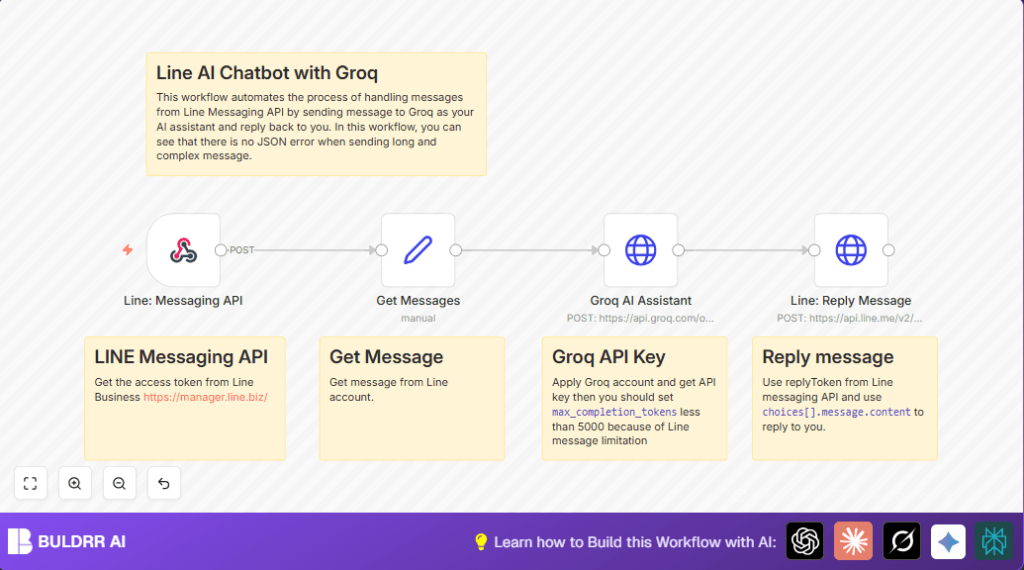

What This Workflow Does
This workflow takes messages sent by users on Line and sends them to a smart AI to get answers.
It fixes issues with long AI replies breaking the chatbot by handling data right.
The workflow sends the AI’s reply back to the user in Line without errors.
This saves you time and gives better replies to customers fast.
Tools and Services Used
- Line Messaging API: Receives and sends messages on Line platform.
- Groq AI API: Uses the Llama-3.3-70b-versatile model to generate replies.
- n8n: Automation platform that connects Line and Groq APIs.
How This Workflow Works: Input → Process → Output
Input
The workflow starts when a user sends a message on Line.
The Webhook node listens for incoming messages using the Line API webhook.
Process
The Set node pulls out the text, user ID, and message ID from the webhook data.
Next, the HTTP Request node calls Groq’s AI endpoint, passing the user’s message to the Llama AI model.
The AI reply is then taken and put into another HTTP Request node that replies back on Line using the correct replyToken.
Output
The user gets a text reply on Line with the AI’s answer.
The reply works without JSON errors, no matter how long or complex the text is.
Who Should Use This Workflow
Anyone running a Line official account who wants to automate customer replies.
Good for small business owners, customer support teams, or marketers needing quick AI answers.
No advanced coding skill is required, only basic understanding of n8n and API keys.
Beginner Step-by-Step: How to Deploy This Workflow in n8n
Step 1: Import the Workflow
- Download the workflow file using the Download button on this page.
- Open the n8n editor.
- Click on the menu and select Import from File.
- Select the downloaded workflow file to import it.
Step 2: Configure Credentials and IDs
- Add your Line Channel Access Token credentials in n8n credentials manager.
- Add your Groq API Key in n8n credentials manager using HTTP Header Auth.
- Check the Webhook node URL matches your Line Developer Console webhook URL.
- Verify IDs, emails, or folder names in each node (like replyToken, userId) are correct if customized.
Step 3: Test and Activate
- Send a test message from Line to trigger the workflow.
- Check n8n execution log to verify that the AI response and Line reply worked.
- Turn the workflow toggle to Active to start live operation.
- If self-hosting n8n, consider reviewing self-host n8n for stable hosting.
Customization Ideas
- Switch AI model by changing the
modelfield in Groq HTTP node JSON body. - Adjust
max_completion_tokensto shorten or lengthen AI replies. - Add a Google Sheets node to log all messages and replies for review.
- Use system messages in AI payload to make replies formal or casual.
- Change Line reply format to send images, buttons, or quick replies instead of plain text.
Common Errors and Fixes
Groq API “401 Unauthorized”
This means the API key is wrong or expired.
Update the HTTP Header Auth credentials in n8n with a valid Groq API Key.
Line API “ReplyToken is invalid”
This error happens if the replyToken is expired or used more than once.
Make sure to use the replyToken only once right after receiving it from the webhook without big delays.
Summary: What You Get
✓ AI answers sent fast to users on Line with no JSON errors.
✓ Saves agents hours by automating replies.
✓ Works well even with long, complex AI messages.
→ A smoother chat experience on Line for customers.
{
  "messages": [
    {
      "role": "user",
      "content": "{{ $json.body.events[0].message.text }}"
    }
  ],
  "model": "llama-3.3-70b-versatile",
  "temperature": 1,
  "max_completion_tokens": 2500,
  "top_p": 1
}
This is the JSON sent to Groq AI. It uses the user message from Line as input.
{
  "replyToken":"{{ $('Line: Messaging API').item.json.body.events[0].replyToken }}",
  "messages":[
    {
      "type":"text",
      "text": {{ JSON.stringify($('Groq AI Assistant').item.json.choices[0].message.content) }}
    }
  ]
}
This is the JSON sent to Line API to reply with AI content using dynamic expressions.
